Driver guide
This guide shows you how to use Mechanico, step by step, from the first launch to picking up your car.
The words in quotes are the words written in the app. Look for them on the screen.
Get started
Install the app
Mechanico works on Android phones. [To confirm: Google Play link]
Use the app without an account
You can look at garages, their services, their photos and their reviews without an account.
The app asks for your number only when you want to:
- send a request or book a service;
- add a car;
- write to a garage;
- save a garage;
- post a review;
- sign up your garage or join a garage team (see the garage guide).
First launch and location
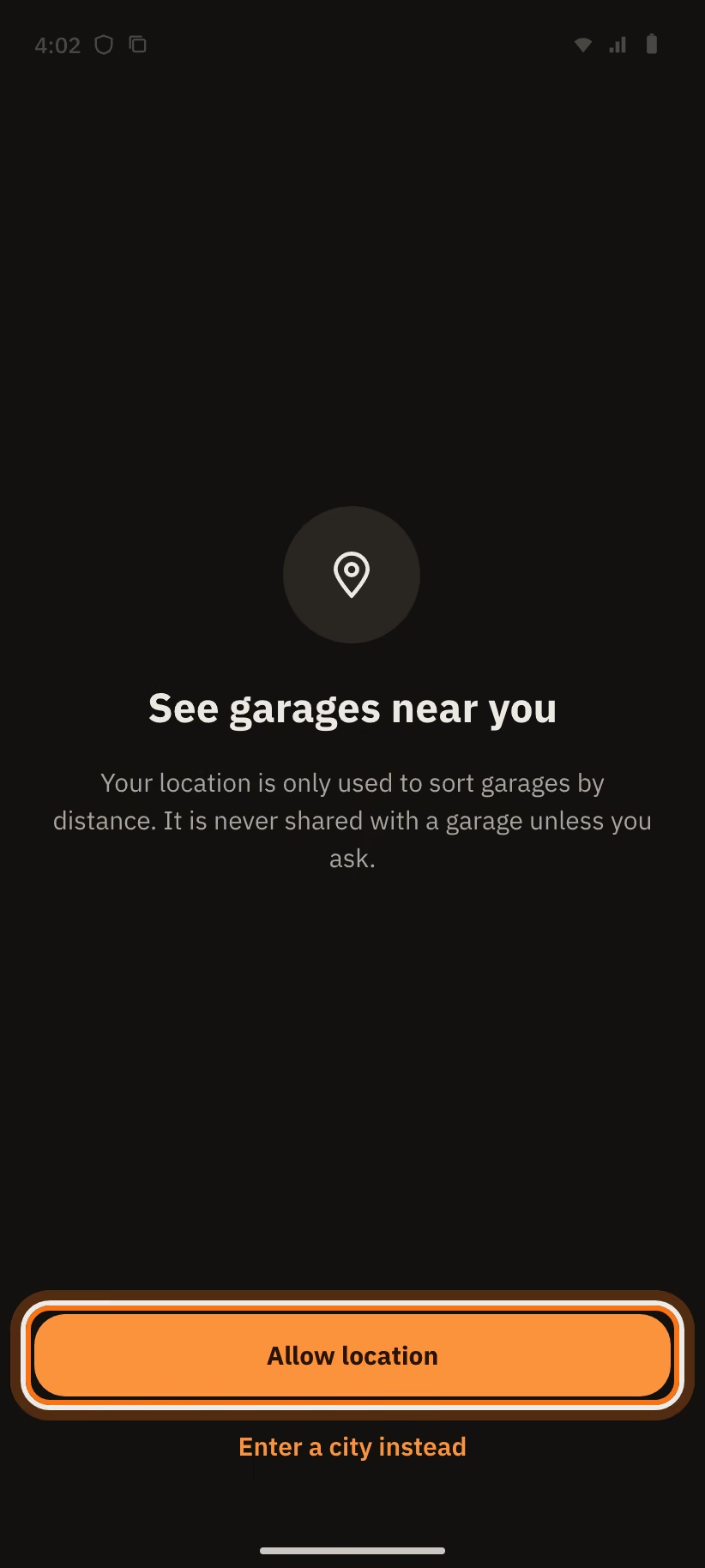
The first time you open the app, it asks for your location.
- Tap "Allow location".
- You prefer not to share it? Tap "Enter a city instead".
Your location is only used to sort garages by distance. The app never shares it with a garage unless you ask.
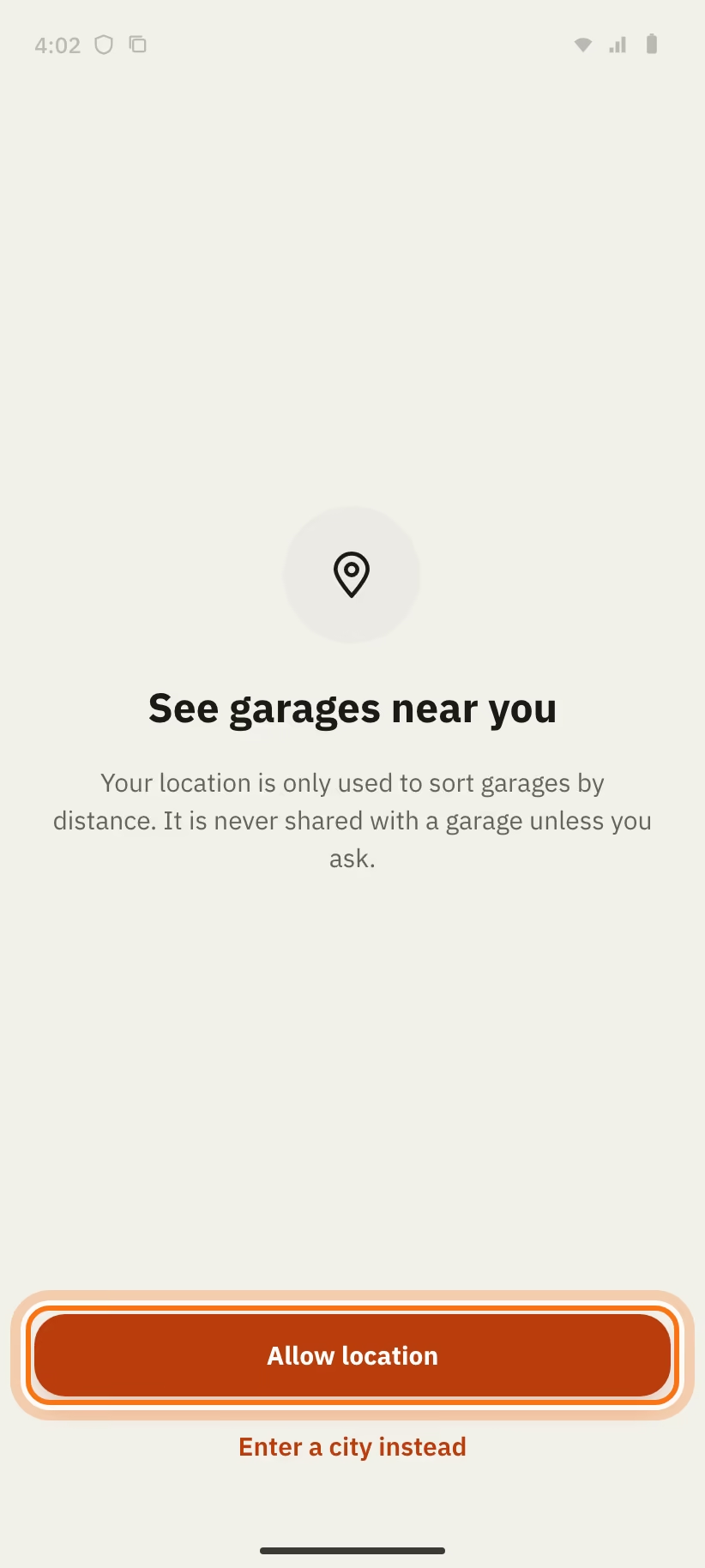
If you refuse, the app shows "Location not allowed". Write your city or area in "City or area", then tap "Search".
If the GPS of your phone is off, the app shows "GPS is off". Tap "Turn on GPS" or "Enter a city".
Sign in with your number
There is no password. Your phone number is enough.
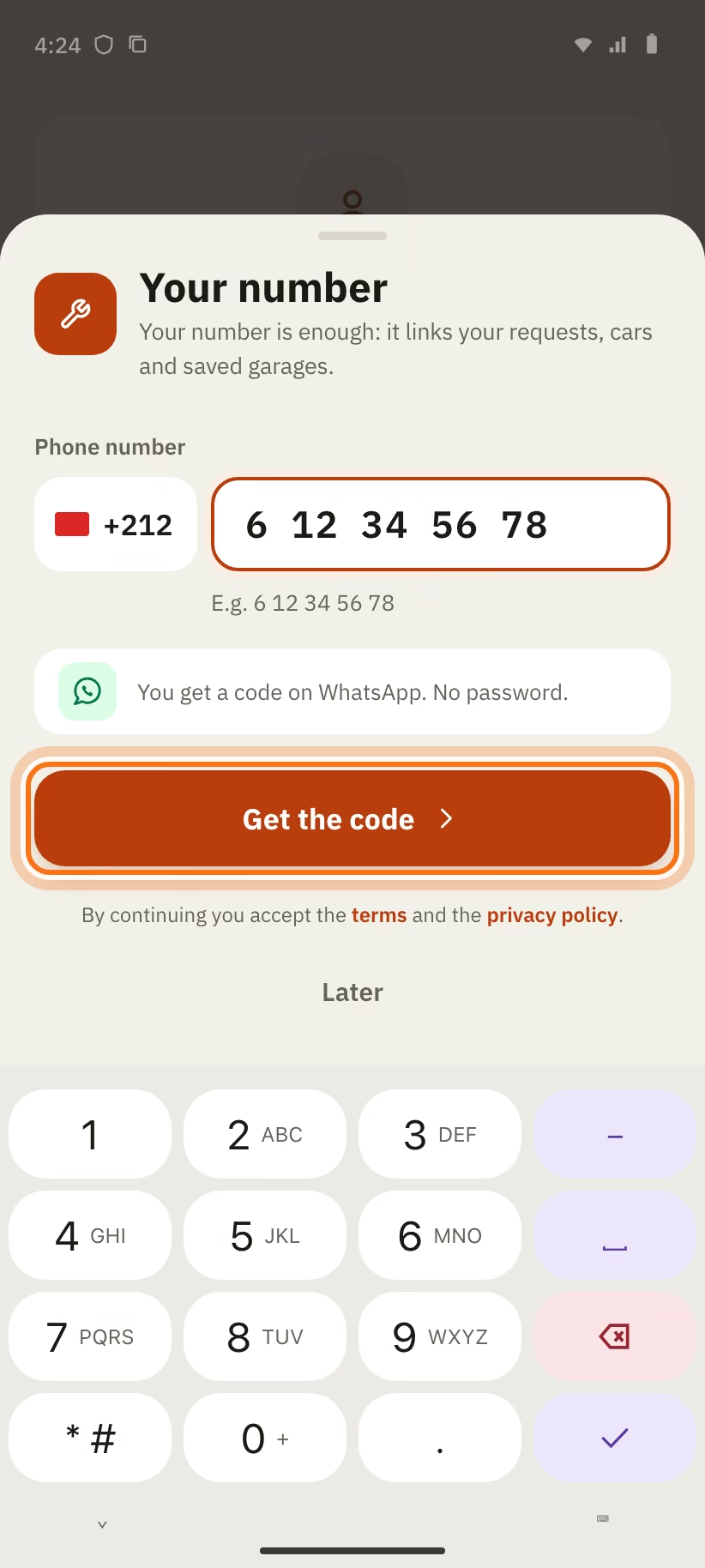
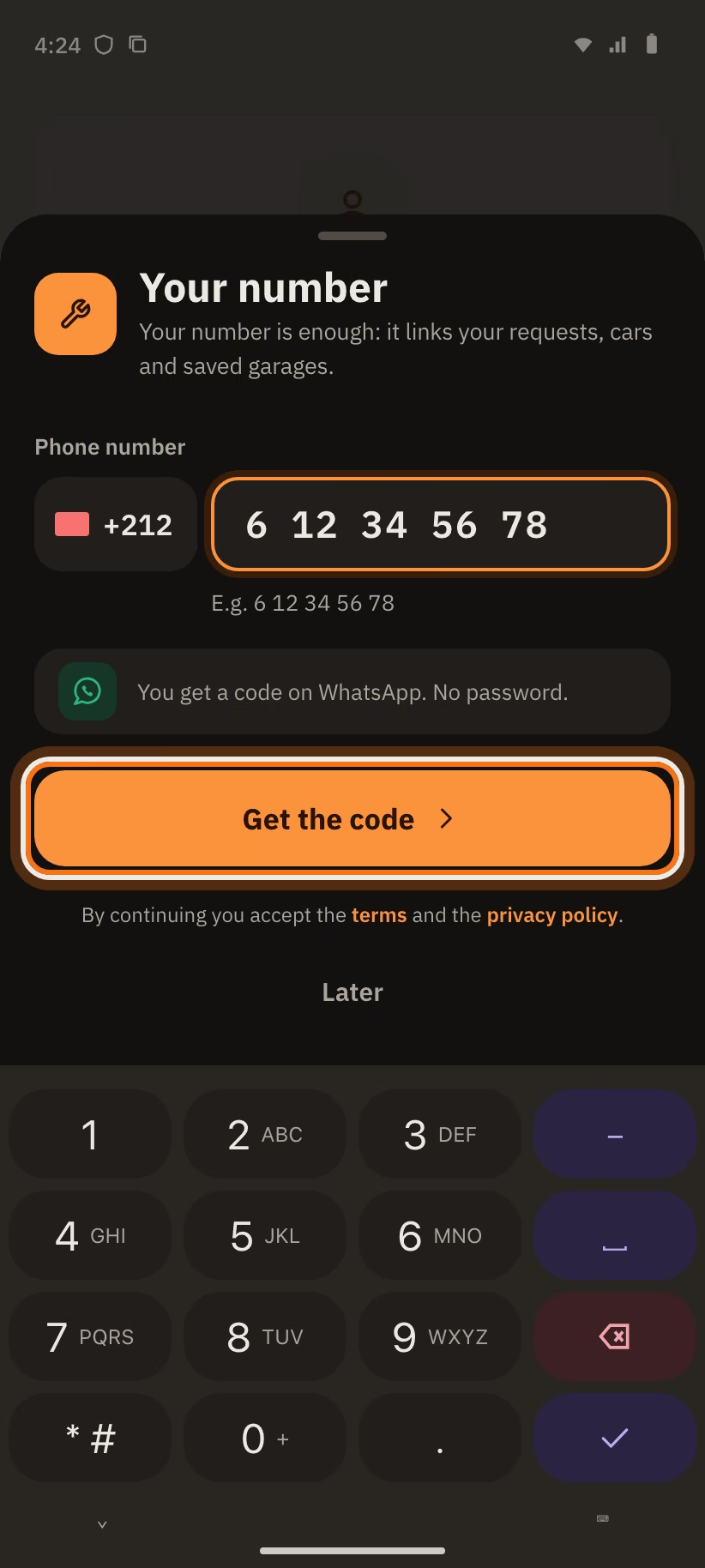
- Enter your Moroccan number: 9 digits, starting with 6 or 7. The +212 is already there.
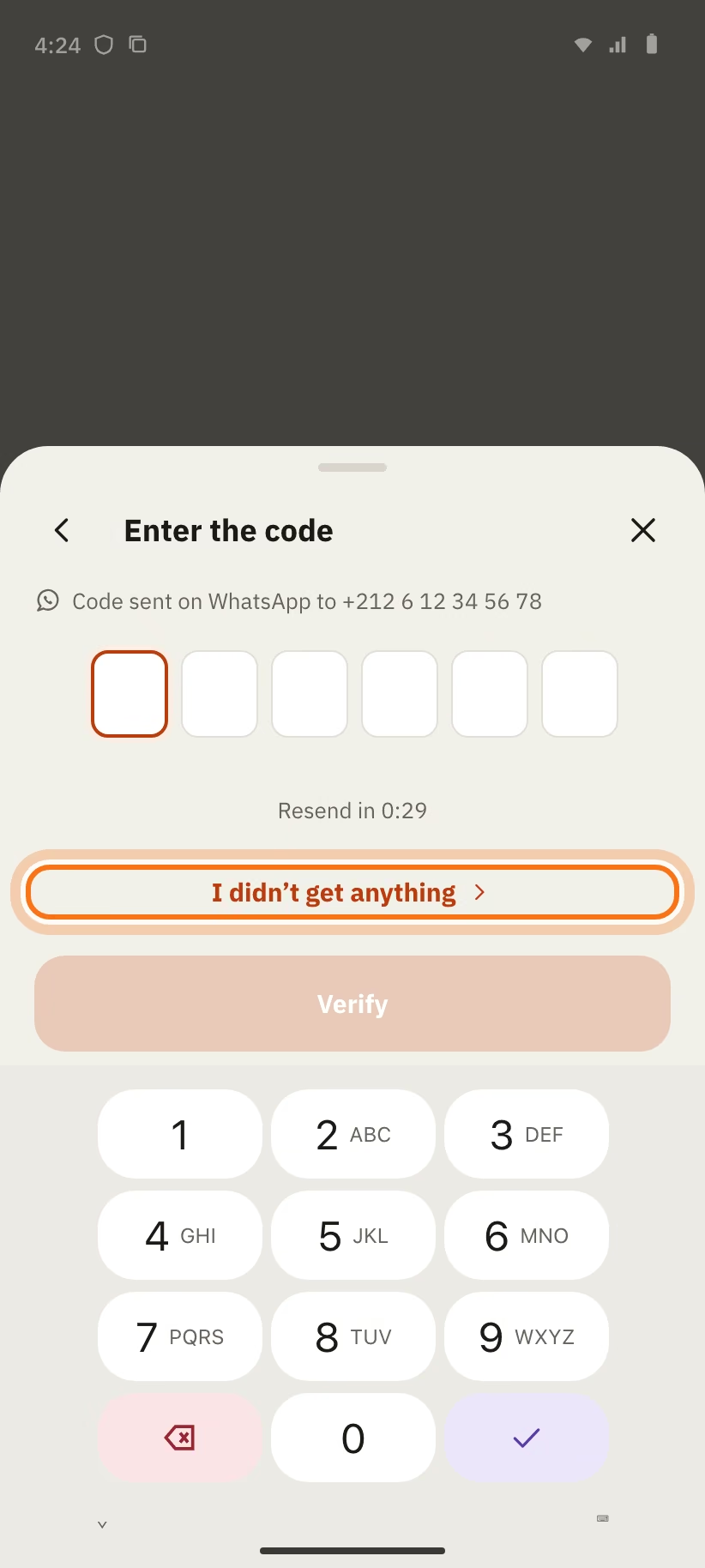
- Tap "Get the code". The code arrives on WhatsApp.
- Enter the 6-digit code.
- Tap "Verify".
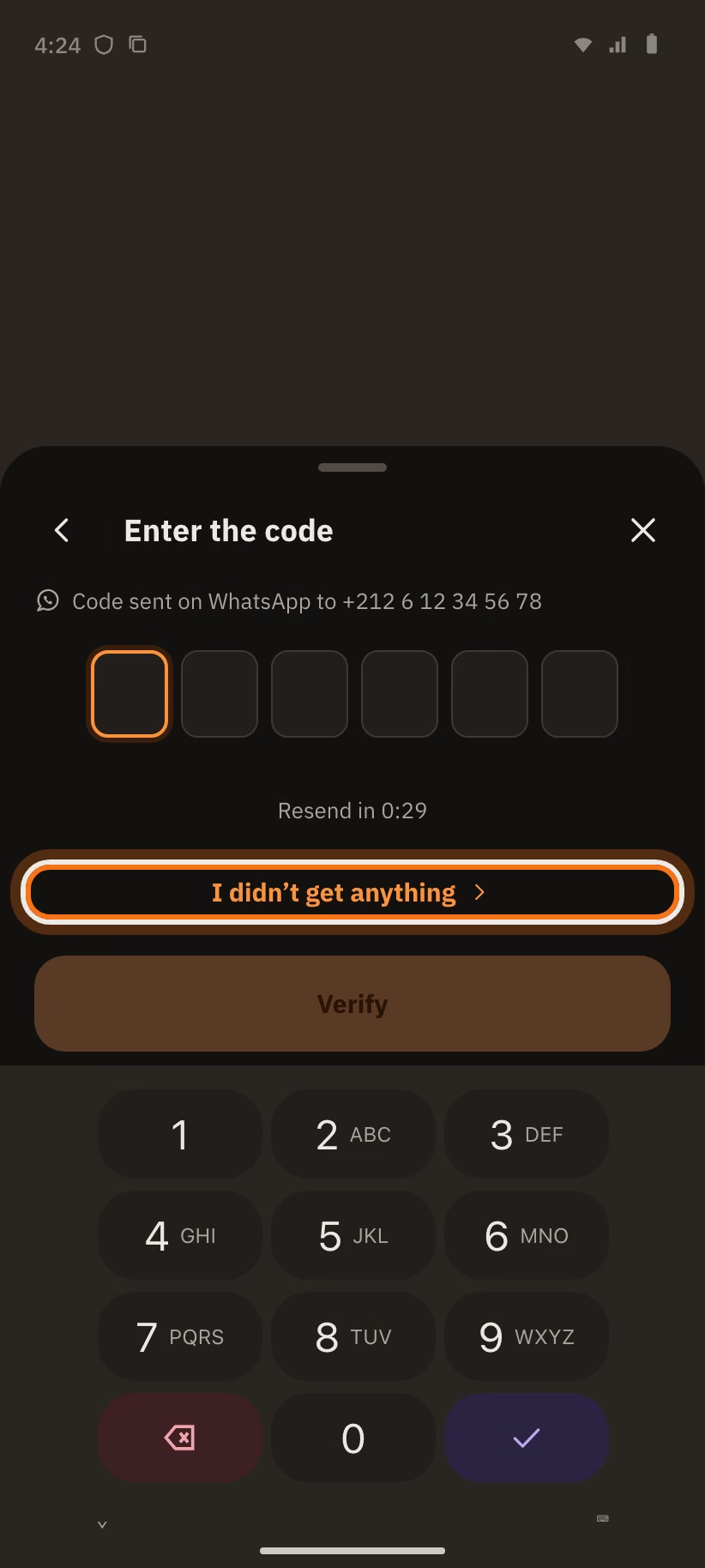
Nothing arrives? Wait for the countdown to end ("Resend in 0:29"), then tap "Resend code". Or tap "I didn’t get anything".
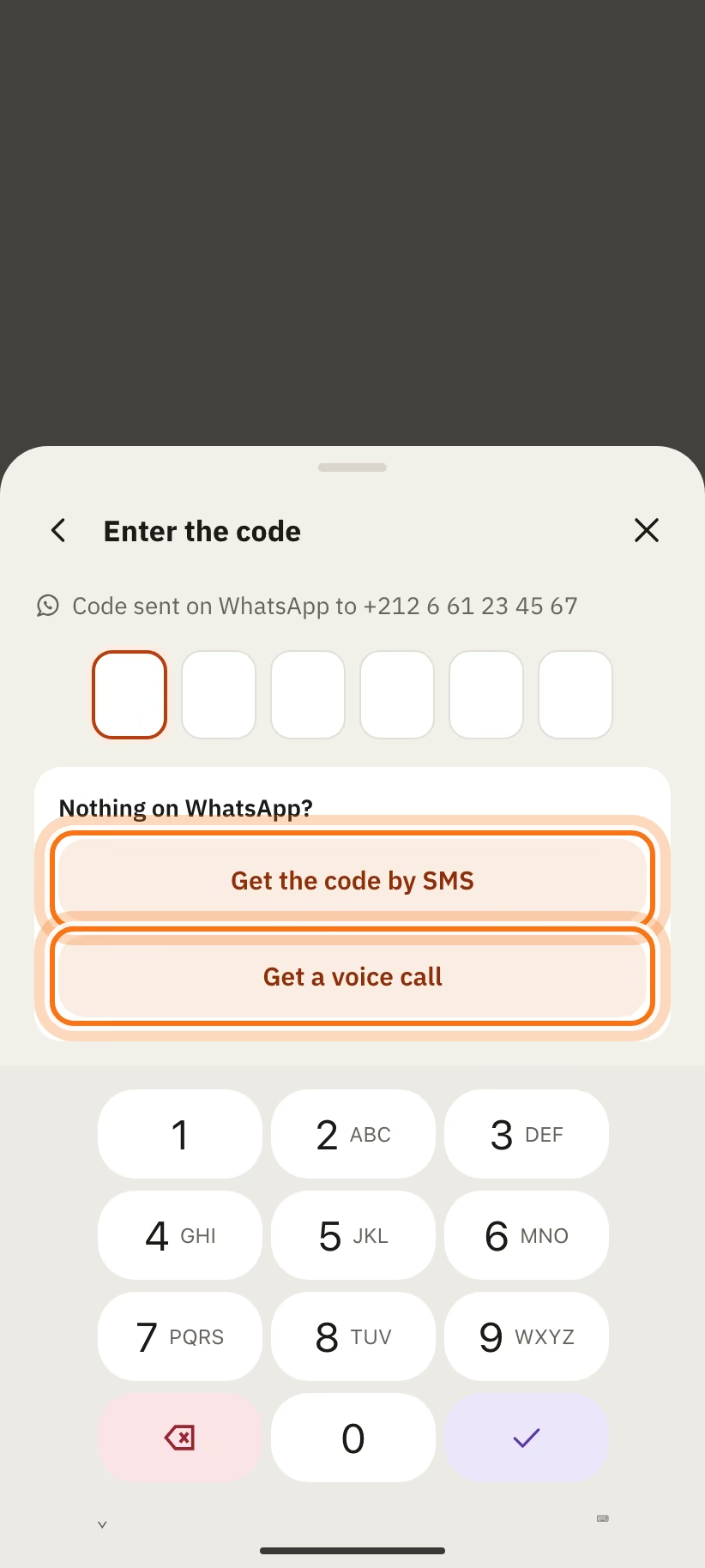
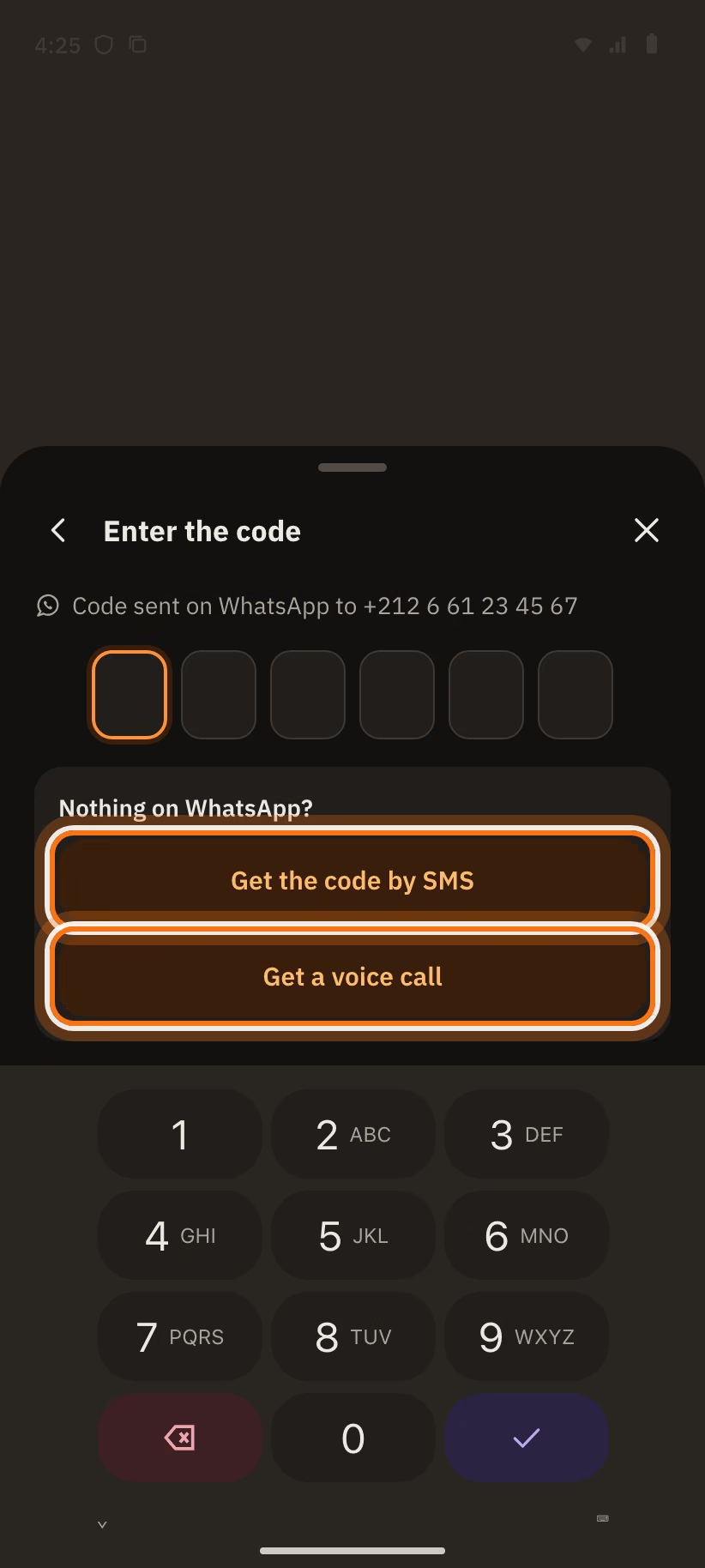
In "Nothing on WhatsApp?", choose another way:
- "Get the code by SMS";
- "Get a voice call".
Good to know:
- The code is valid for 5 minutes.
- You have 3 tries for each code.
- You can ask for 3 codes at most in 10 minutes.
- After 6 wrong codes in 10 minutes, your number is locked for a while. The app writes "Too many tries. Ask for a new code." or "Too many requests. Try again in …".
You deleted your account less than 30 days ago? After the code, the app asks "Restore account?". Tap "Restore".
If you send a request without being signed in, you choose the time first. The app asks for your number after that.
Your first name
The app asks "Your first name". Garages see it on your requests. That is all it asks.
You can skip this step. Add your first name later in "Profile".
Find a garage
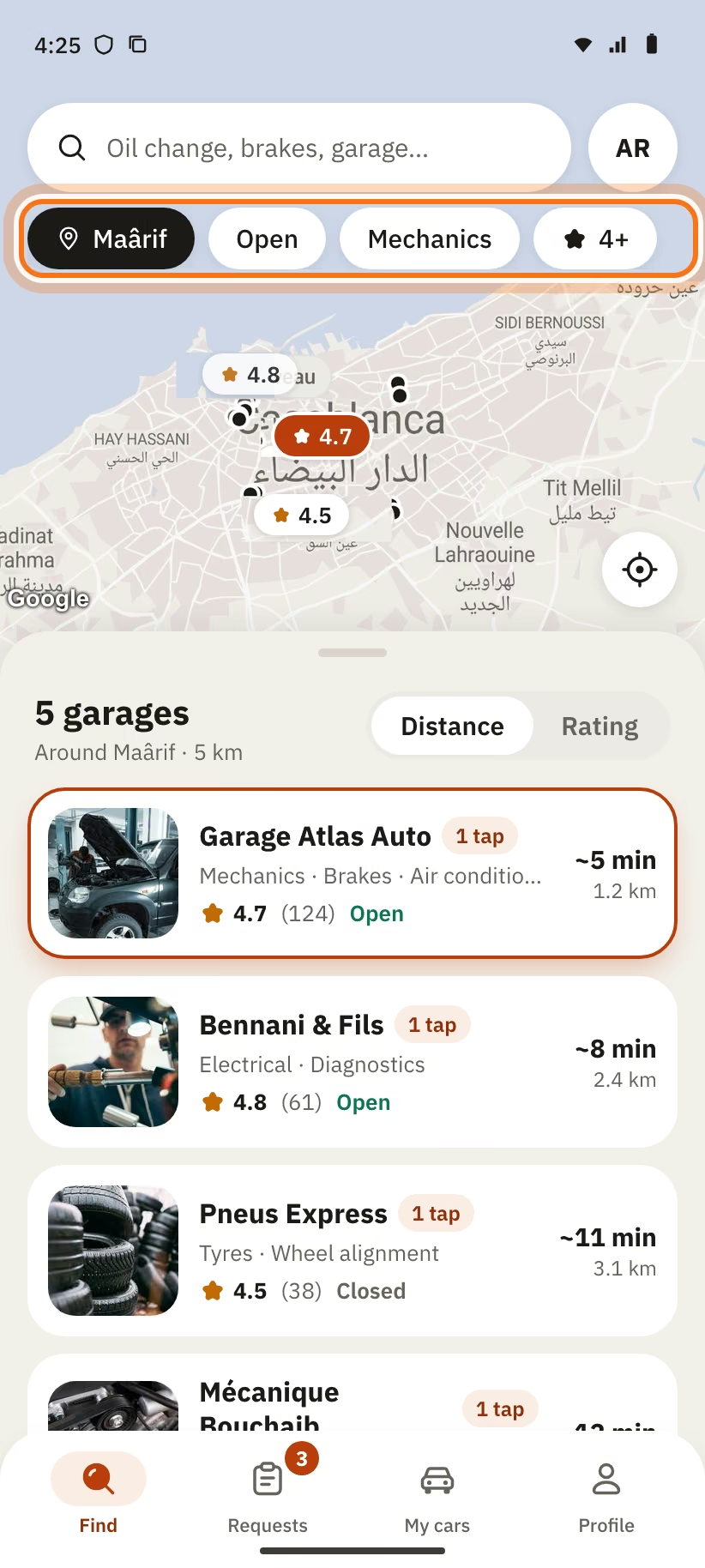
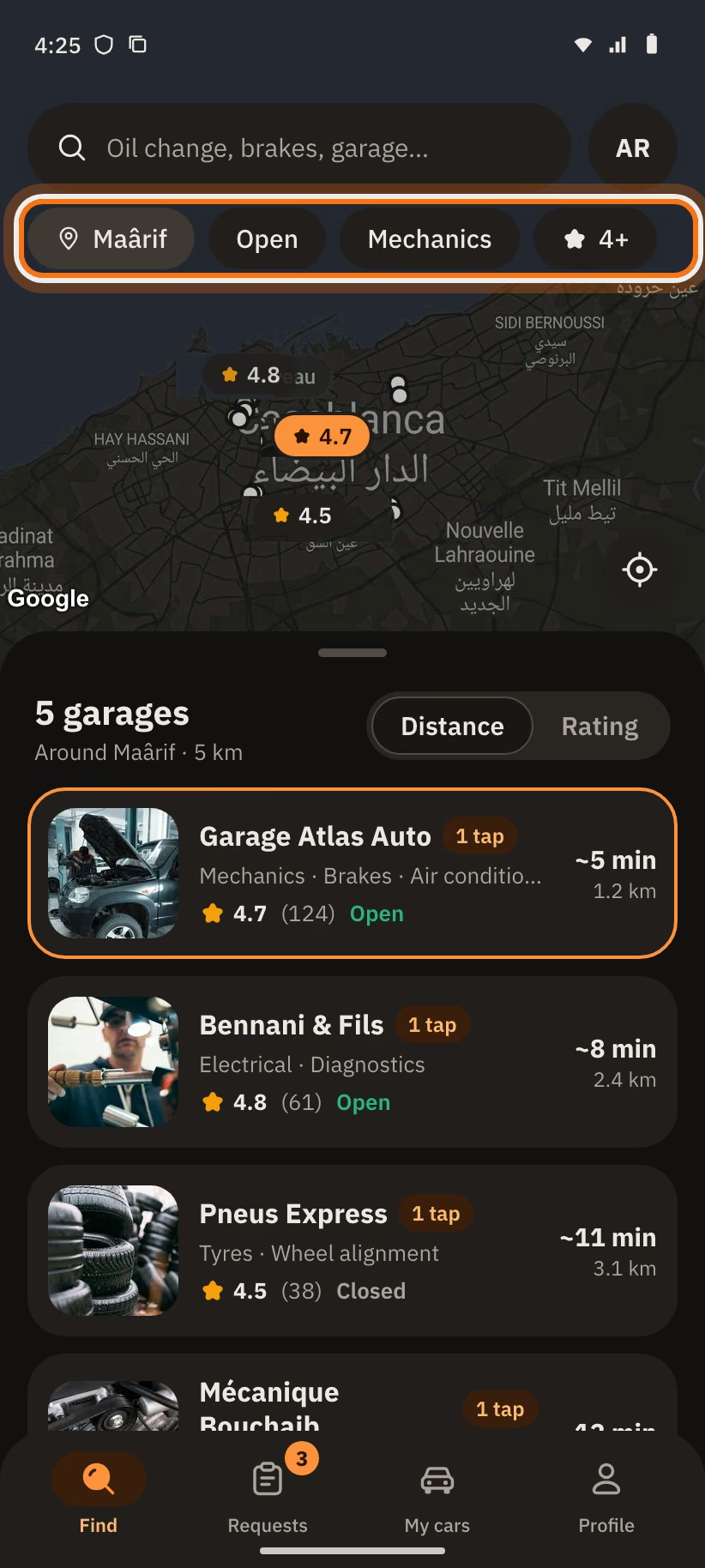
Open the "Find" tab. You see a map and a list of garages.
Filters and sorting
Under the search bar, there are 4 buttons:
- your area (the black button);
- "Open";
- "Mechanics";
- "★ 4+".
Tap a button to turn it on. Tap it again to turn it off.
Above the list, tap "Distance" or "Rating" to change the order.
Change area
- Tap the black button with your area. The "Change area" screen opens. Write your city or area.
- You can also move the map. The button "Search this area" appears. Tap it.
- Above the list, the app writes for example "Around Maârif · 5 km".
- No garage found? The app writes "No garage within … km". Tap "Search within … km" to make the area bigger.
Search for a service or a garage
Tap the bar "Oil change, brakes, garage…". You can:
- tap one of the "Quick services": Oil change, Brakes, Tyres, Battery, Air conditioning, Diagnostics;
- write a service, a problem or the name of a garage;
- find your old searches in "Recent" (tap "Clear" to remove them);
- see the garages in "Popular in …" (your city).
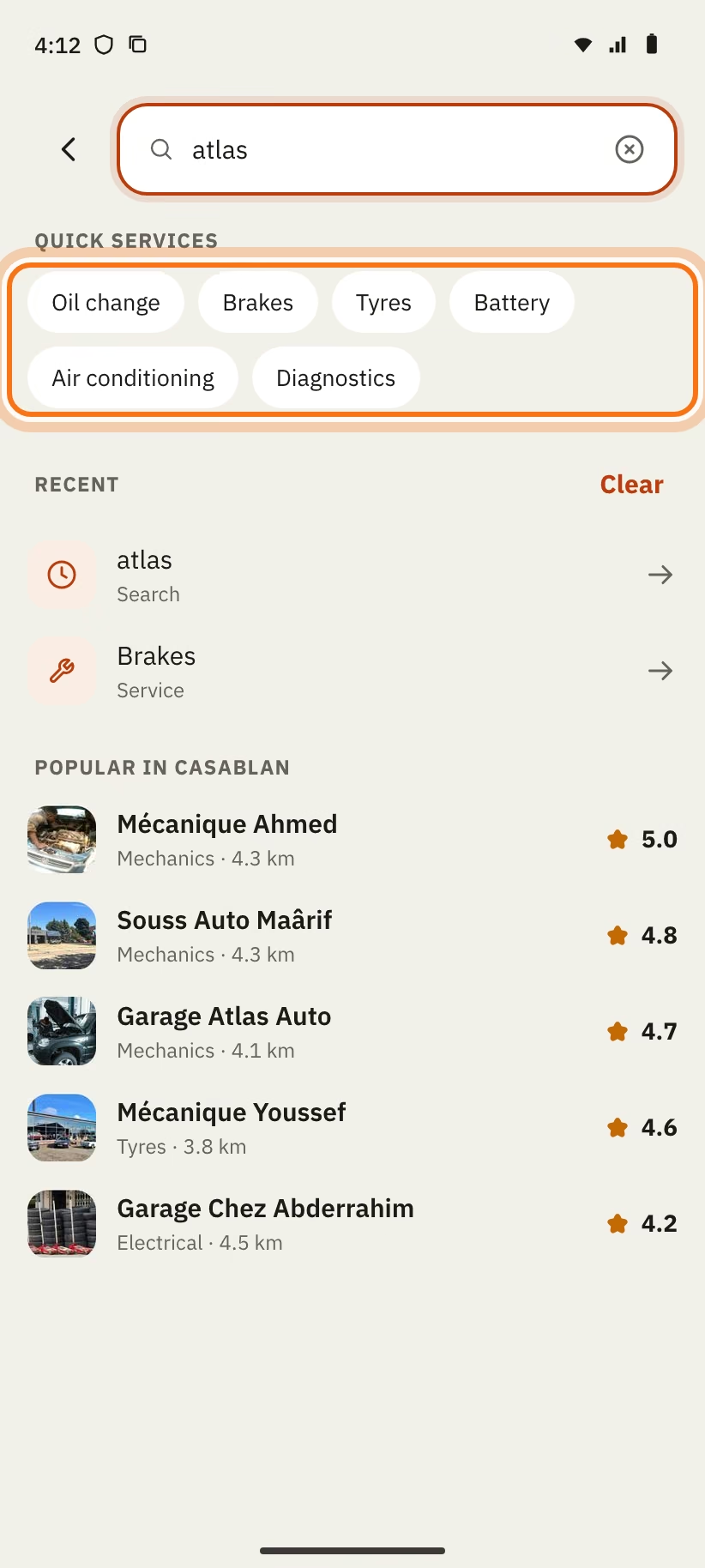
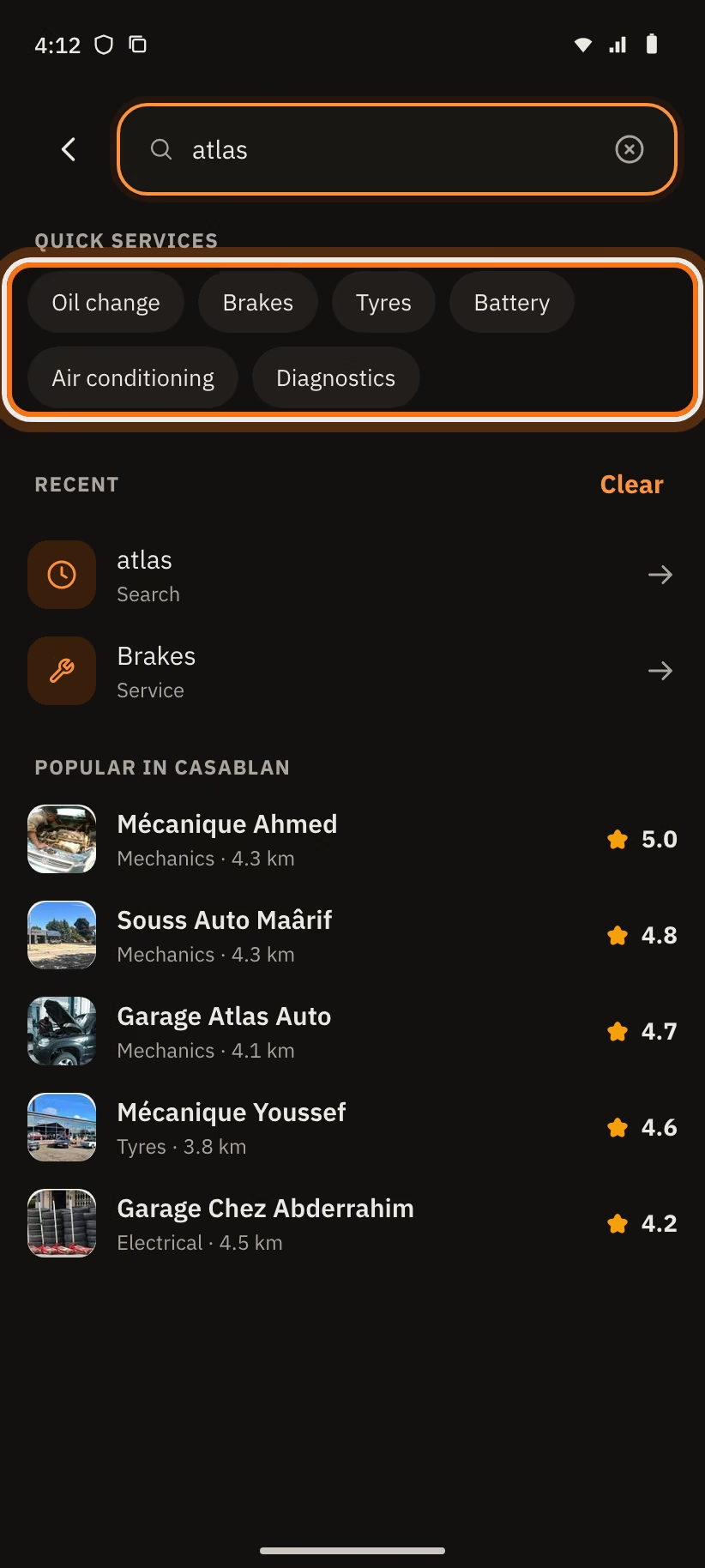
In the list, the small "1 tap" label means: you can book a service of this garage in one go.
The garage profile
Tap a garage to open its profile. Under the name, there are three buttons:
- "Call": calls the garage.
- "Message": opens the chat of your open request with this garage. With no open request, the app starts "Describe a problem".
- "Directions": opens the way to the garage.
At the bottom, the "Describe a problem" button starts a request.
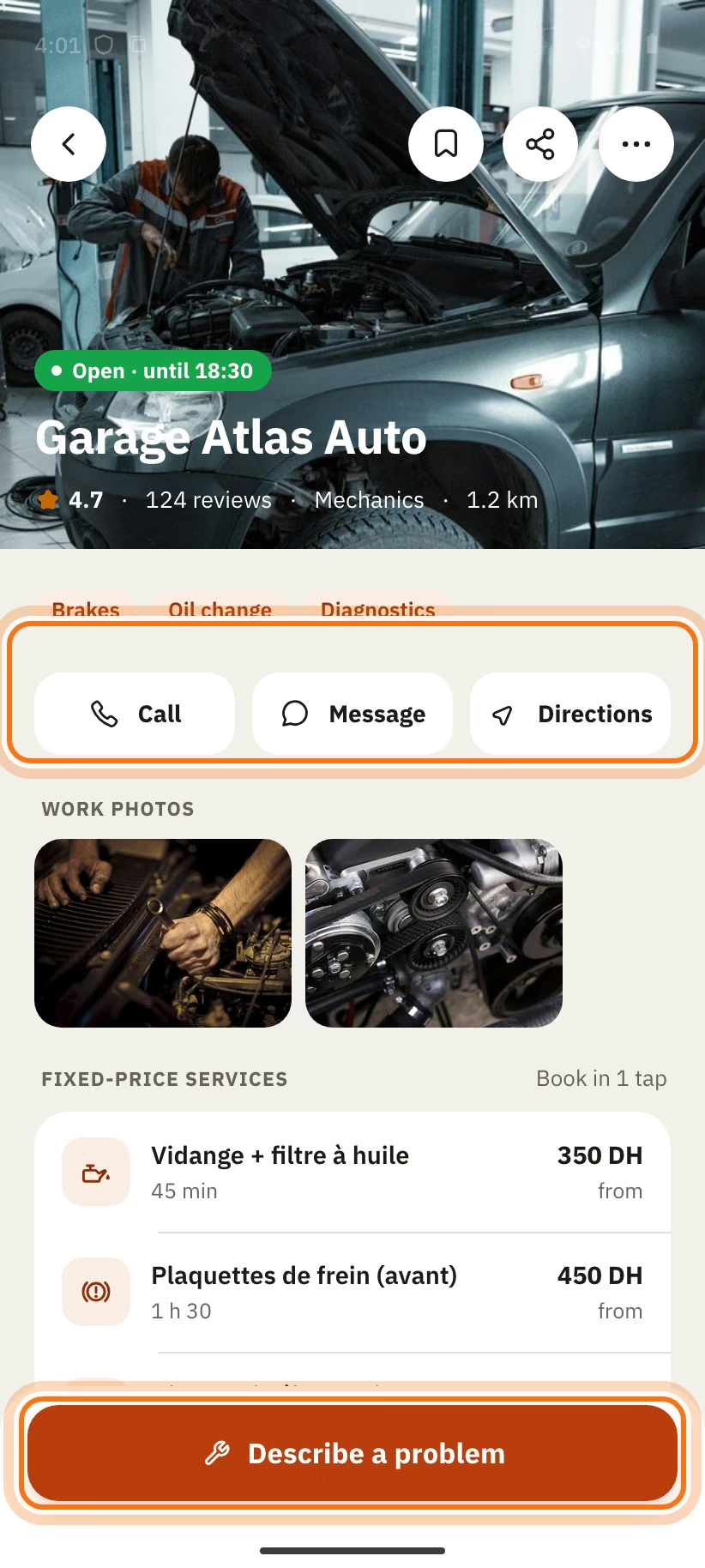
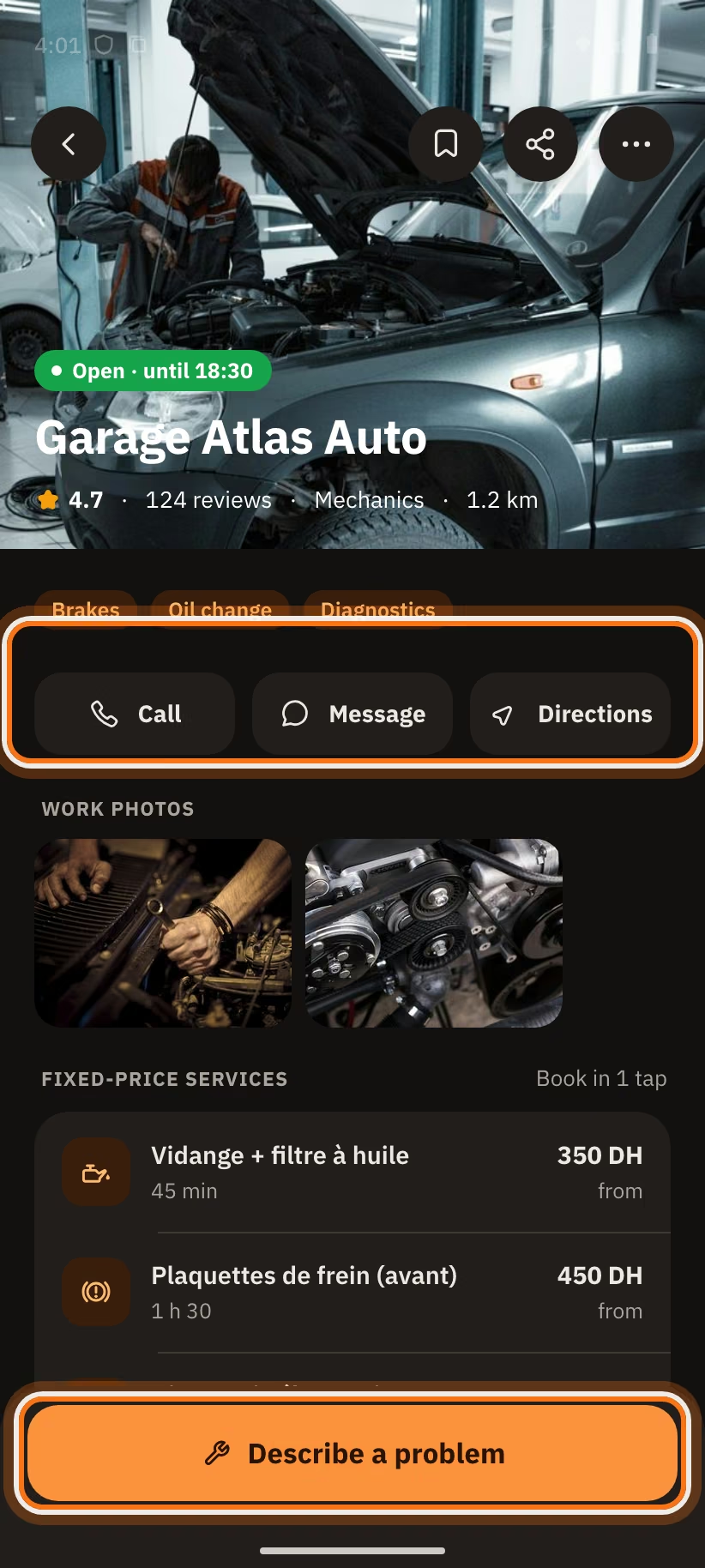
Further down the profile, you find:
- "Work photos", with "Before" and "After";
- "Fixed-price services", with the price "from … DH" or "on quote";
- "Opening hours" and "Address";
- "Reviews", with "See all" and "Garage reply".
Each service is a button. Tap "Book" if the price is fixed. Otherwise tap "Ask quote": the app then opens "Describe a problem".
At the top of the screen:
- the bookmark saves the garage ("Save (sign-in required)");
- "Share" sends the profile to someone;
- the "⋯" menu has "View in Arabic / French" and "Report".
Send a request: "Describe a problem"
There are two ways to contact a garage:
| You want to… | Button | The price |
|---|---|---|
| Show a problem (noise, breakdown, warning light…) | "Describe a problem" | It comes after the diagnosis, with your OK |
| A fixed-price service (for example an oil change) | "Book" on the service | Known before you book |
At the top of the screen, you see "Step 1 of 3". It says "Step 1 of 4" when the app also asks for your car. The order is always the same: When, then Car (if needed), then Problem, then Check.
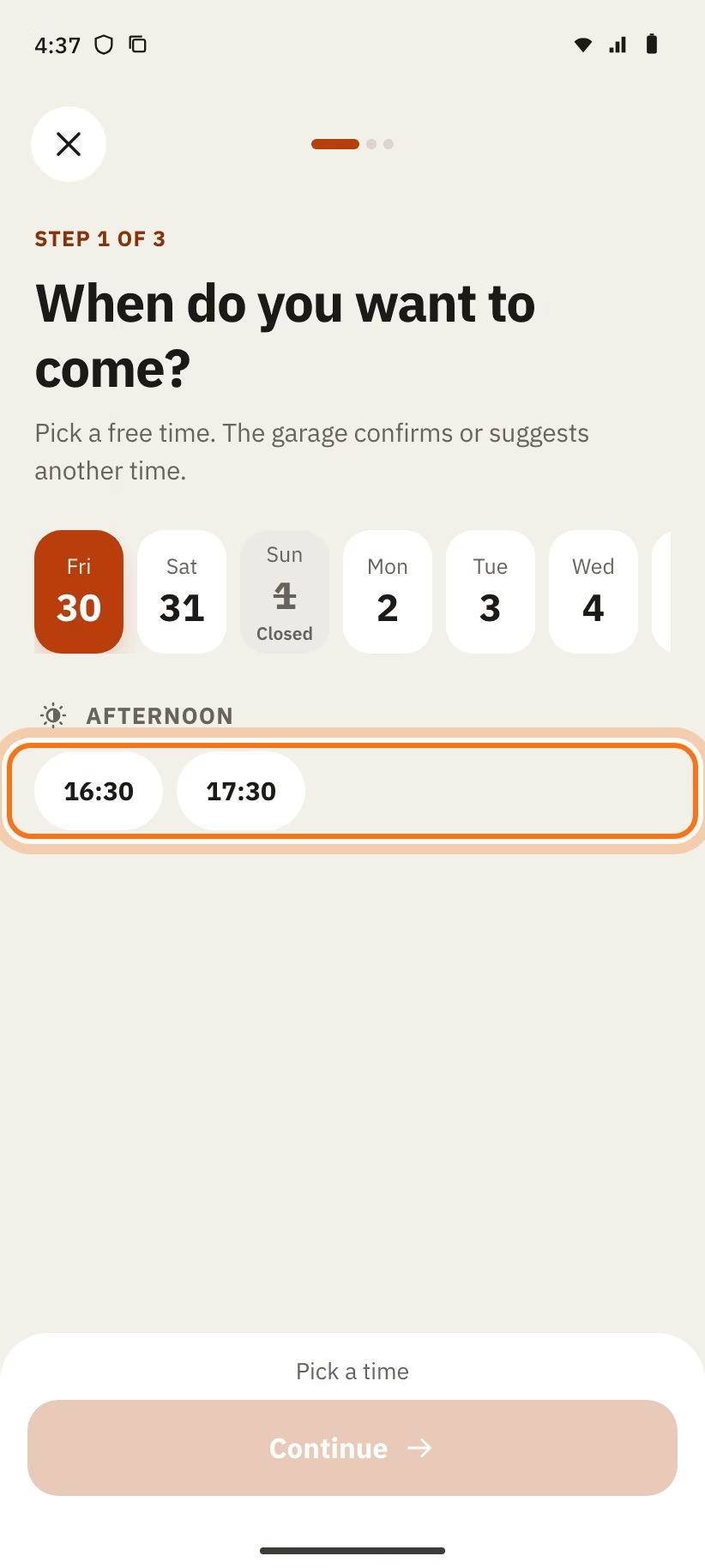
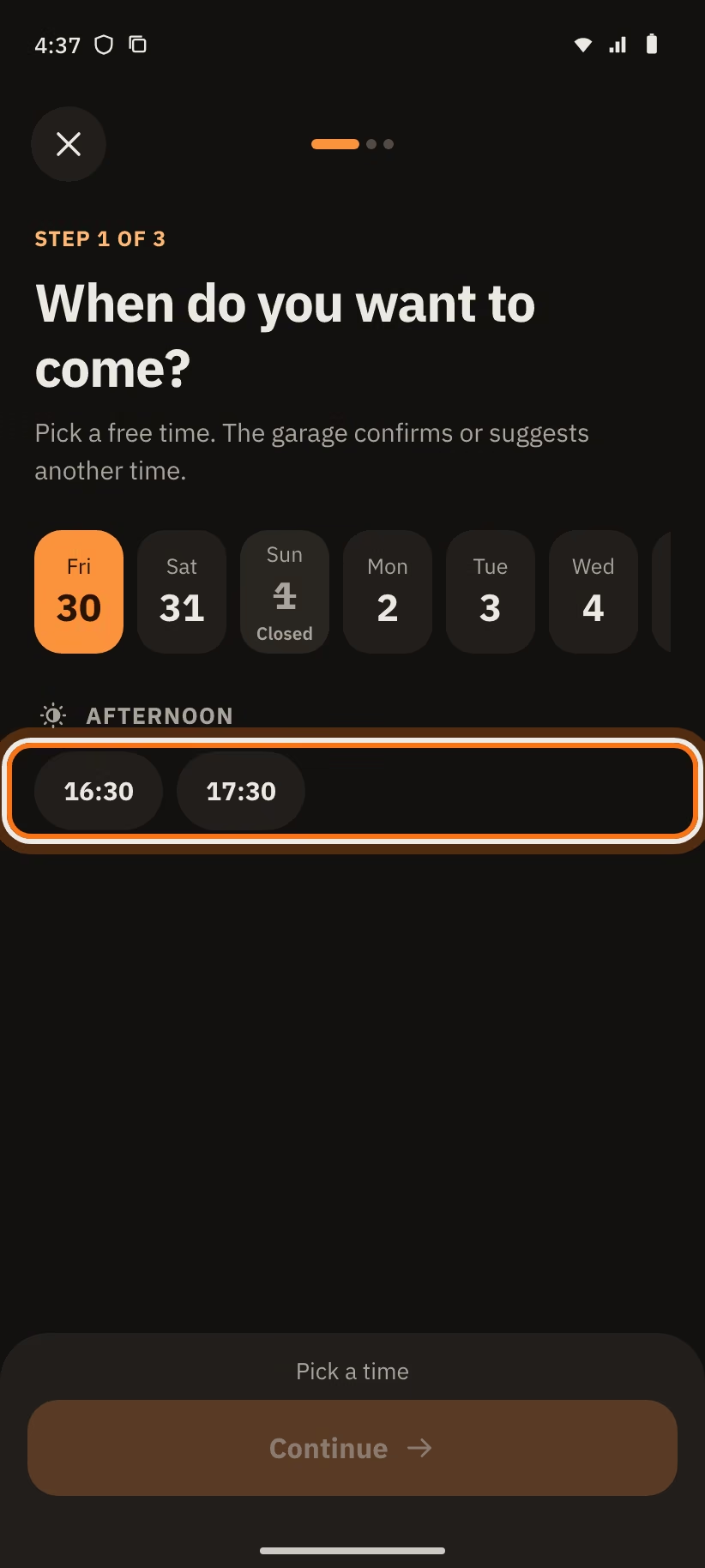
Step 1: "When do you want to come?"
- Tap a day in the row of days.
- Tap a free time, in the morning ("Morning") or the afternoon ("Afternoon").
- Tap "Continue".
A time that is already taken says "Taken". A full day says "No free time this day". If the whole week is full, the app writes "No free time this week. Write to the garage or pick another one."
The garage confirms your time or suggests another one.
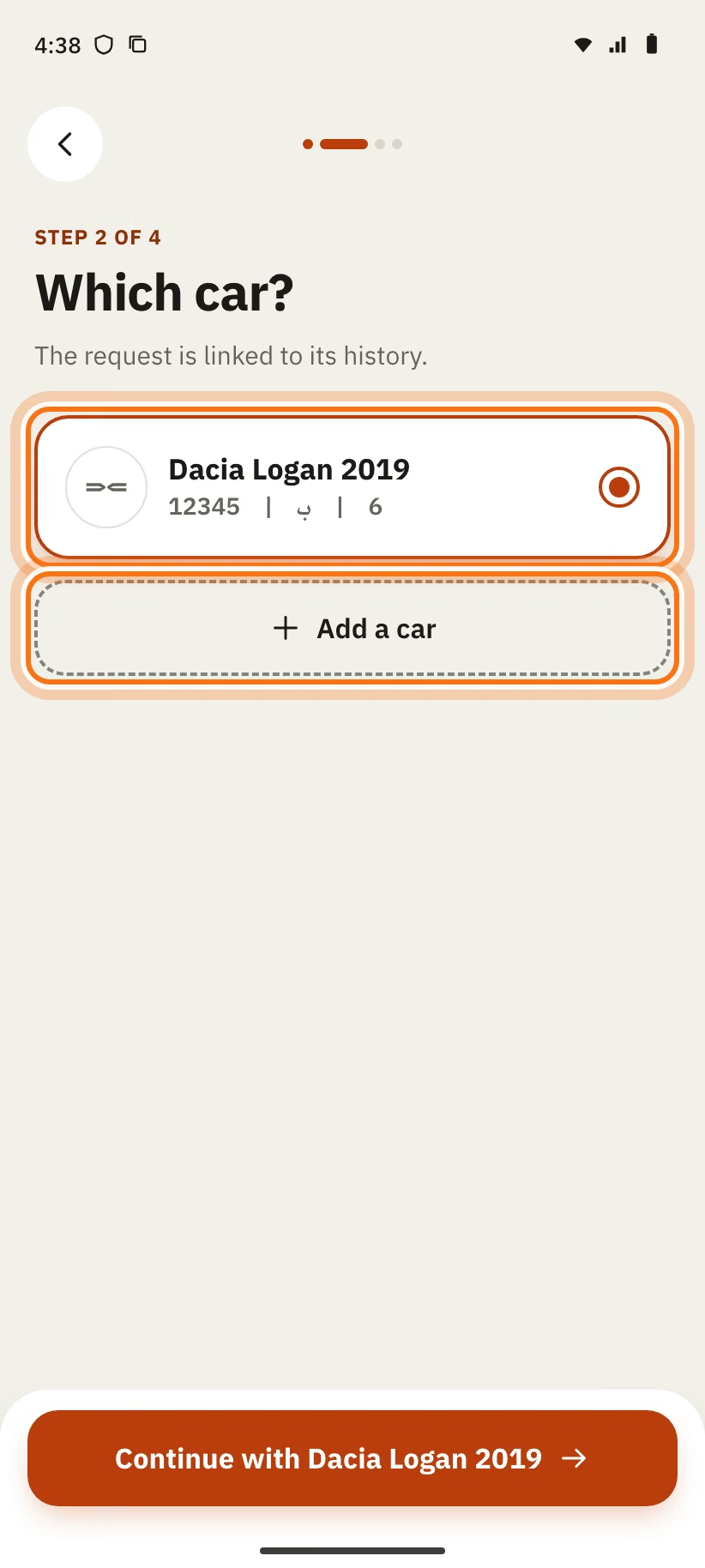
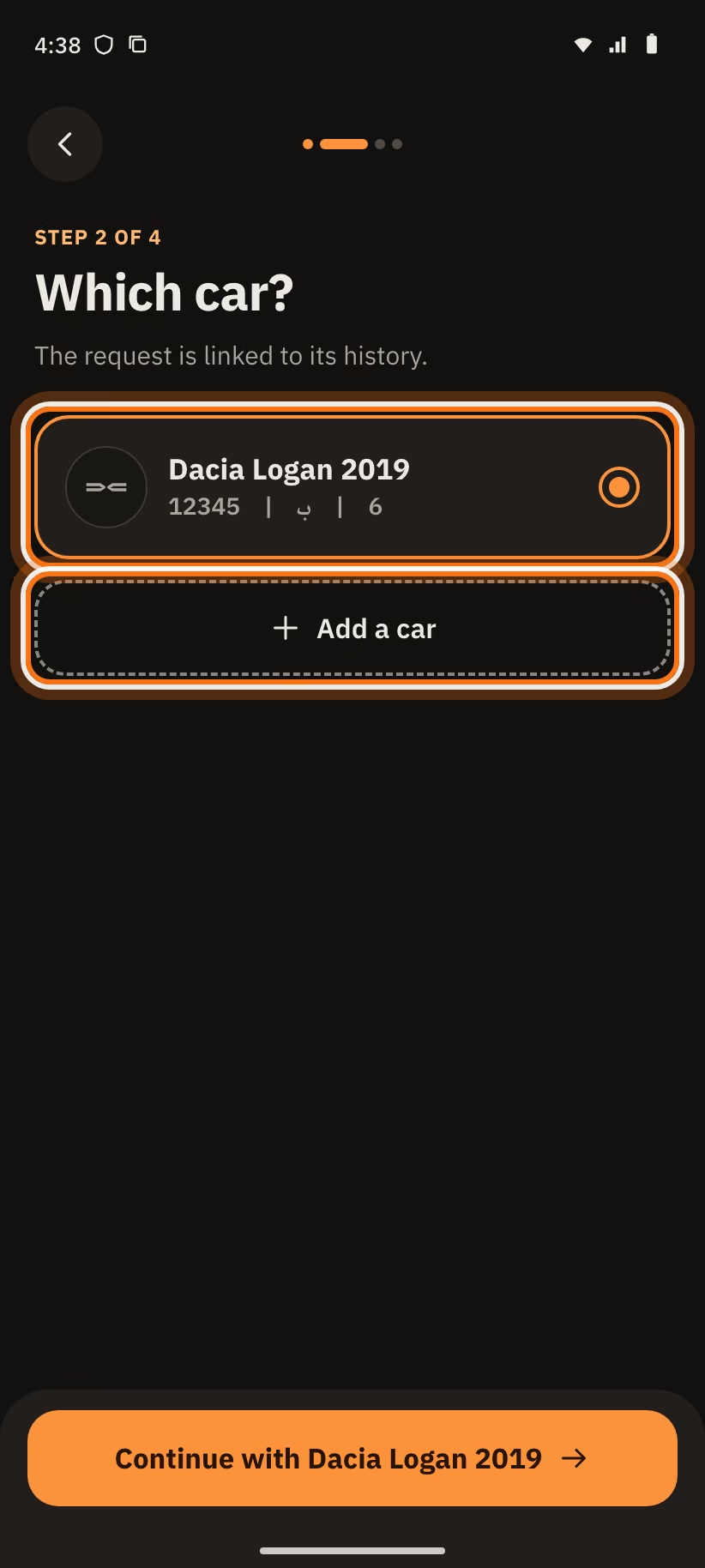
Step 2: "Which car?" (if needed)
The app asks this only if you have no car or more than one car. With one car, it skips this step.
- Tap your car.
- Tap "Continue with Dacia Logan" (the name of your car).
No car yet? The app writes "No car yet". Tap "Add a car".
Step 3: "What’s the problem?"
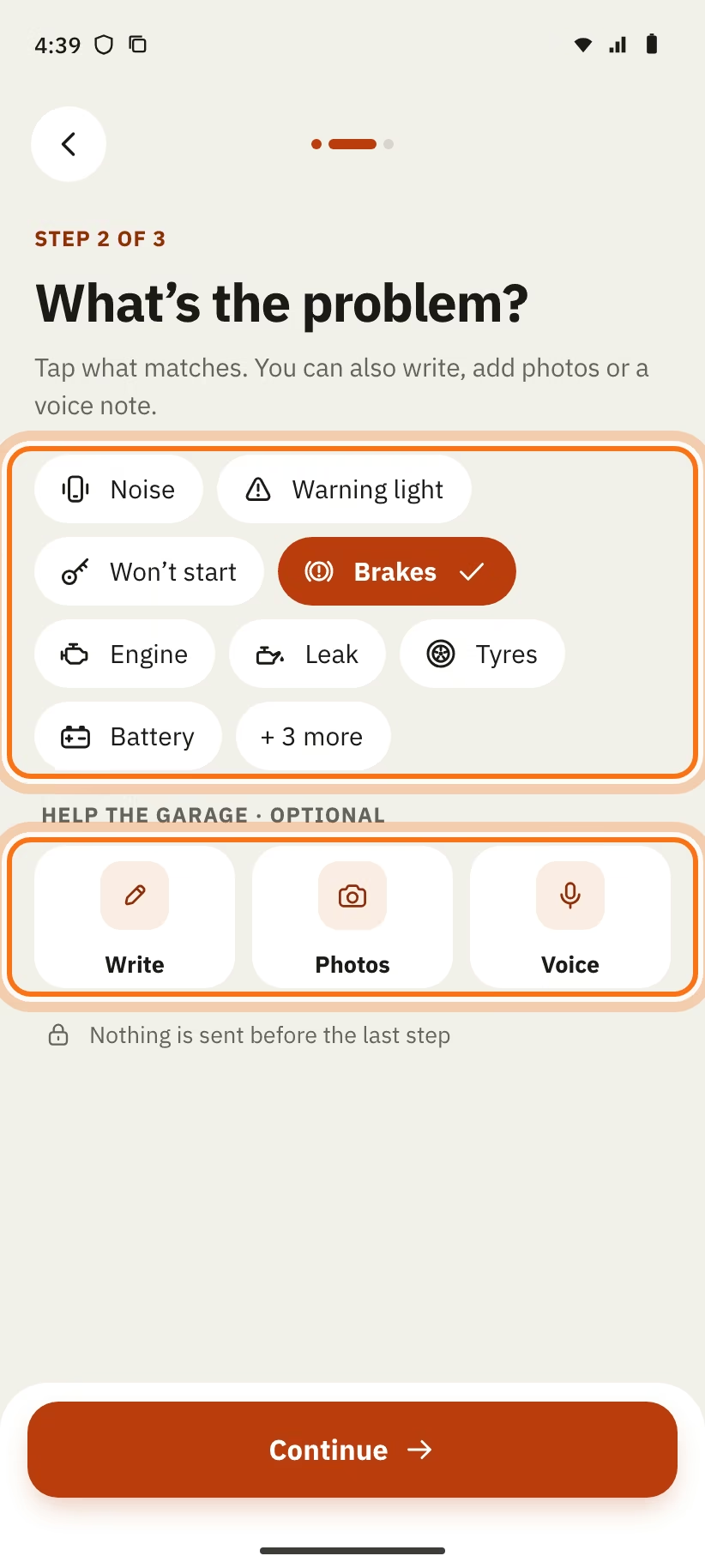
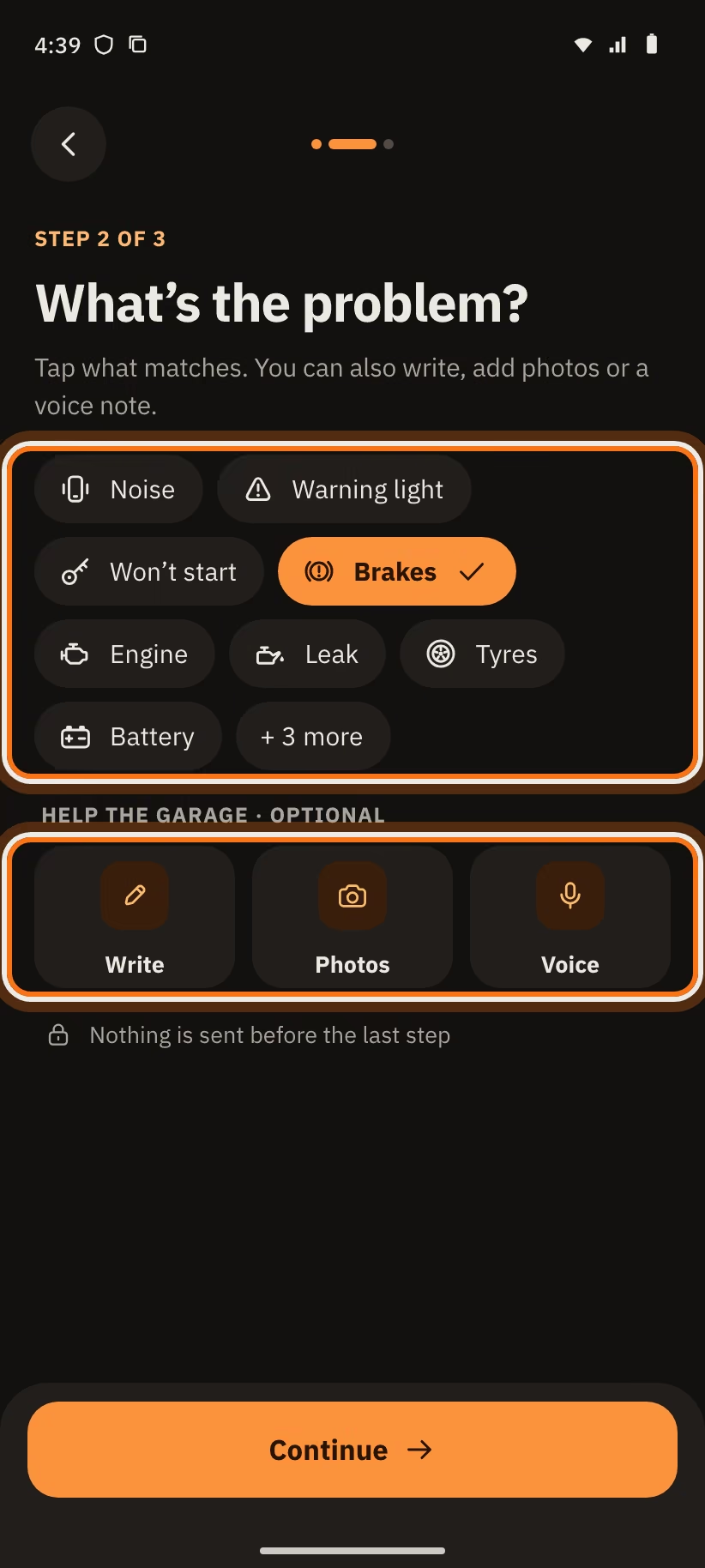
- Tap what matches: "Noise", "Warning light", "Won’t start", "Brakes", "Engine", "Leak", "Tyres", "Battery". "+ 3 more" opens "A/C", "Service" and "Other".
- If you want, help the garage ("Help the garage · optional") with "Write", "Photos" or "Voice".
- Tap "Continue".
For a voice note, hold "Hold to talk". A voice note is 1 minute at most.
Limits: 5 photos, 5 voice notes and 2,000 characters of text.
The app says it: "Nothing is sent before the last step".
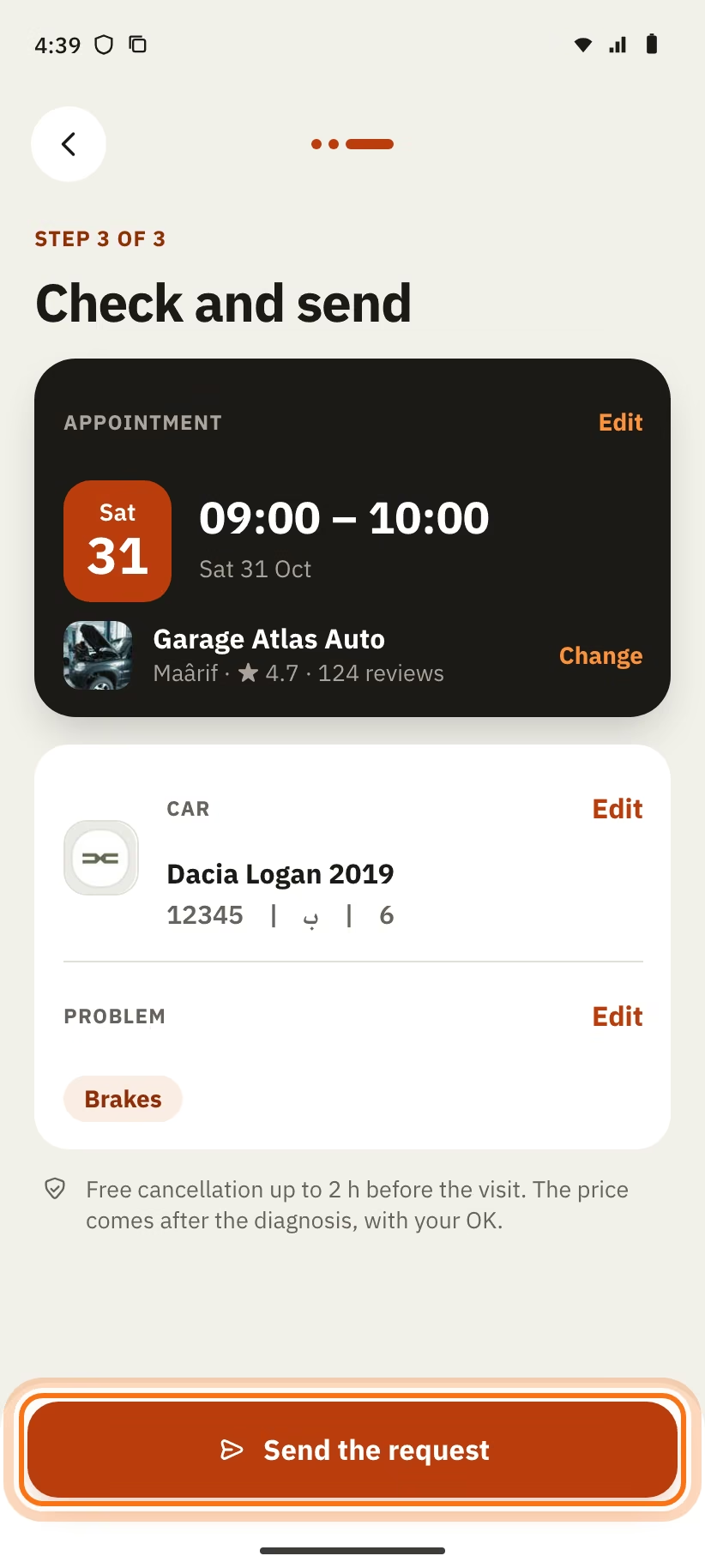
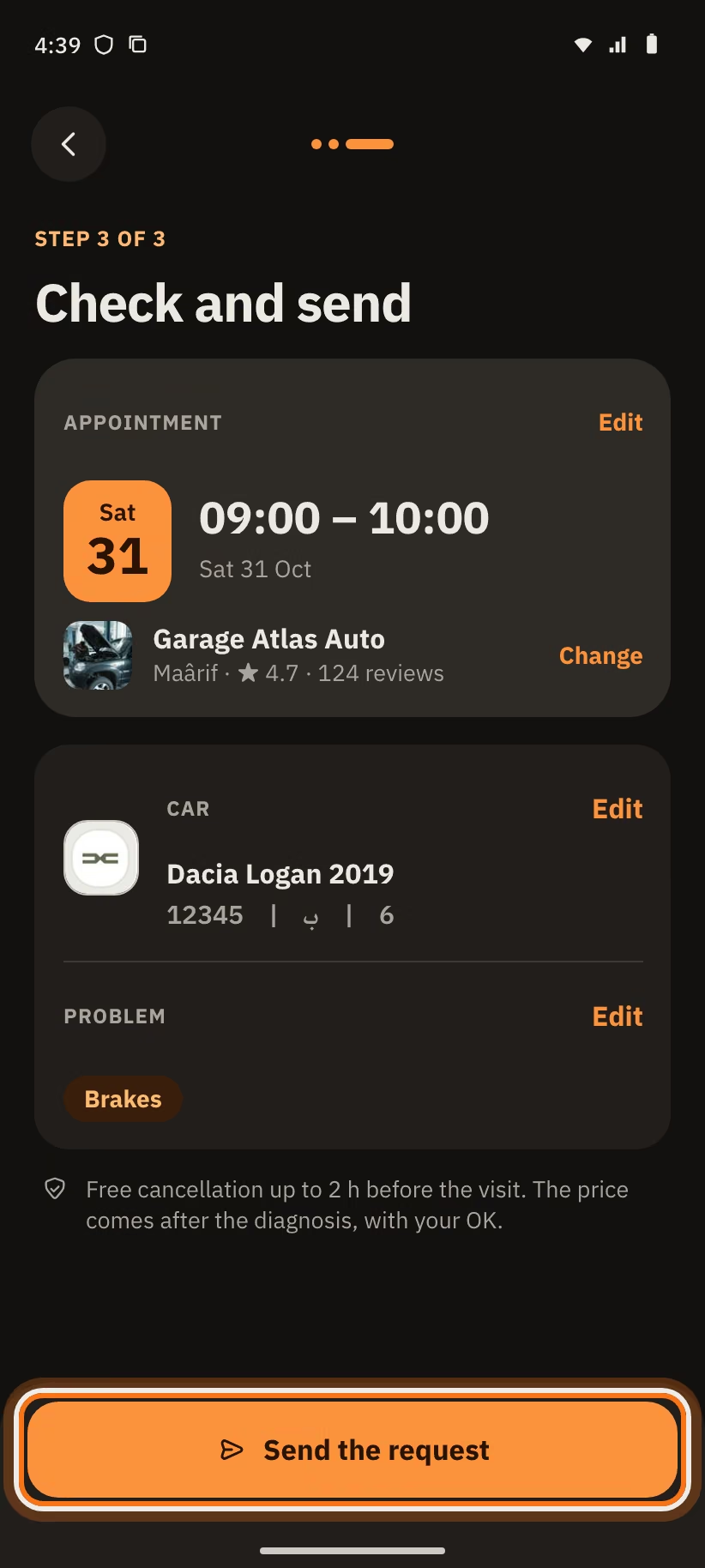
Step 4: "Check and send"
- Read the appointment, the garage, the car and the problem again.
- Tap "Edit" to change a line, or "Change" to change the garage.
- Tap "Send the request".
The app reminds you: "Free cancellation up to 2 h before the visit. The price comes after the diagnosis, with your OK."
Request sent
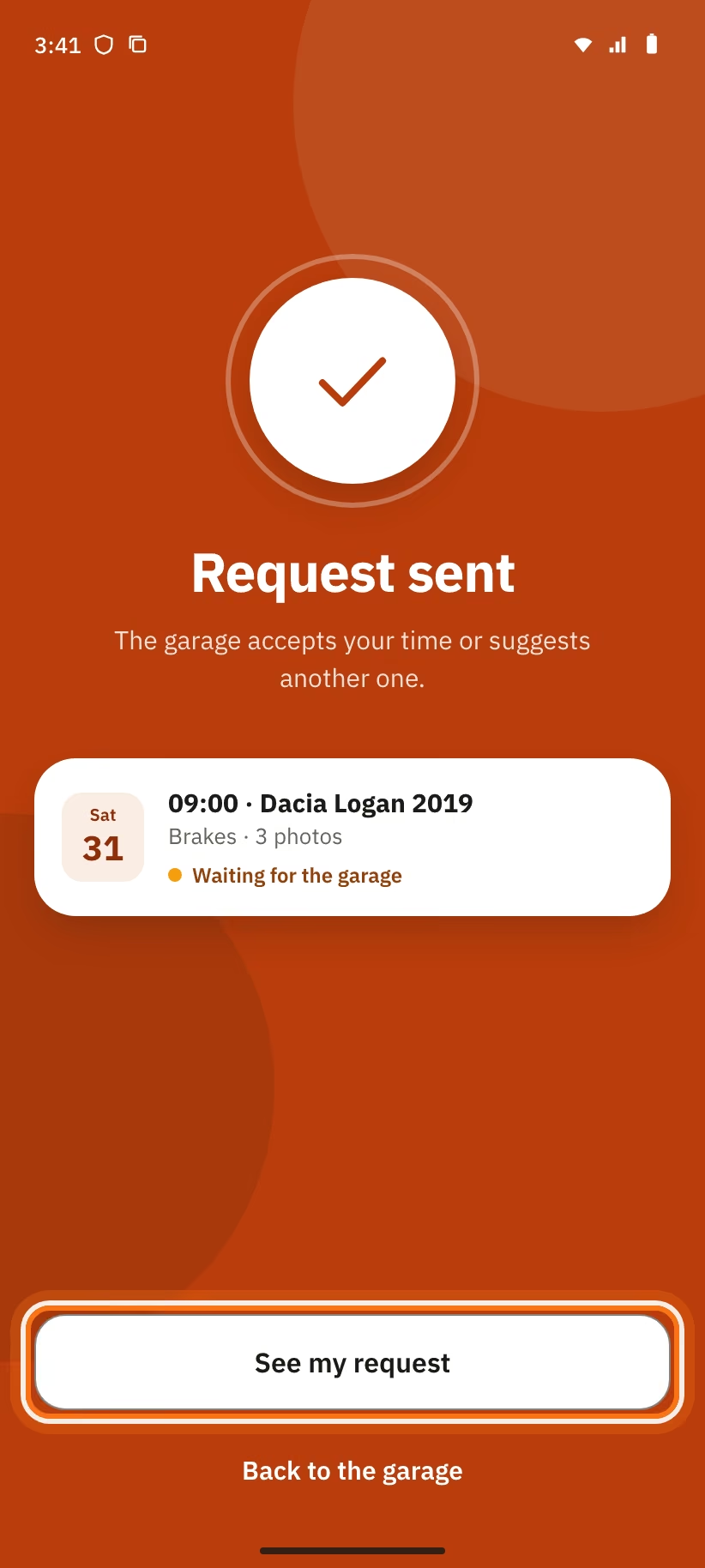
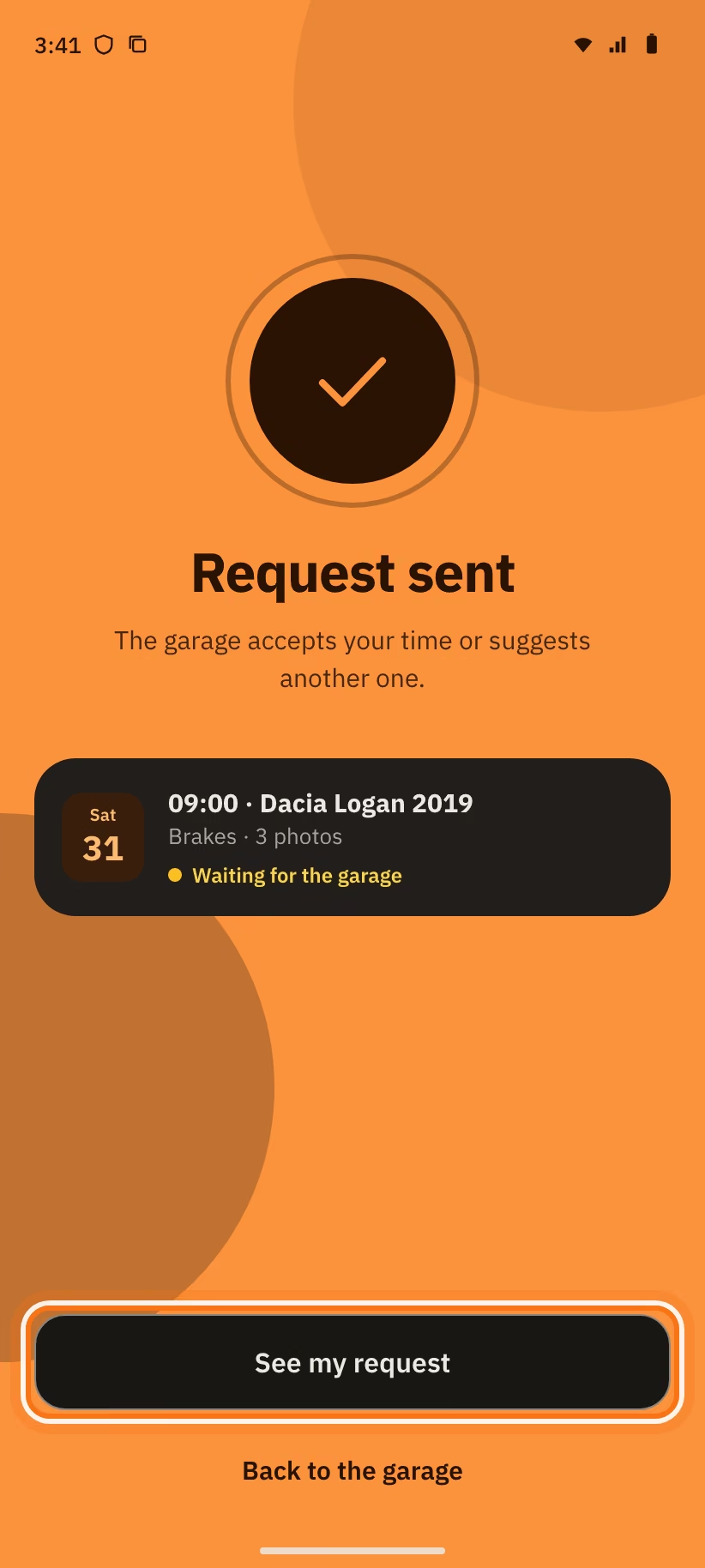
The "Request sent" screen says: "The garage accepts your time or suggests another one."
- Tap "See my request" to follow it.
- Tap "Back to the garage" to go back to its profile.
Book a service
Use "Book" for a fixed-price service, like an oil change. The price is known before you book, and you pay at the garage.
For a problem that needs a diagnosis, use "Describe a problem" instead.
- Open the garage profile. In "Fixed-price services", tap the service.
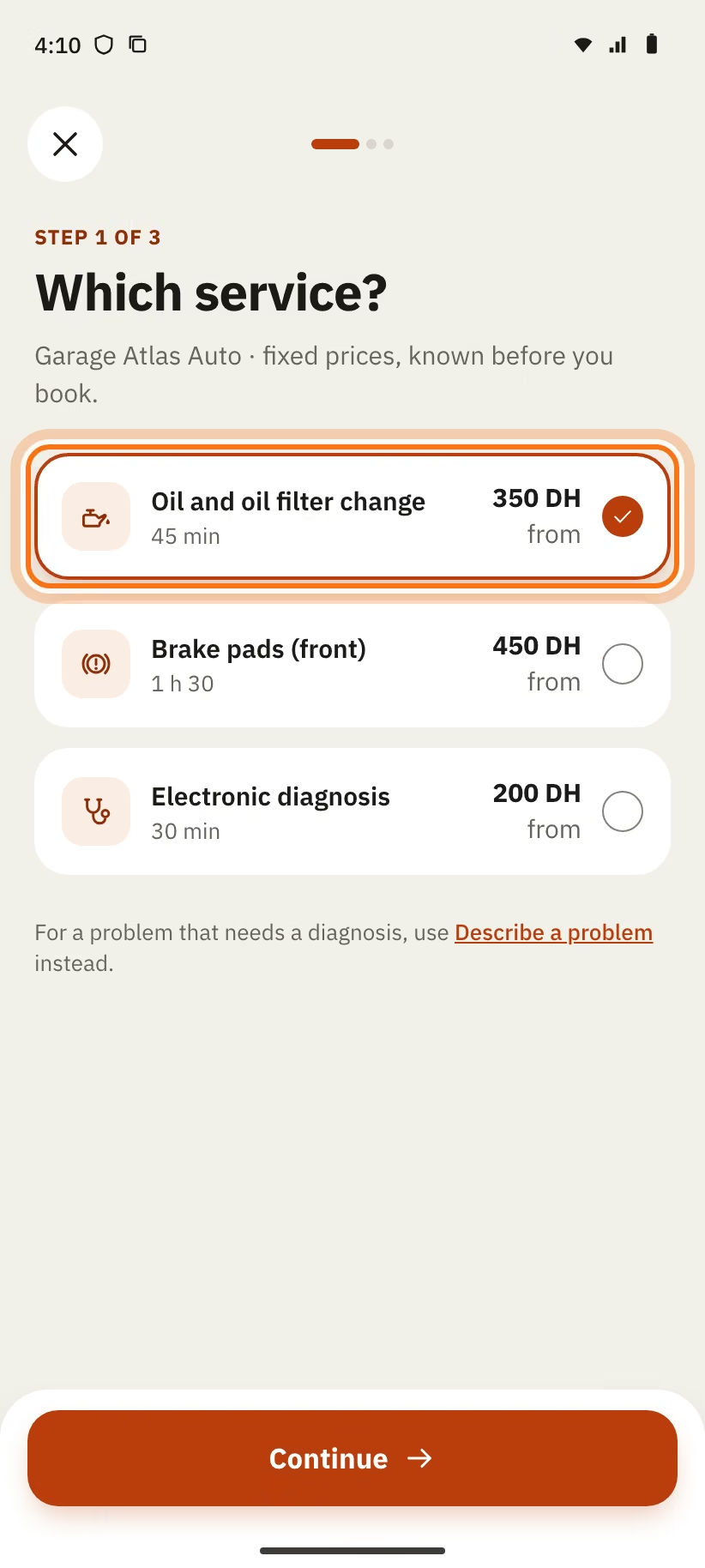
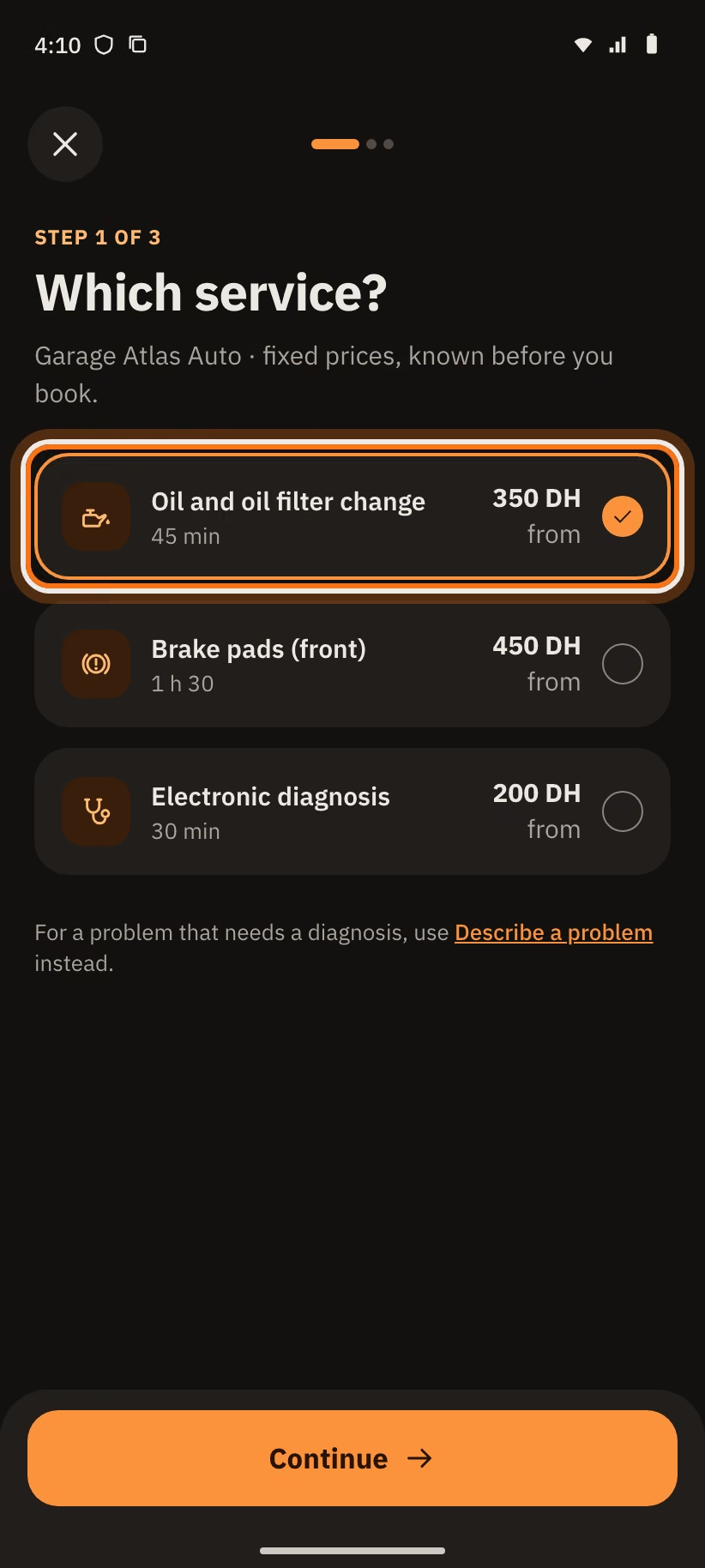
- "Which service?": choose the service.
The app skips this question when you already chose the service on the profile, or when the garage has only one.
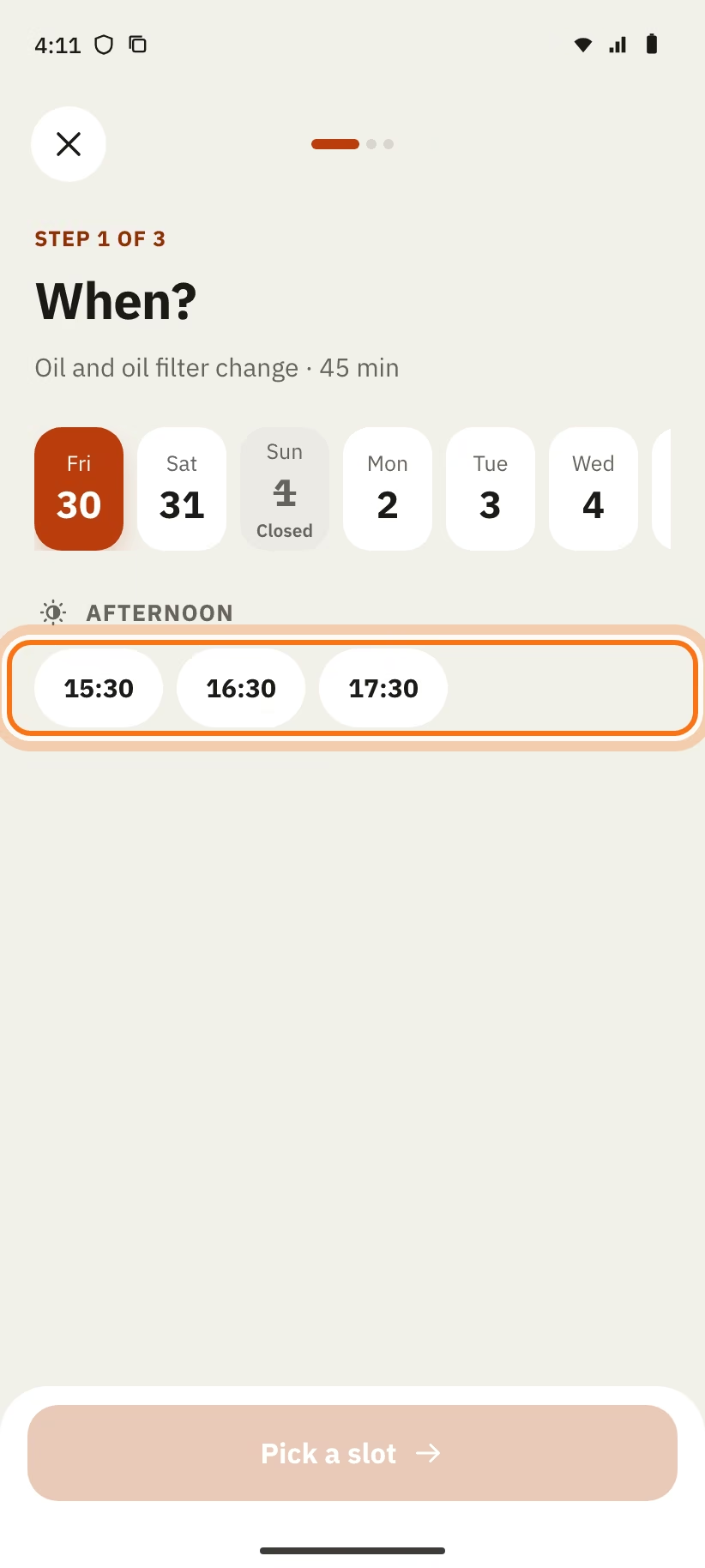
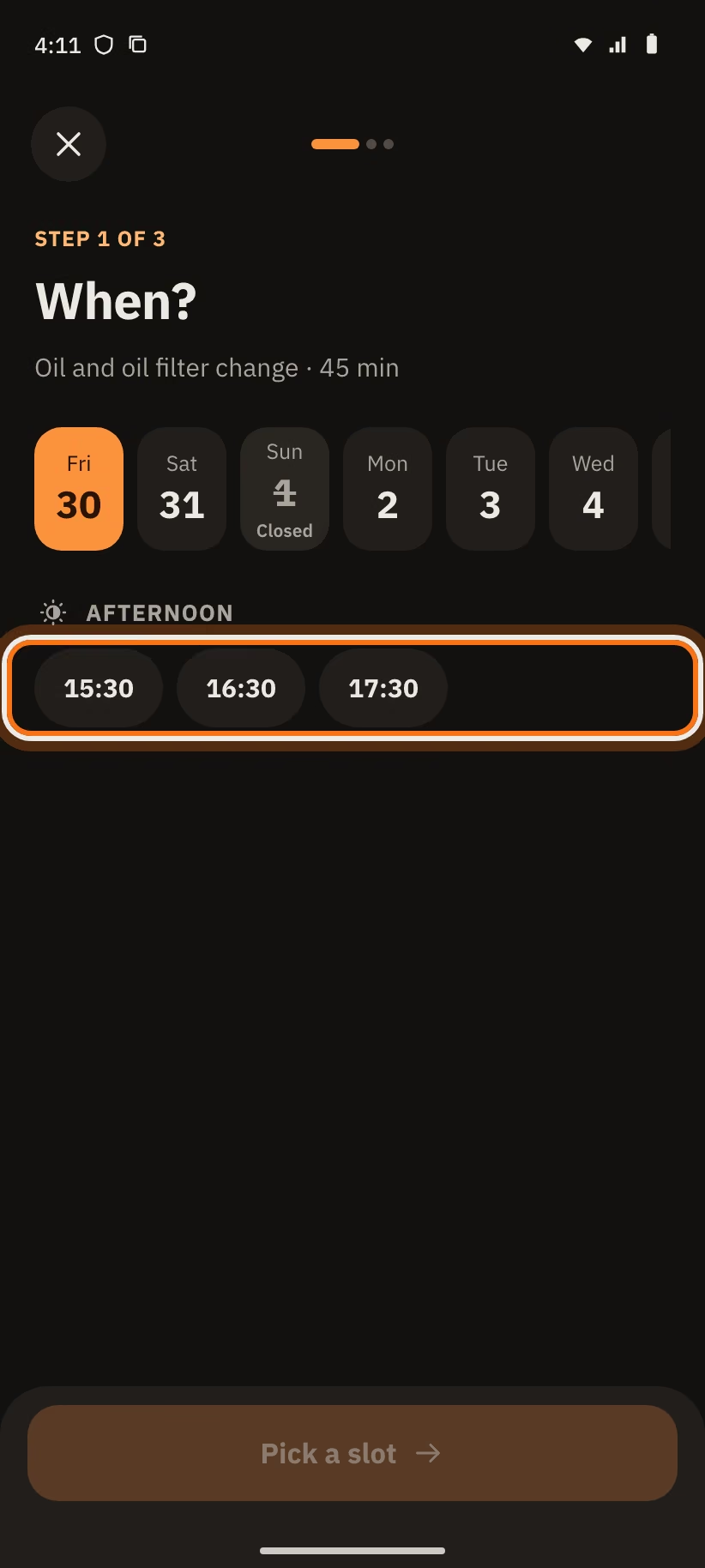
- "When?": choose a day and a time. The button "Pick a slot" becomes "Continue · Sat 24 · 10:00". Tap it.
- "Which car?": choose your car. The app skips this step if you have one car.
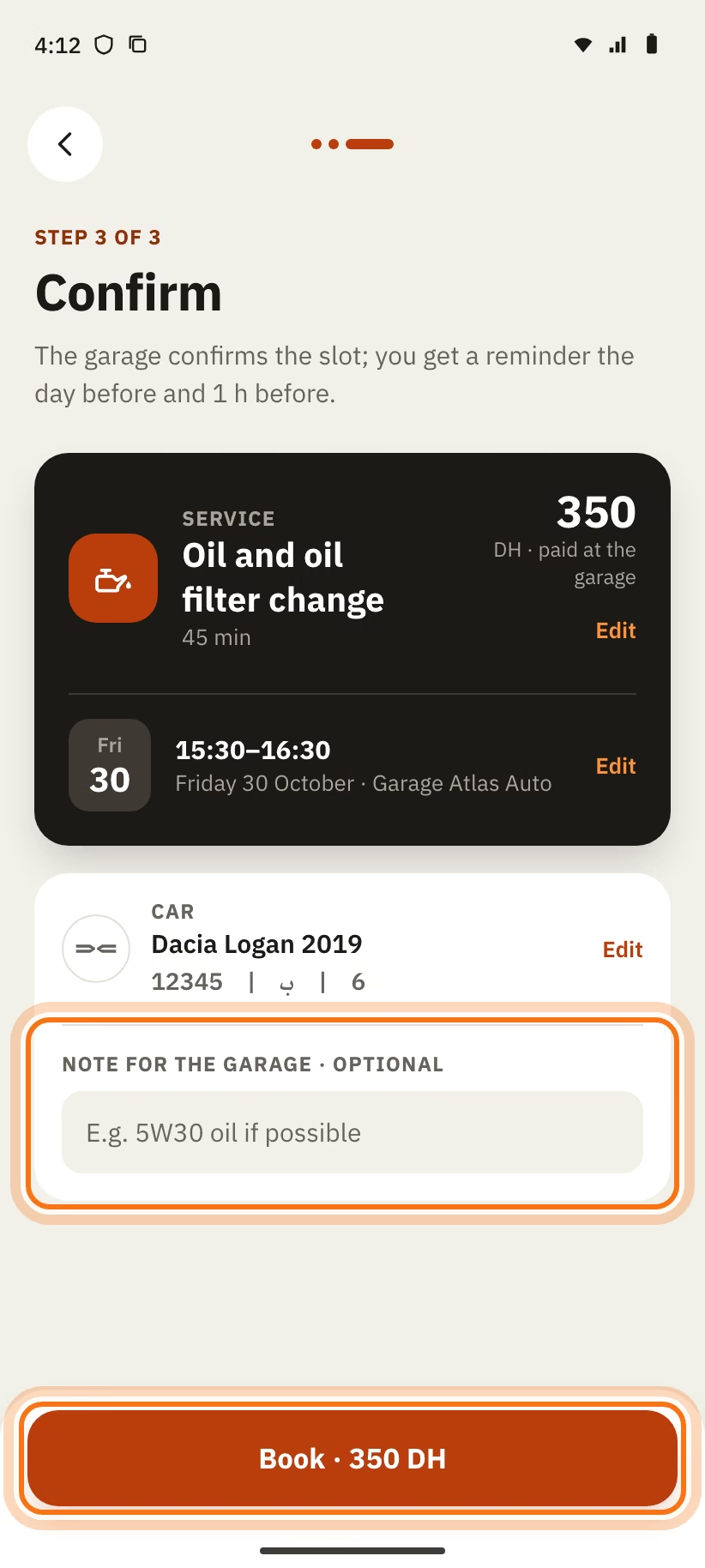
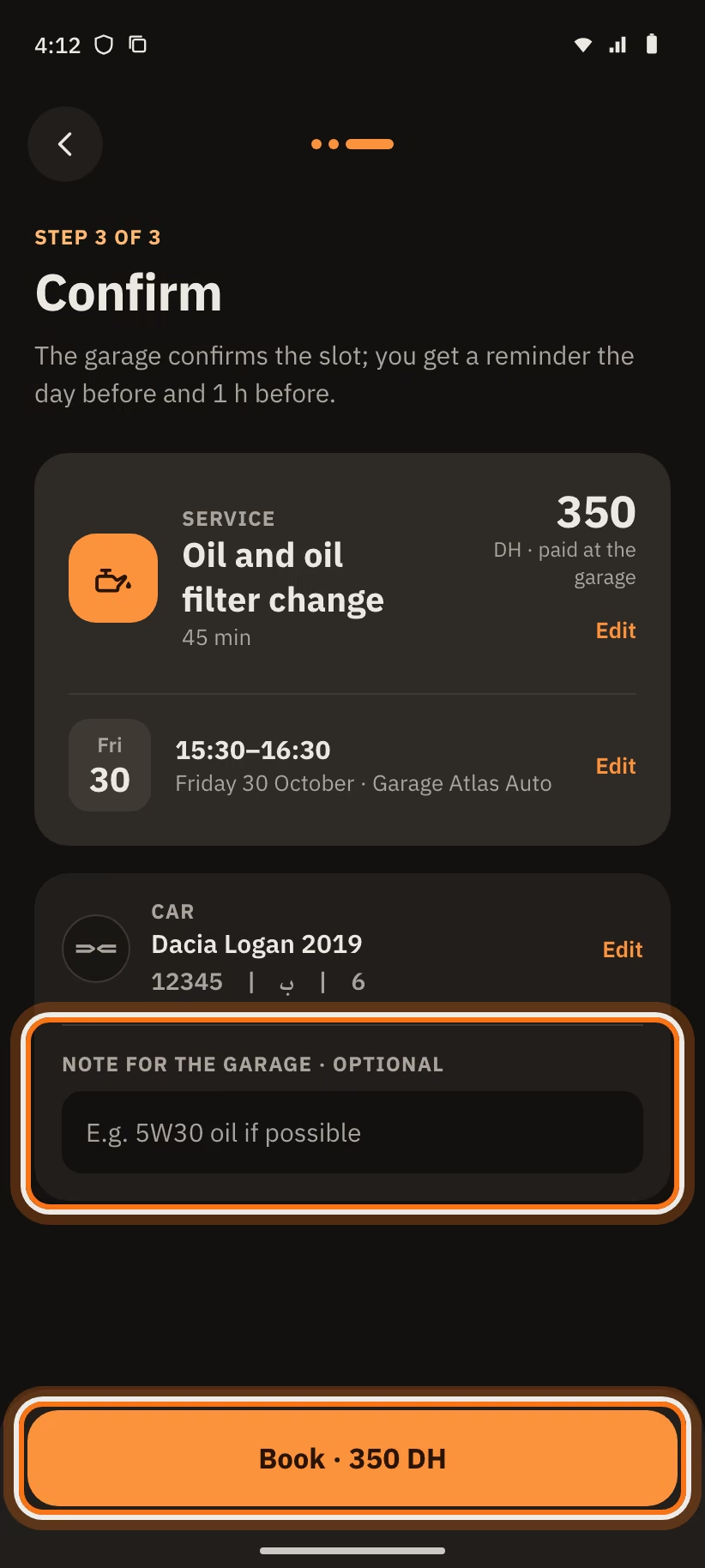
- "Confirm": check the service, the time, the car and the price.
- If you want, write in "Note for the garage · optional". For example: "5W30 oil if possible".
- Tap "Book · 350 DH" (the button shows the real price).
The garage confirms the slot. You get a reminder the day before and 1 h before.
Follow your requests
Open the "Requests" tab. There are two lists:
- "Ongoing": your open requests, with their number;
- "Done": requests that are finished, declined or cancelled.
In "Ongoing", requests are put in sections:
| Section | What it holds |
|---|---|
| "Your turn" | Requests where you must act now |
| "In progress" | Cars that are moving forward in the garage (for example "2/4") |
| "Upcoming" | Your visits to come |
| "Waiting for the garage" | Requests the garage has not answered yet |
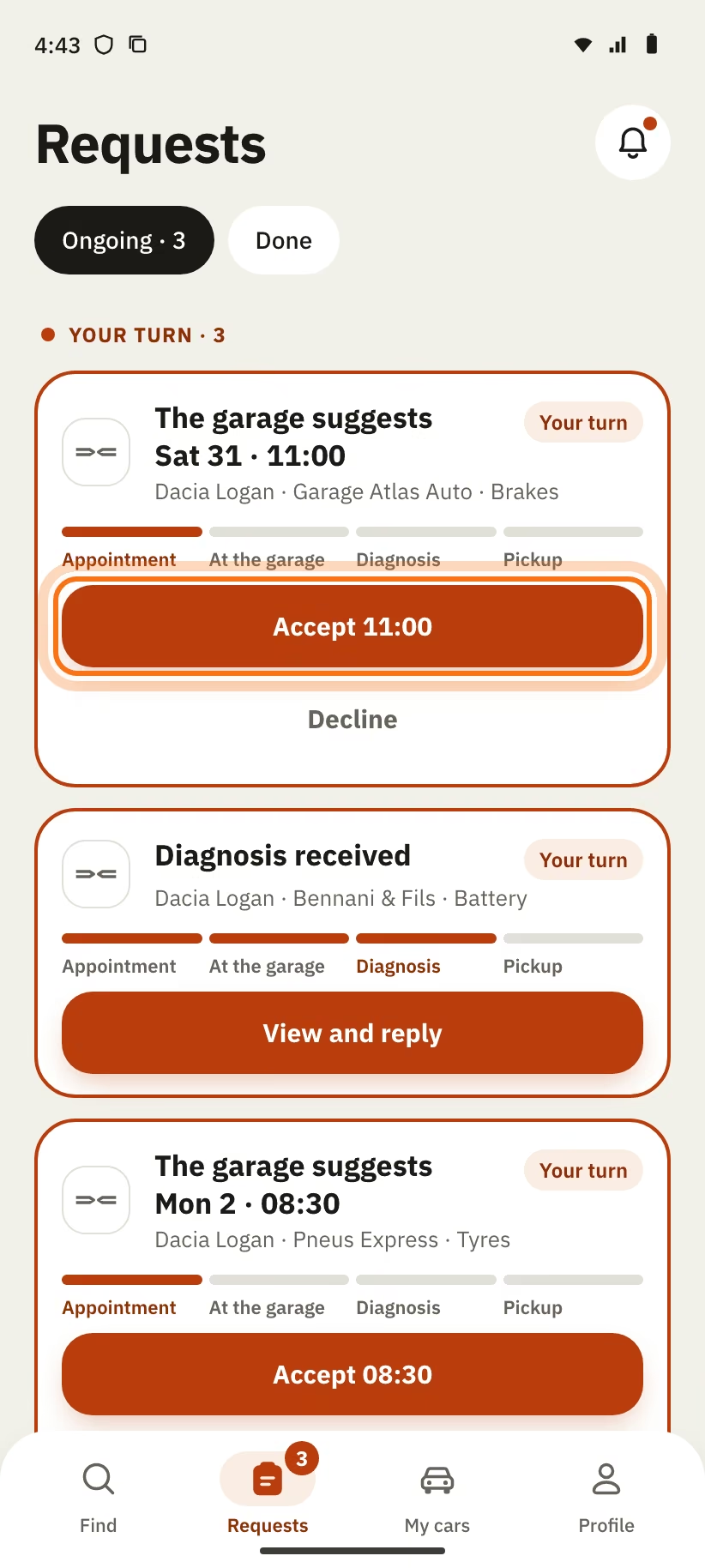
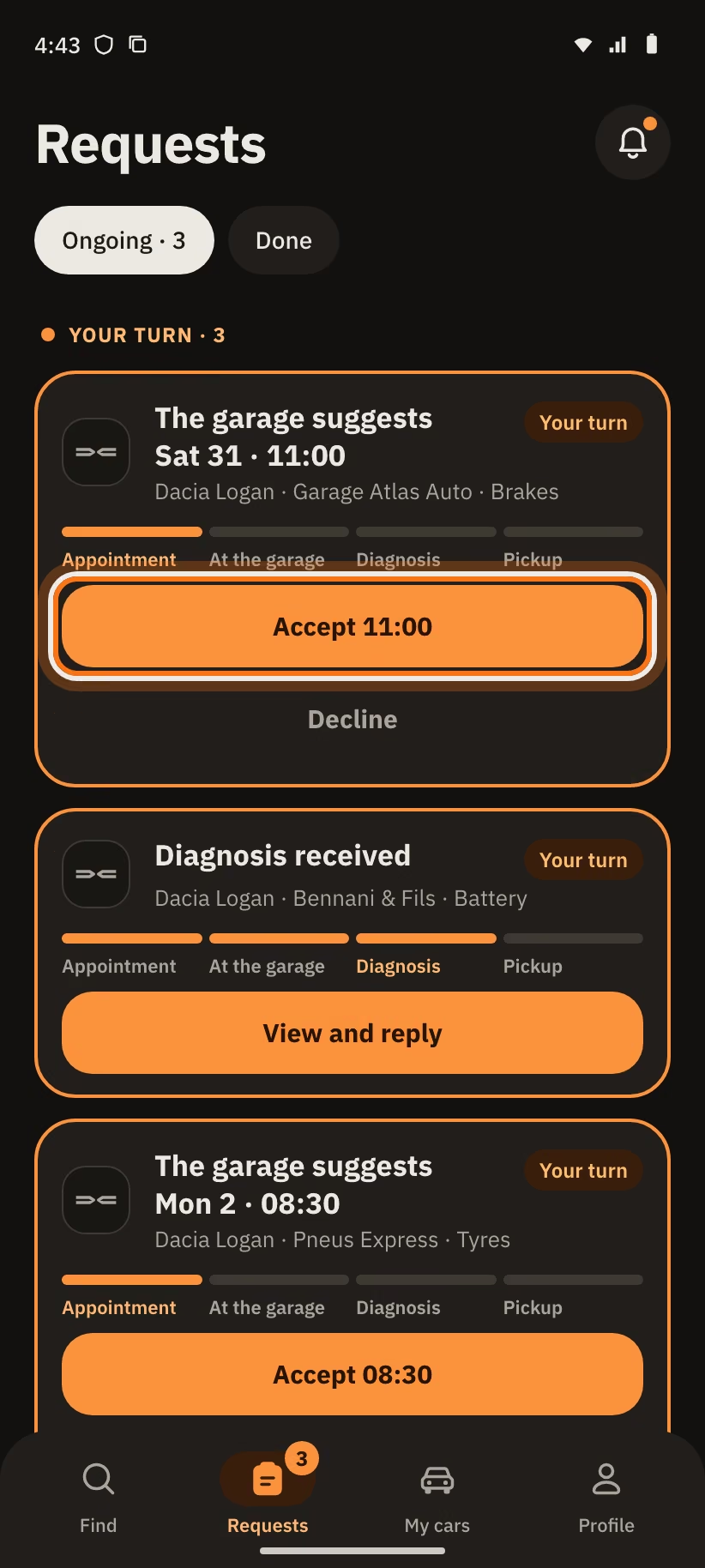
Each request shows 4 phases: "Appointment", "At the garage", "Diagnosis" and "Pickup". The phases already passed are lit.
A card in "Your turn" has the label Your turn and a button. The possible buttons are: "Accept 11:00" with "Decline", "I’m here", "View the photos", "View and reply", "View the total".
The garage has not answered for 24 h? A card says "No answer for 24 h". Tap "Nudge": the garage gets a reminder ("Reminder sent to the garage"). You can nudge only once. Or tap "Other garage" to look somewhere else.
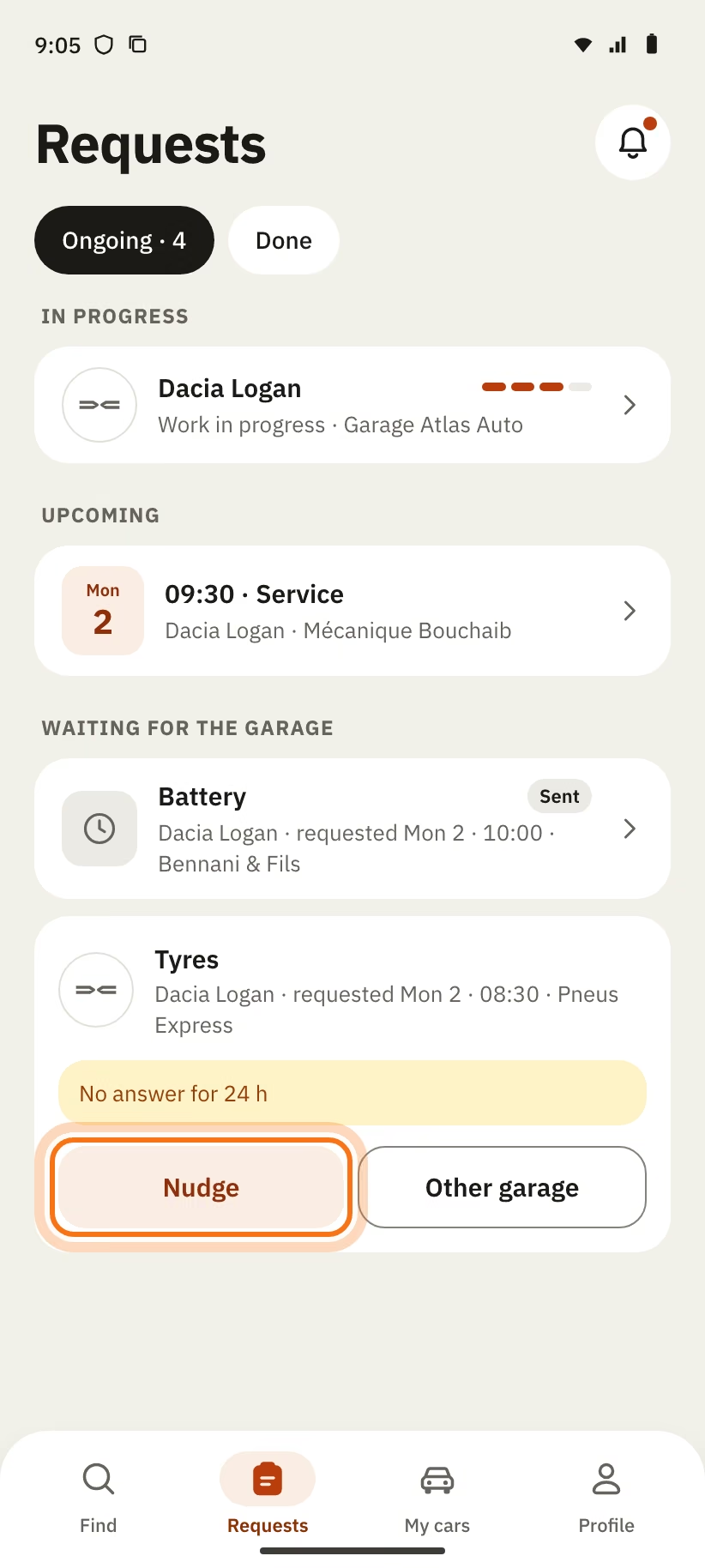
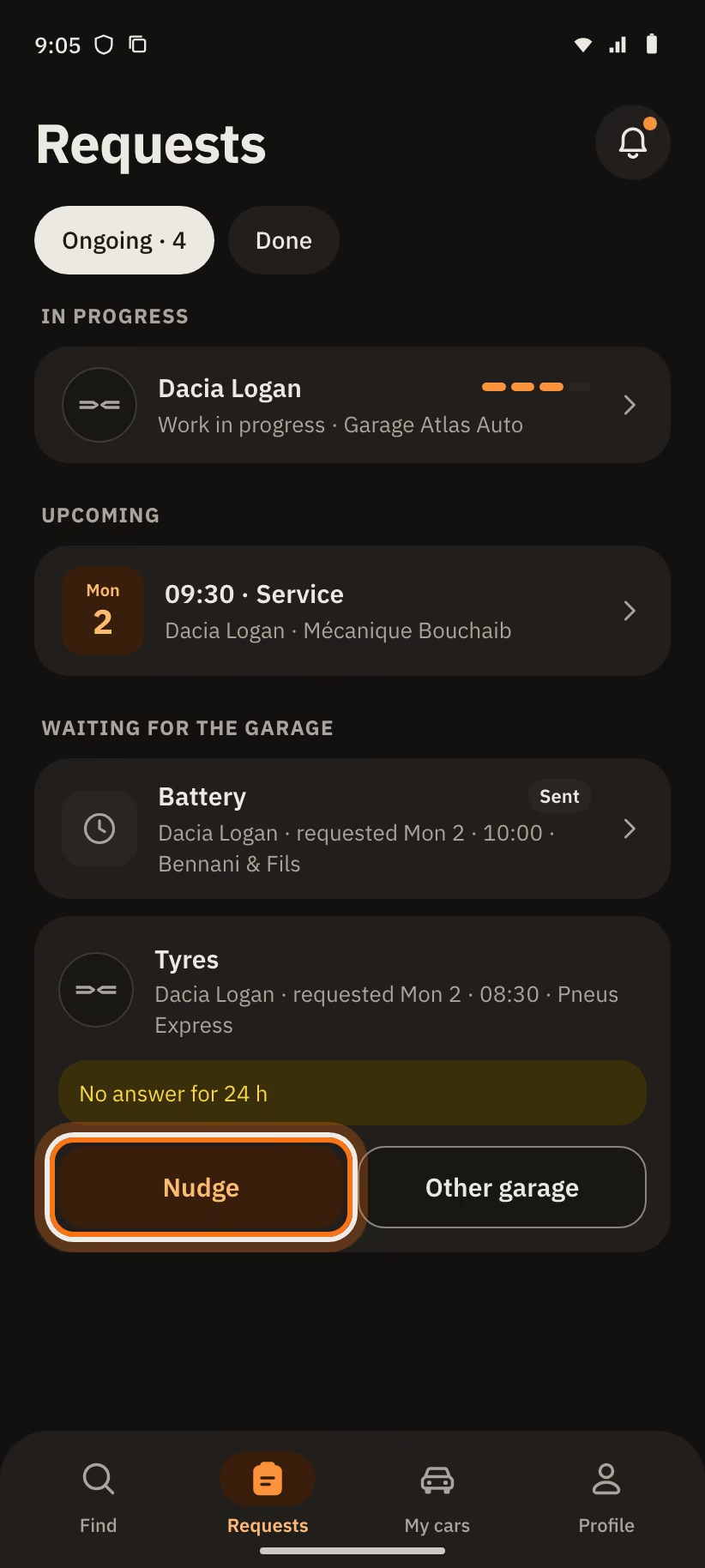
Tap a request to open it. At the top, a big card shows where you are. Below it, you see the garage (with "Messages"), "Your request" and "History".
All the statuses
The label of a request changes at each step. Here are all the statuses you can see.
| Status | What it means | What you do |
|---|---|---|
| Sent | The garage has not answered yet. | Wait. After 24 h, tap "Nudge" or "Other garage". You can also cancel. |
| Your turn | The garage suggests another time ("The garage suggests Sat 31 · 11:00"). | Tap "Accept" or "Decline". |
| Time passed | The suggested time has already passed. | Ask the garage for another time in the chat. |
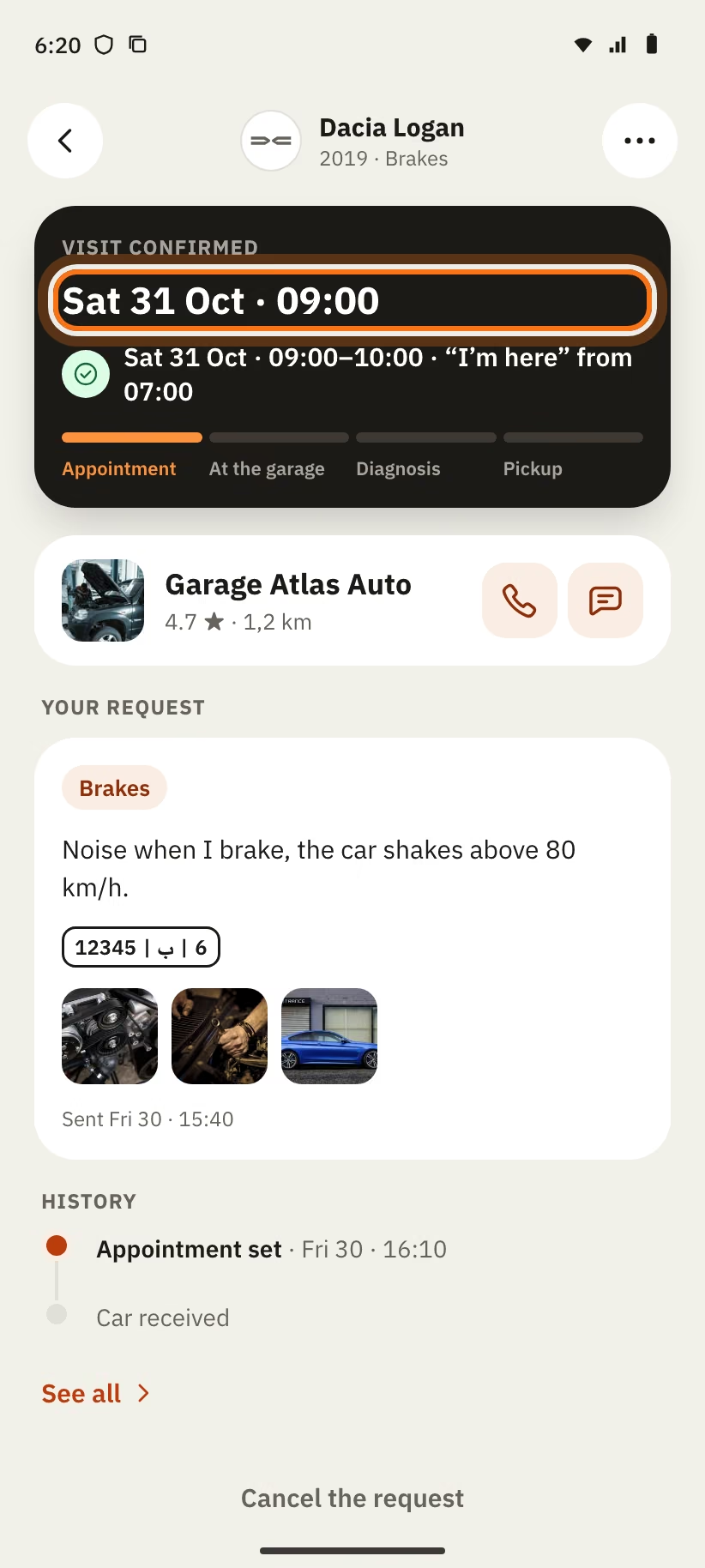
| Appt Sat 31 · 09:00 | The visit is confirmed ("Visit confirmed"). | Come on time. You can cancel up to 2 h before. |
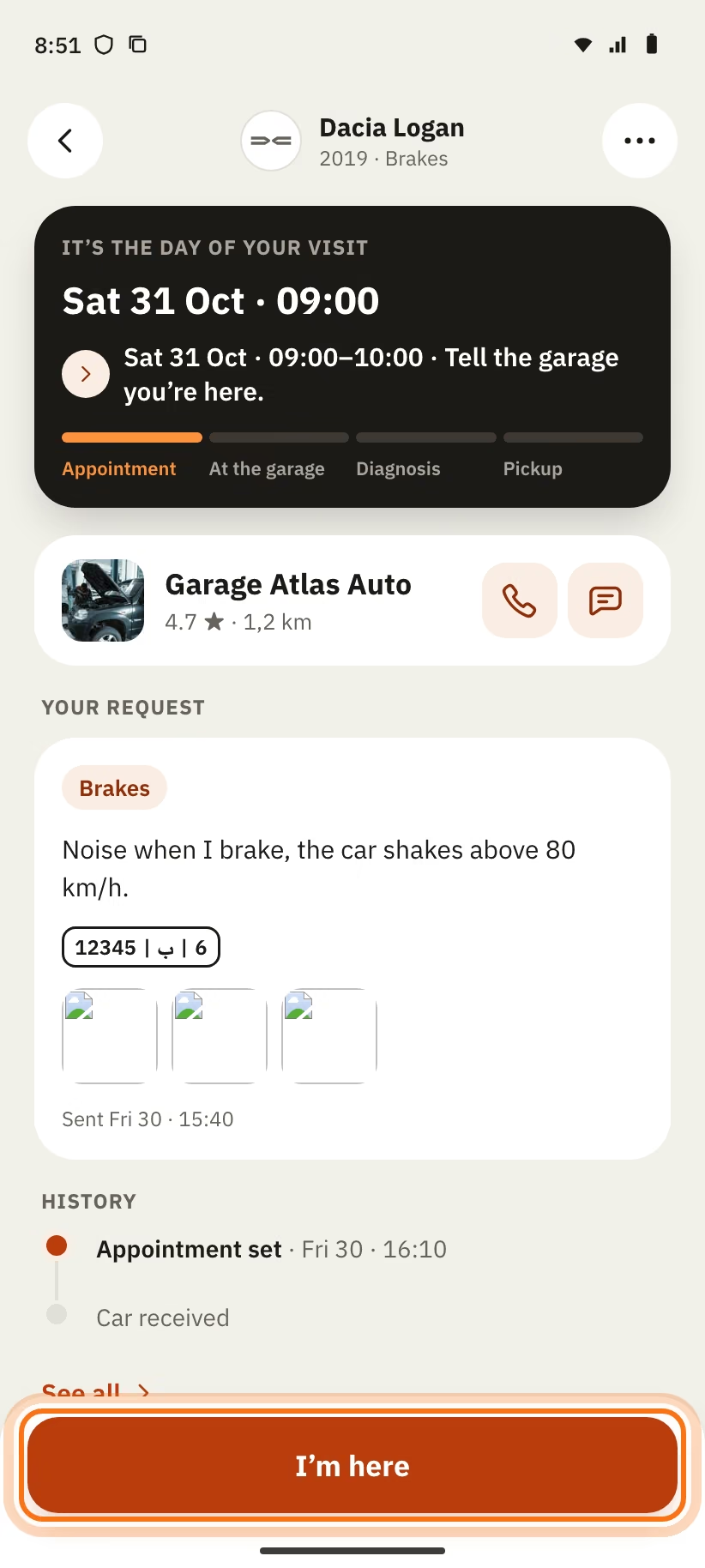
| Say you’re here | It is the day of your visit ("It’s the day of your visit"). | Tap "I’m here" when you are at the garage. |
| Garage notified | The garage knows you are here ("The garage knows you’re here"). | Wait for the garage to take your car. |
| Check the condition | The garage received your car and took photos. | Tap "Looks good" or "Report a problem". |
| At the garage | The garage is checking your car ("The garage is checking your car"). | Wait. The diagnosis and the price will show here. |
| Diagnosis to answer | The garage sends you its diagnosis and a price ("Diagnosis received"). | Tap "Accept" or "Decline or ask a question". |
| Work in progress | You accepted the price. The garage is working ("Accepted 1 480 DH"). | Wait. You can write to the garage. |
| Diagnosis declined | You declined the diagnosis. | Wait for a new price, or for the garage to give your car back. |
| Ready for pickup | Your car is ready ("Your car is ready"). | Go to the garage, pay, then tap "I picked up my car". |
| Done | The work is finished and paid. | Leave a review. |
| Missed appointment | You did not come to the visit ("Missed appointment"). | Tap "Propose a new appointment". |
| Declined | The garage declined your request ("The garage declined"). | Read the reason. Tap "Find another garage". |
| Cancelled | The request is cancelled, by you or by the garage. | Nothing to do. The chat is closed. |
| Waiting to send | The request is on your phone. It has not left yet. | Wait for the network to come back. |
| Failed | Sending failed. | Tap "Retry" or "Delete". |
Answer a suggested time
The garage can accept your time, or suggest another one. Your request then shows "Another time proposed".
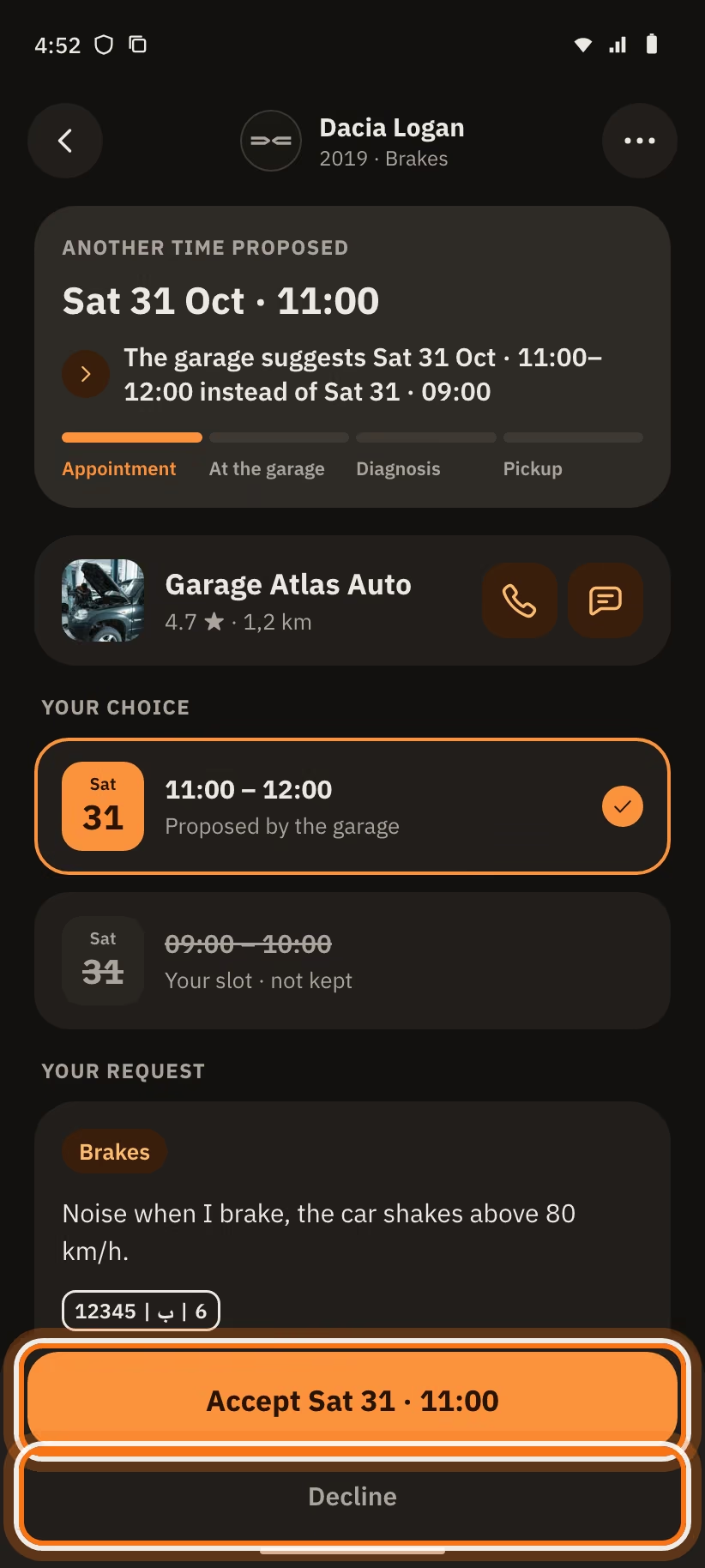
- Look at the card "Your choice". It shows the time "Proposed by the garage" and your slot "not kept".
- Tap "Accept Sat 31 · 11:00": the visit is confirmed.
- Or tap "Decline". The app asks "Decline this time?".
If you decline, the request is cancelled. You can book another time or another garage.
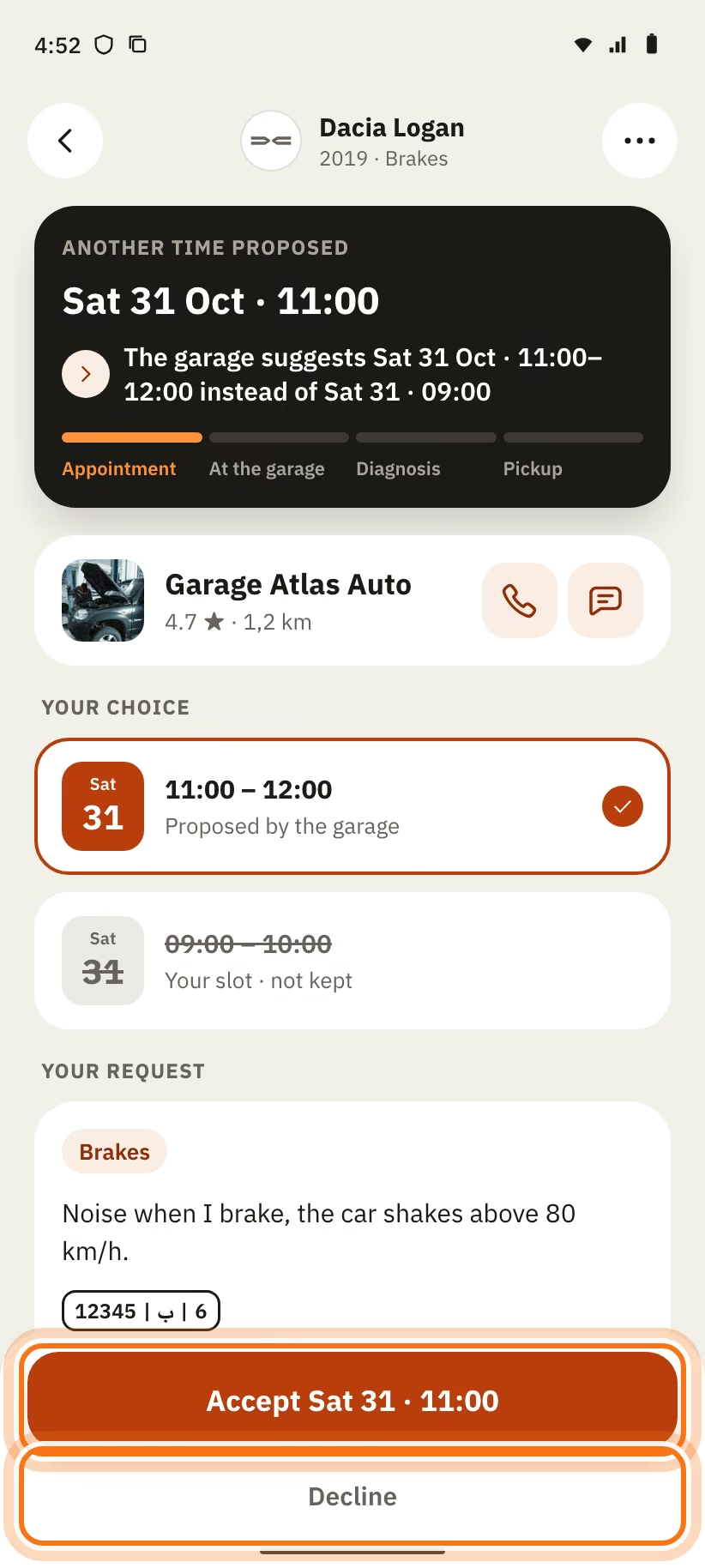
If the suggested time has already passed, the request says "The proposed time has passed". Ask the garage for another time in the chat.
The day of your visit
You get a reminder the day before (at 18:00) and 1 h before the visit. The notification has a "Directions" button.
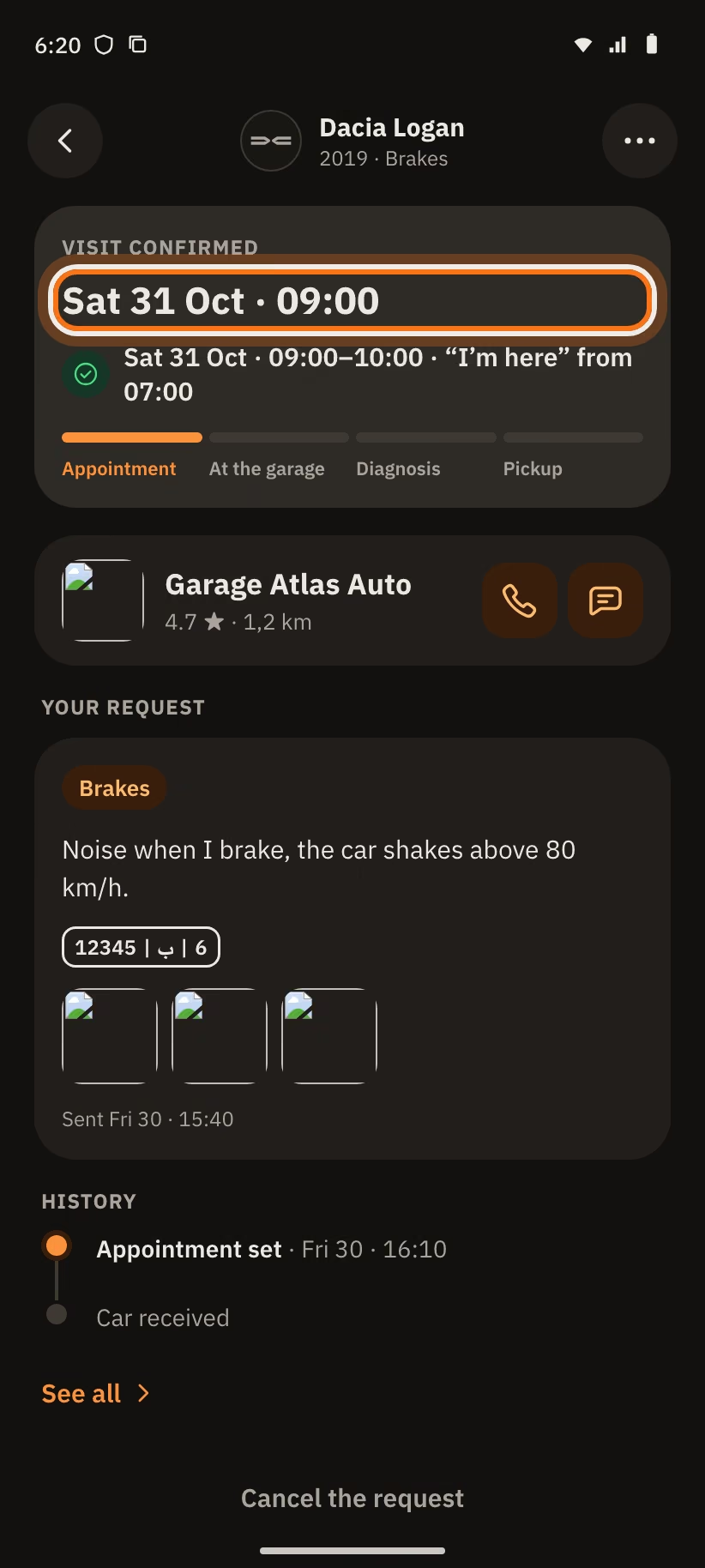
A confirmed request shows "Visit confirmed" and the time. The line under it tells you from when the "I’m here" button appears.
- Arrive at the garage.
- Open your request. It says "It’s the day of your visit".
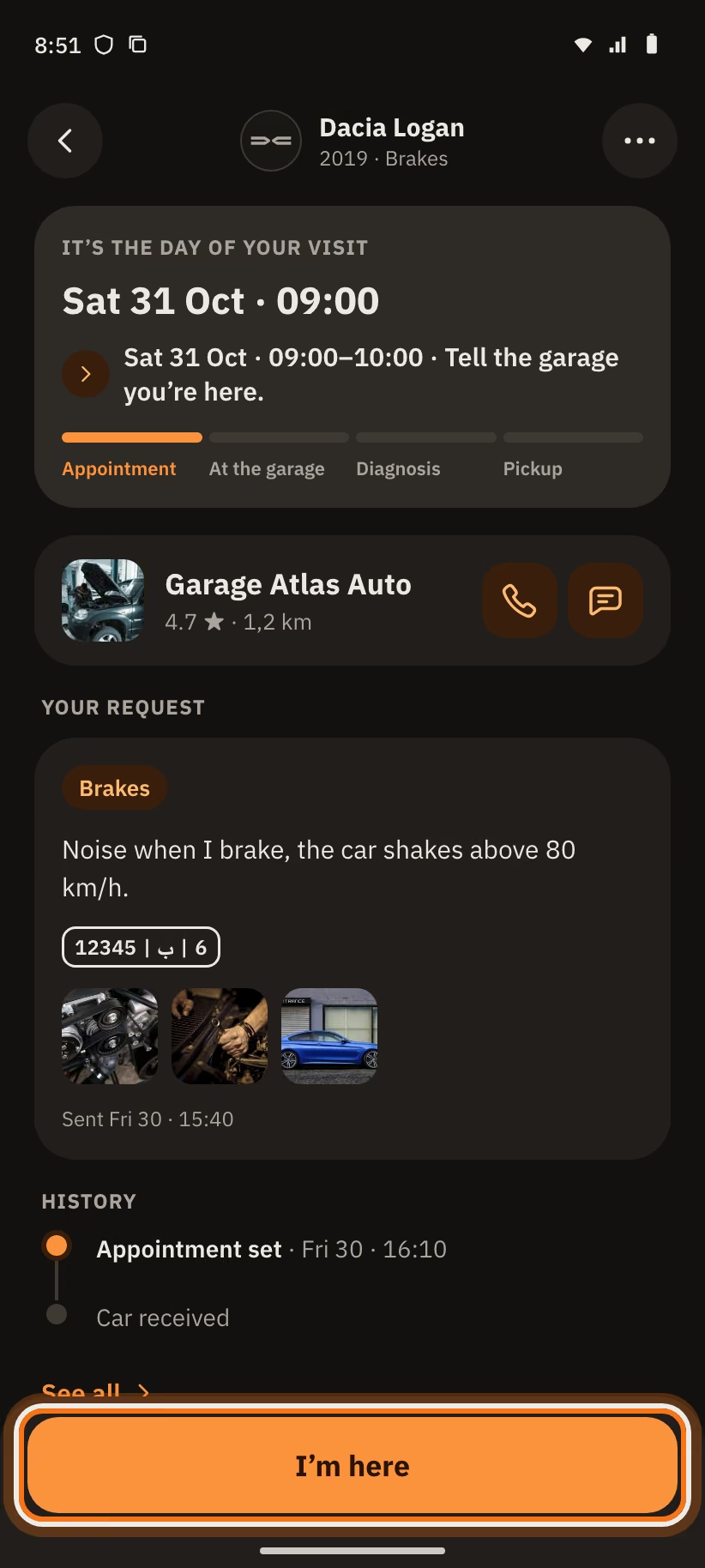
- Tap "I’m here". The app answers "The garage knows".
The button works from 2 h before the start until 2 h after the end of the slot. Before that, the app writes "Possible from …".
Cancel
You want to cancel? Open the request and tap "Cancel the request". The app asks "Cancel this request?", then tap "Yes, cancel". The garage is told.
The rule: you can cancel a sent request at any time. For a confirmed visit, you can cancel up to 2 h before. After that, the app writes "You can cancel up to 2 h before the appointment."
If the garage suggests another time, the link "Cancel the request" is not there. Answer the suggested time first.
Check the photos of your car
When your car arrives, the garage takes 1 to 6 photos of its condition. It can add the mileage and a note.
You see the card "Condition on arrival" with the photos.
- Look at the photos.
- Everything is right? Tap "Looks good". The app answers "Thanks, the garage knows". The card shows "Approved".
- You see a problem? Tap "Report a problem". The chat opens with a message already written. Complete it.
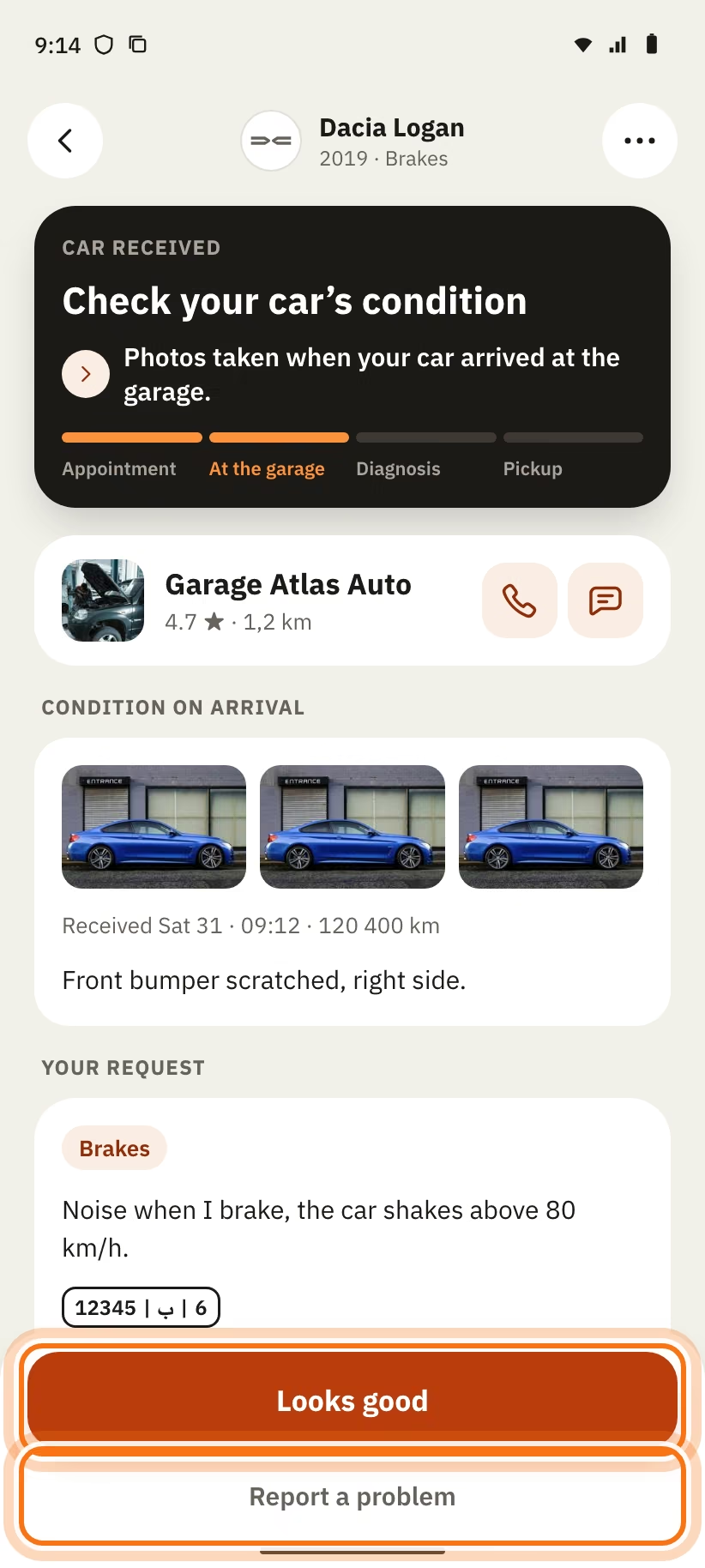
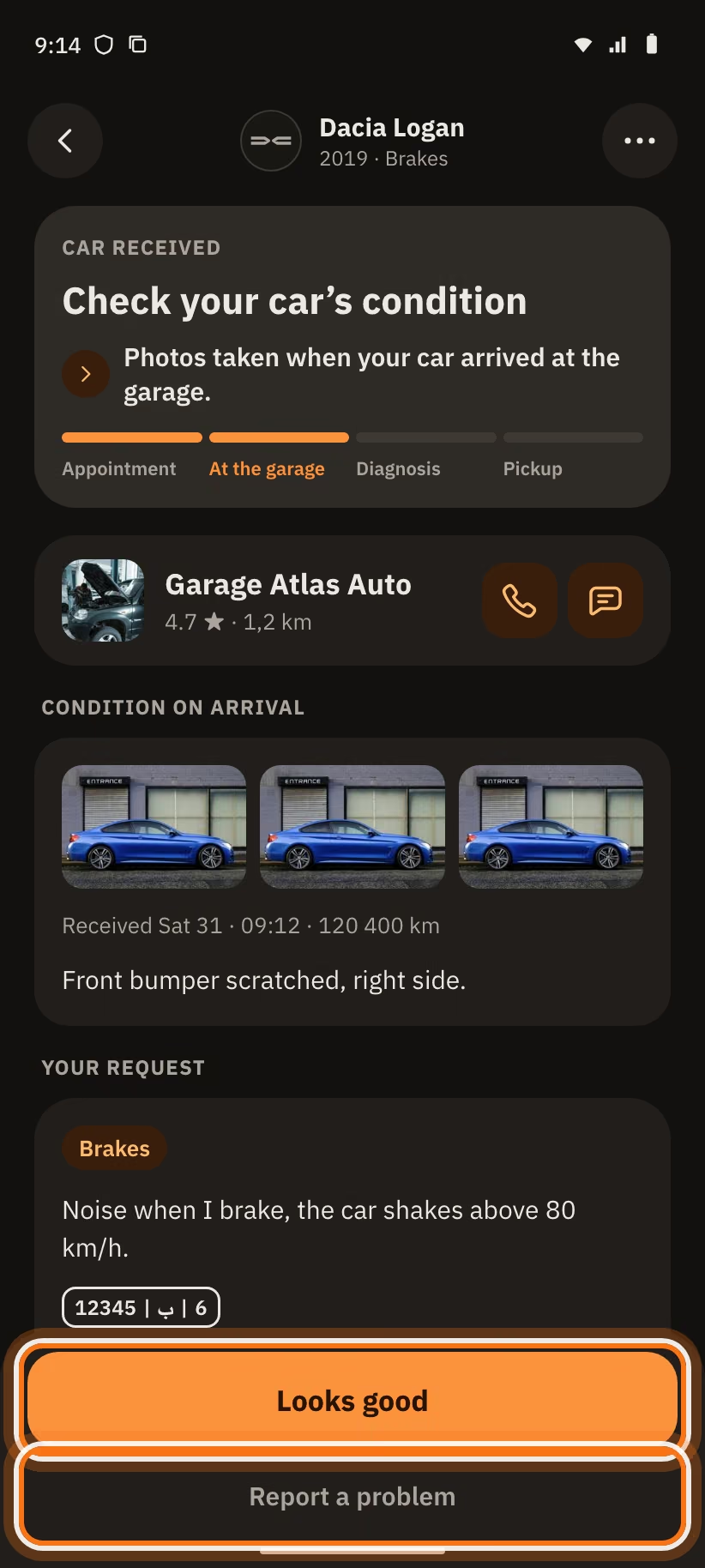
This step blocks nothing. The garage keeps working.
Accept or decline the diagnosis
After the check, the garage sends you a diagnosis. Your request shows "Diagnosis received" and the total, for example 1 480 DH. The app says: "The garage only starts once you agree."
The "Diagnosis" card shows:
- the explanation of the garage, as a voice note or text;
- the lines (parts, labour) and the "Total";
- "New price" if the garage sends you a second diagnosis.
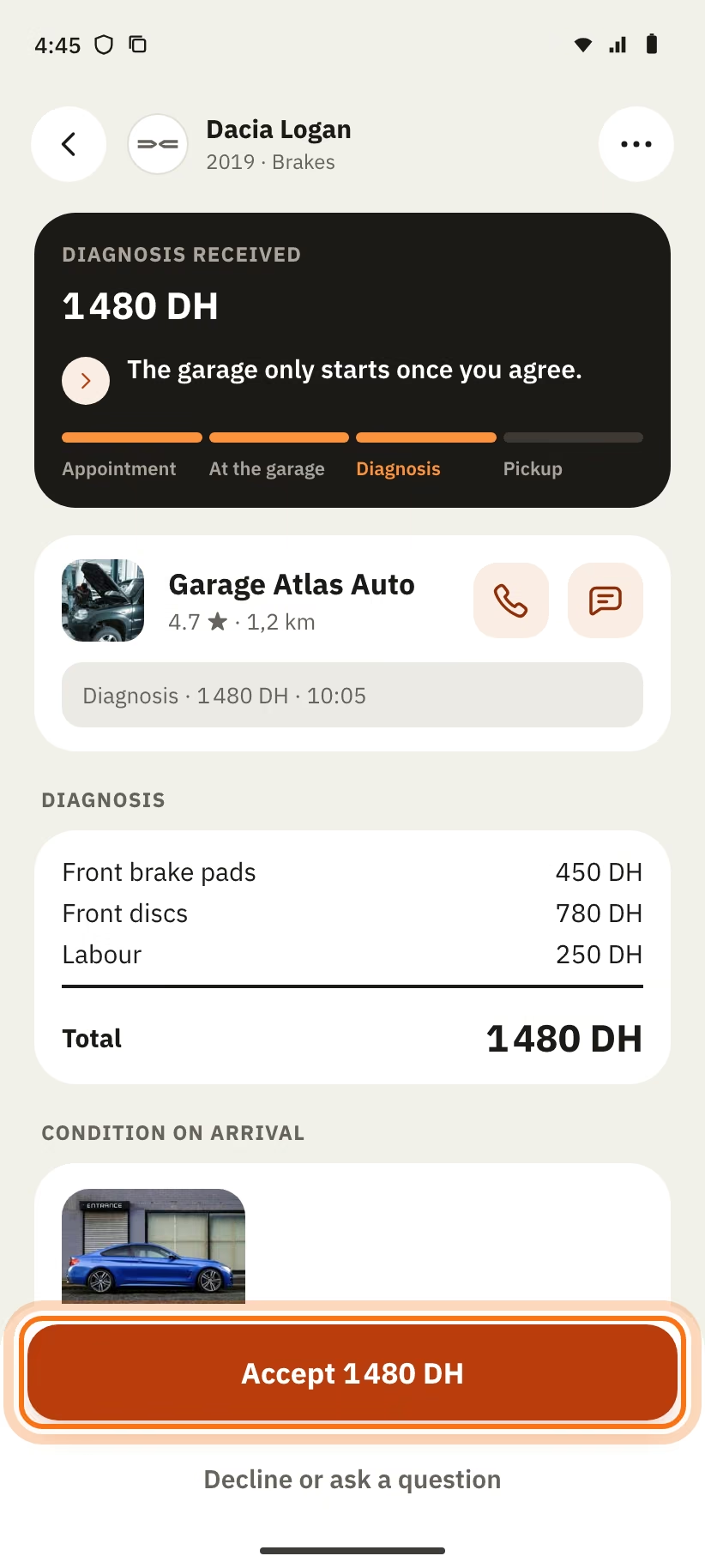
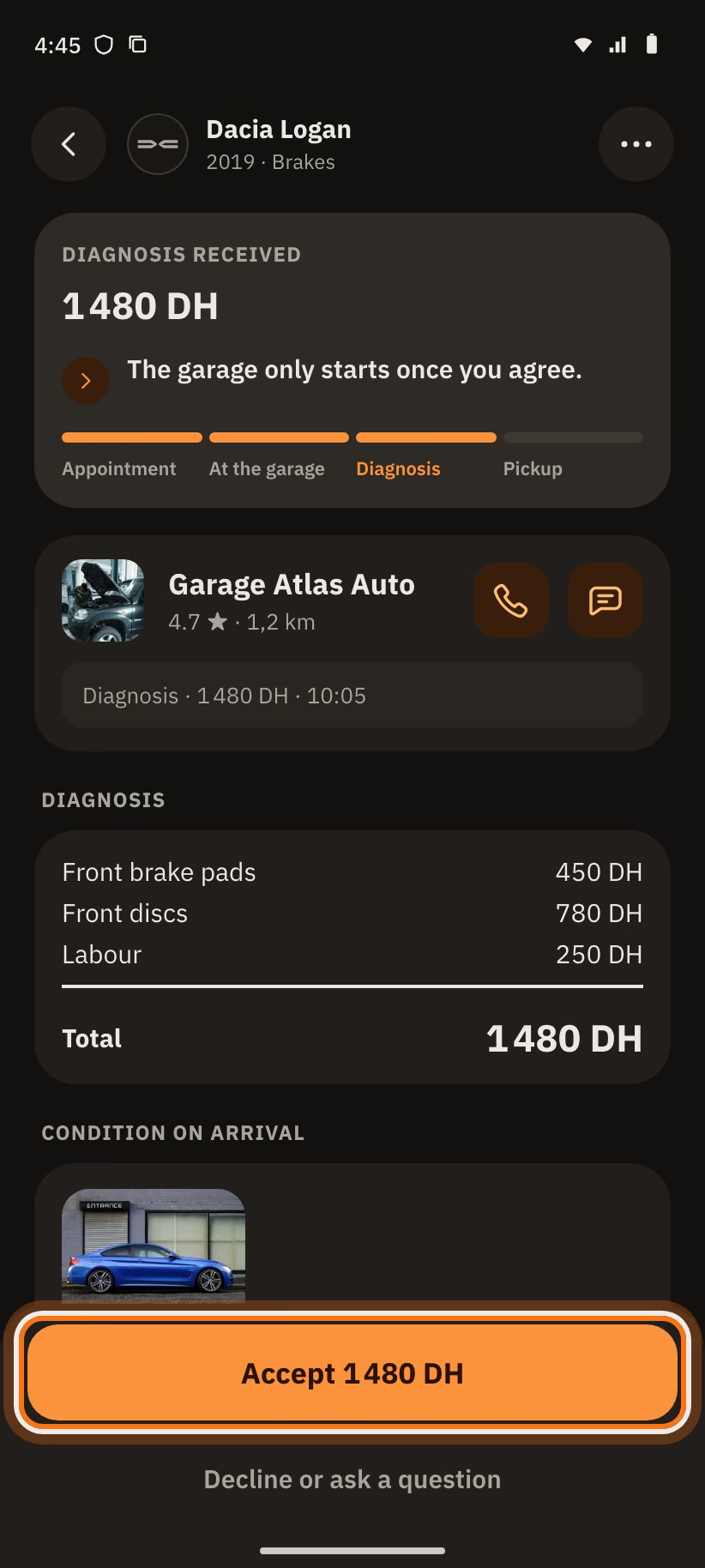
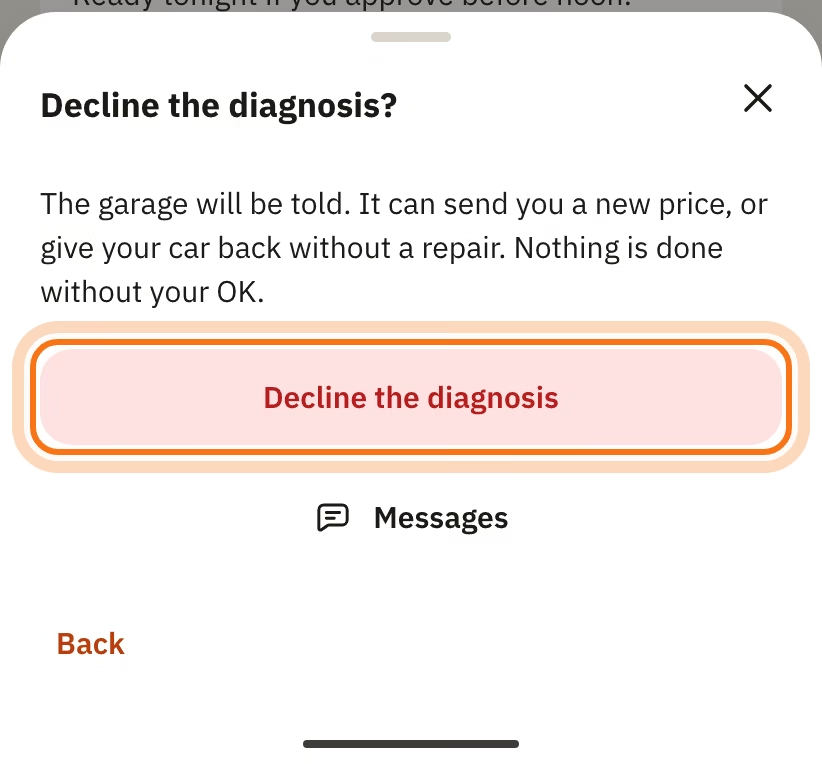
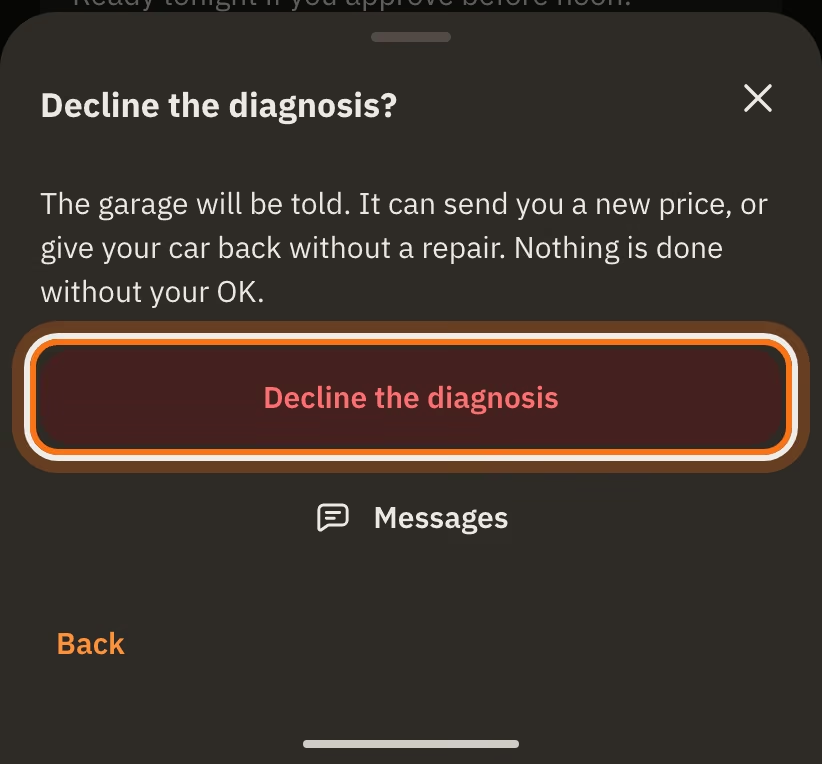
You choose:
- "Accept 1 480 DH": the garage starts the work ("Accepted · the garage starts the work").
- "Decline or ask a question": a window opens. Tap "Decline the diagnosis" to decline, "Messages" to ask a question, or "Back".
If you decline, the garage is told. It can send you a new price, or give your car back without a repair.
Nothing is done without your OK. The final price cannot be more than the total you accepted. If the garage finds more work to do, it sends you a new diagnosis ("New price") and you choose again.
For a booked service, the price is known when you book. Your request goes straight to "Work in progress".
During the work
The request shows "Work in progress" and the accepted price. You have nothing to do.
You can write to the garage at any time with "Messages". When the car is ready, you get a notification.
Your car is ready
You get the notification "Your car is ready".
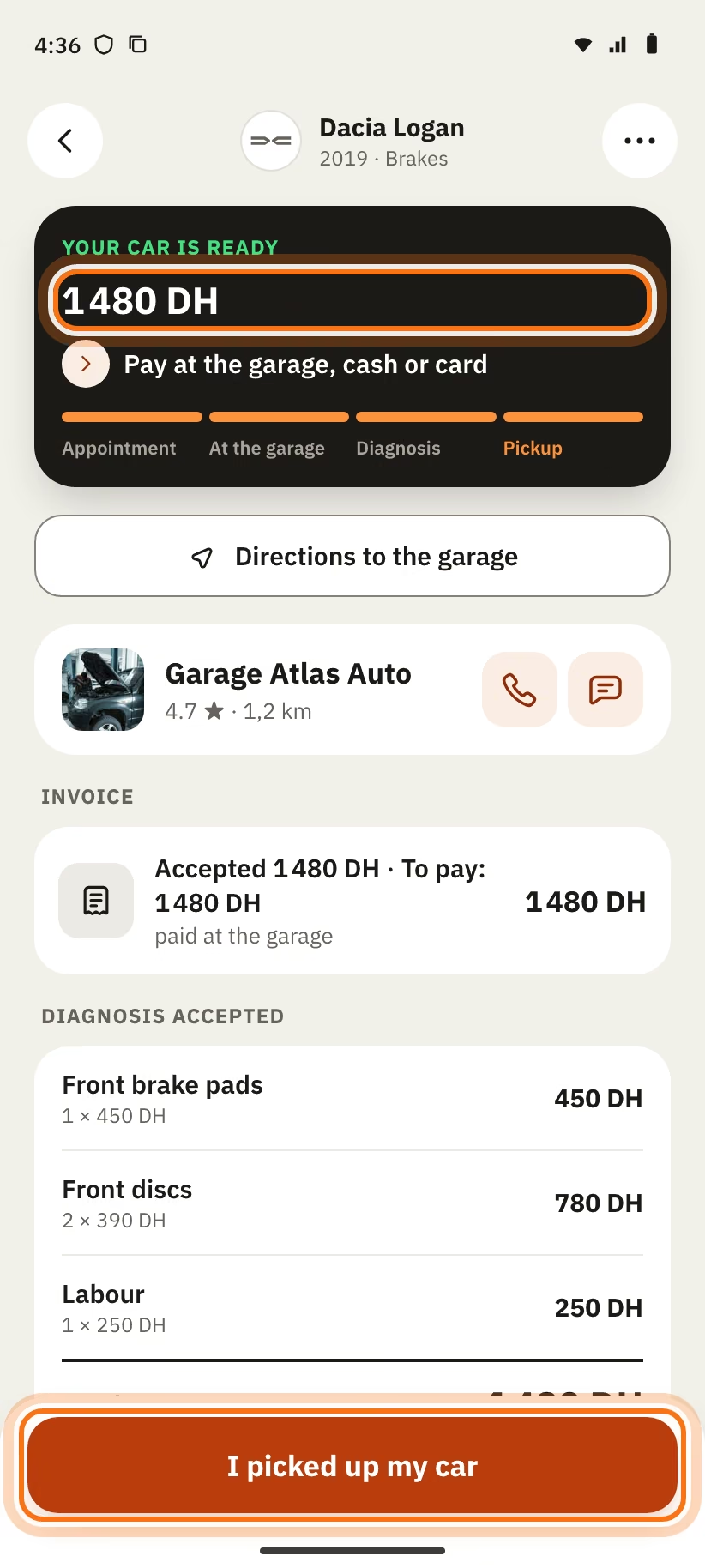
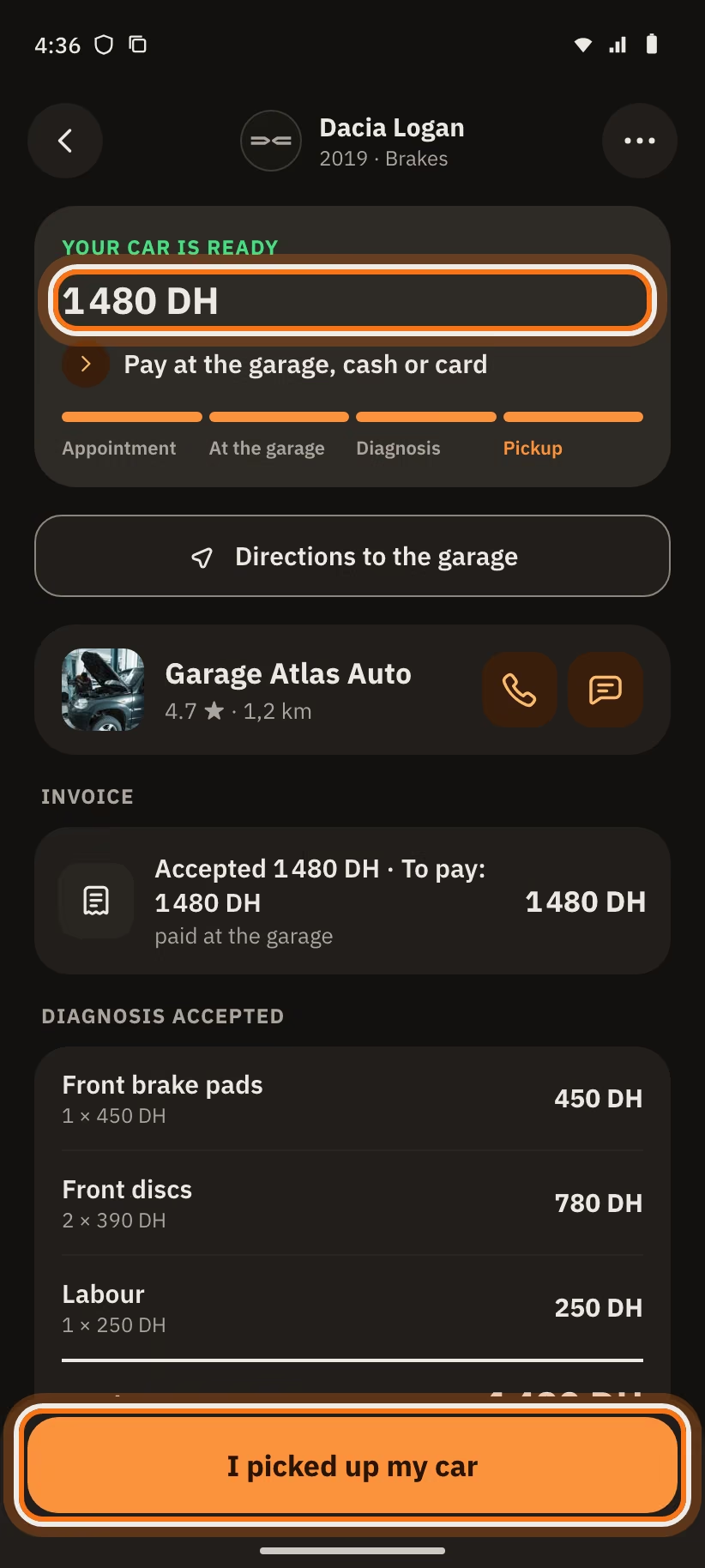
The request shows "Your car is ready" in green, with the amount. Under it, the app writes "Pay at the garage, cash or card".
- Tap "Directions to the garage" to go there.
- You pay the garage directly. There is no payment in the app.
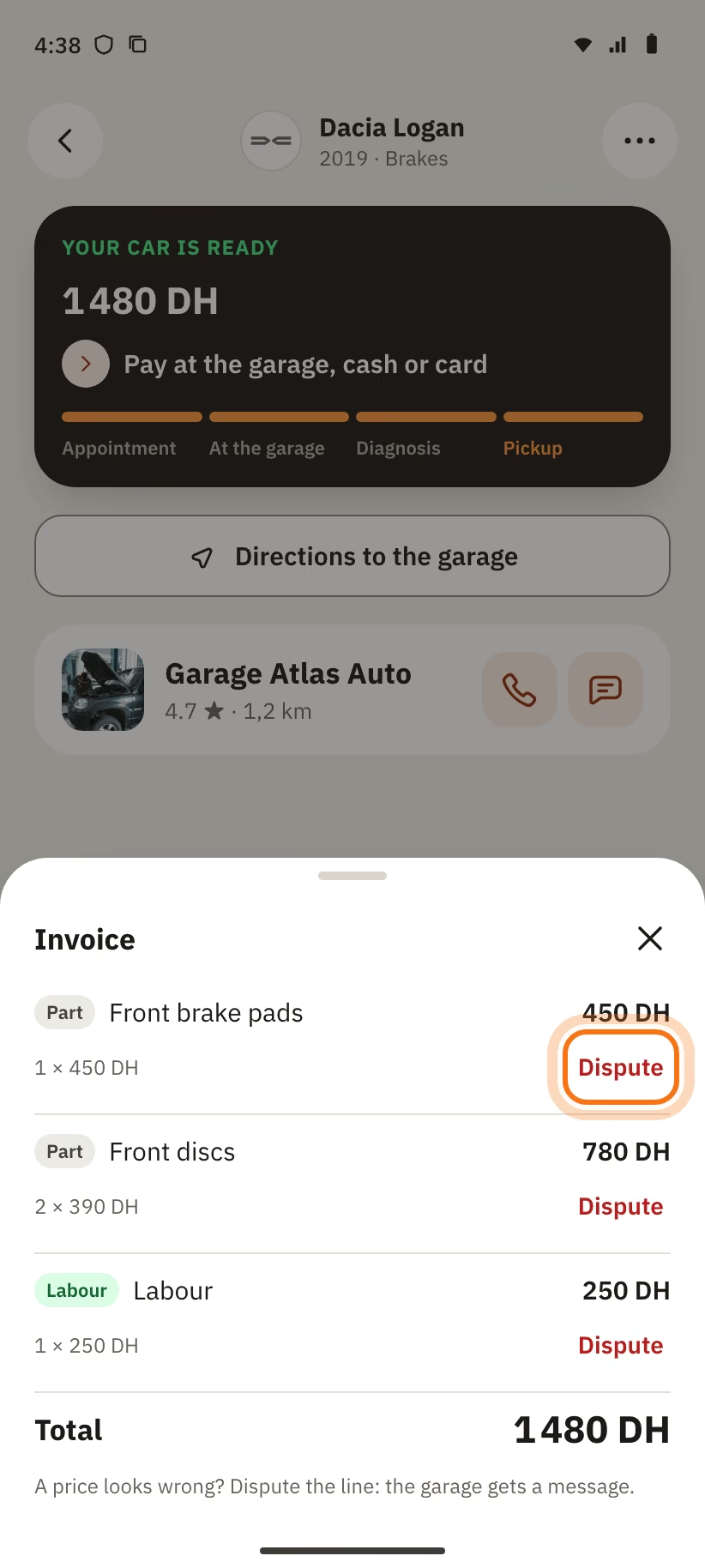
- The "Invoice" card shows "Accepted … · To pay: …" and the bill photo, if the garage added one.
The amount to pay cannot be more than the total you accepted.
A price looks wrong
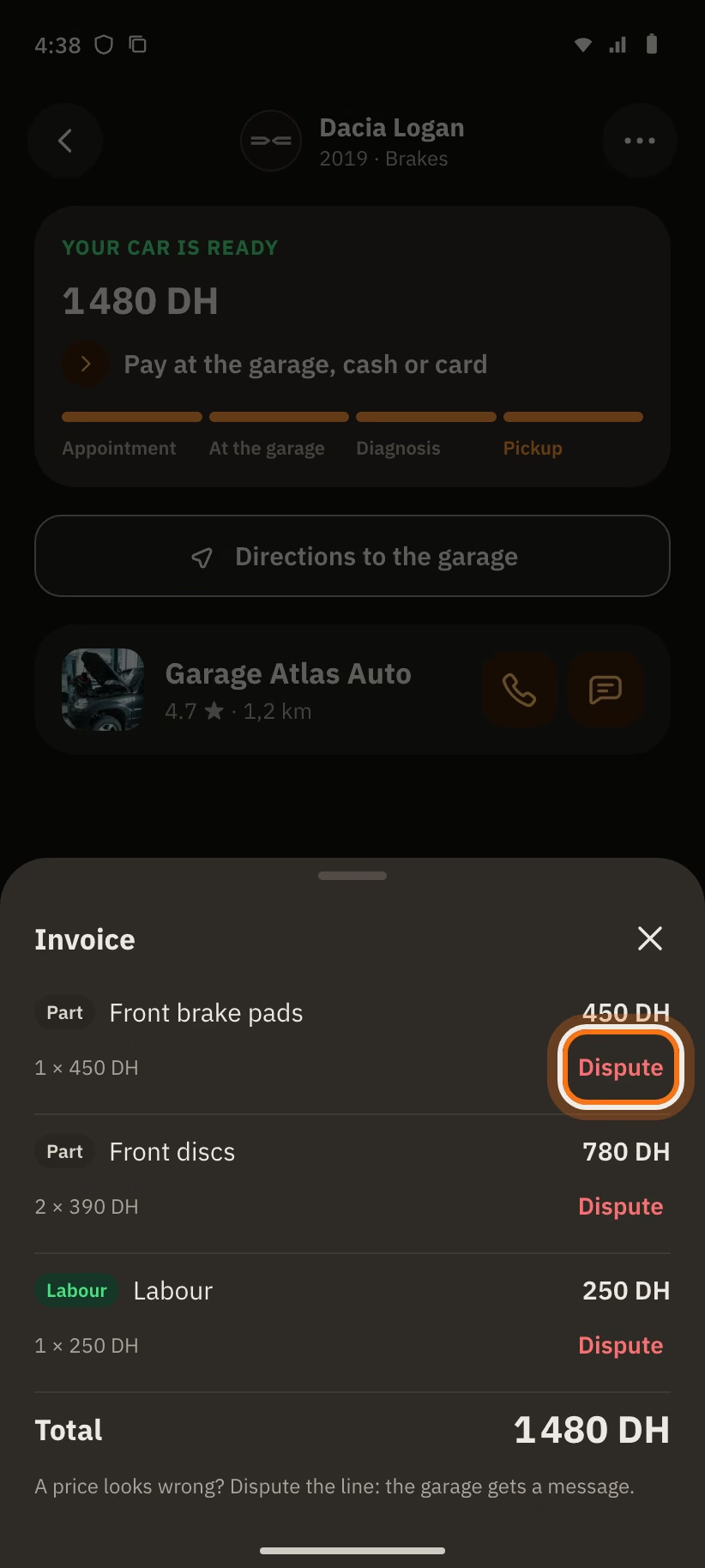
- Tap "See the work details". The "Invoice" window opens with all the lines.
- Tap "Dispute" on the line.
- The app asks "Dispute this line?". Tap "Yes, dispute".
The line shows "Disputed". The app writes "Line disputed, the garage has been told". The garage gets a message. You talk about it in the chat.
Pick up your car
When you have your car, tap "I picked up my car".
The garage can also mark it "Handed over". If nobody does, the request closes by itself 48 h after "Your car is ready".
A finished request shows "Done" with "Paid · 1 480 DH". The button "Book again" lets you go back to the same garage. The chat stays open for 7 days.
If you did not come, or the garage declines
You did not come
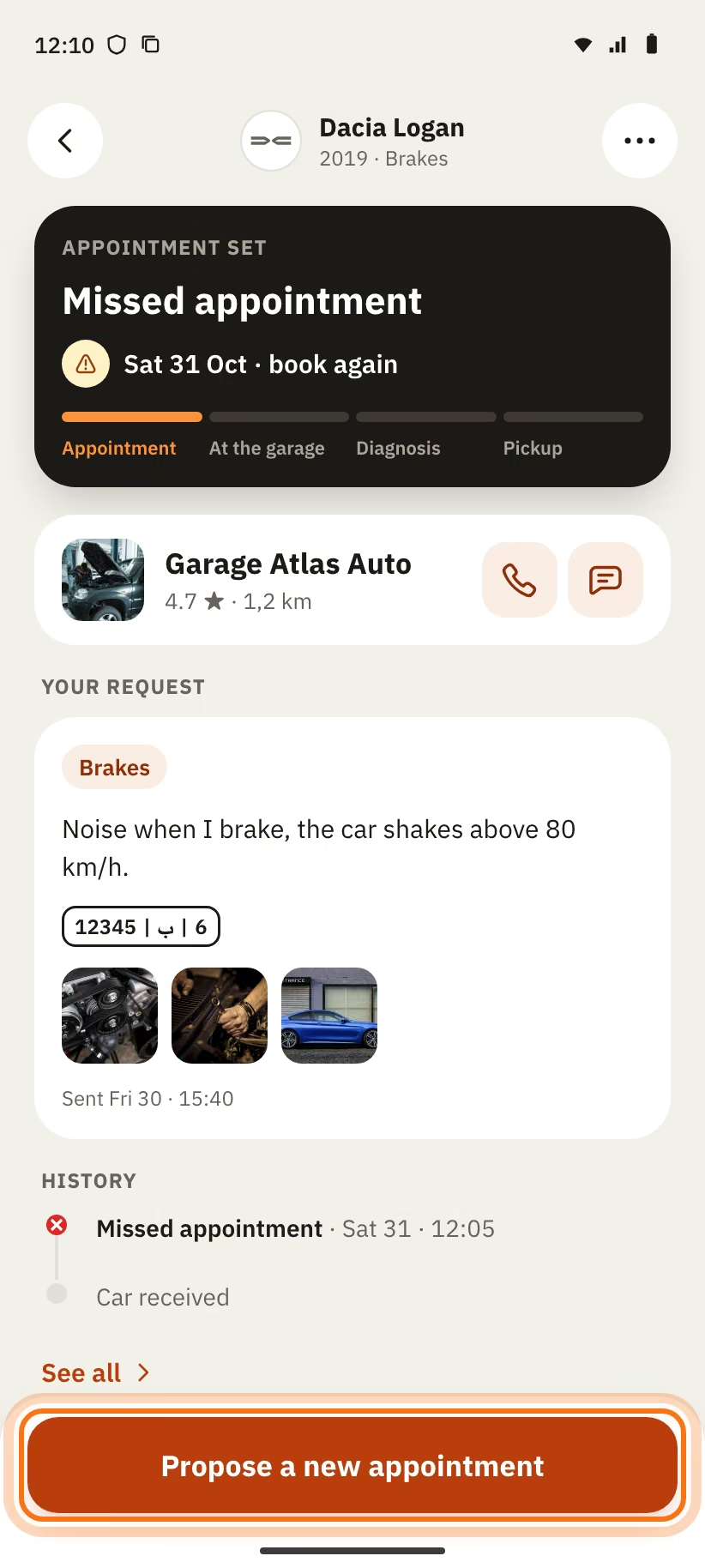
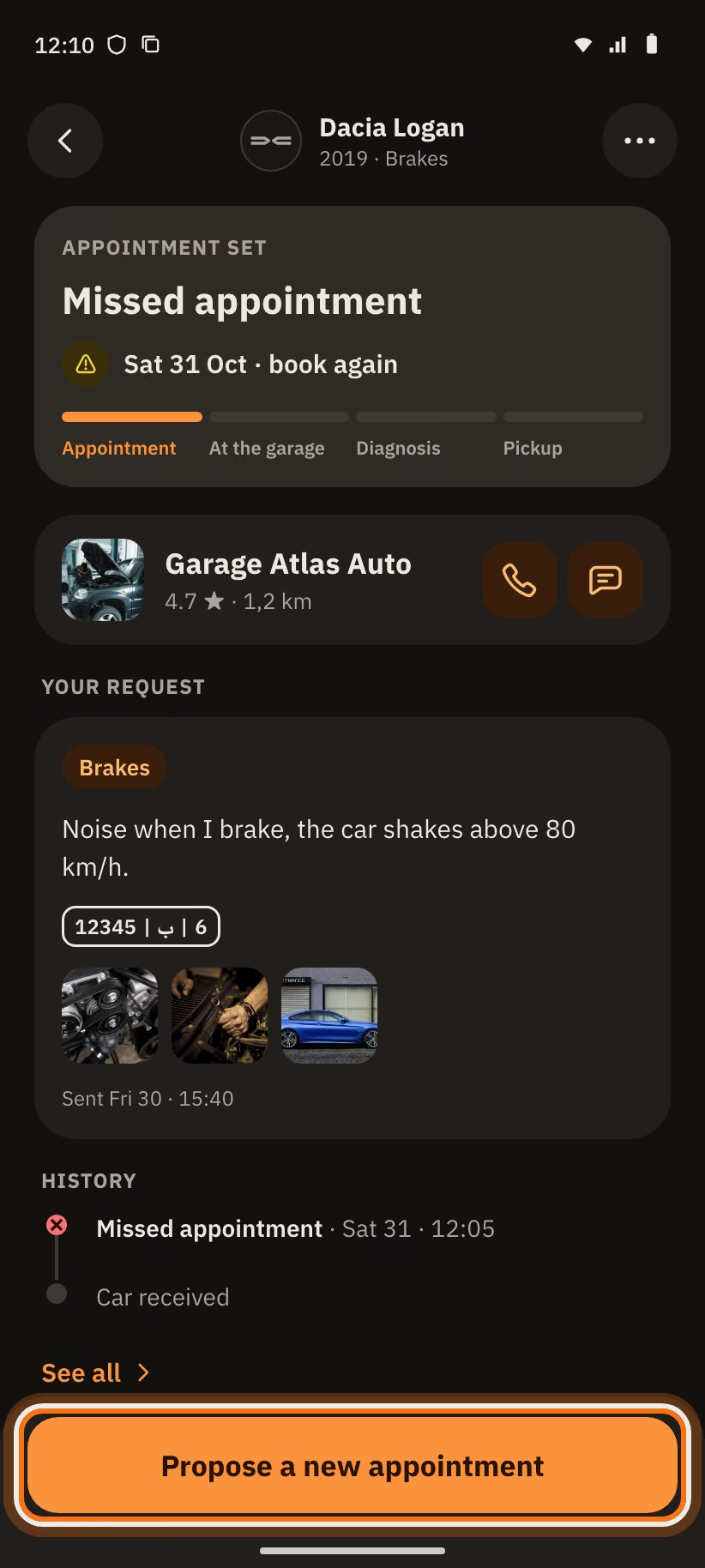
The garage can mark you absent, 30 minutes after the end of the slot. Your request shows "Missed appointment" and the label Missed appointment.
- Tap "Propose a new appointment".
- In "When?", choose a time.
- Tap "Suggest this time".
The app writes "New appointment sent to the garage". The chat stays open.
The garage declines your request
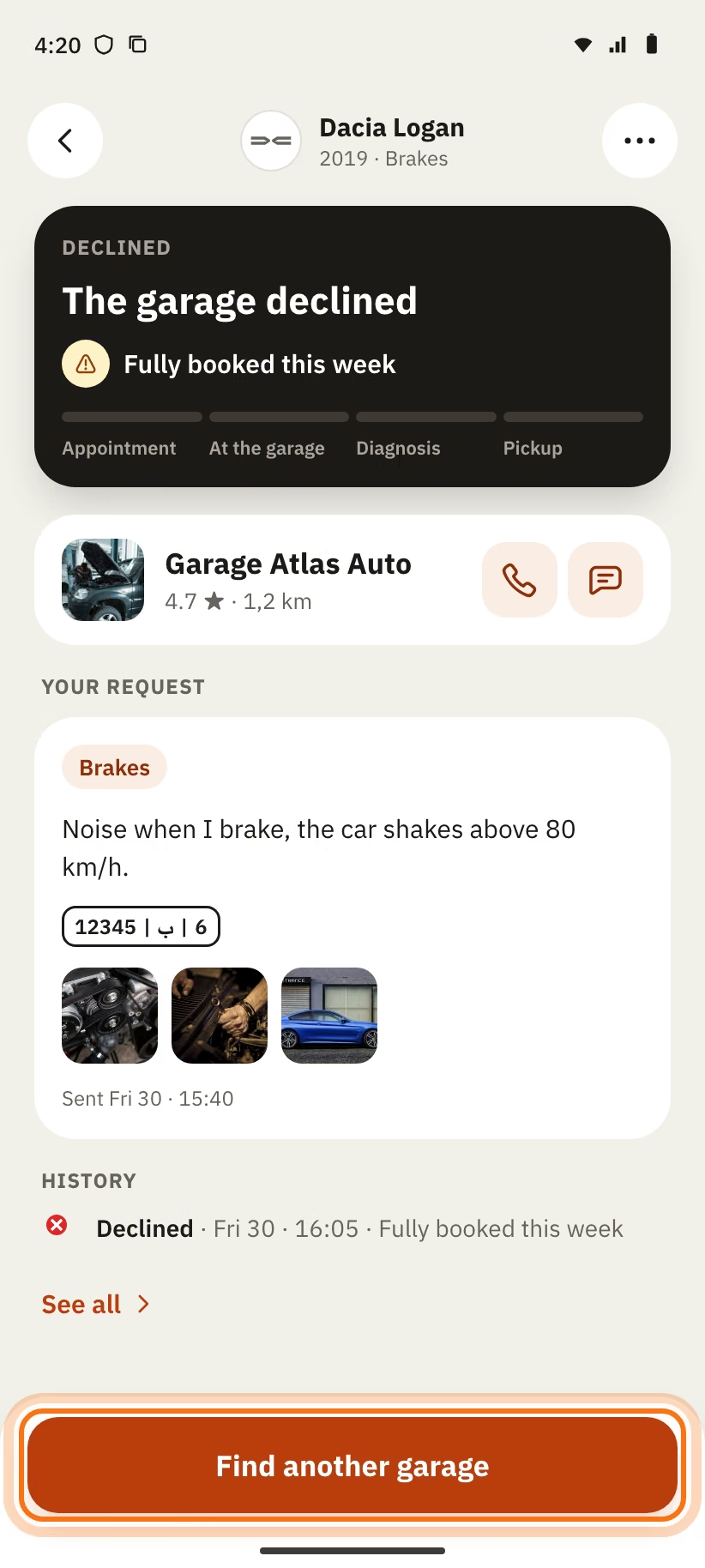
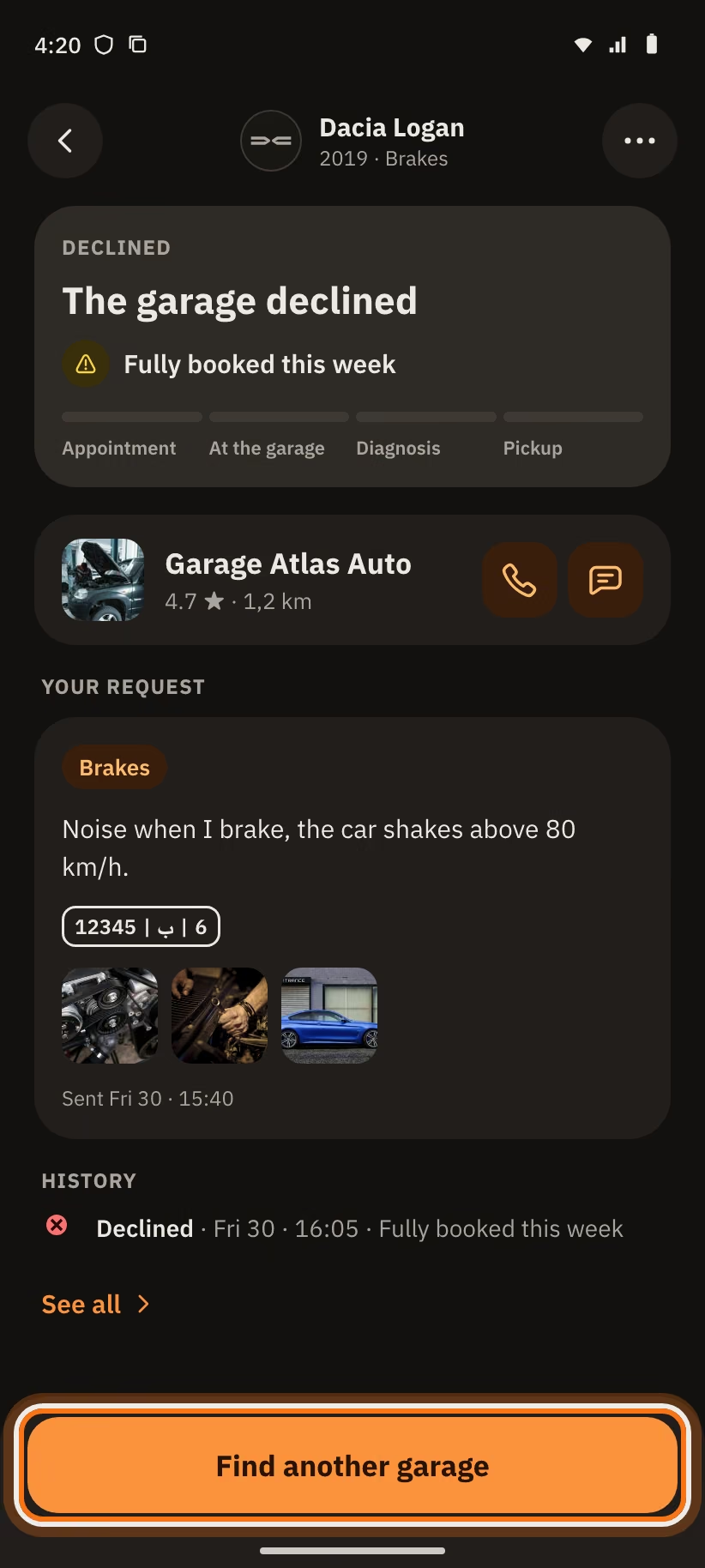
The request shows "The garage declined" and the reason. The garage chooses from:
- "Fully booked this week";
- "Part unavailable";
- "We don’t do this kind of work";
- "Too far";
- "Other".
Tap "Find another garage". The chat is closed.
The garage can also cancel a visit. The request then shows "Cancelled · by the garage" and the reason.
Leave a review
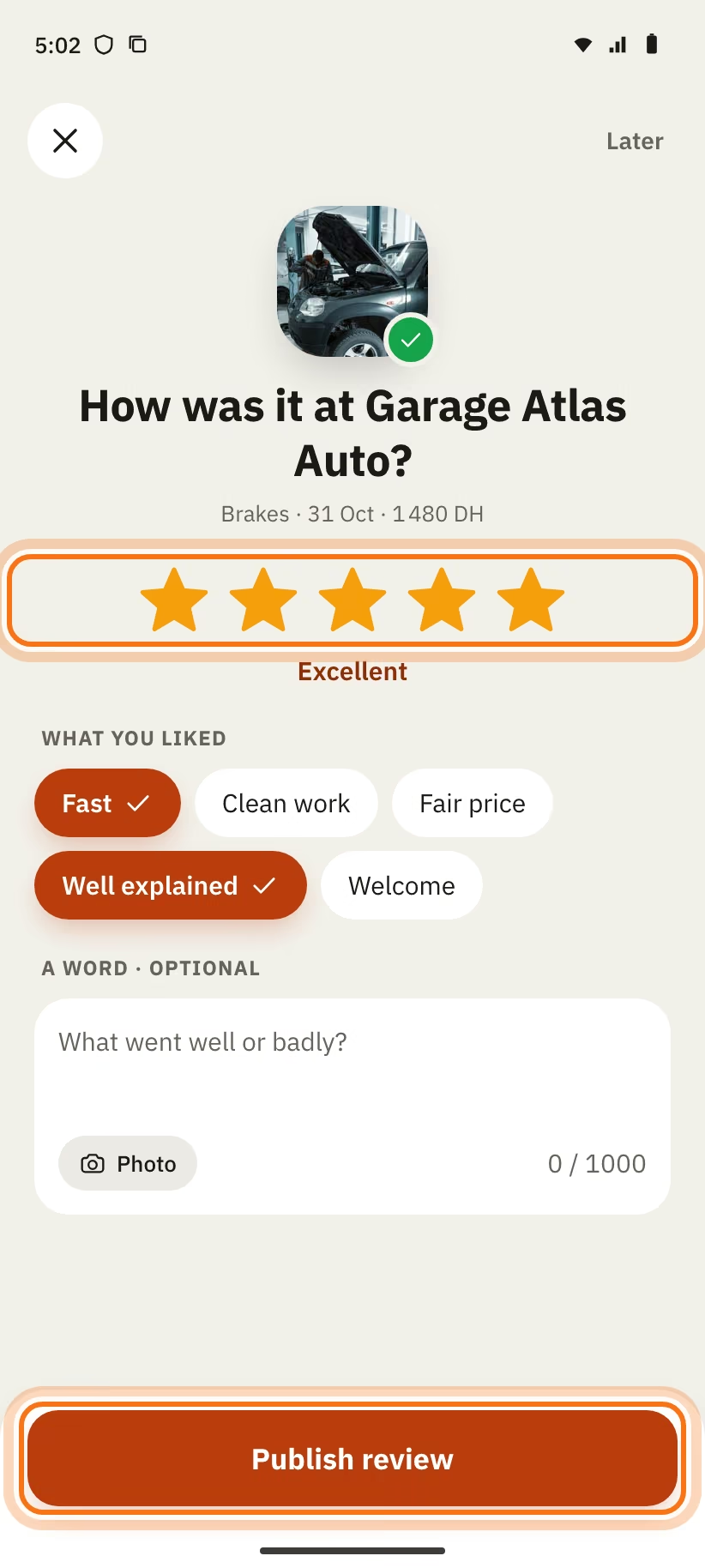
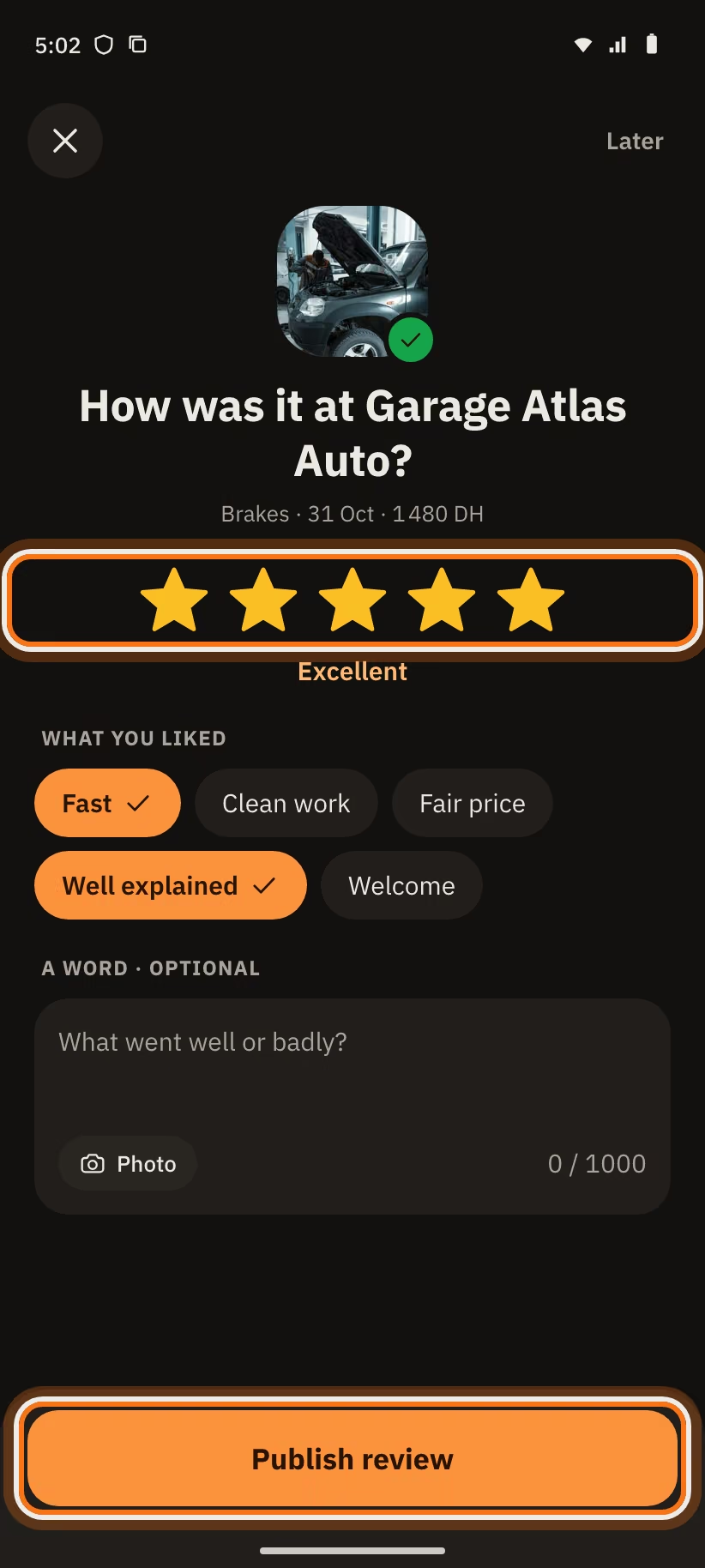
When the work is finished, the app asks for your review. You can also tap a star in the finished request ("How did it go? Tap a star").
- Tap a star, from 1 to 5.
- In "What you liked", tap what matches: "Fast", "Clean work", "Fair price", "Well explained", "Welcome".
- Write "A word · optional" (1,000 characters at most).
- Add up to 3 photos of the result (optional).
- Tap "Publish review". Not now? Tap "Later".
You can edit your review for 48 h ("Editable for … more h"). Tap "Edit your review". After 48 h, the app writes "This review can no longer be edited".
You leave one review per job. Only a job finished in the app can get a review. The garage can reply once.
Chat with the garage
Each request has its own chat. There is no "Messages" tab. Open your request and tap "Messages". On a garage profile, tap "Message".
Write and send
You can send:
- a text (2,000 characters at most);
- a voice note: hold the microphone to talk. To send, release ("Release to send"). To cancel, slide ("Slide away to cancel"). To keep your hands free, slide up ("Slide up to lock"). A voice note is 60 seconds at most;
- what "Attach" offers.
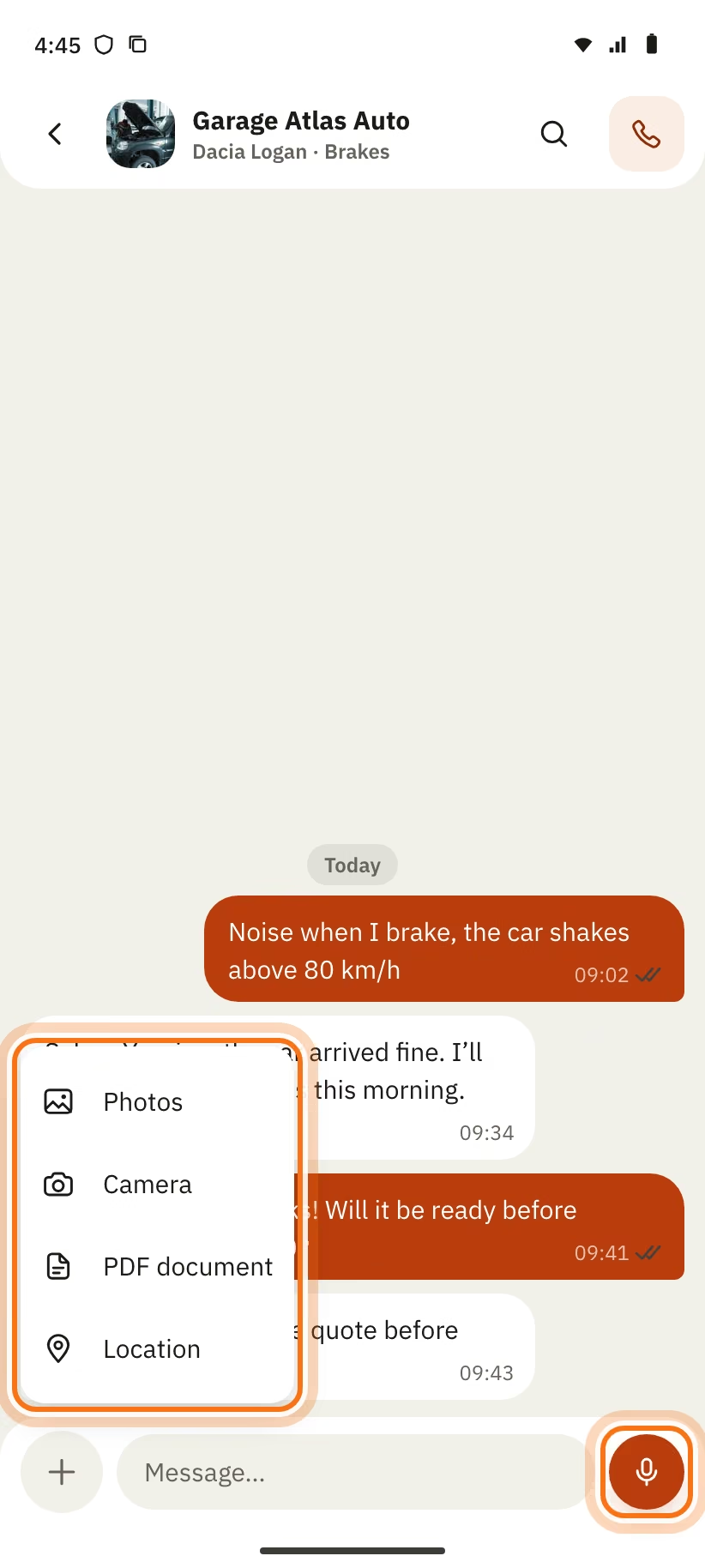
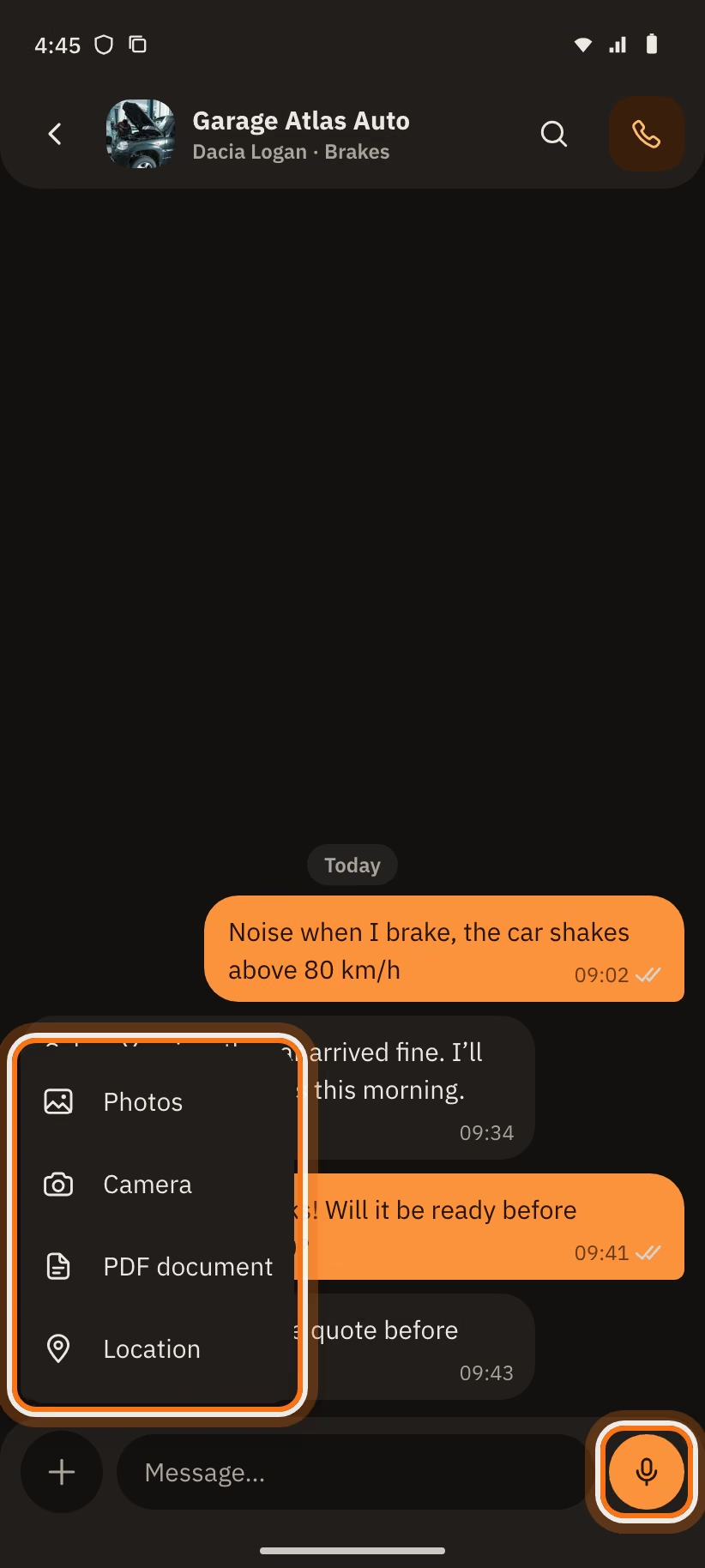
In "Attach":
- "Photos": up to 10 photos in one album;
- "Camera": take a photo;
- "PDF document": a PDF of 10 MB at most;
- "Location": the app asks "Send this location?". The garage sees a card with "Open in Maps".
With no network, the message waits and leaves as soon as the network is back.
Press and hold a message
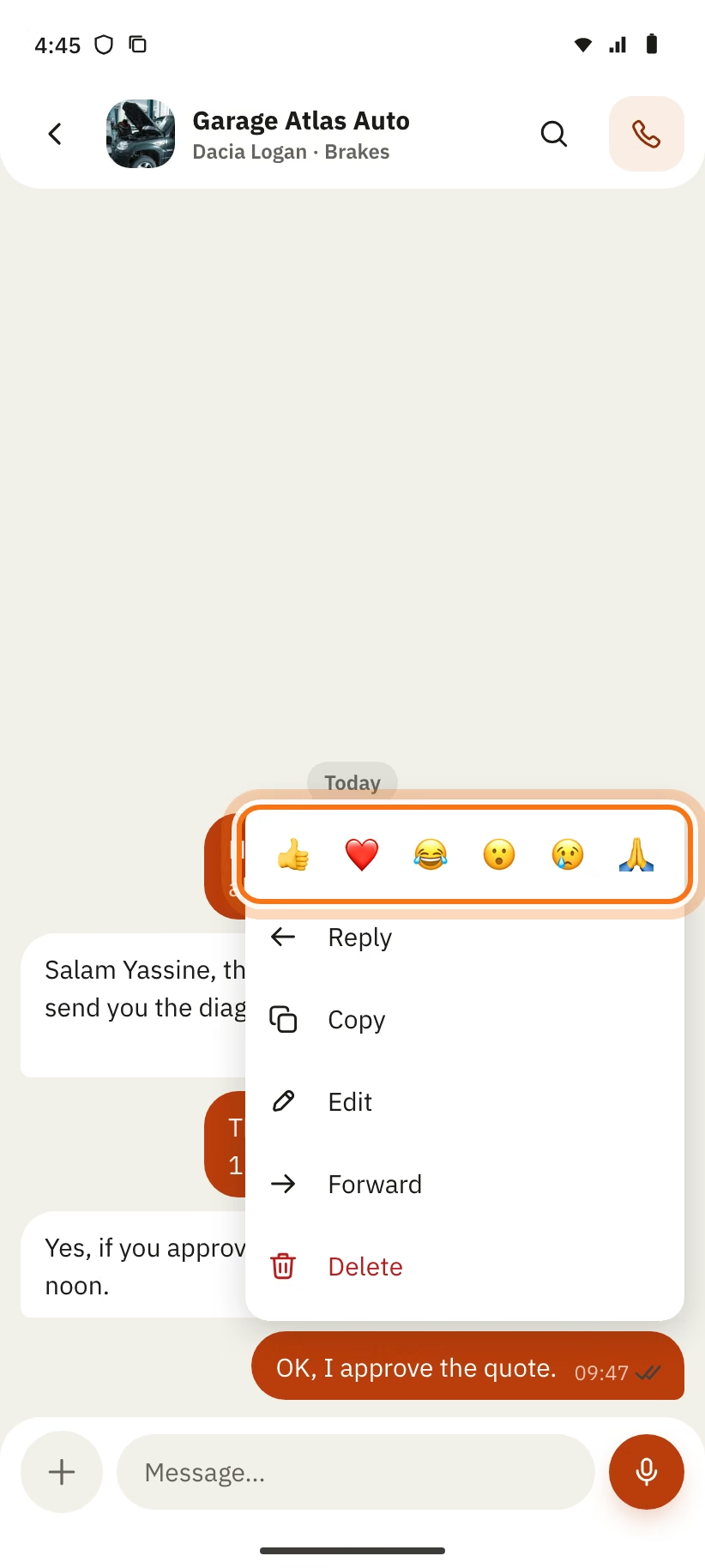
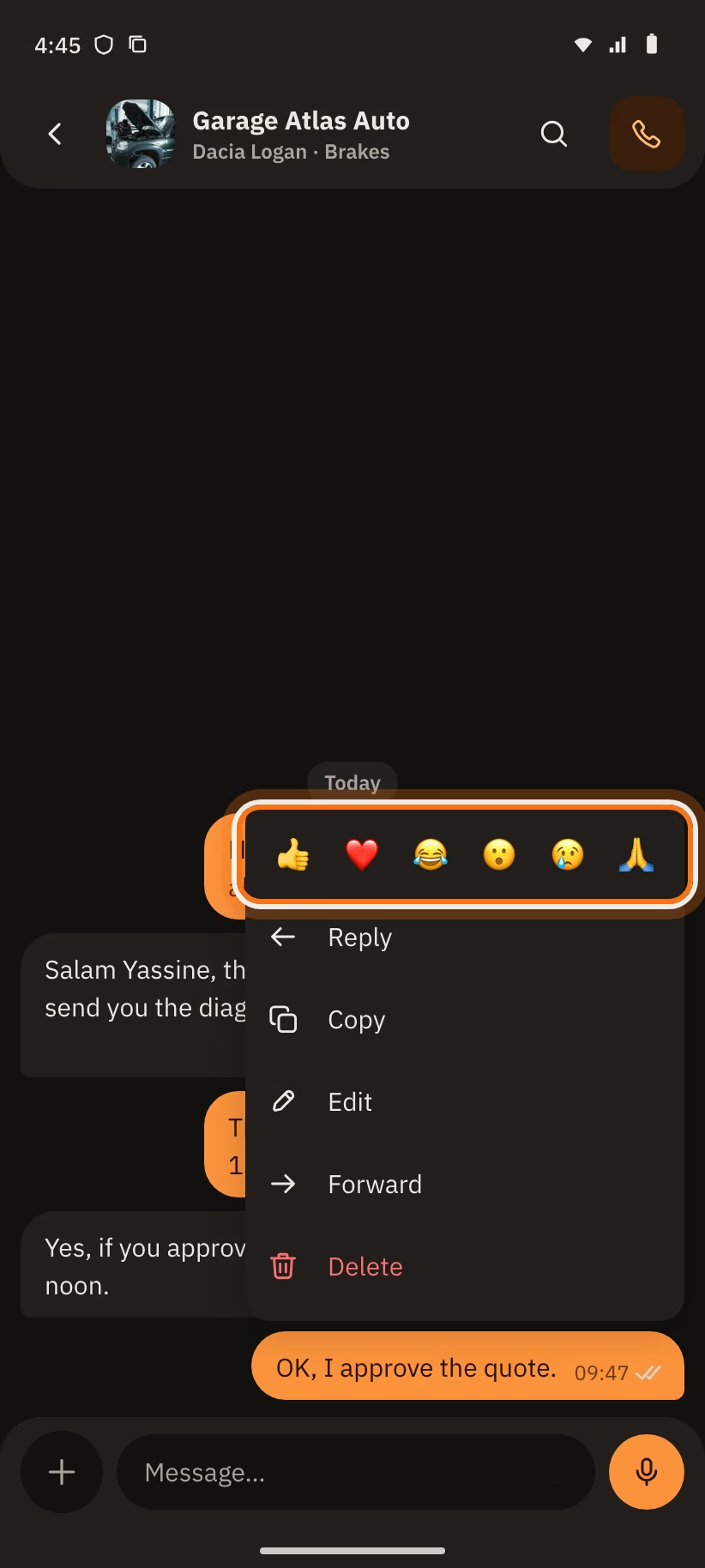
Press and hold a message. A row of 6 reactions shows: 👍 ❤️ 😂 😮 😢 🙏. You can put one reaction on a message. Under it, the menu:
- "Reply": quotes the message. You can also slide the message.
- "Copy".
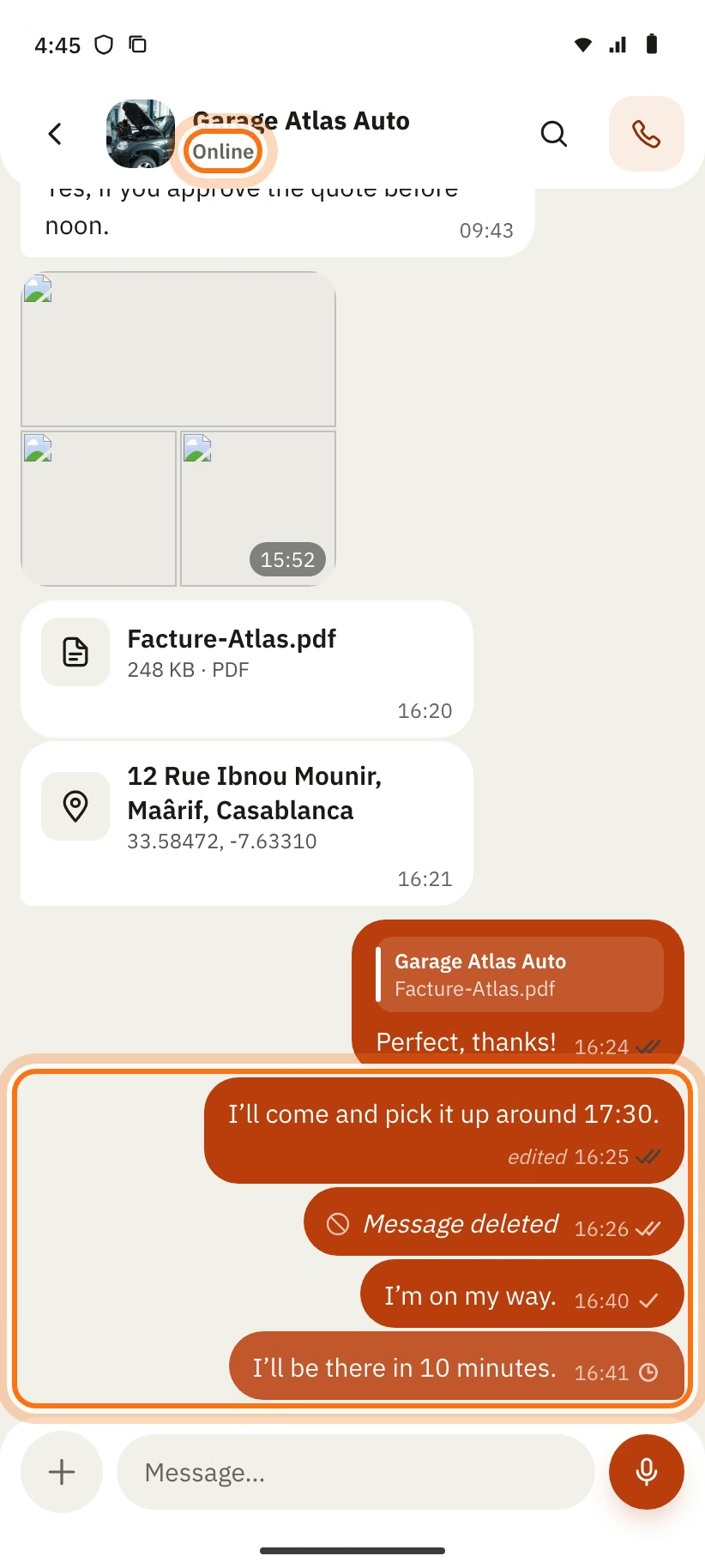
- "Edit": only your own text or photo message, for 15 minutes, if it is not forwarded. It then shows "edited".
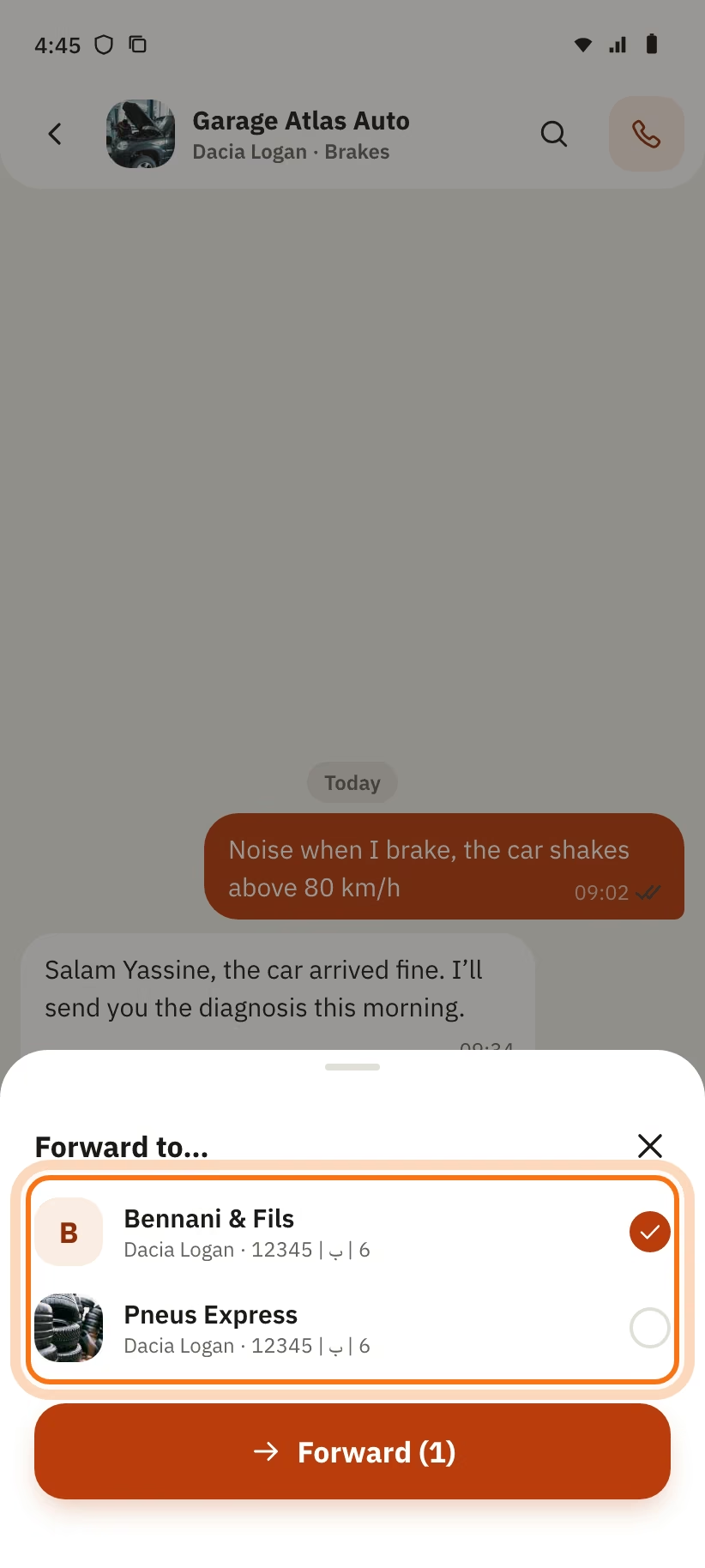
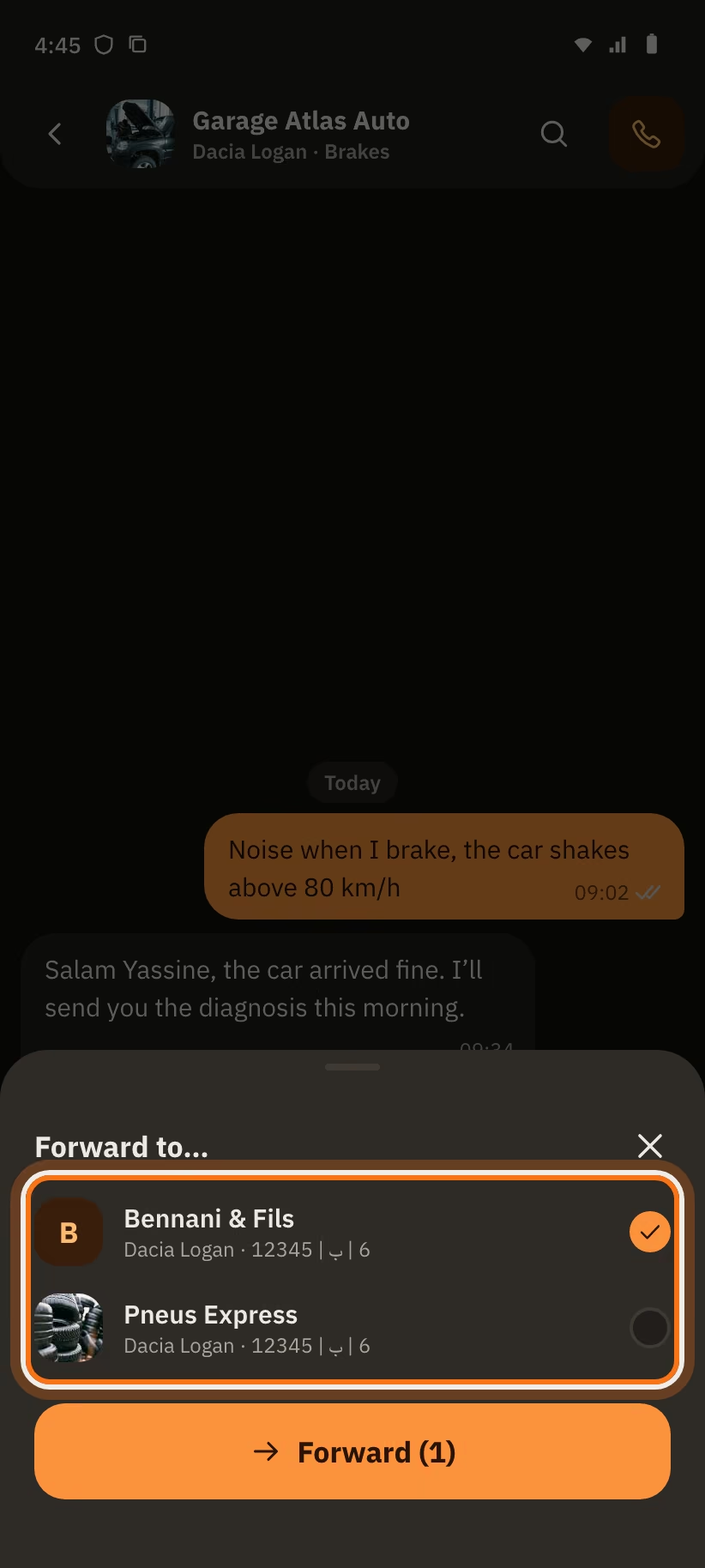
- "Forward": sends the message to 5 chats at most ("Forward to…"). It shows "Forwarded".
- "Delete": only your own message, for 2 days. The app warns: "It will be deleted for everyone." The message becomes "Message deleted".
- "Report": only for a message from the other person.
Too late? The app writes "Too late: you can only edit a message for 15 minutes." or "Too late: you can only delete a message for 2 days."
Search in the chat
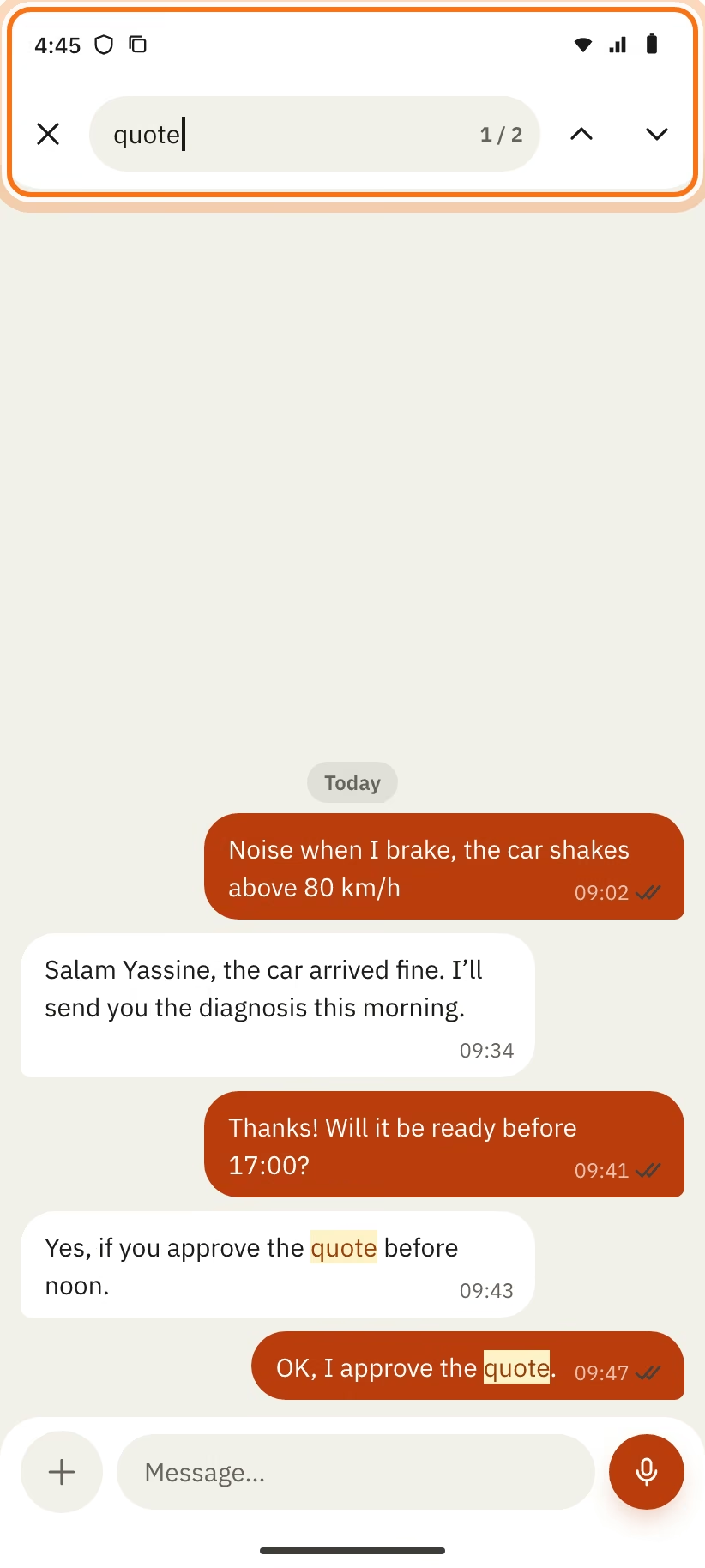
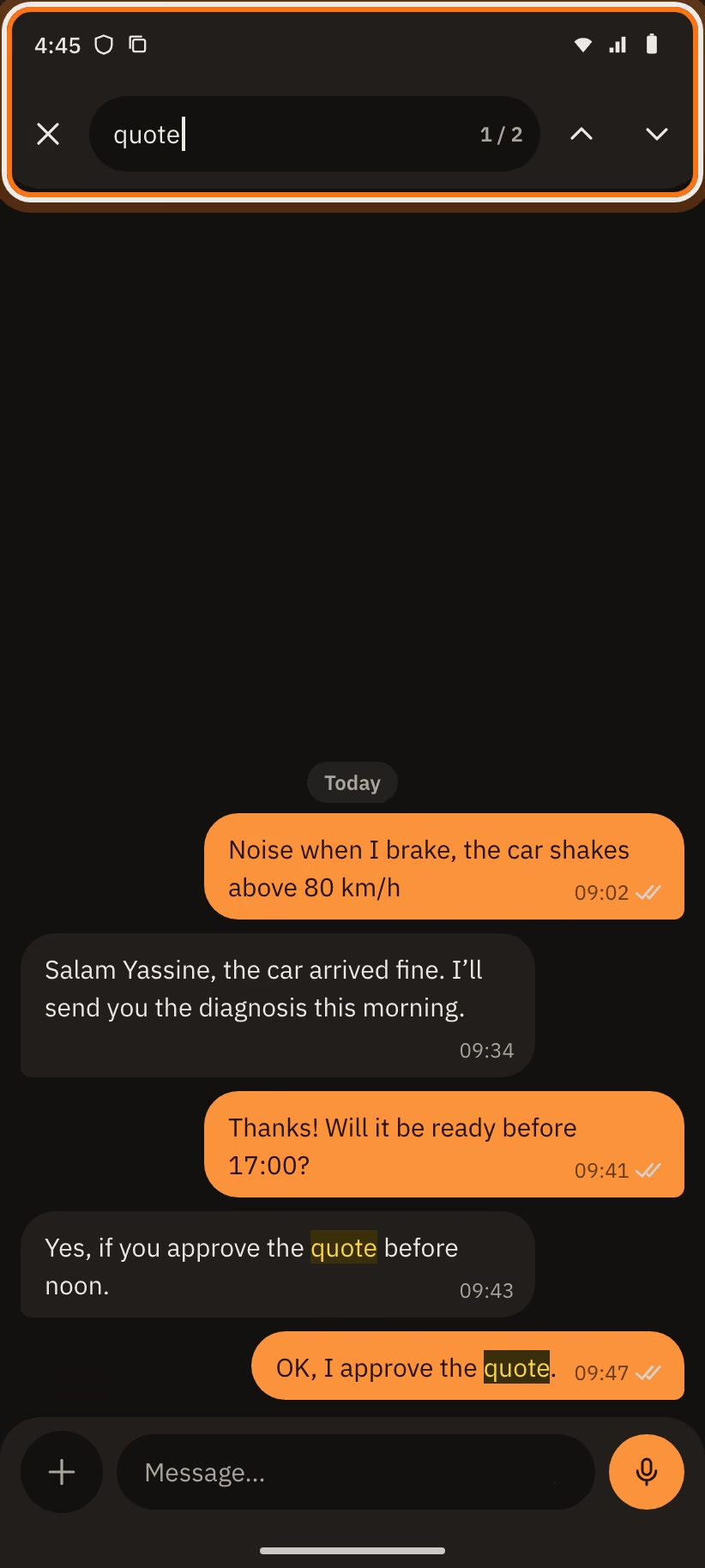
Tap "Search" at the top of the chat. Write 2 to 64 characters in "Search in chat". The app shows for example "1 / 5" and takes you from one result to the next. If there is nothing, it writes "No results".
Read the header and the ticks
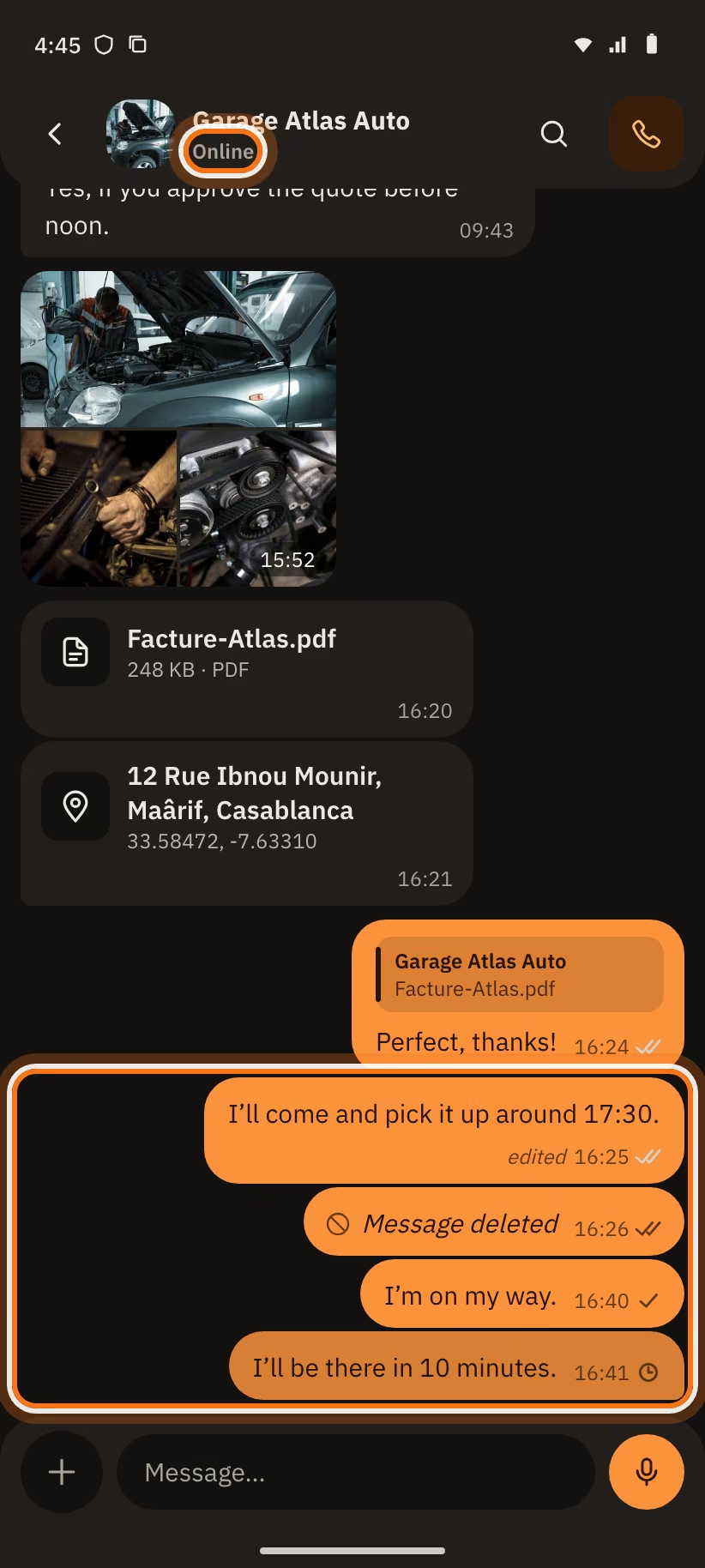
Under the name of the garage, the app writes:
- "typing…": the garage is writing a message;
- "Online": the garage is in the app;
- "Last seen at 14:32", "Last seen yesterday at 14:32" or "Last seen 12 Oct": its last visit;
- "Last seen recently": its last visit was more than 7 days ago.
Under each of your messages, look at the ticks:
| What you see | What it means |
|---|---|
| A small clock, "Sending…" | The message is leaving. Wait a little. |
| A small clock, "Waiting · sends when you are back online" | You have no network. The message leaves when the network is back. |
| ✓ "Sent" | The message reached the server. |
| ✓✓ grey, "Delivered" | The message reached the phone of the garage. |
| ✓✓ in colour, "Read" | The garage read the message. |
| ⚠ "Failed · tap to retry" | The message did not leave. Tap it to try again. |
On a message, you can also see: "edited" (the message was changed), "Forwarded" (it comes from another chat), "Message deleted" (the author deleted it) and "You" (in a quote, it is your message).
When the chat closes
When the request is finished, the writing bar says "This request is closed · you can’t write any more". A message sent too late does not leave.
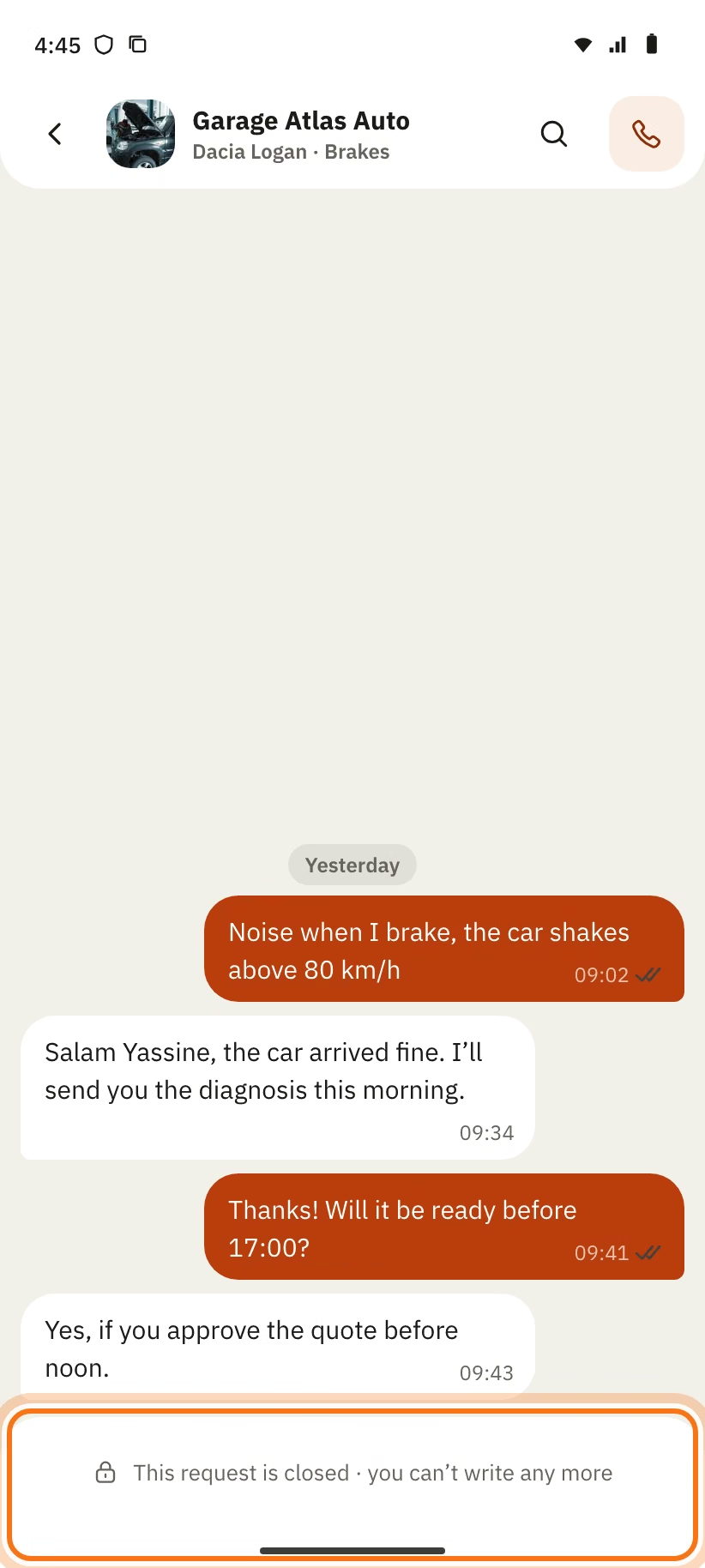
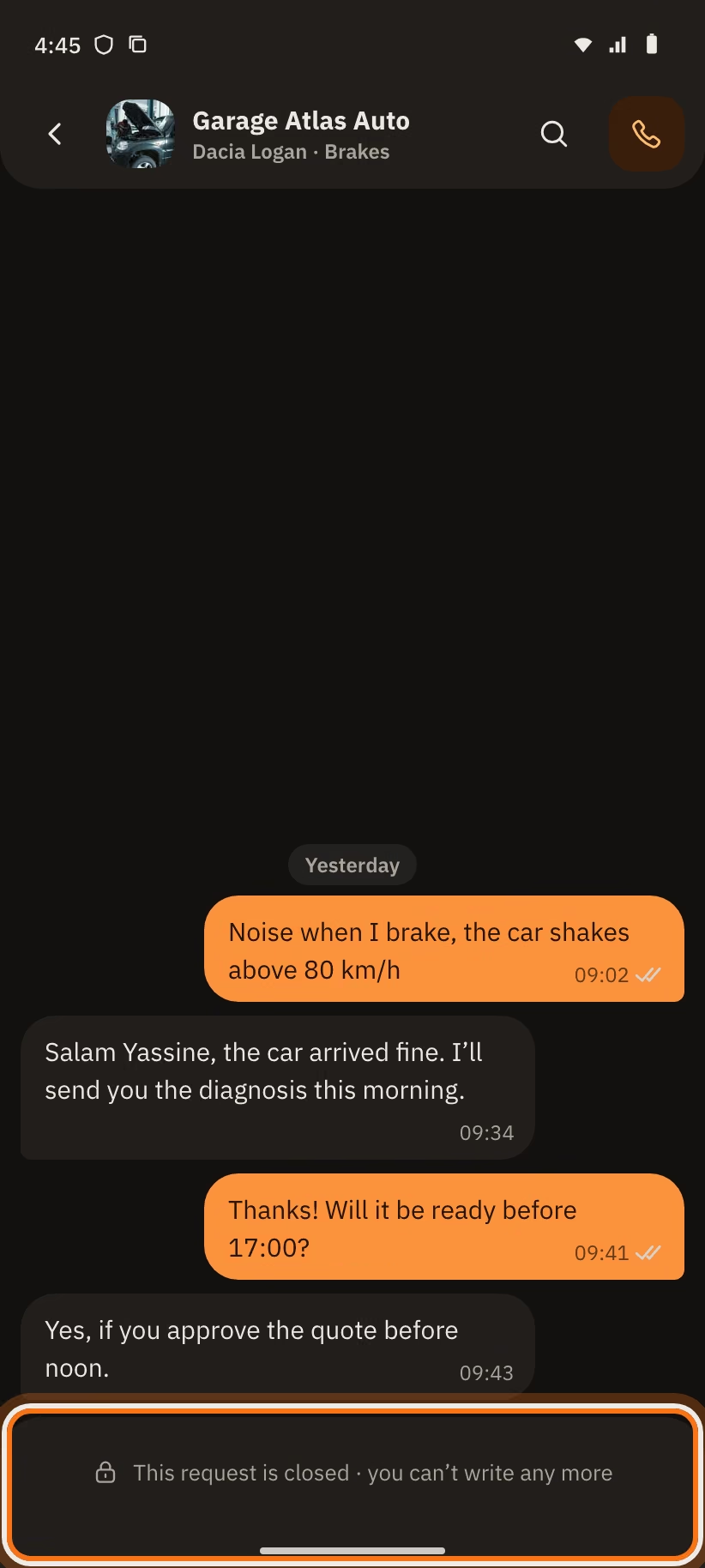
- Request declined or cancelled: the chat closes at once.
- Request done: it closes 7 days later.
When you get a message, you can answer from the notification ("Reply") or tap "Mark as read".
My cars and history
Add a car
Open the "My cars" tab, then tap the "+" button at the top. The "Your car" screen says: "The plate is enough. The rest helps the garage."
- "Plate": write the number (1 to 6 digits), choose the Arabic letter, then write the region (1 or 2 digits). It is the format of the registration card.
- "Make and model": search your car, for example Dacia Logan.
- "Year": fill it in. Without the year, the app cannot save the car.
- "Mileage · optional" and "Photo · optional" are not required.
- Tap "Save the car".
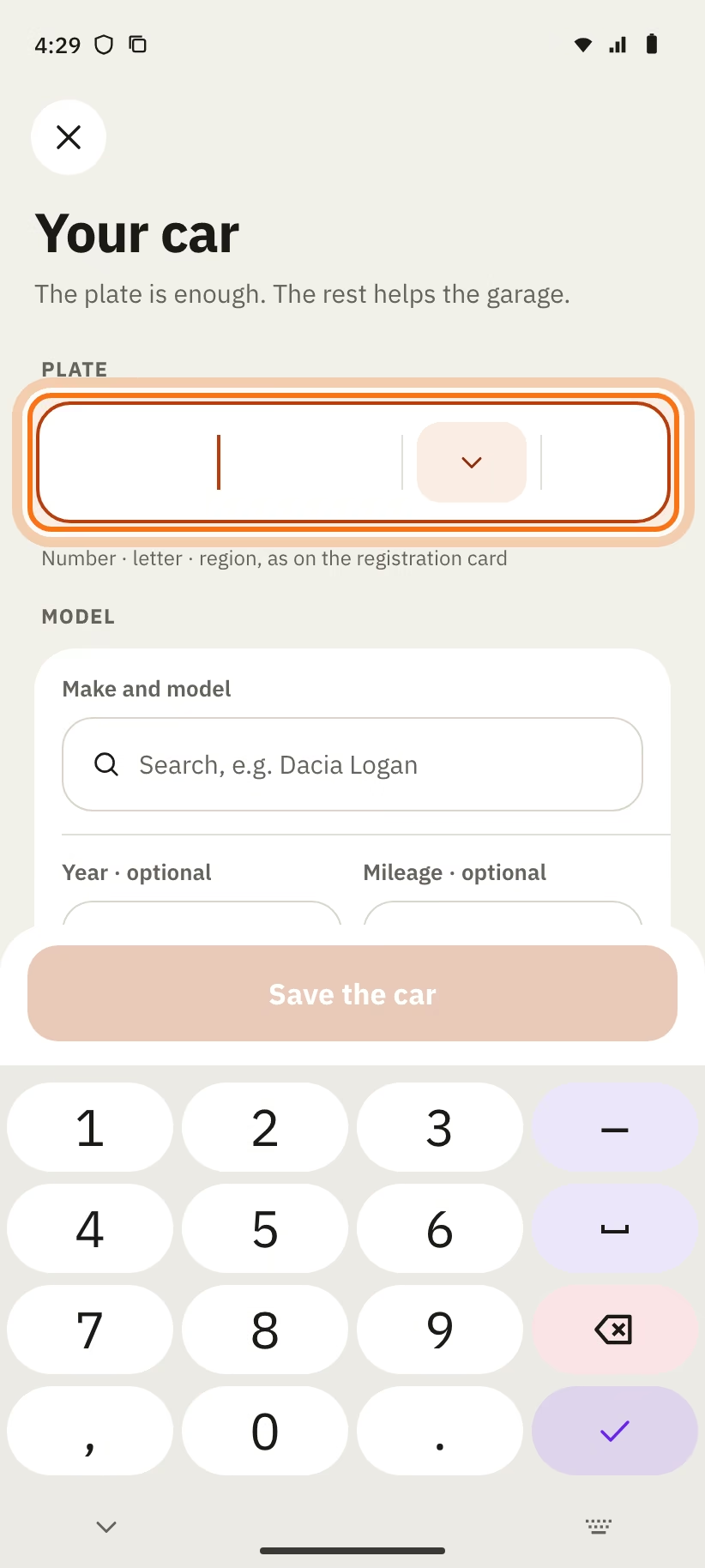
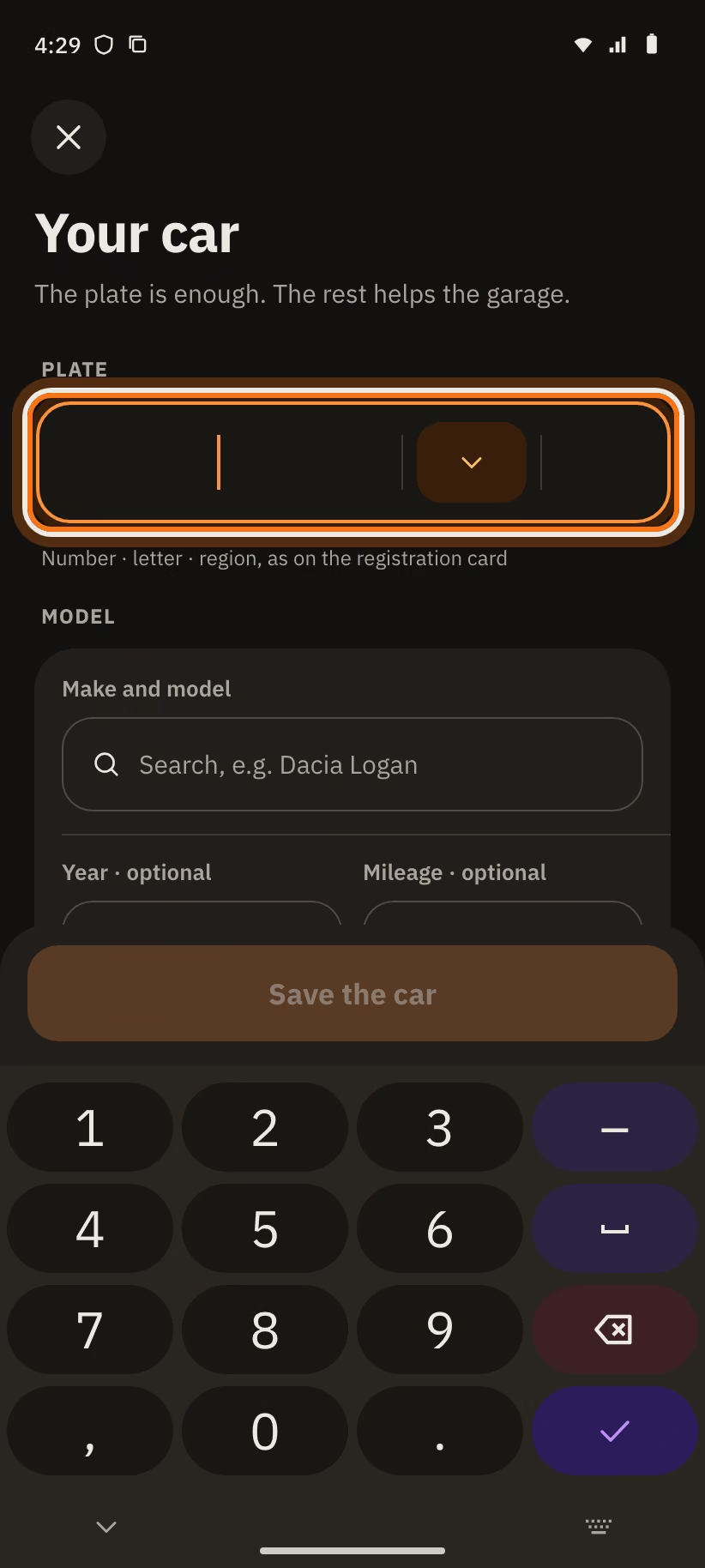
Plate already registered
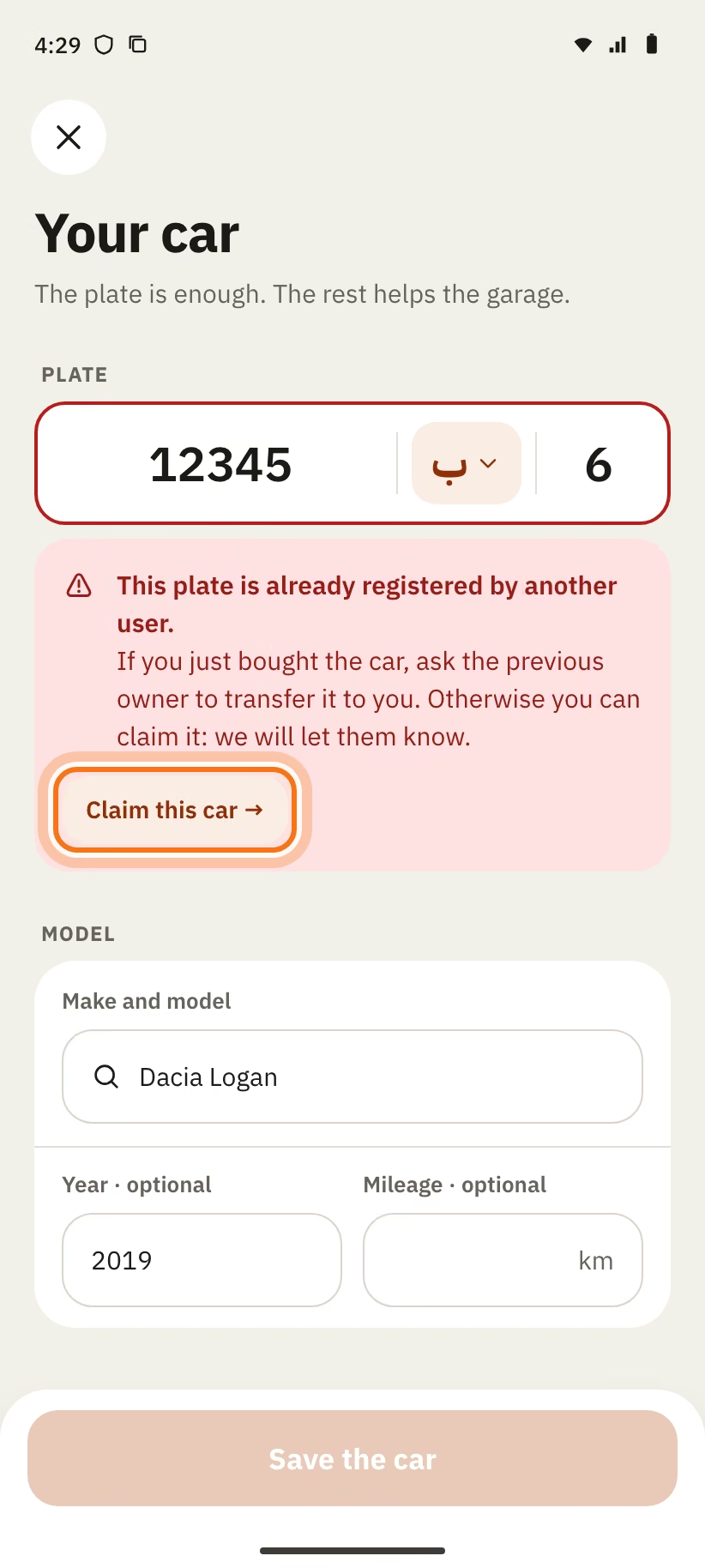
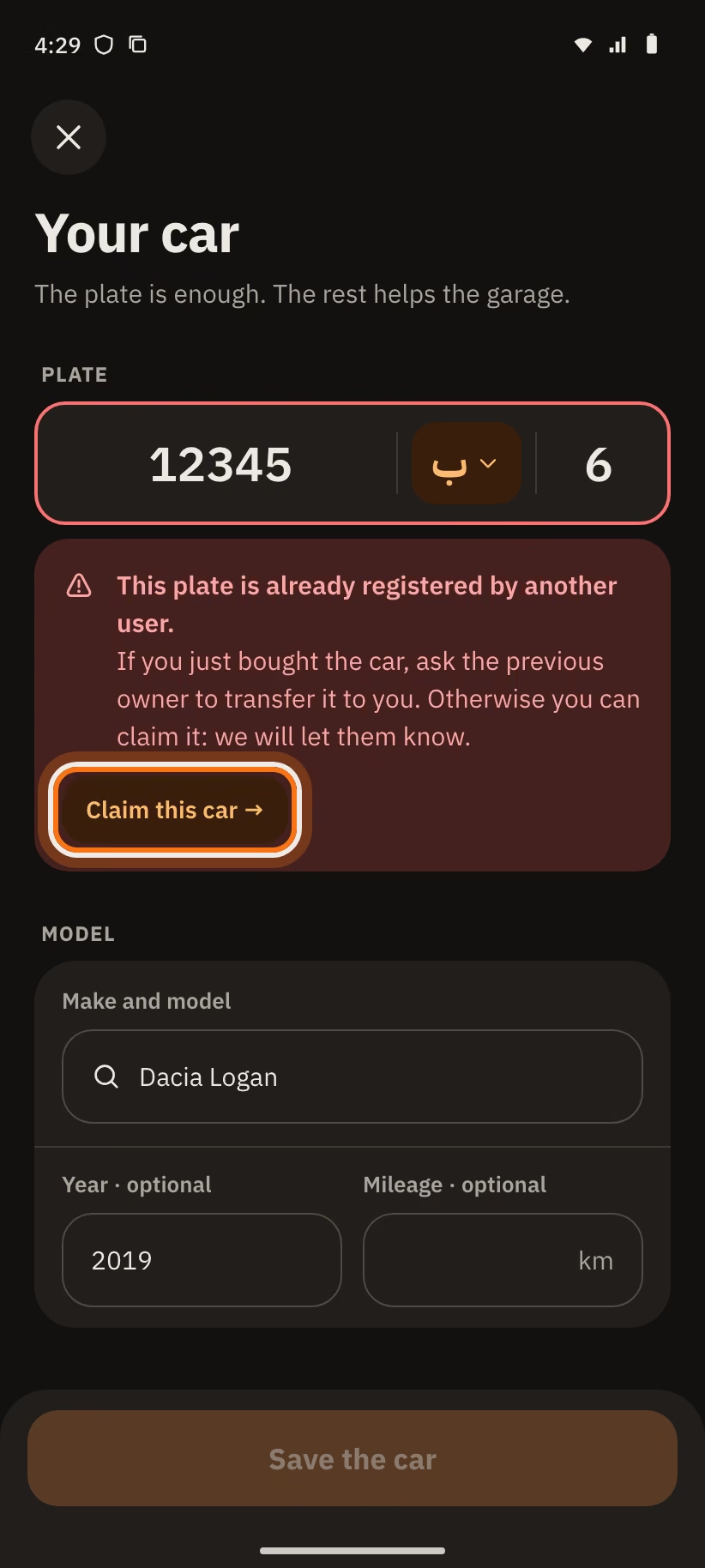
If another account already has this plate, the app writes "This plate is already registered by another user." You can claim the car, for example if you bought it.
- Tap "Claim this car →".
- The current owner has 7 days to answer.
- With no answer after 7 days, your claim is declined. The car stays with the old owner.
If you are the owner, you see "Someone is claiming this car". Tap "Hand over the car" to give it, or "Not them" to decline. With no answer within 7 days, the claim is declined and the car stays yours.
The history of the car
Tap "History" on your car. You see the number of visits, the "DH spent" and the date of the last visit.
- Each job done via the app is added by itself, with the label "via the app".
- For an old job, tap "Add an entry". The "Work done elsewhere" screen opens. The entry has the label "manual": it is a "manual entry, not verified".
- The filters "All", "Via the app" and "Entered by hand" sort the list.
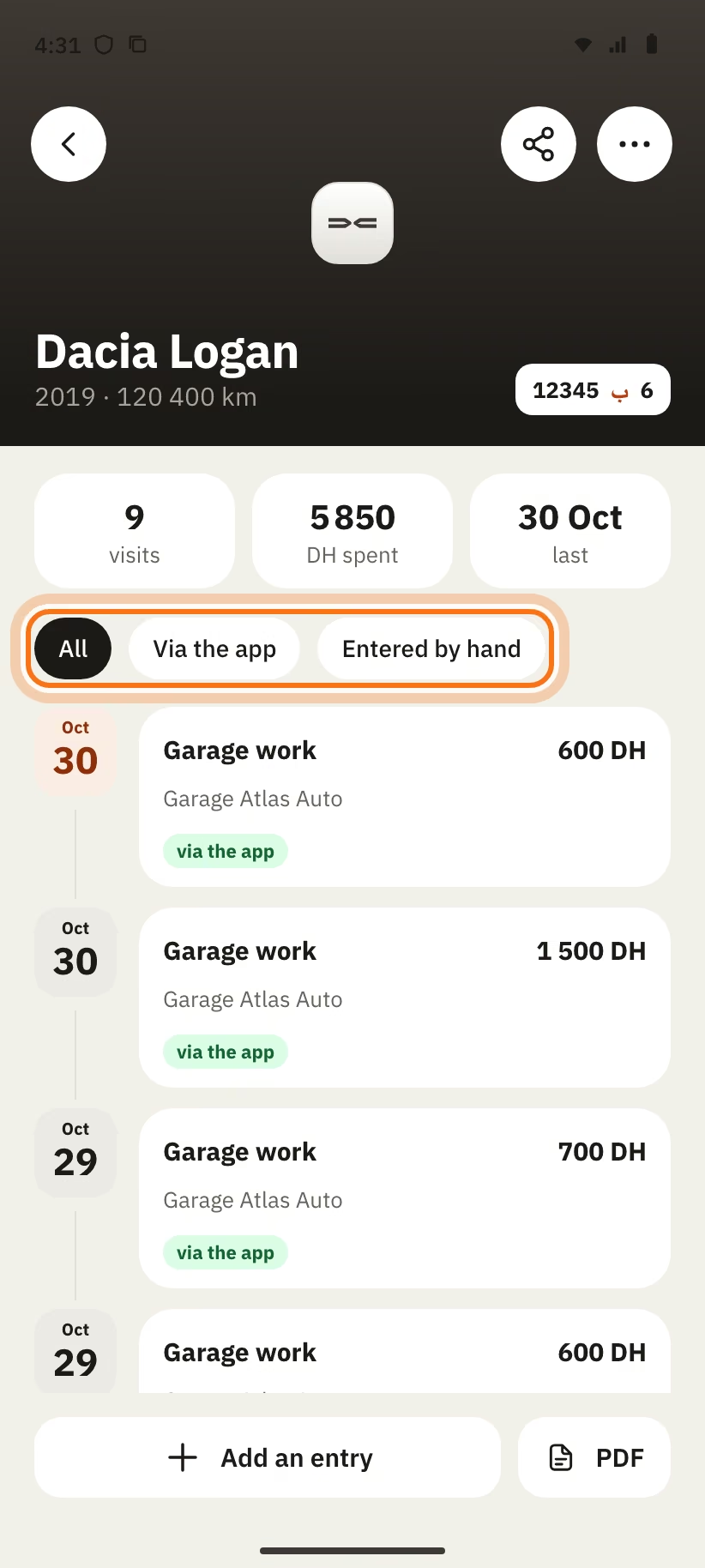
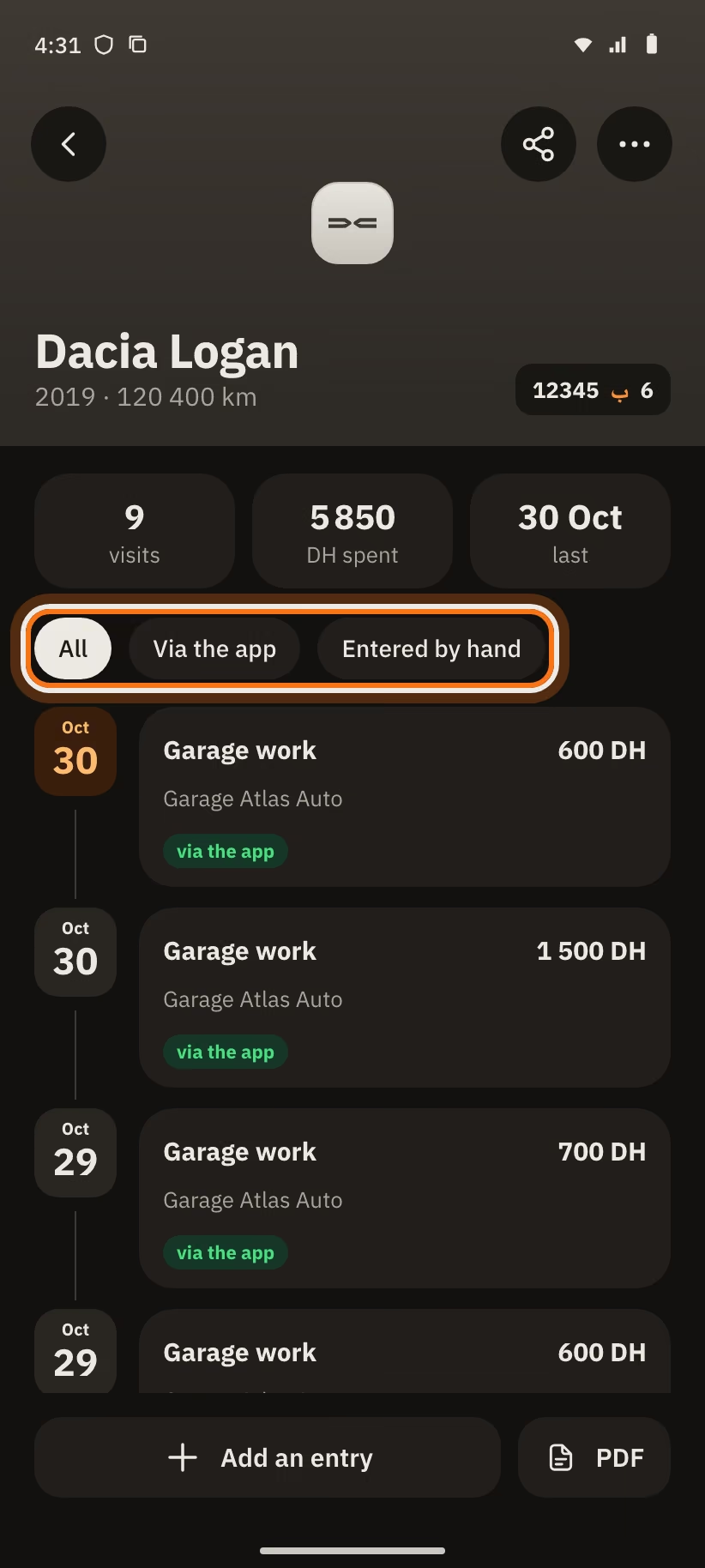
To send the history, tap "PDF" or the "Share" icon. You send a read-only link or a PDF, without your name or your number. The link works for 30 days.
Sell your car
In the history, tap "⋯", then "Sell the car". There are two steps:
- "Share the history with the buyer": tap "Copy" or "Share the link". You can also send a "PDF". The link "Expires in 30 days".
- "Transfer to the new owner" (optional): write the number of the buyer, then tap "Transfer the car". The buyer has 7 days to accept. The car and its history then move to the buyer’s account. You keep a PDF copy.
Tap "Mark as sold" to finish. The car stays visible, read-only, and the link stays active for 30 days.
Notifications
Tap the bell to see your notifications. "Read all" marks them all as read. Some have a button, like "View and accept" or "View and confirm".
You get a notification when:
- the garage suggests another time or confirms your visit;
- your visit is close (the day before at 18:00, then 1 h before);
- the garage receives your car (with the photos);
- you get a diagnosis;
- your car is ready, or the work is done;
- you missed a visit, or the garage declines or cancels;
- you get a message;
- the app asks for a review;
- a car is transferred or claimed.
To choose what you receive, open "Profile", then "Notifications". You can turn on or off:
- "Request updates";
- "Messages";
- "Reminders";
- "Review requests".
Tap "Quiet hours" to choose a time "From" and a time "To". The app leaves you in peace during these hours. By default, it is "Off".
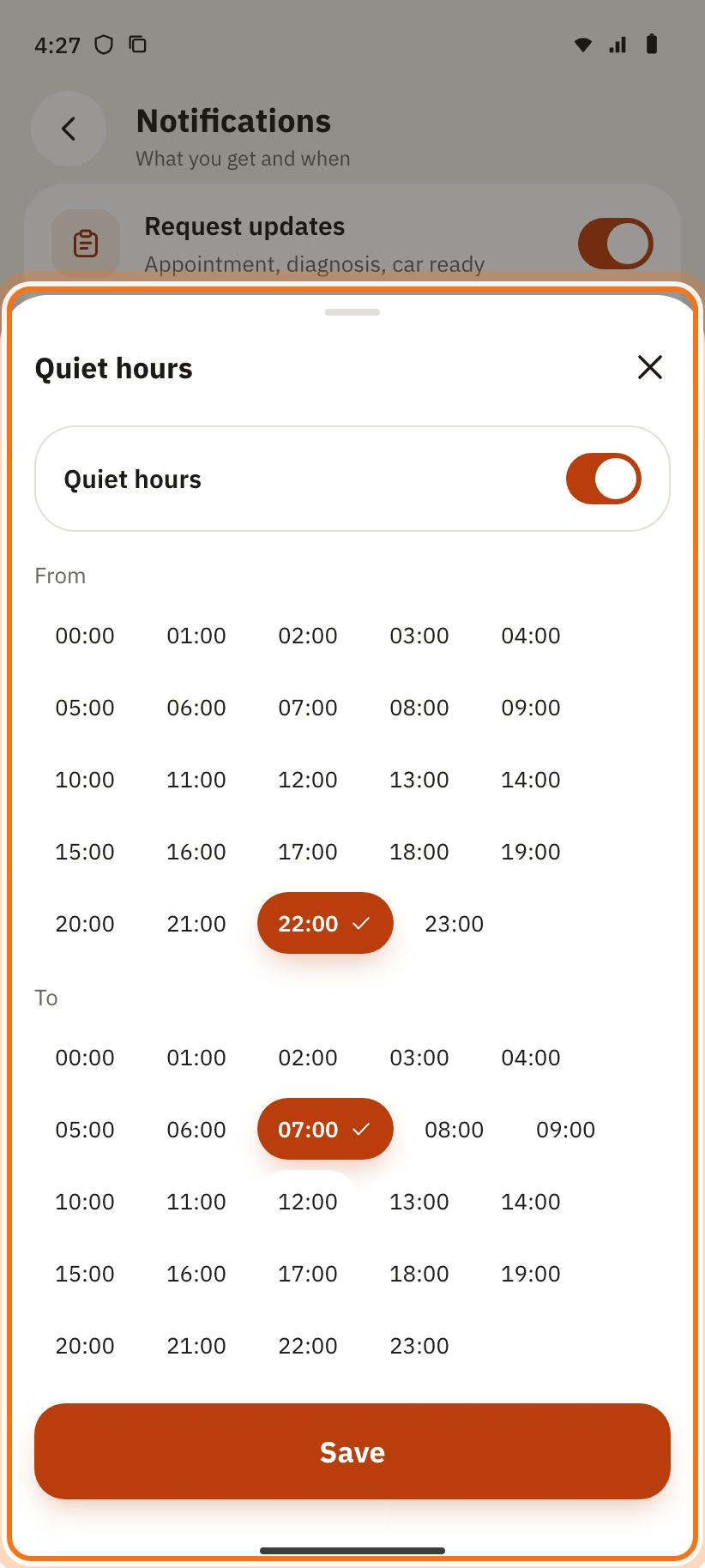
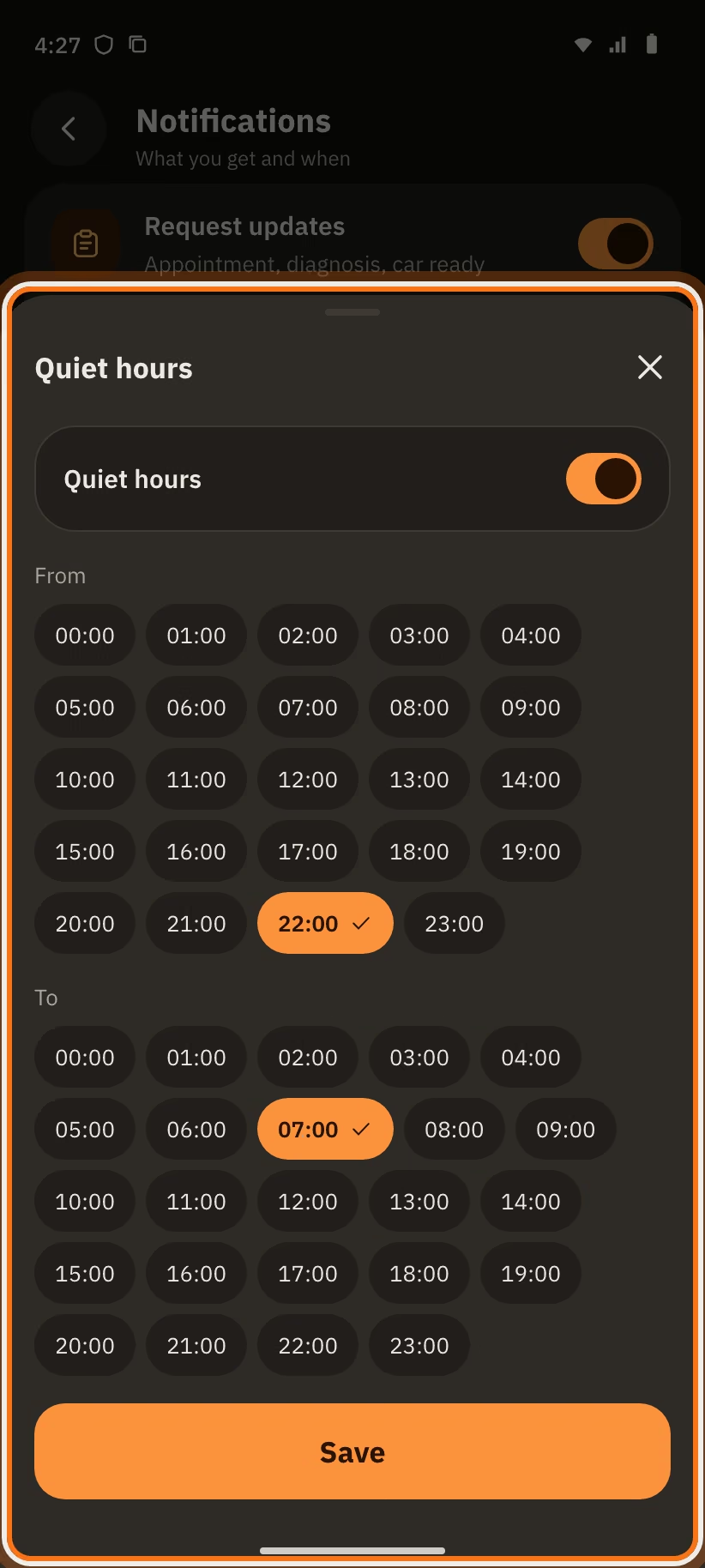
If notifications are off in your phone settings, the app writes "System notifications are off for Mechanico." Tap "Open settings".
Preferences
Open "Profile", section "Preferences":
- "Language": French, Arabic or English. In Arabic, the screen reads from right to left.
- "Notifications": see above.
- "Appearance": "Automatic (device)", "Light" or "Dark".
- "Font": "Automatic" or "Phone font".
- "Haptics": a small vibration when you touch the screen.
In "Profile", tap the pencil next to your name to change your first name.
Saved garages and blocked garages
To save a garage, tap the bookmark on its profile. You must be signed in.
To find them, open "Profile" and tap the "garages" counter at the top. The "My garages" screen opens. Each garage has a "Describe" button.
To block a garage:
- Open the garage profile, tap "⋯", then "Report".
- Choose the reason.
- Tick "Also block this garage (it can no longer message you)".
Your report is anonymous to the garage. The Mechanico team reviews it within 48 h.
To unblock: "Profile", then "Blocked garages", then "Unblock".
Need help
- Open "Profile", then "Help and feedback".
- Choose a topic: "A bug", "An idea", "My account" or "Other".
- Write your message in "Message". You can attach a screenshot.
- Tap "Send".
Mechanico replies by WhatsApp or SMS within 2 working days.
Delete your account
- Open "Profile".
- At the bottom, tap "Delete my account".
- Read the screen "Permanently delete your account?".
- You want to keep the history of your cars? First tap "Export the history as PDF first".
- Type SUPPRIMER in the field ("Type SUPPRIMER to confirm").
- Tap "Delete my account".
Your requests, your messages and your reviews are deleted. The history of your cars too. Jobs already recorded by a garage stay with the garage, without your name.
You have 30 days to change your mind. Sign in again with the same number. The app asks "Restore account?". Tap "Restore".
If you also have a garage, read the garage guide first.
What is deleted, what is kept, and how to do it without the app: see the page Delete your Mechanico account.