Garage guide
This guide follows your day as a garage owner in Mechanico, from sign-up to the car handed back. Names in quotes are the names you see in the app.
Set up your garage
Switch to garage mode
The garage uses the same account and the same number as the client view.
- Sign in with your number (see the Client guide).
- Open the "Profile" tab.
- Tap the "Do you run a garage?" card. The sign-up starts.
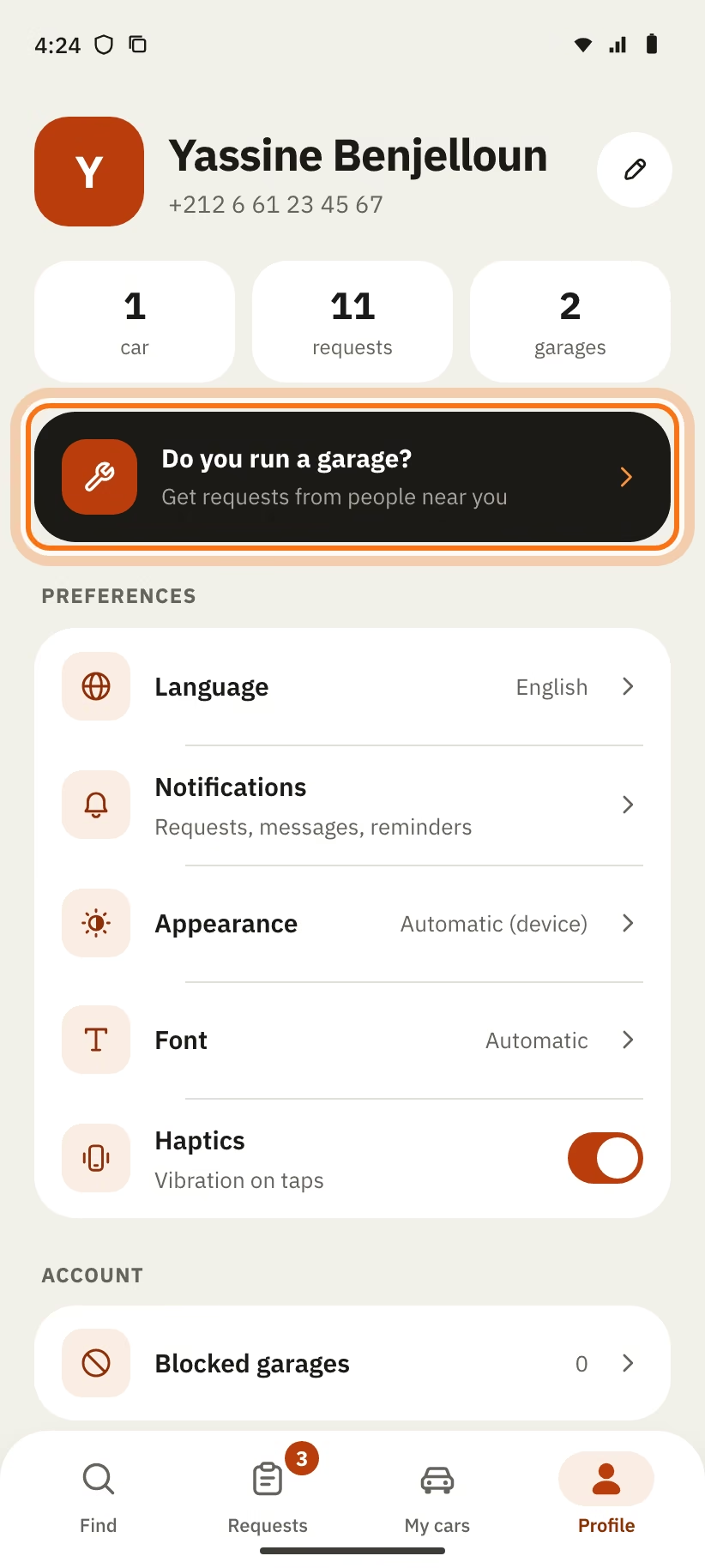
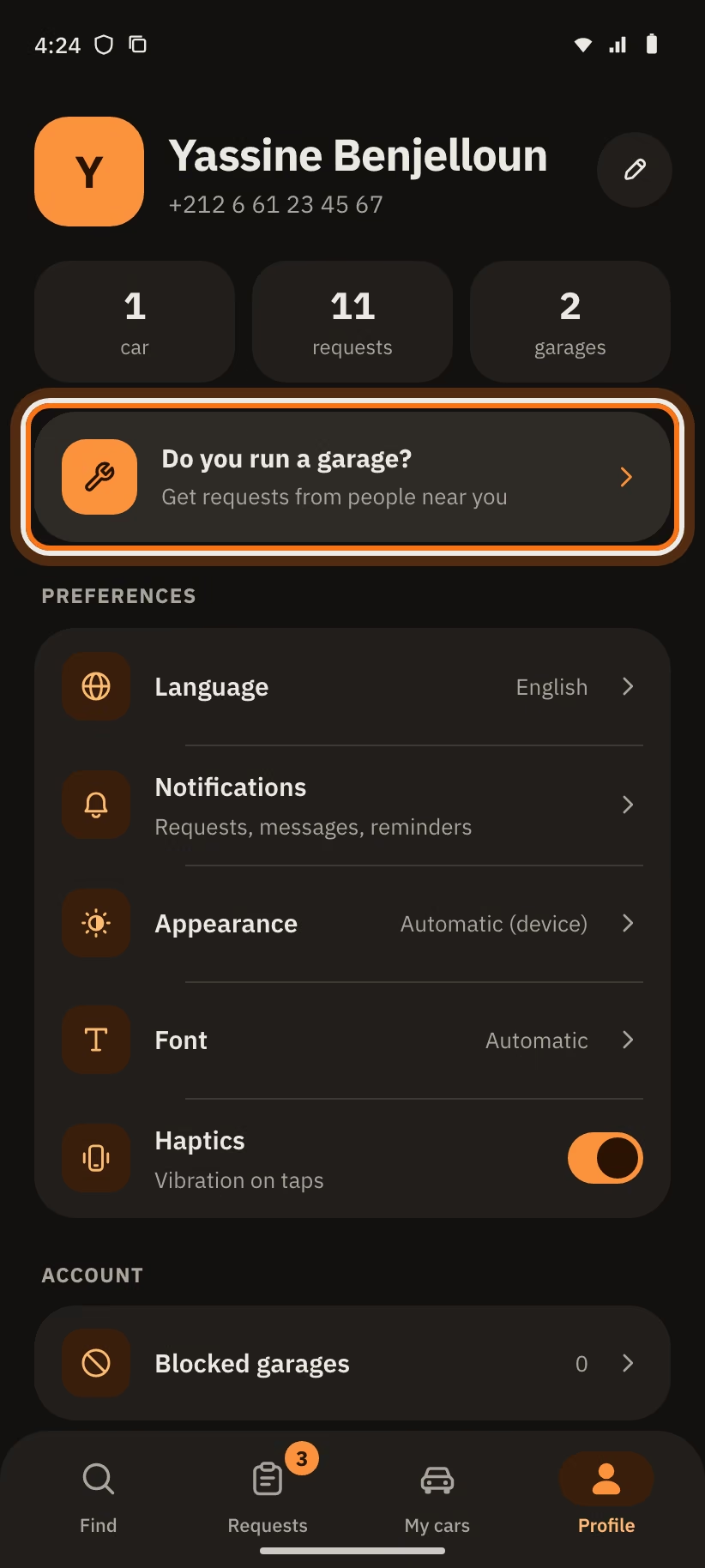
You already have a garage? The card is called "Switch to garage mode". To go back, open "My garage" and tap "Back to the client view".
Sign-up in 4 steps
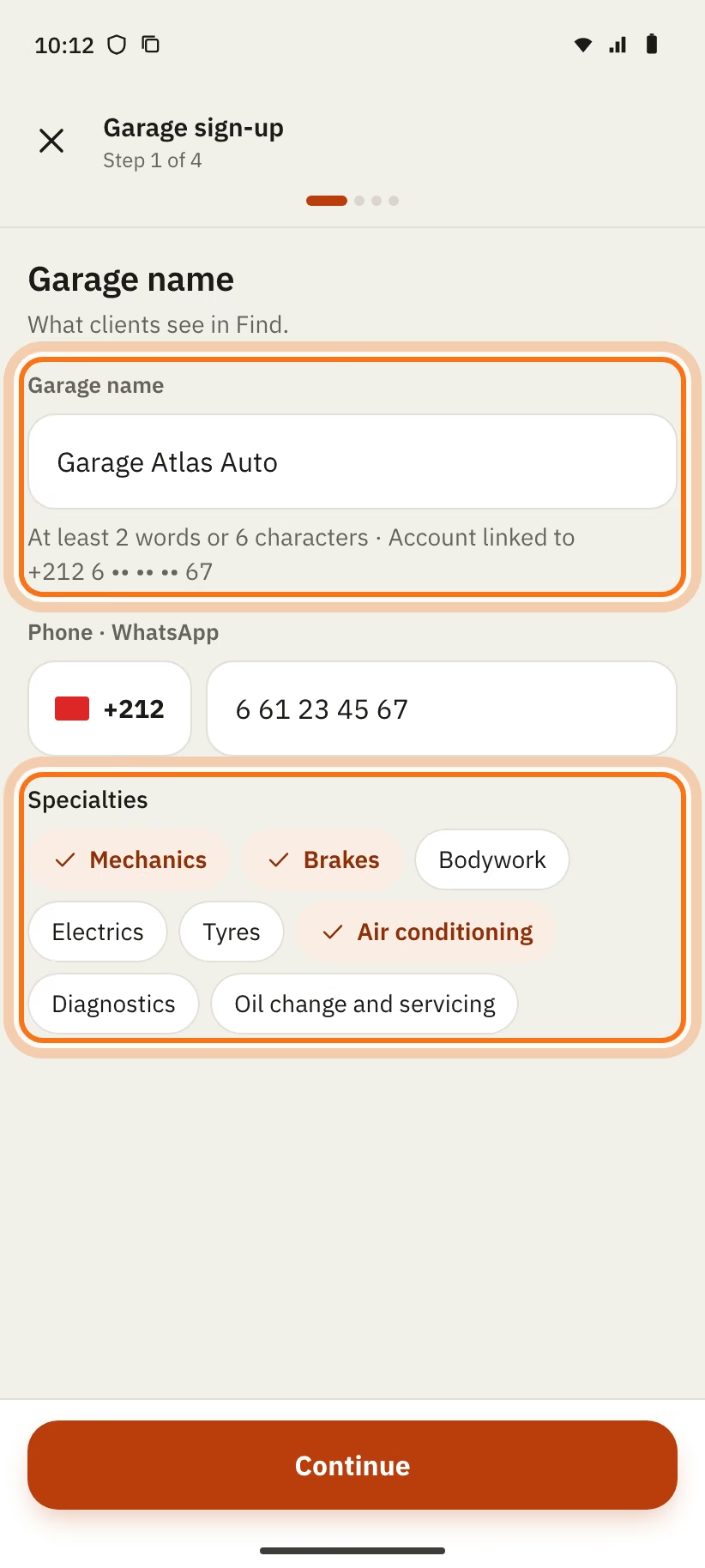
The "Garage sign-up" screen shows "Step 1 of 4".
Step 1: name and specialties
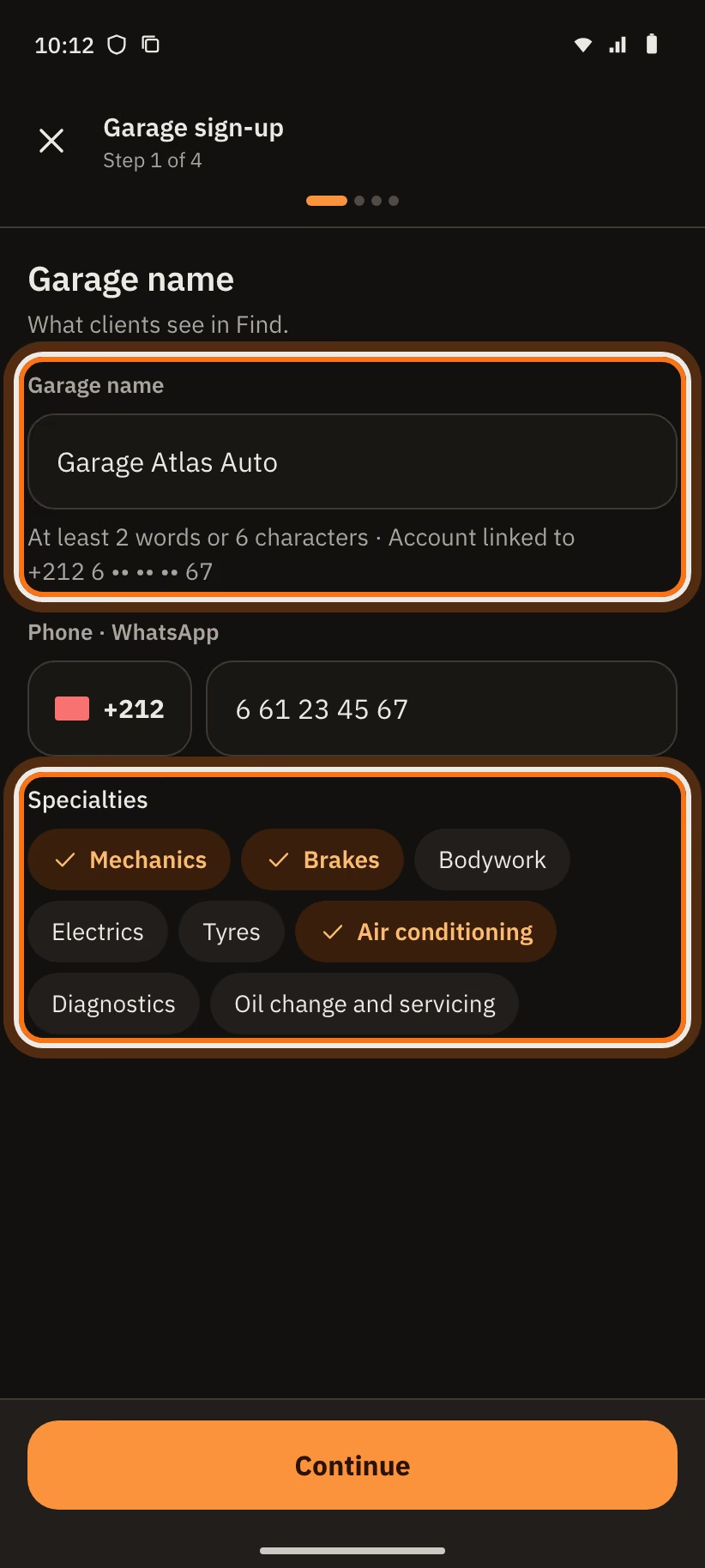
- Write the "Garage name". Use at least 2 words or 6 characters (60 at most). Clients see this name in "Find".
- A garage with the same name is near you? You can keep your name. Add your district to avoid confusion.
- Enter "Phone · WhatsApp": a Moroccan number with 9 digits. It is required.
- Pick at least one specialty: "Mechanics", "Brakes", "Bodywork", "Electrics", "Tyres", "Air conditioning", "Diagnostics", "Oil change and servicing".
- Tap "Continue".
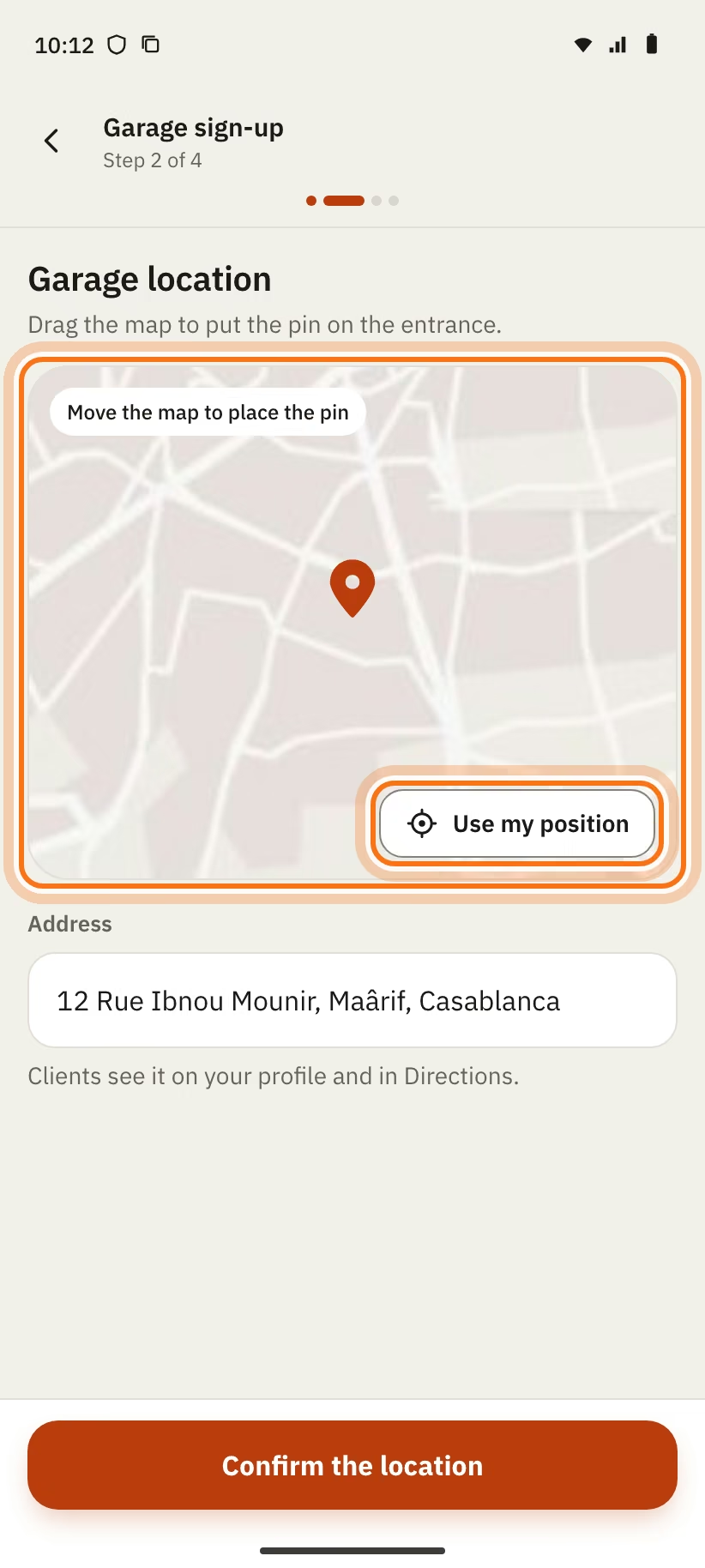
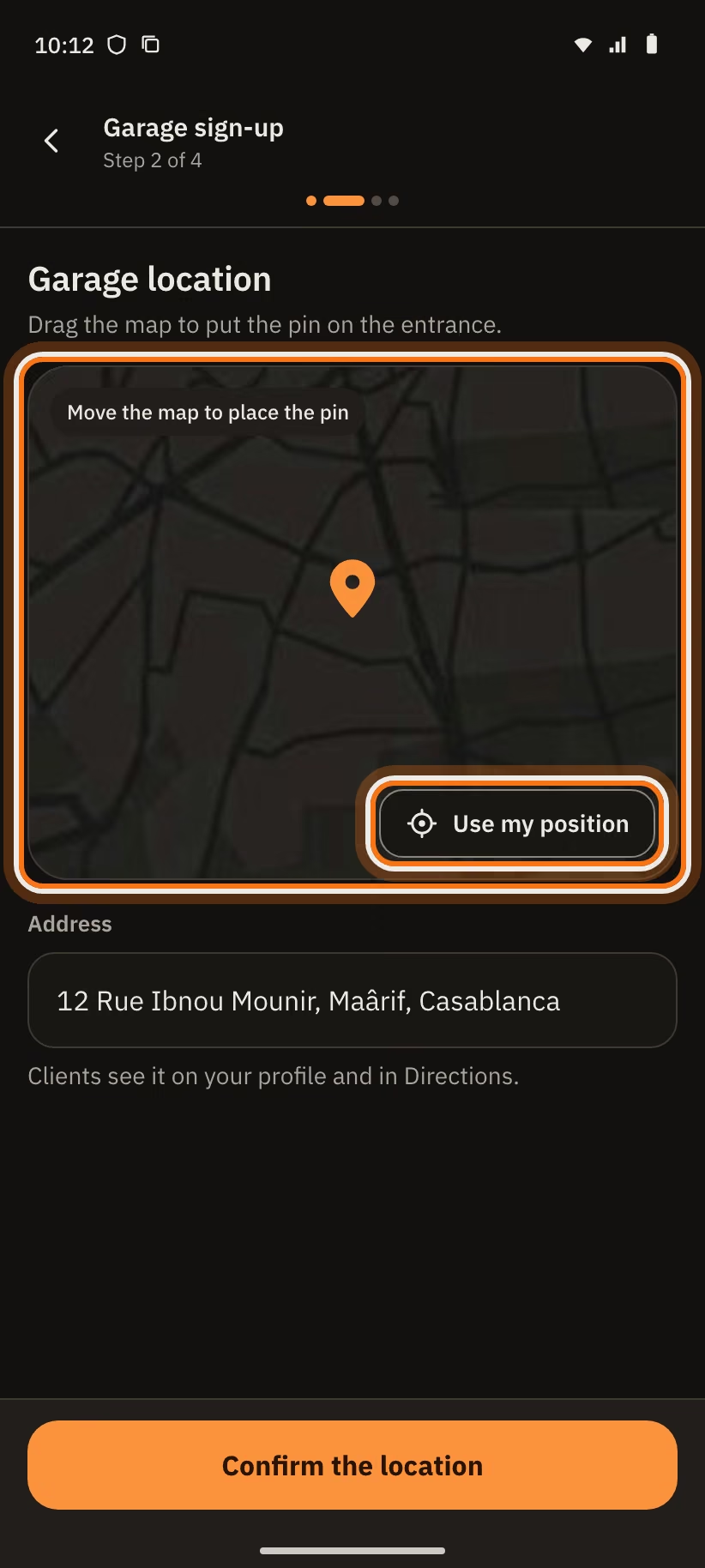
Step 2: garage location
- Move the map to put the pin on the entrance, or tap "Use my position".
- Write the address (3 to 200 characters). Clients see it on your profile.
- Tap "Confirm the location". The app covers Morocco only.
Step 3: opening hours
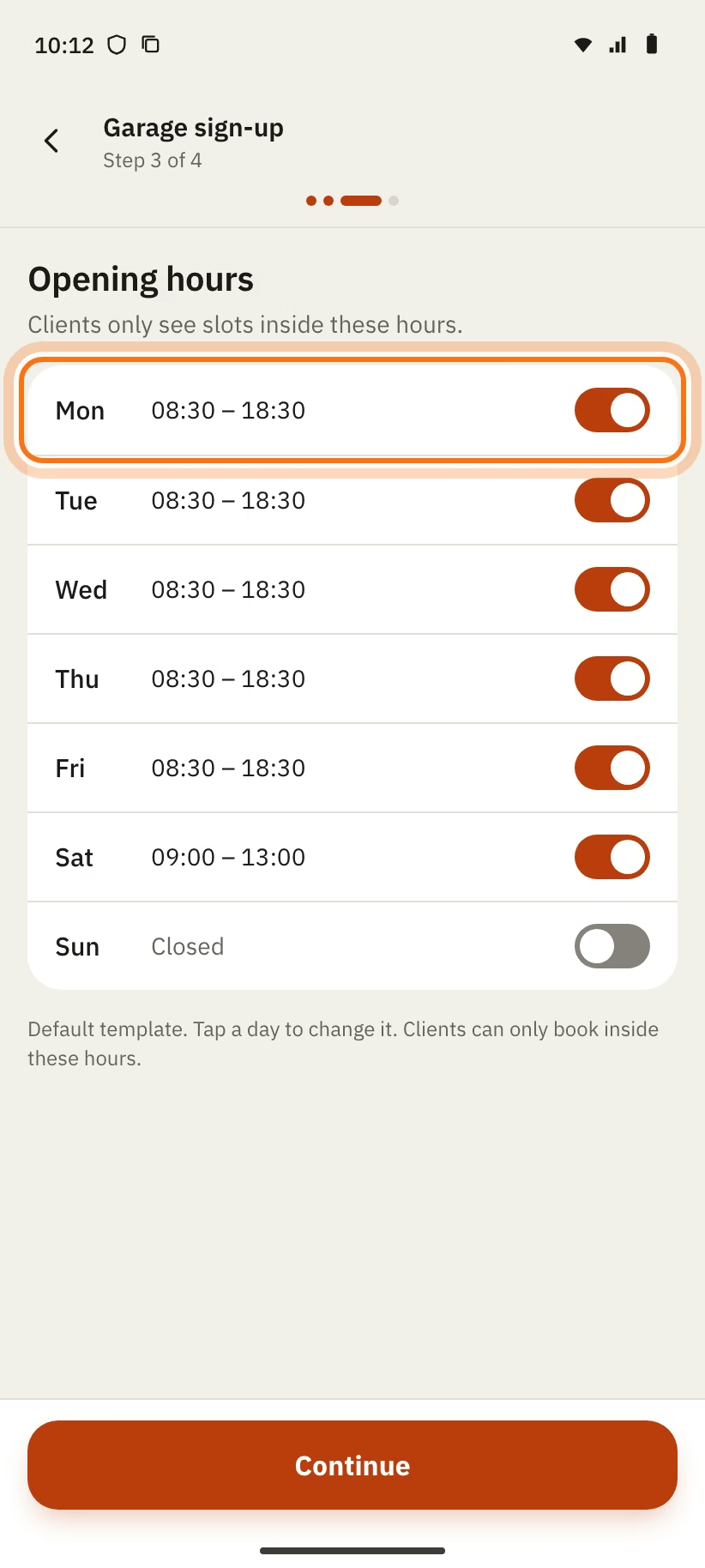
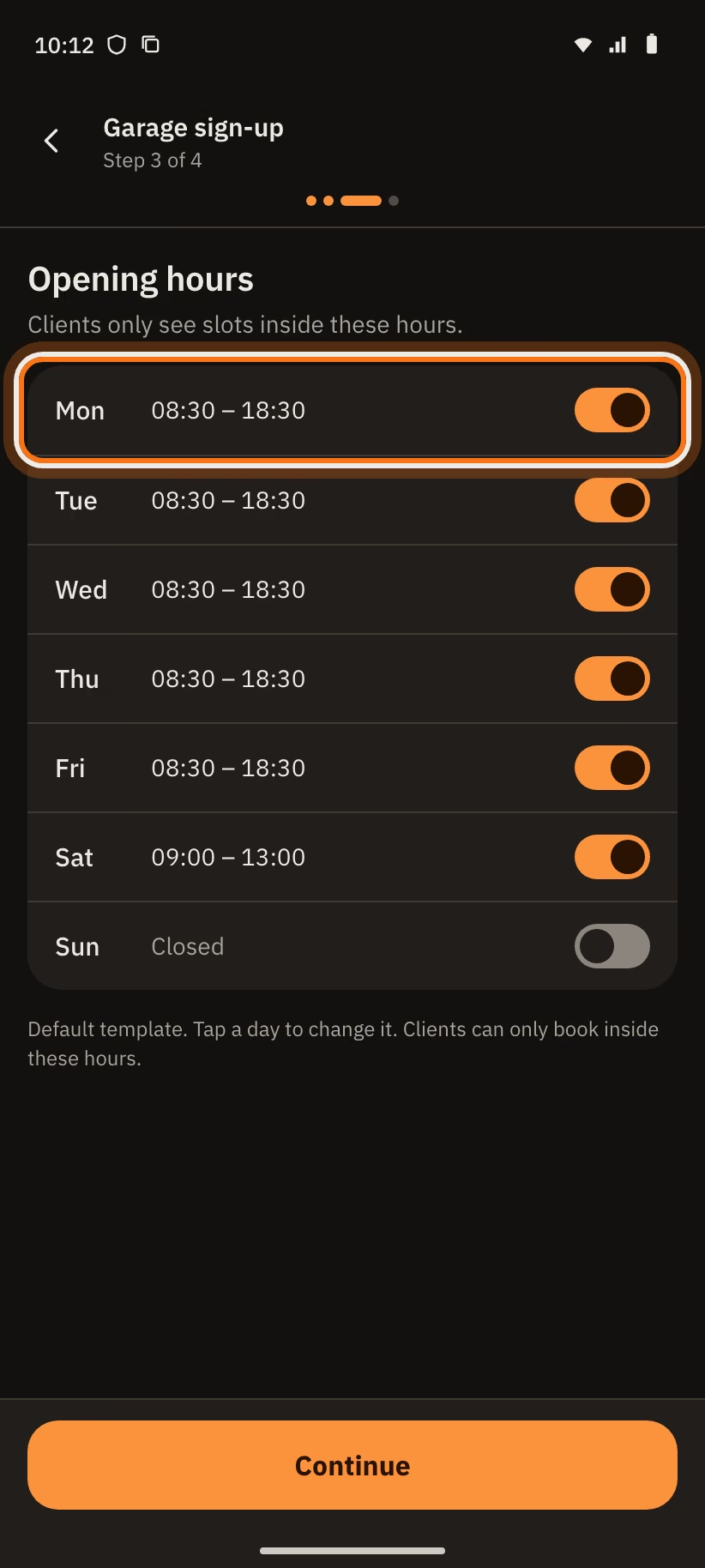
- A template of hours is already filled in. Tap a day to change it.
- Tap "Continue".
Clients can only book inside these hours. After this step, your garage is visible in "Find".
Step 4: show your work
The screen says "Your garage is visible". This step is optional.
- Add a "Cover video" (60 seconds at most).
- Add up to 3 photos of your work, before and after.
- Tap "Publish my garage", or "Skip for now".
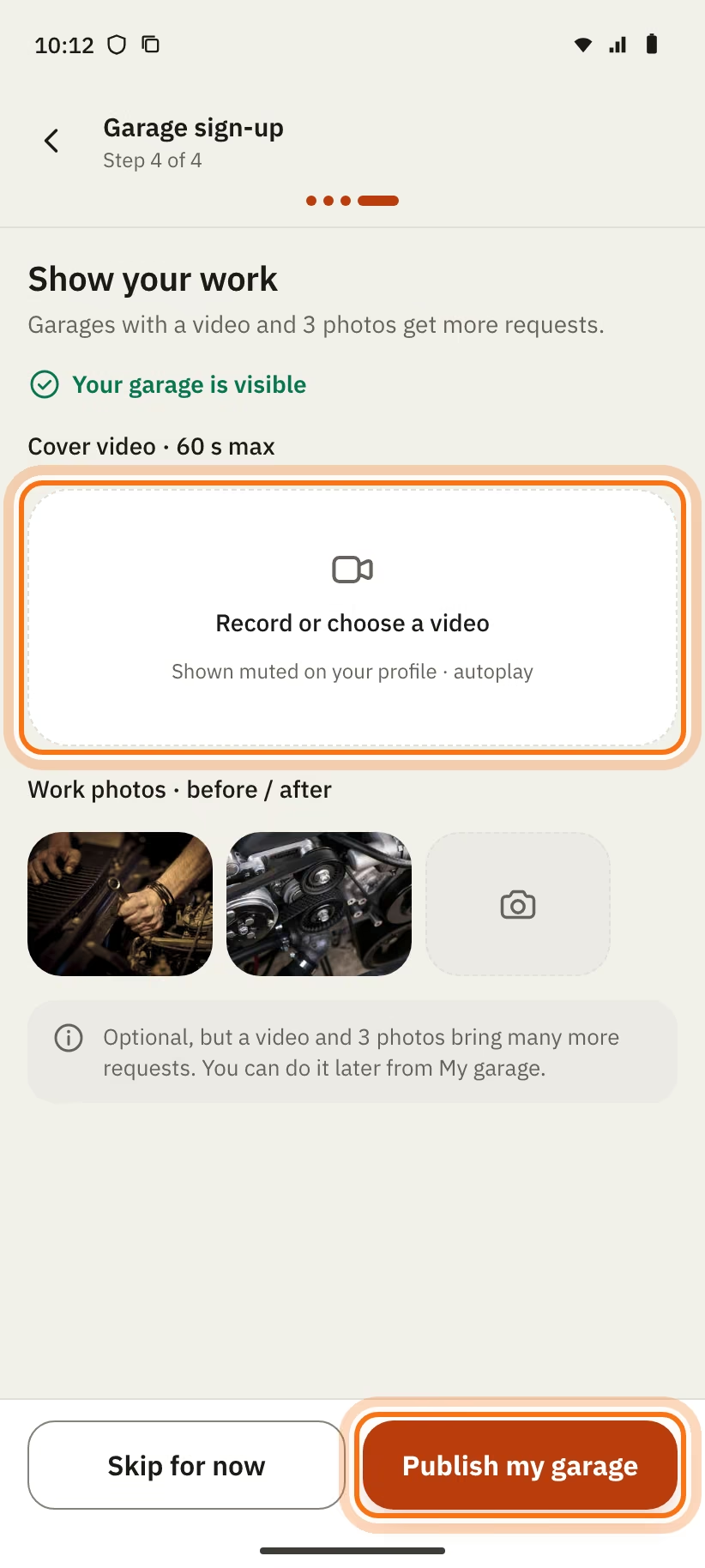
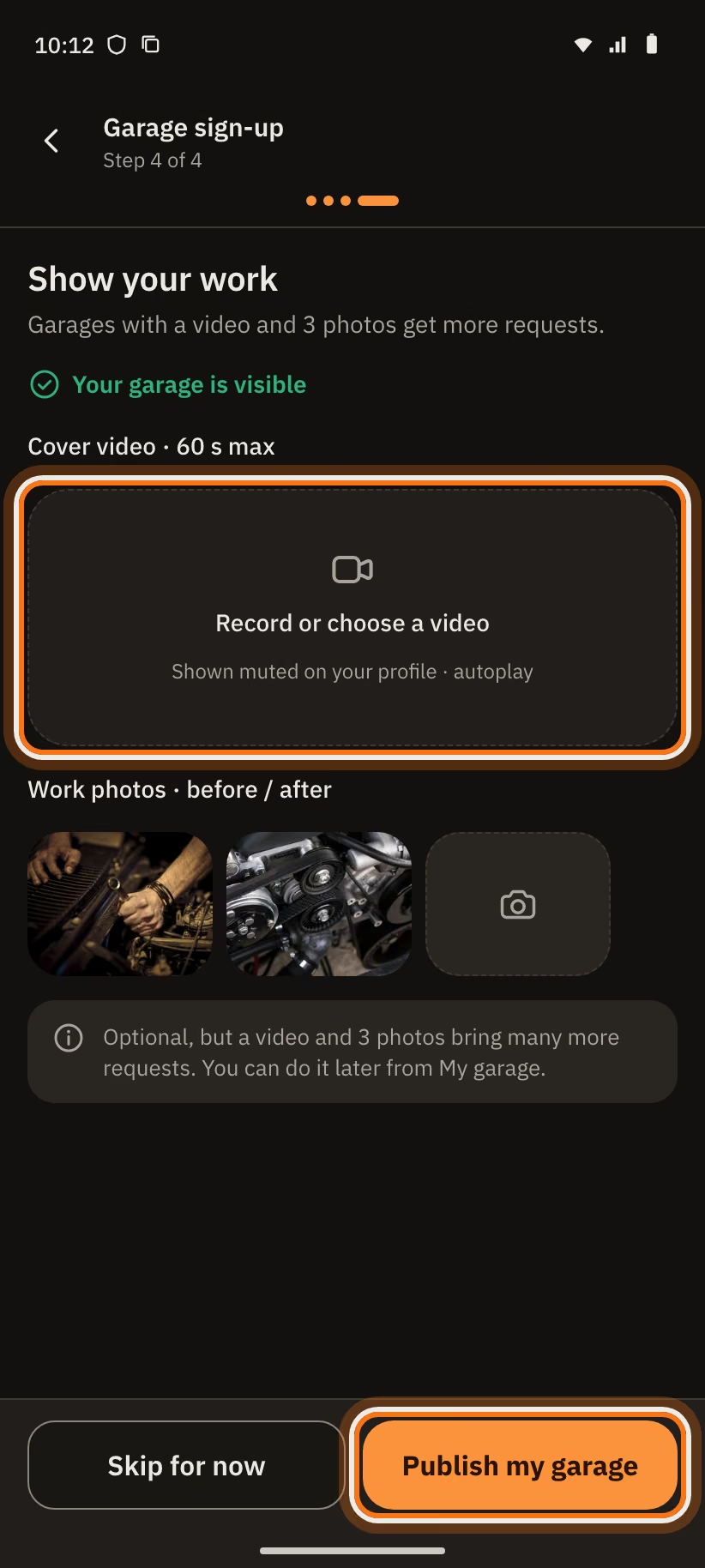
A garage with a video and 3 photos gets more requests. You can add them later from "My garage".
Complete your profile
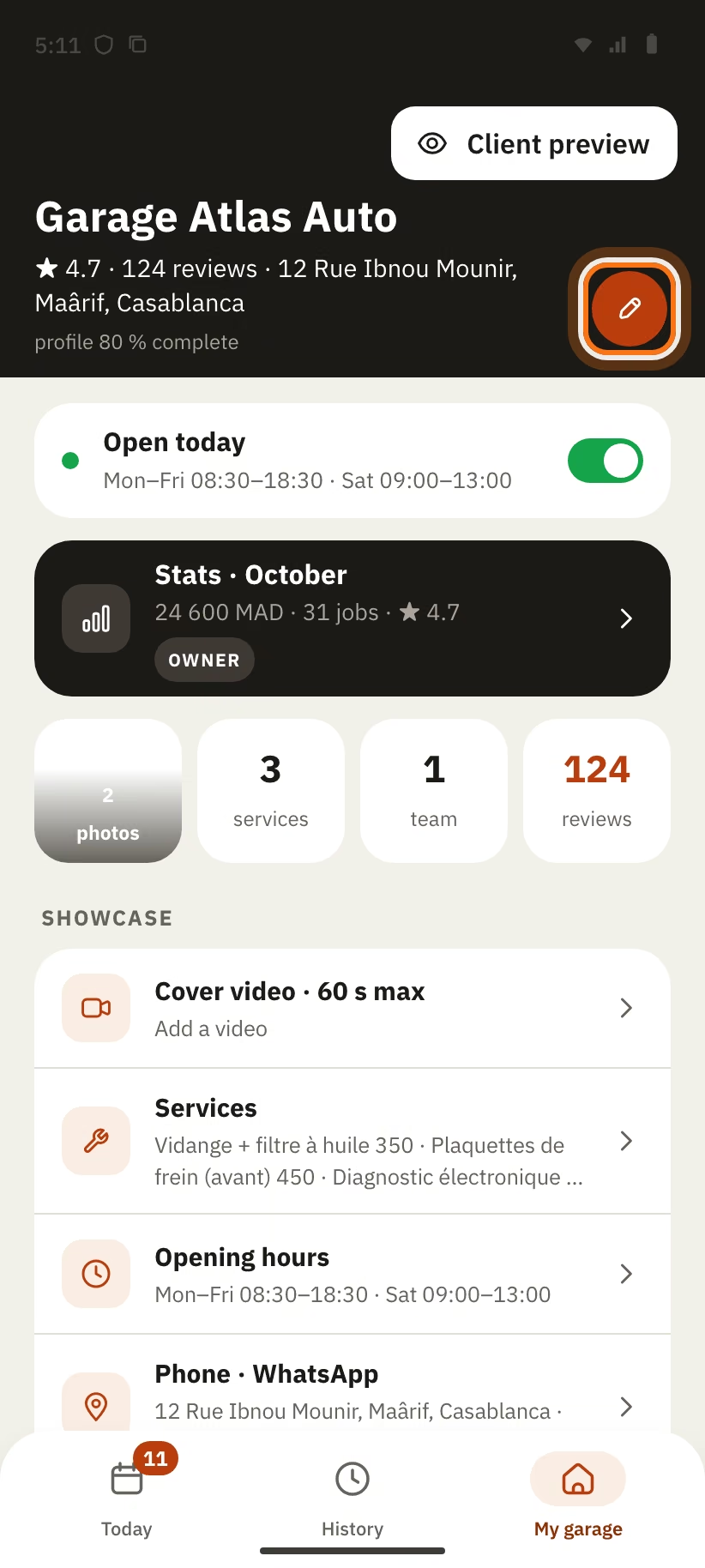
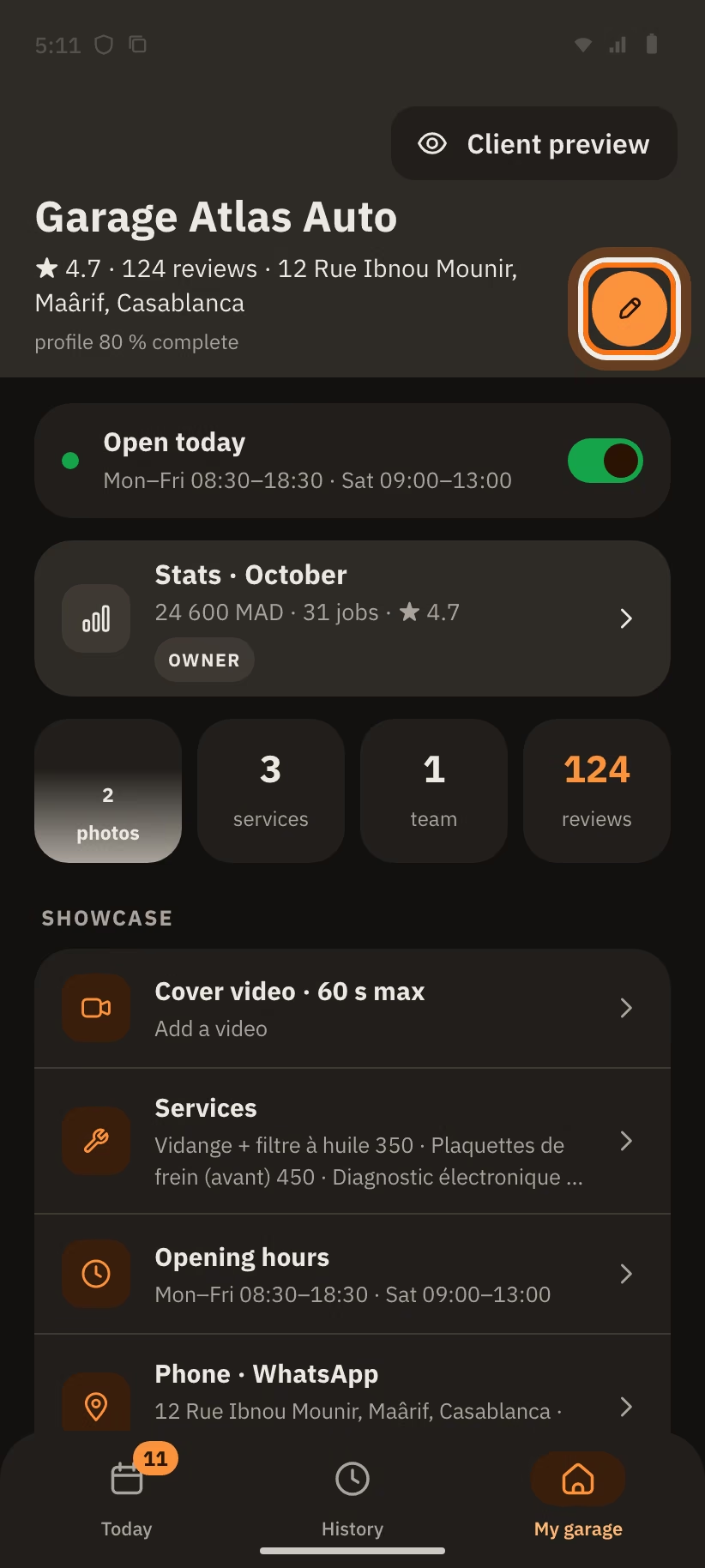
- Open the "My garage" tab.
- Tap the pencil "Edit profile".
- Fill in the cover video, the gallery, the services and the "Garage info": name, address, phone, WhatsApp, description.
- Gallery · before / after: tap a photo to add a caption or to pair it with another photo, as before / after.
- Cover video: 60 seconds and 50 MB at most. It plays without sound on your profile.
- "Client preview": you see your profile the way a client sees it.
- "profile 80 % complete": this number goes up when you add photos, a video and services.
Only the owner can edit the profile.
Your services and prices
In "My garage", open "Services", then tap "Add a service".
- "Service name";
- "Price from (DH)";
- "Duration (min)";
- "Bookable online": when it is on, the client picks a time inside your hours. The booking blocks the length of the service.
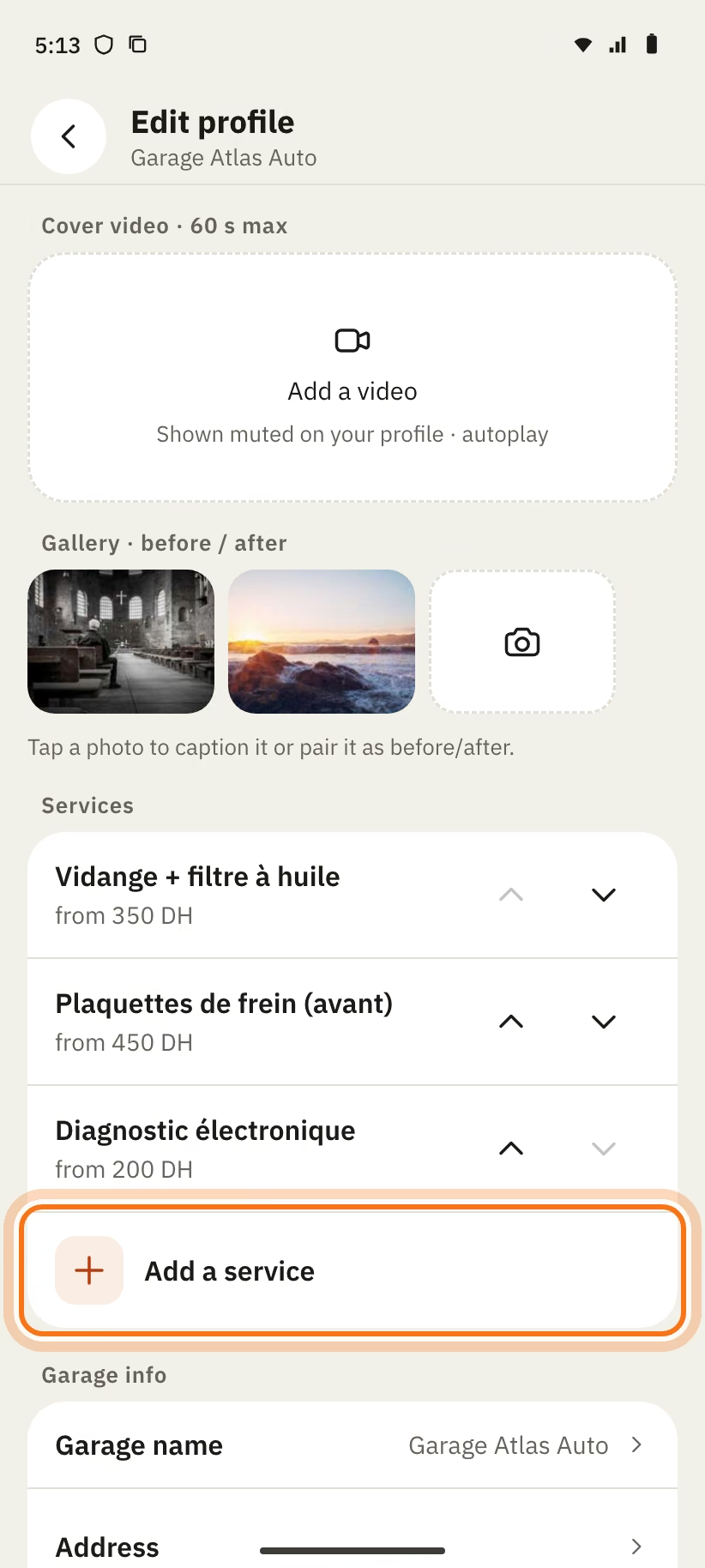
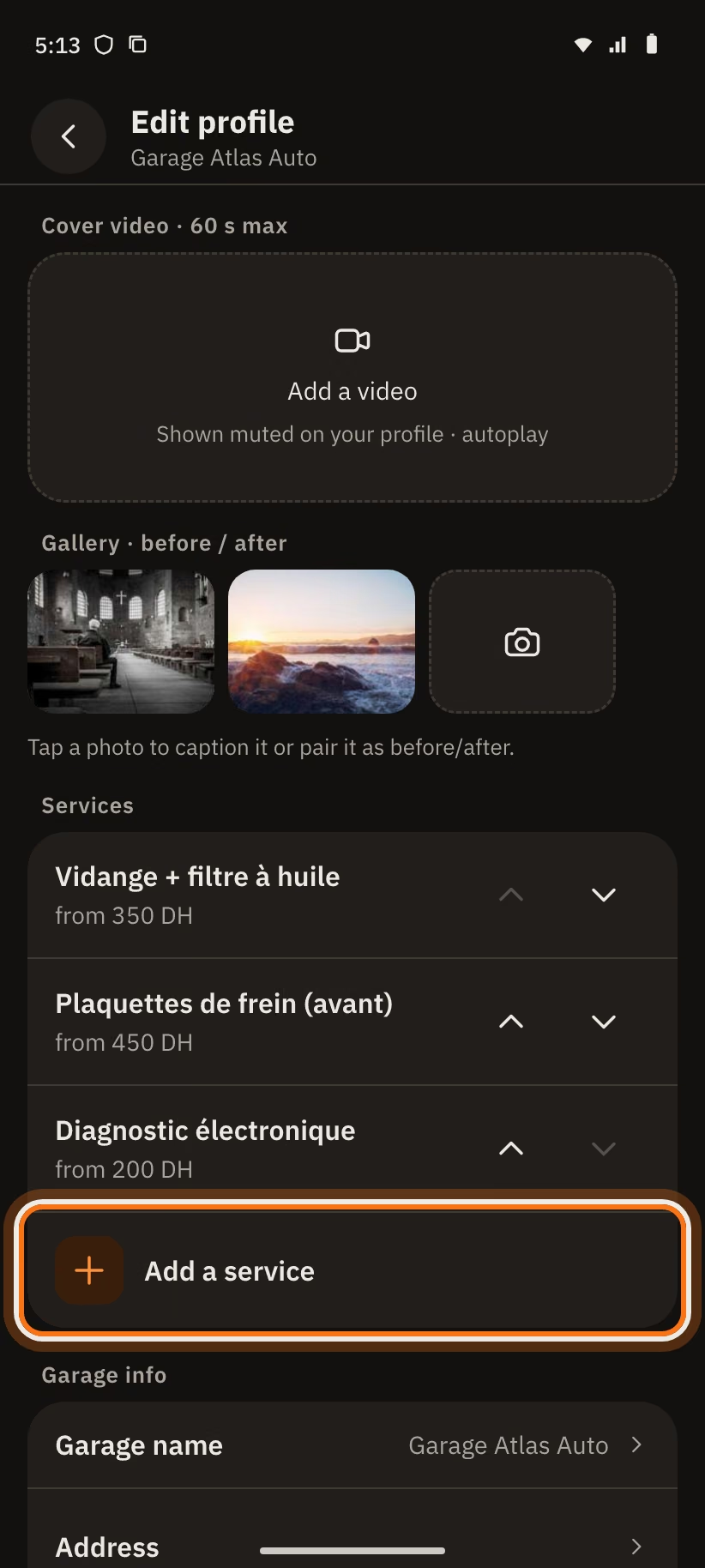
A service without a price shows "on quote". Use the arrows to change the order. The client sees "from 350 DH" on your profile.
The "Today" screen
Your garage has three tabs: "Today", "History" and "My garage". At the top of "Today" you see the garage name and its state: "Open", "Closed · opens …" or "Temporarily closed". The "Walk-in" button is next to the bell.
The screen is made of blocks, from most urgent to least urgent:
| Block | What you find there |
|---|---|
| "New" | New requests, with a red counter. Then the times you proposed that wait for the client. After 3 rows: "see all" or "Hide". |
| "Today" | The visits of the day: time, car, plate, first name, service and phone. |
| "In the garage" | The cars you received. Ready cars come last. |
| "Tomorrow · Thu 30" | Tomorrow's appointments, with the phone only. |
| "This week" | The number of appointments this week. |
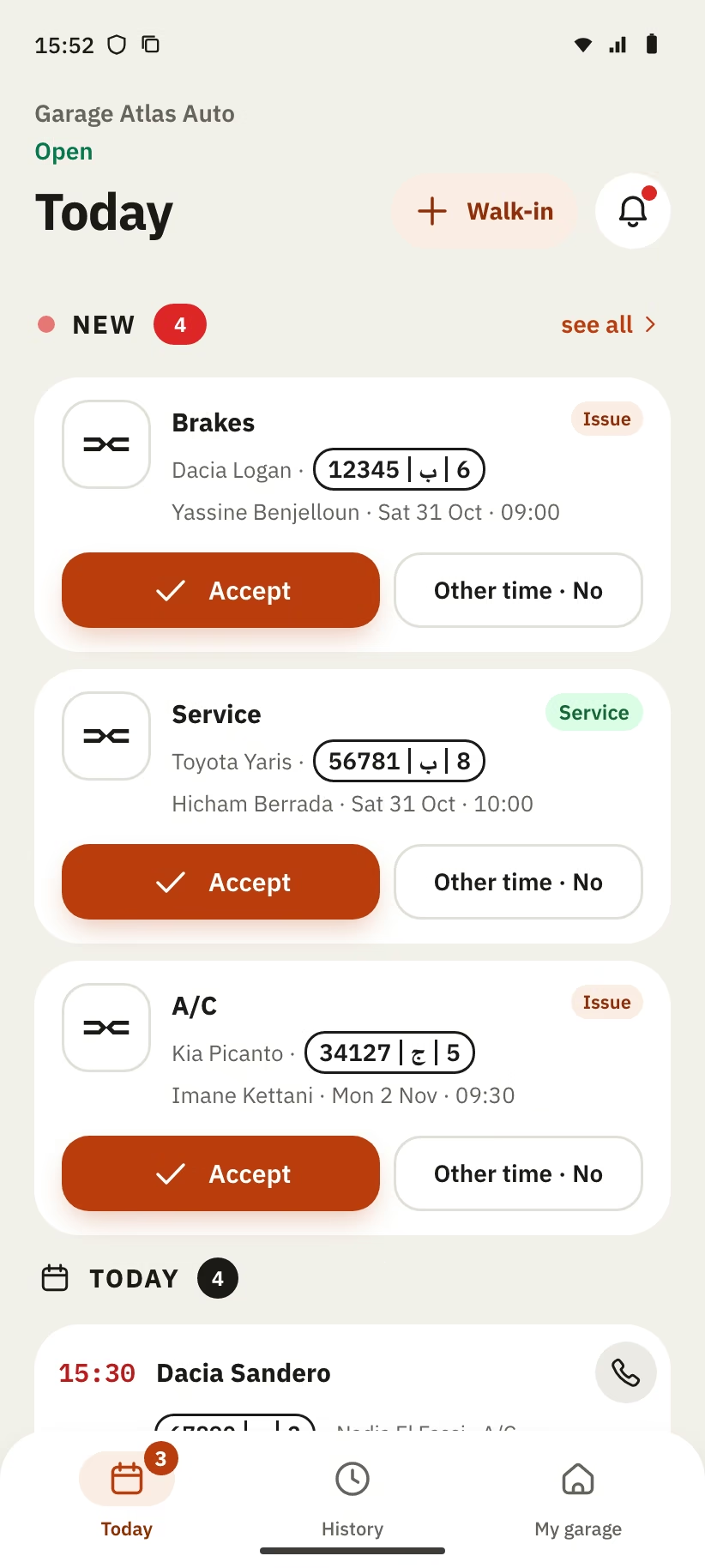
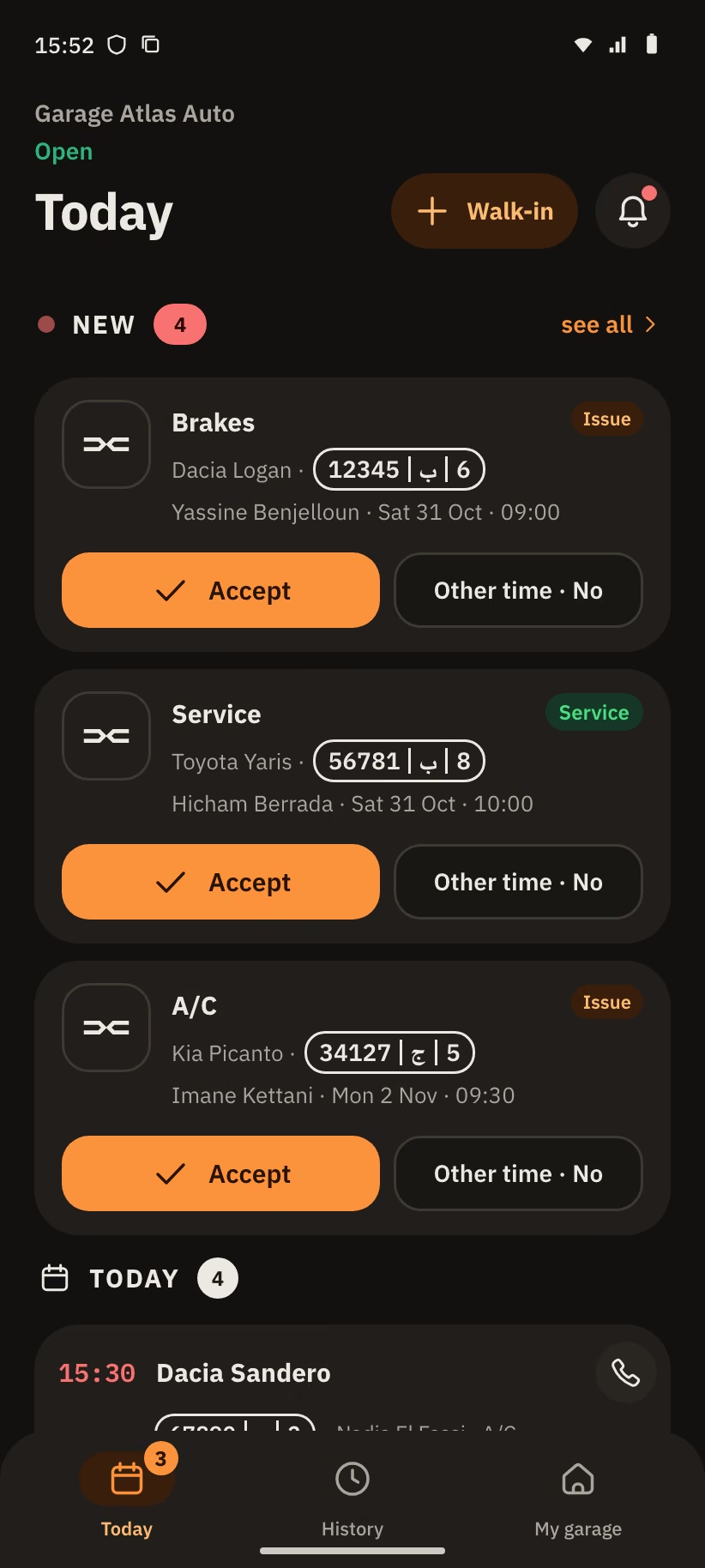
When everything is done, you see "All clear".
Labels and rows
| What you see | What it means |
|---|---|
| Issue | The client describes a problem. |
| Service · 420 DH | The client books a service at this price. |
| Client slot | The client suggests a time. |
| Walk-in | A client without the app (see "Walk-in"). |
| Pending | You proposed another time. The text says "Proposed Thu 30 · 11:00 · waiting for the client". |
| "Client is here · tapped "I'm here" 10:42" | The client tapped "I'm here". |
| "1 h 40 late" | In red, 30 minutes after the time of the appointment. |
| "No-show" | The client did not come. The button works 30 minutes after the end of the slot. |
| "received 09:05", "received yesterday", "in progress", "quote accepted" | The state of a car in "In the garage". |
| "Ready · client notified 11:40" | The car is ready and the client knows it. |
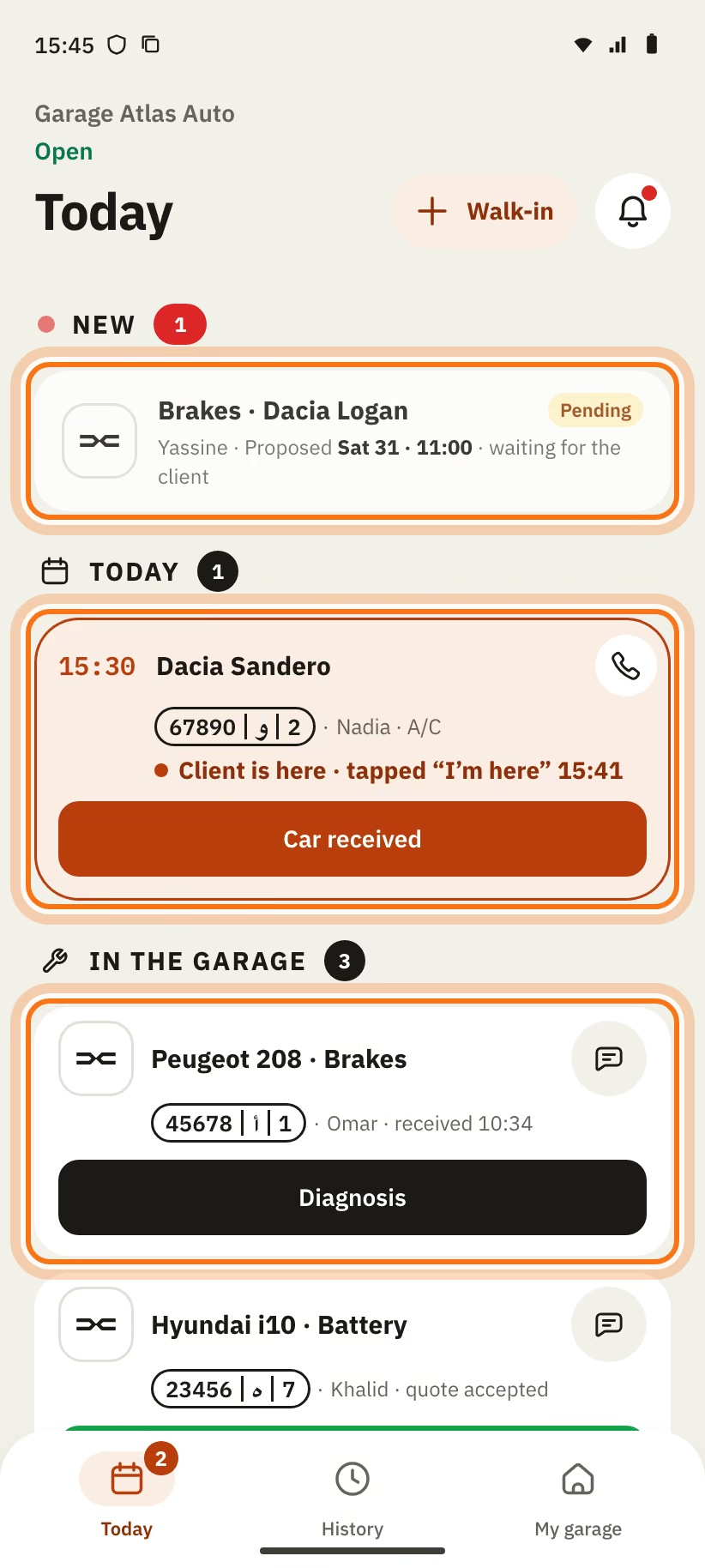
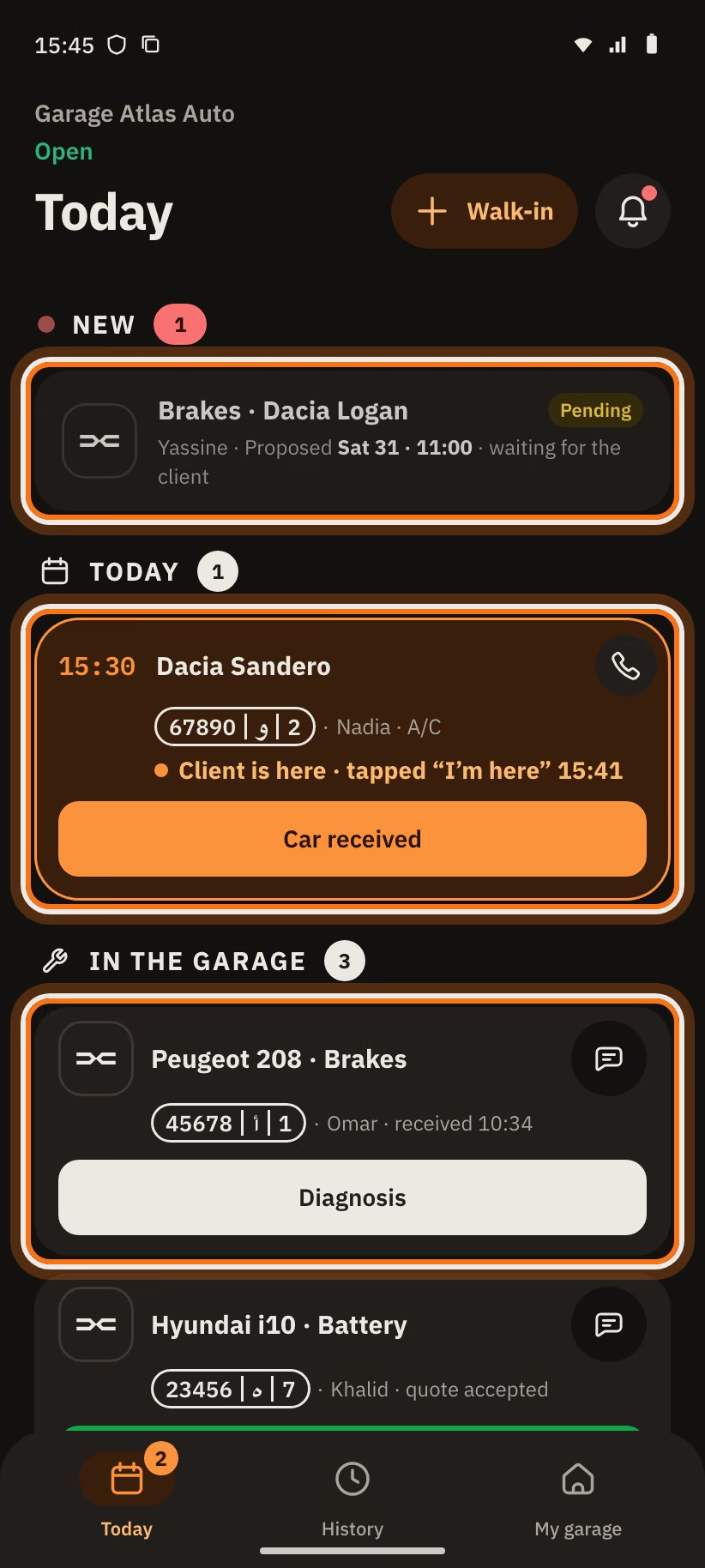
On each car in "In the garage", the buttons come one after the other: "Diagnosis", then "Ready", then "Handed over".
After each action: undo
After "Accept", a decline, "Ready", "Handed over" or "No-show", a message shows for a few seconds with the "Undo" button. Examples: "Appointment accepted", "Request declined", "… ready · client notified", "… handed over", "… · no-show". Tap "Undo" to go back.
Request statuses
Open a request or a job. The top of the screen shows its status.
| Status | What it means | What you do |
|---|---|---|
| New request · Sat 31 · 09:00 | A client waits for your answer. Sometimes: "New request · no time picked". | "Accept", "Other time" or "Decline". With no time: "Pick a time". |
| Time proposed · Sat 31 · 11:00 · waiting for the client | You proposed another time. The client must accept. | Wait. You can change it with "Other time". |
| Visit Sat 31 · 09:00 | The appointment is confirmed. | When the car arrives: "Car received". Client absent: "No-show". |
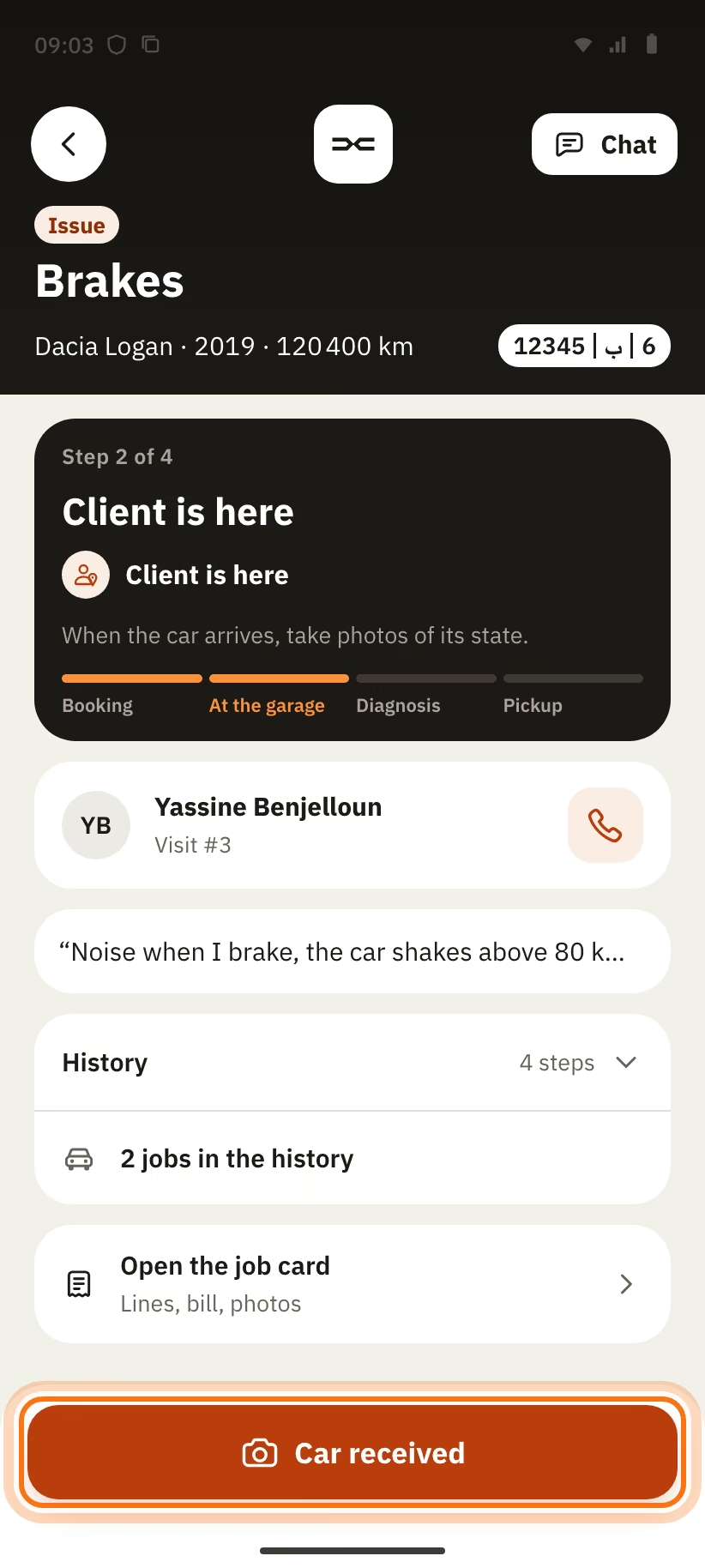
| Client is here | The client tapped "I'm here". | "Car received". |
| At the garage · diagnosis to do | The car is here, the price is not set. | "Send diagnosis", or "Car ready" if the work is already done. |
| Price known · 350 DH | Booked service: the client already accepted this price. | Do the work, then "Car ready". |
| Diagnosis sent · waiting · 1 480 DH | The client has not answered yet. | Wait. Do not start. "New diagnosis" changes the price. |
| Accepted 1 480 DH | The client agrees. | Do the work, then "Car ready". |
| Diagnosis declined | The client says no. | "Send diagnosis" with a new price, or give the car back. |
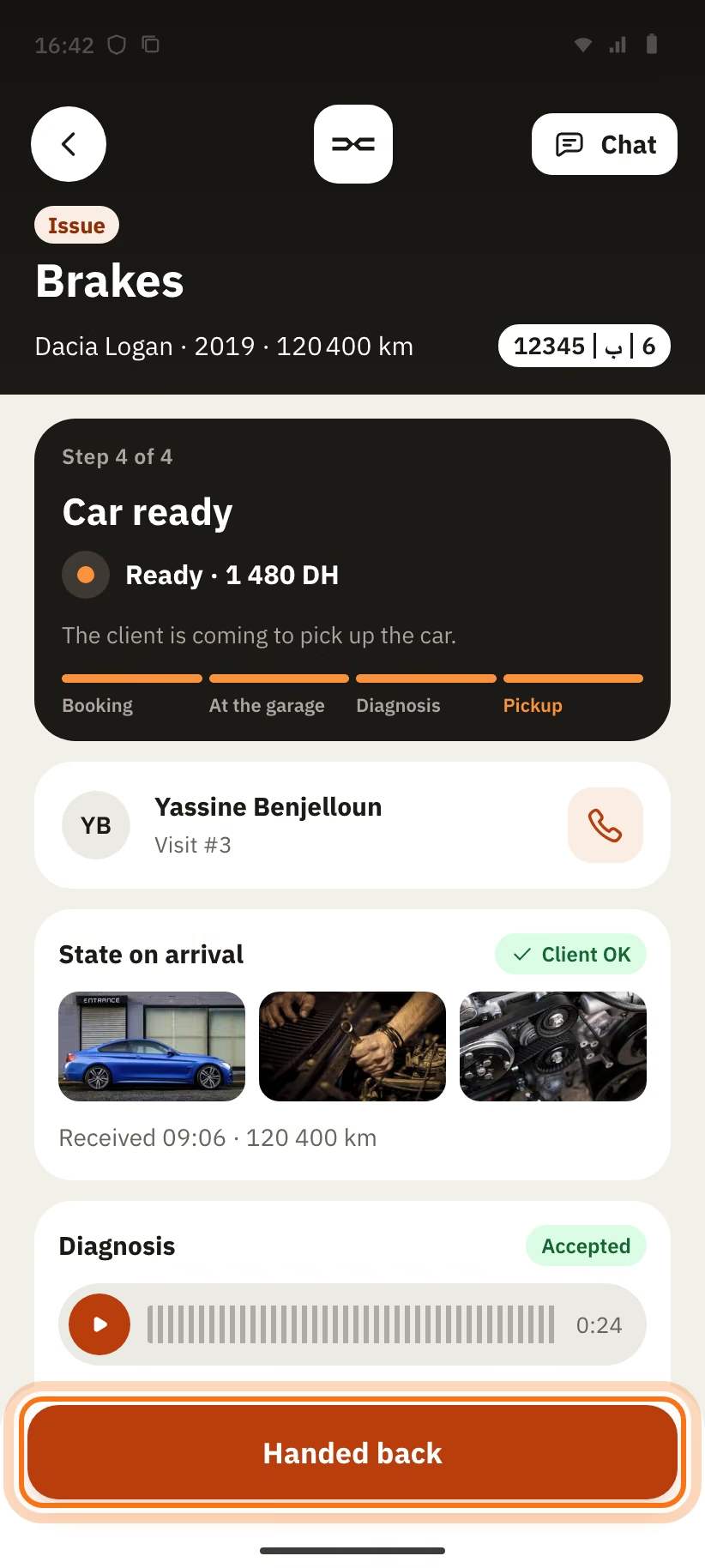
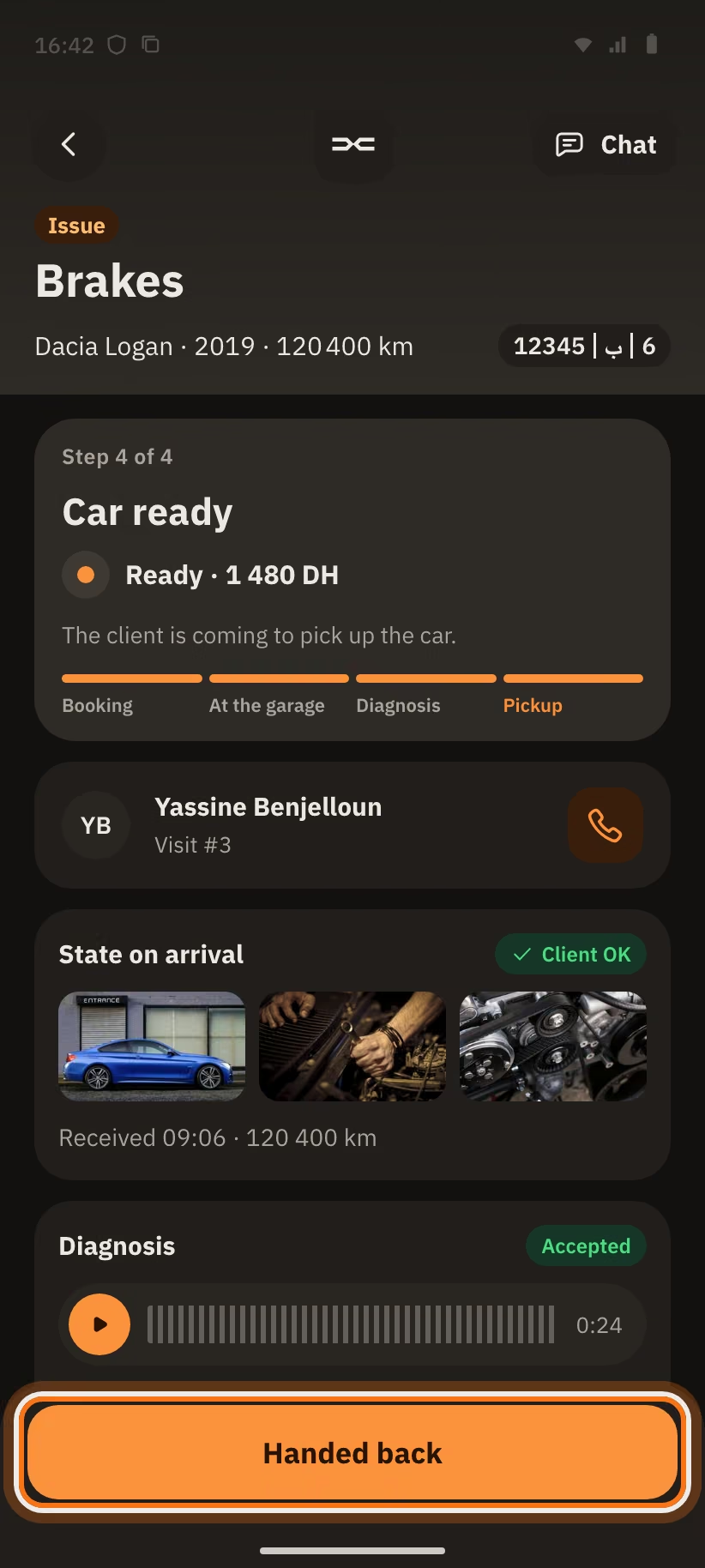
| Ready · 1 480 DH | The client is told and comes to pick up the car. | "Handed back" when they leave. |
| Done | The work is finished. In "History", the row says "Handed over". | Nothing. |
| Client did not come | The client did not come. | "Propose a new appointment" (owner). |
| Declined | You declined the request. The reason shows: "Declined · Too far". | Nothing. The chat is closed. |
| Cancelled | The job is cancelled (see "Cancel a job"). | Nothing. The chat is closed. |
A client can also withdraw a request before you answer. The request leaves "Today" and you get a notification. The app shows no label for this case.
Answer a request
A new request shows the car, the problem, the first name of the client and the time asked. Open it to see the photos and to listen to the voice notes.
- "Accept": you confirm the time asked. The client is told. A message says "Appointment accepted".
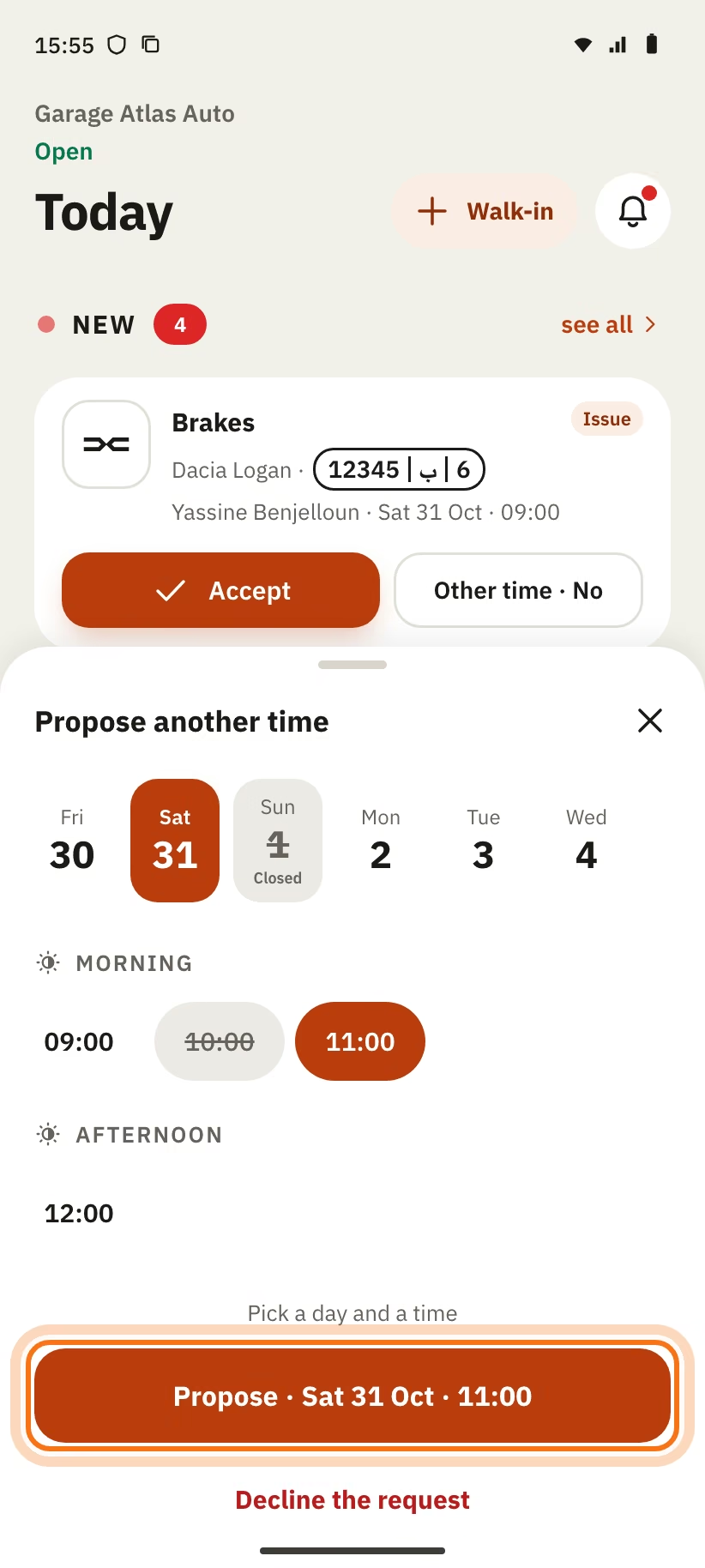
- "Other time · No": you propose another time, or you decline.
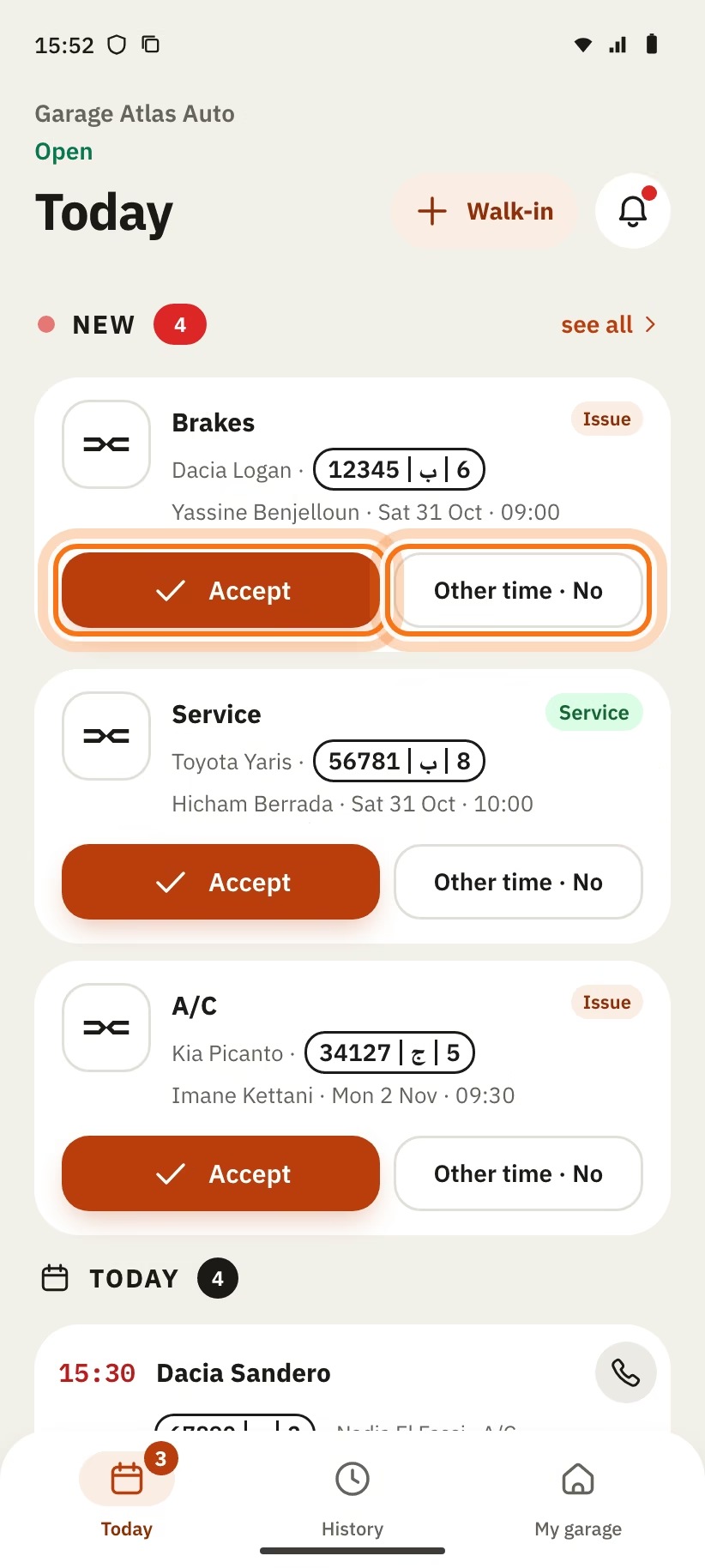
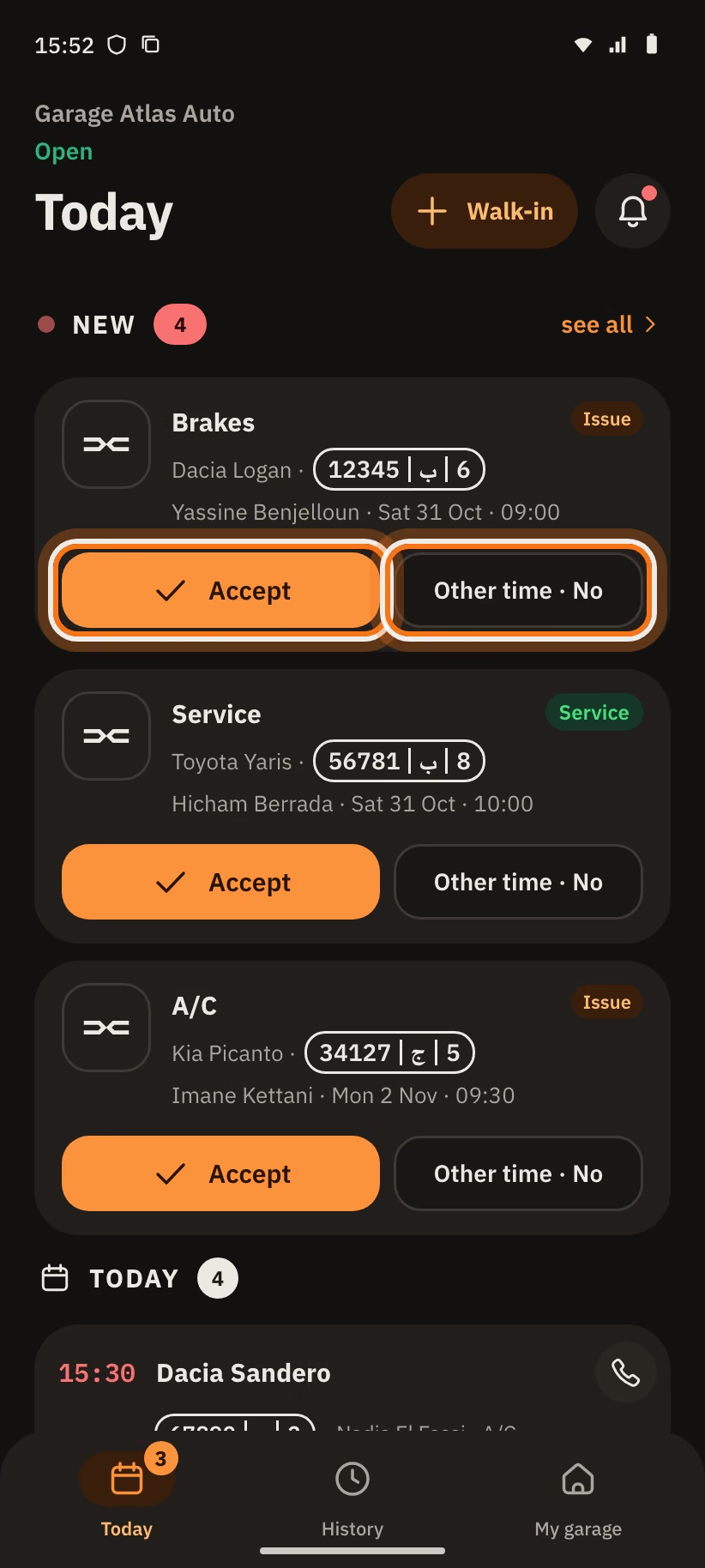
In the request details, the buttons are called "Accept · Sat 31 · 09:00", "Other time" and "Decline".
Other time.
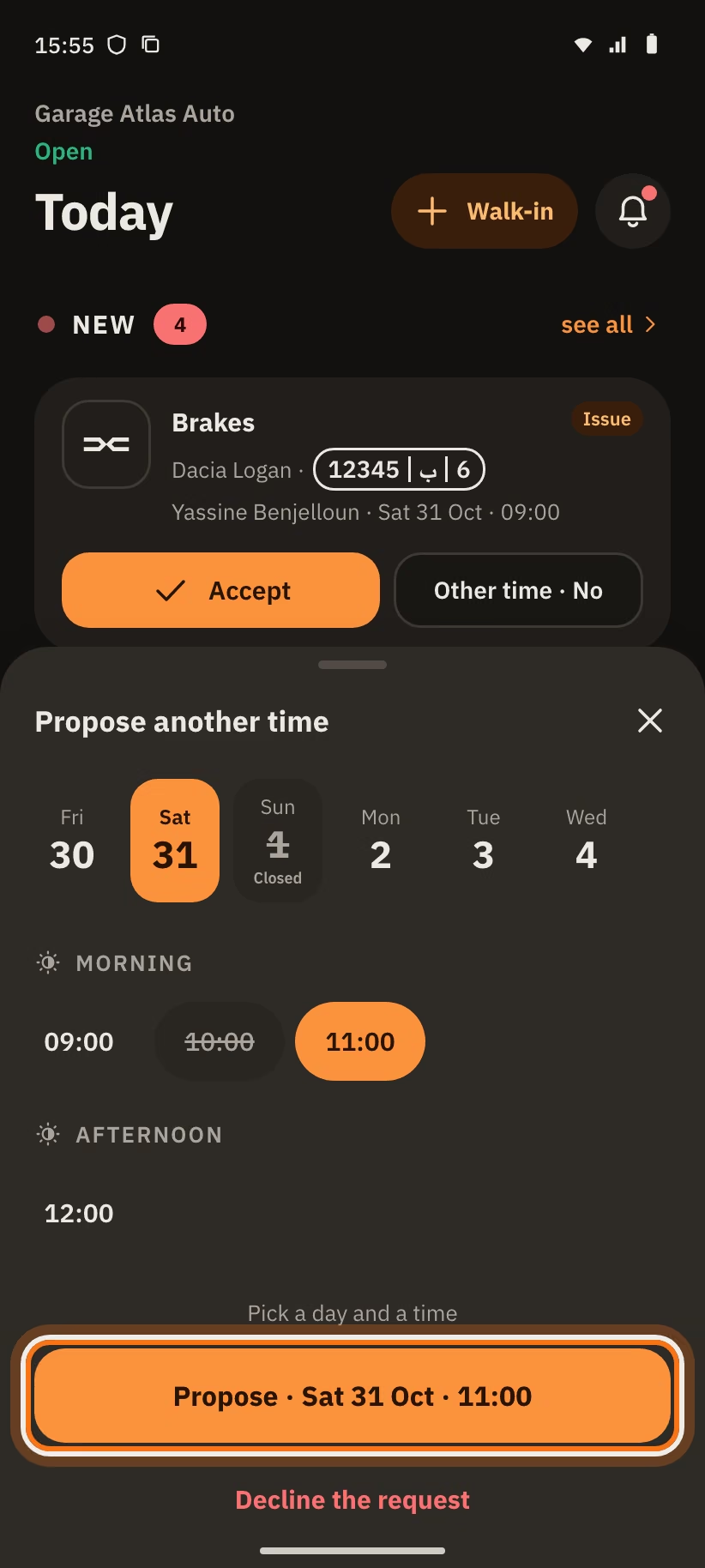
- Tap "Other time · No".
- Pick a day, then a time under "Morning" or "Afternoon".
- Tap "Propose · Sat 31 Oct 11:00".
The message "Time proposed to the client" shows. The client accepts or declines. If the client declines, the request is cancelled.
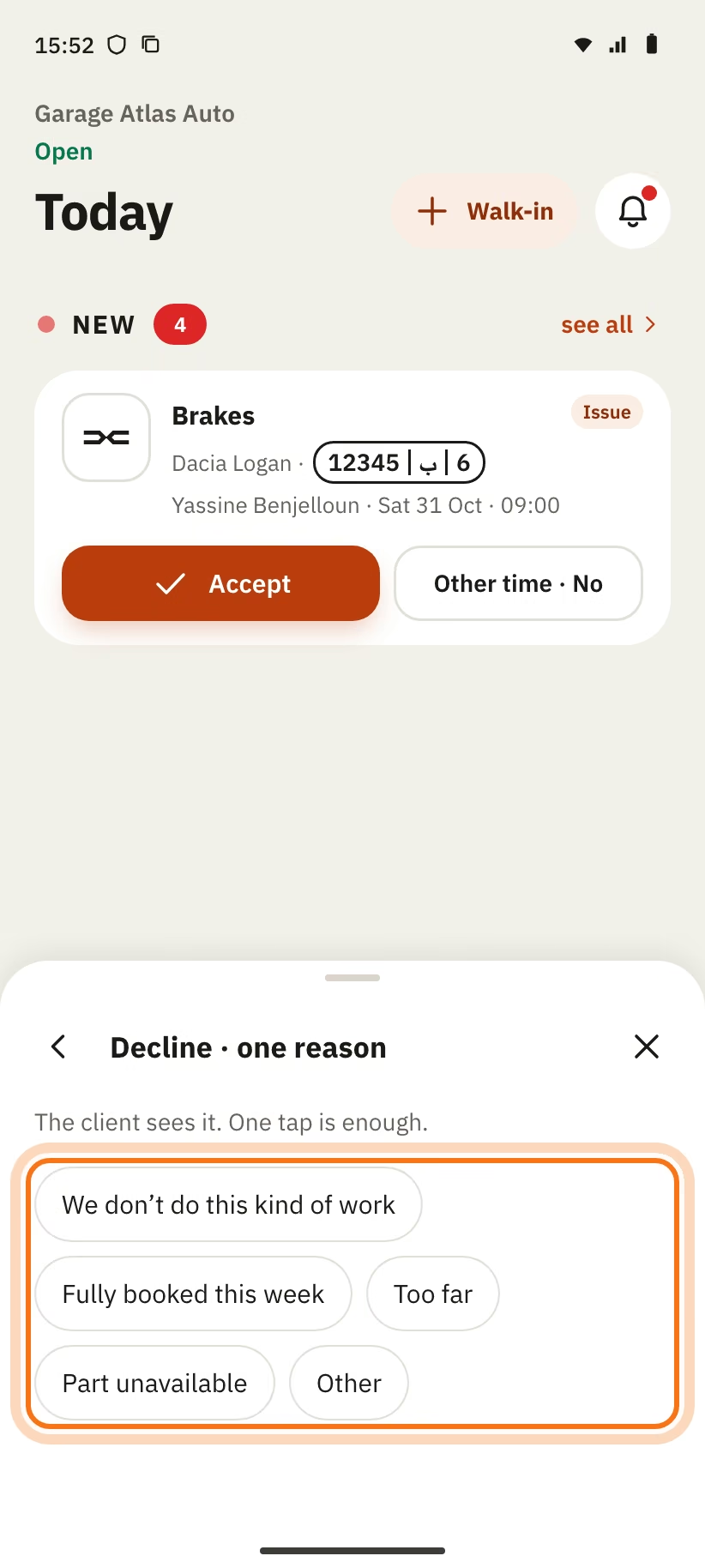
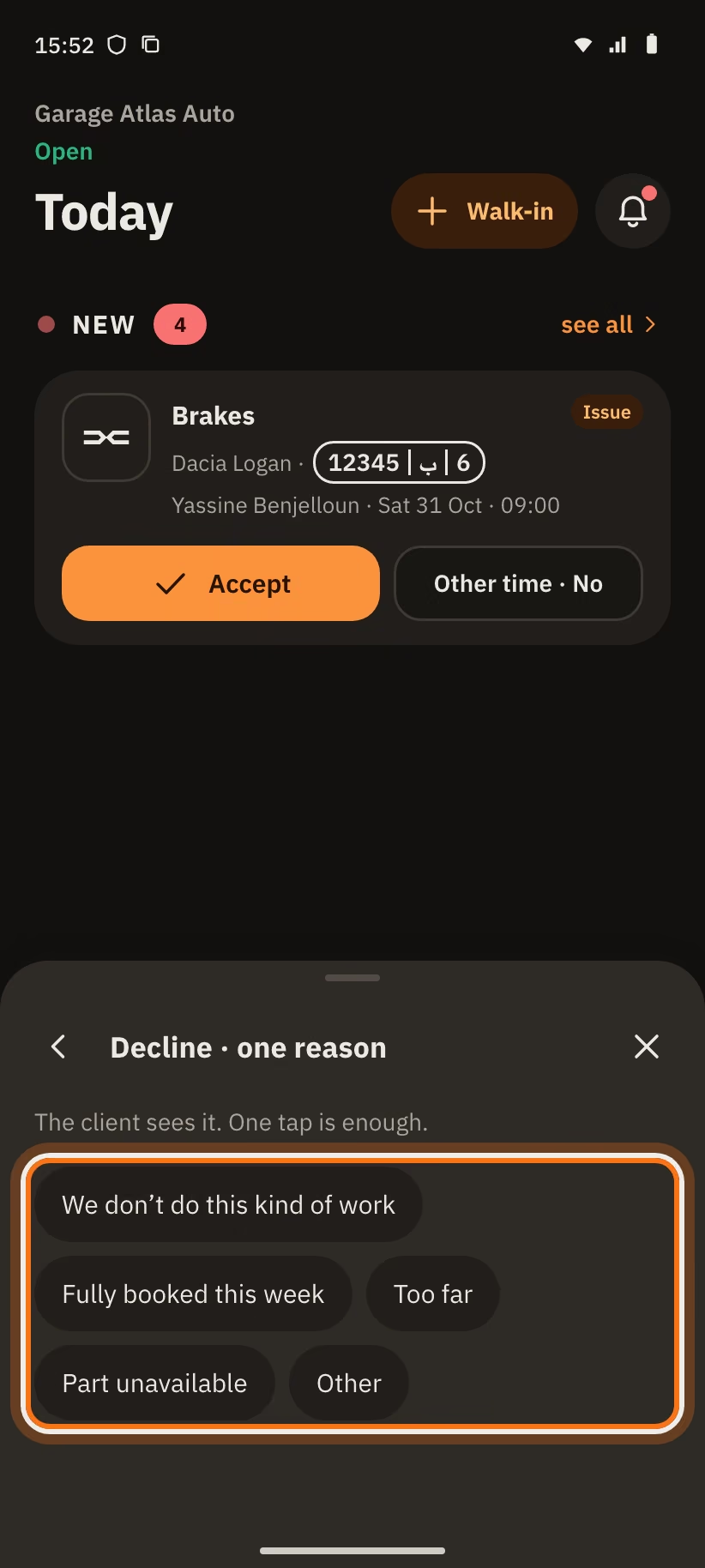
Decline. In "Propose another time", tap "Decline the request". Pick one reason:
- "Fully booked this week";
- "Part unavailable";
- "We don't do this kind of work";
- "Too far";
- "Other".
The number of the client shows once you have accepted the request. You also see the history of their car at your garage.
The owner accepts, proposes another time or declines. A mechanic sees the requests and runs the jobs.
Receive the car
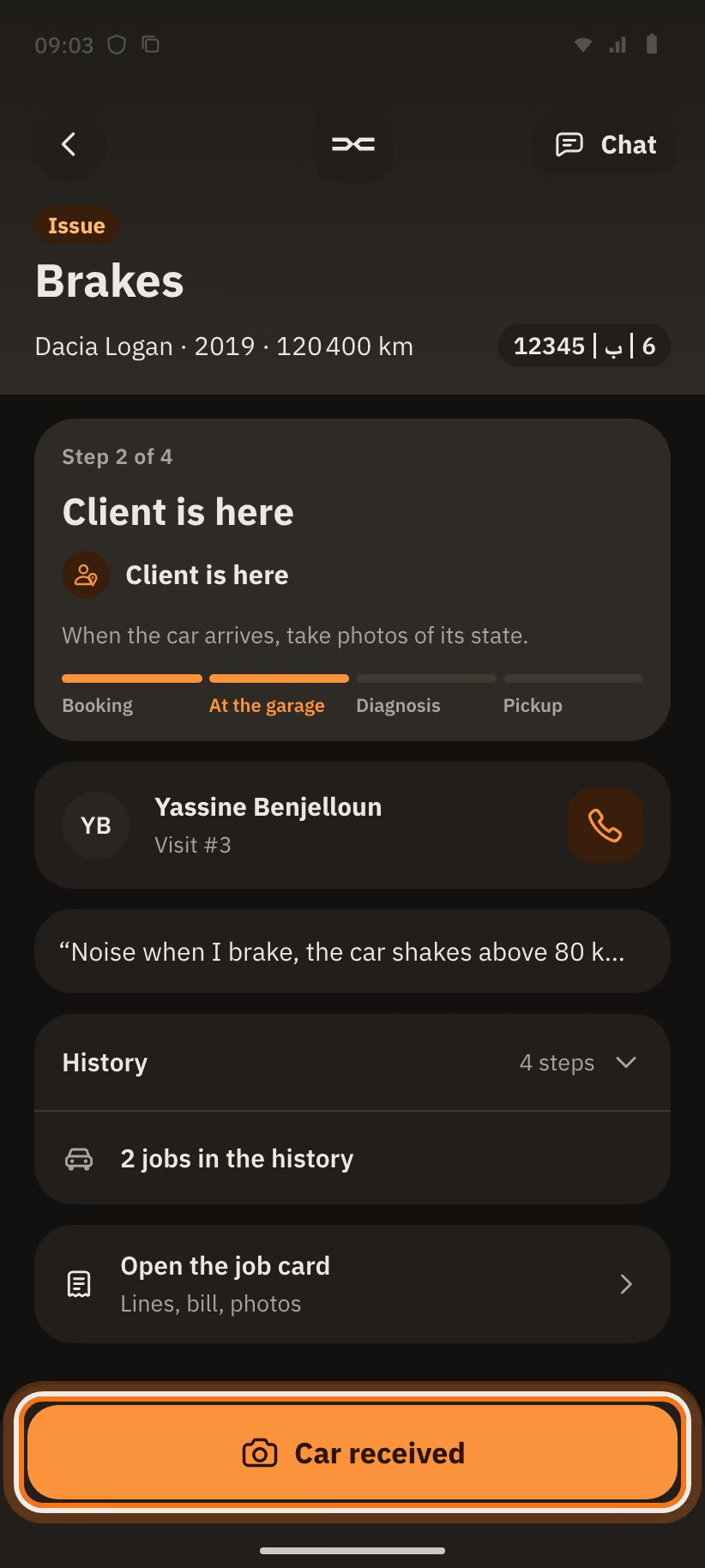
On the day of the appointment, the visit is in "Today". When the client arrives, they tap "I'm here". Your row becomes "Client is here".
Tap "Car received" to open "Car received · condition photos".
- Take 1 to 6 photos ("Photo" or "Gallery"). You need at least one.
- Write the "Mileage (optional)". It cannot be lower than the last known one ("Last: 120 400 km").
- Add a "Note (optional)", for example "scratch on the front right door".
- Tap "Confirm".
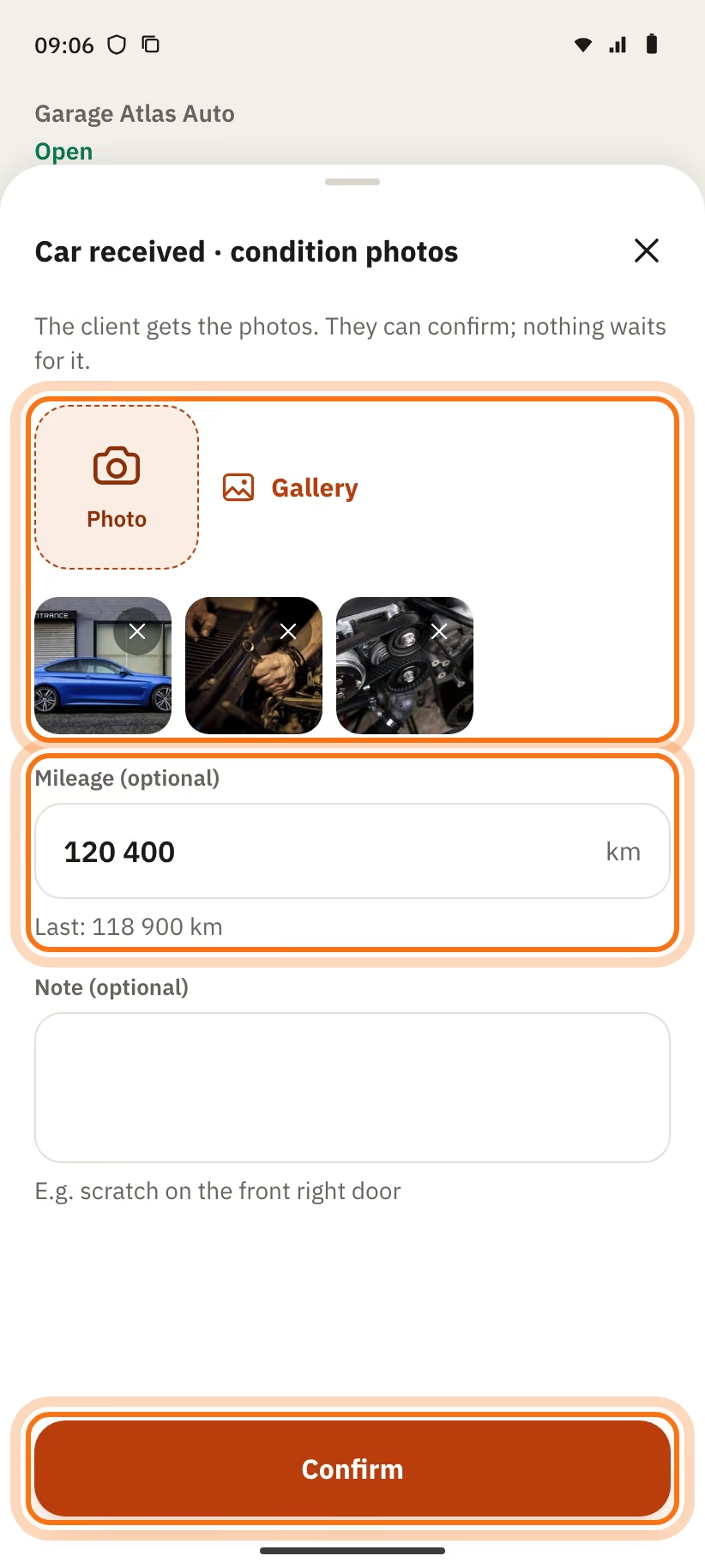
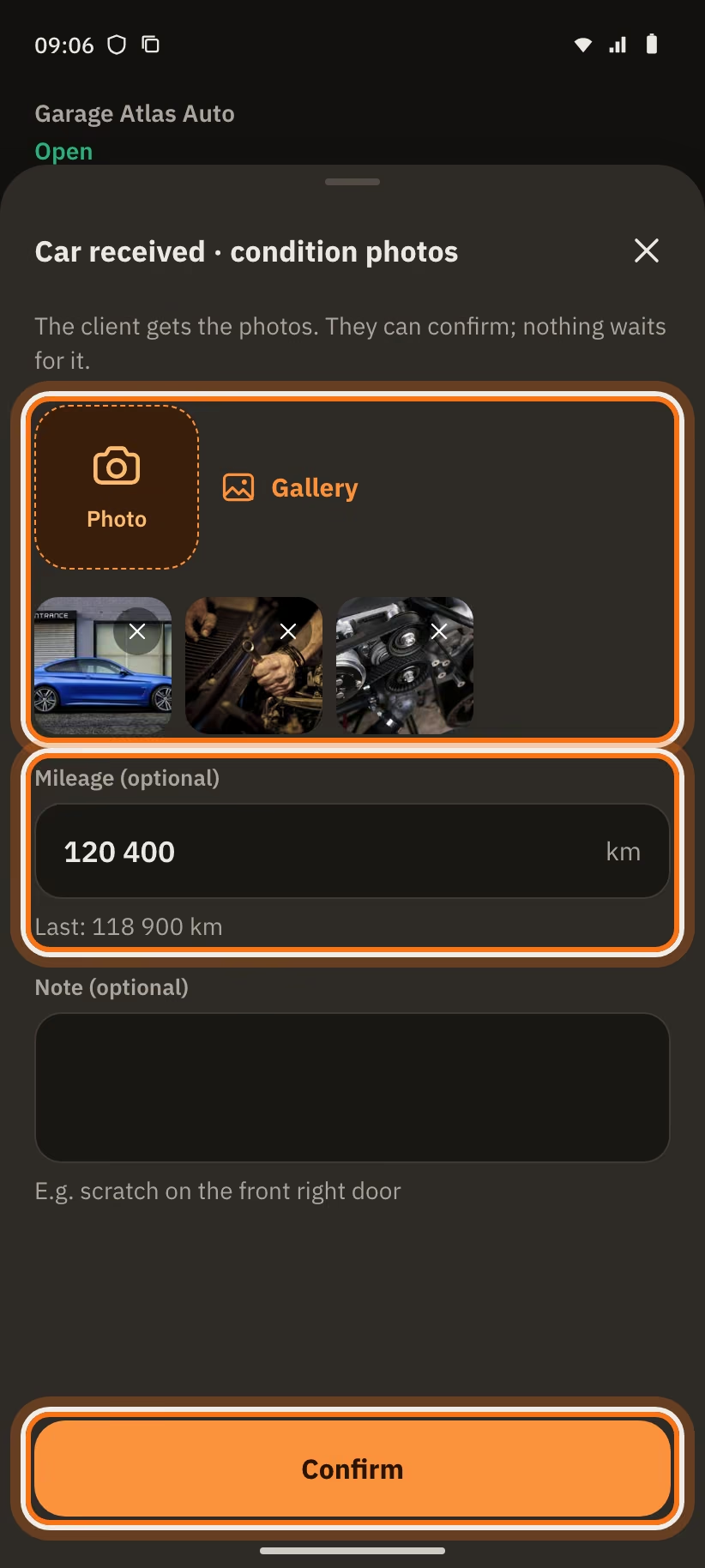
The client gets the photos. They can tap "Looks good", but nothing waits for them if they do not answer. On your page, the "State on arrival" card shows "Client OK" or "Not seen yet". The car moves to "In the garage".
The client did not come? Thirty minutes after the end of the slot, the "No-show" link (or "No-show" in "Today") becomes active.
- Tap "No-show". The app asks "Client didn't come?".
- Confirm with "No-show". The client is told and can book again.
The status becomes "Client did not come". The owner can tap "Propose a new appointment".
Send the diagnosis
The car is in the garage. Tap "Diagnosis" (in "Today") or "Send diagnosis" (on the job page).
- Explain the problem. Hold the button to record a voice note ("Redo" to start again), or write under "Or write (optional)". You need voice or text: "Explain the problem: voice or text".
- Add lines if you want (optional). Under "Add from your services", tap "Labour" or one of your services. Tap "Other" for a free line. "Delete the line" removes a line.
- Write the "Total for the client". It is required and above 0.
- With lines, the total must equal their sum. If not, the app says "The lines make 1 480 DH. The total must be the same.". Tap "Use 1 480 DH".
- Tap "Send · 1 480 DH".
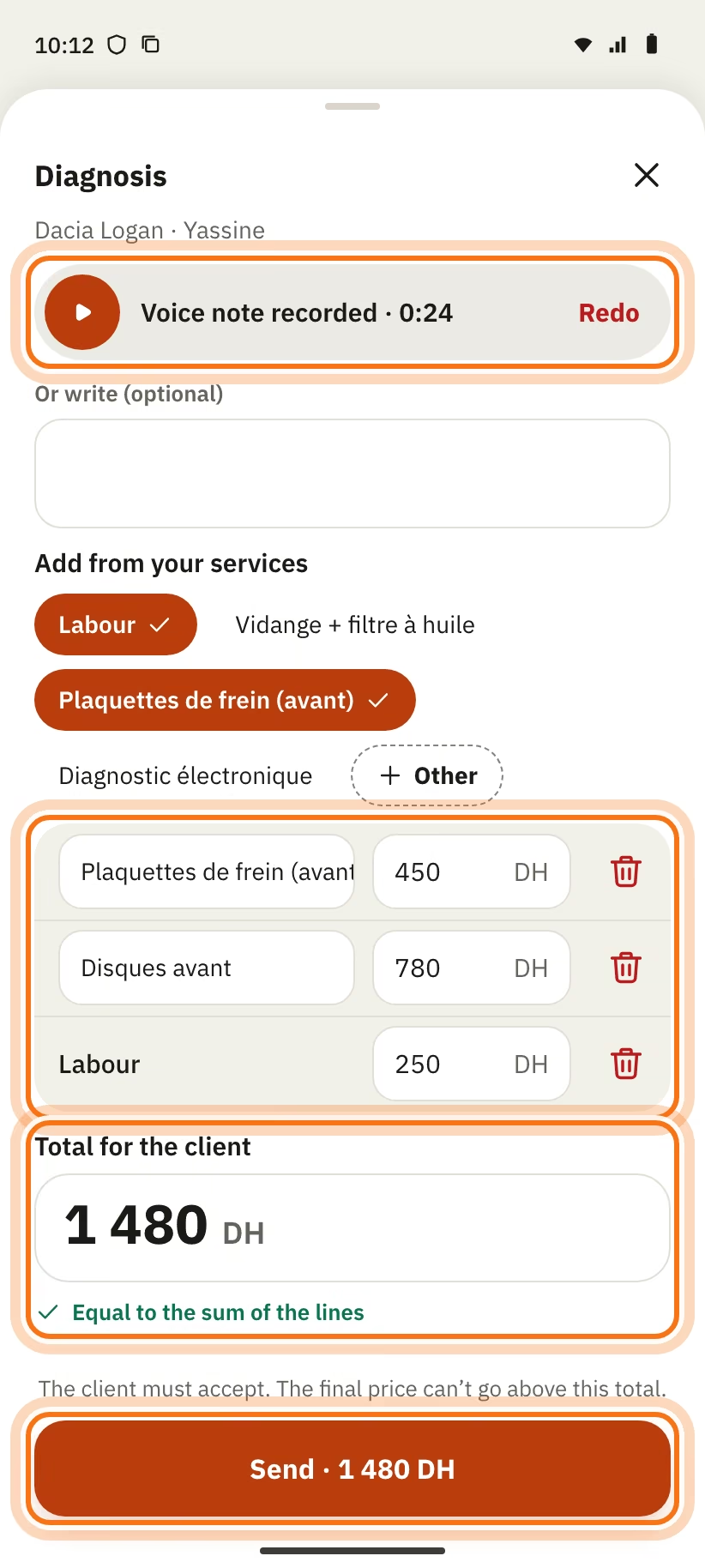
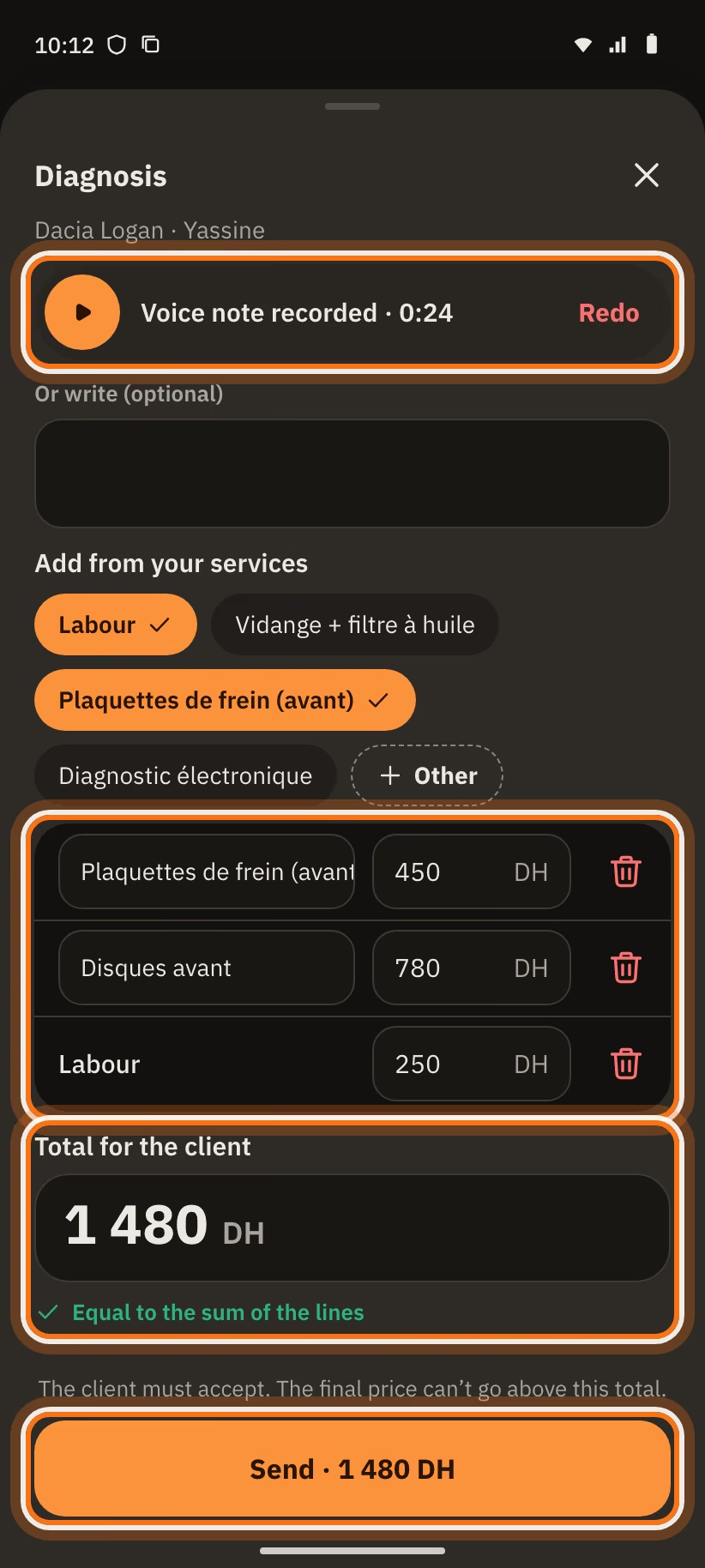
The app reminds you: "The client must accept. The final price can't go above this total."
After you send it, the message says "Diagnosis sent · waiting for the client". Then there are three cases:
- The client accepts: the page shows "Accepted 1 480 DH". You can work.
- The client declines: the page shows "Diagnosis declined". Send a new price with "Send diagnosis", or give the car back.
- You find more work to do: tap "New diagnosis". The client must accept the new price.
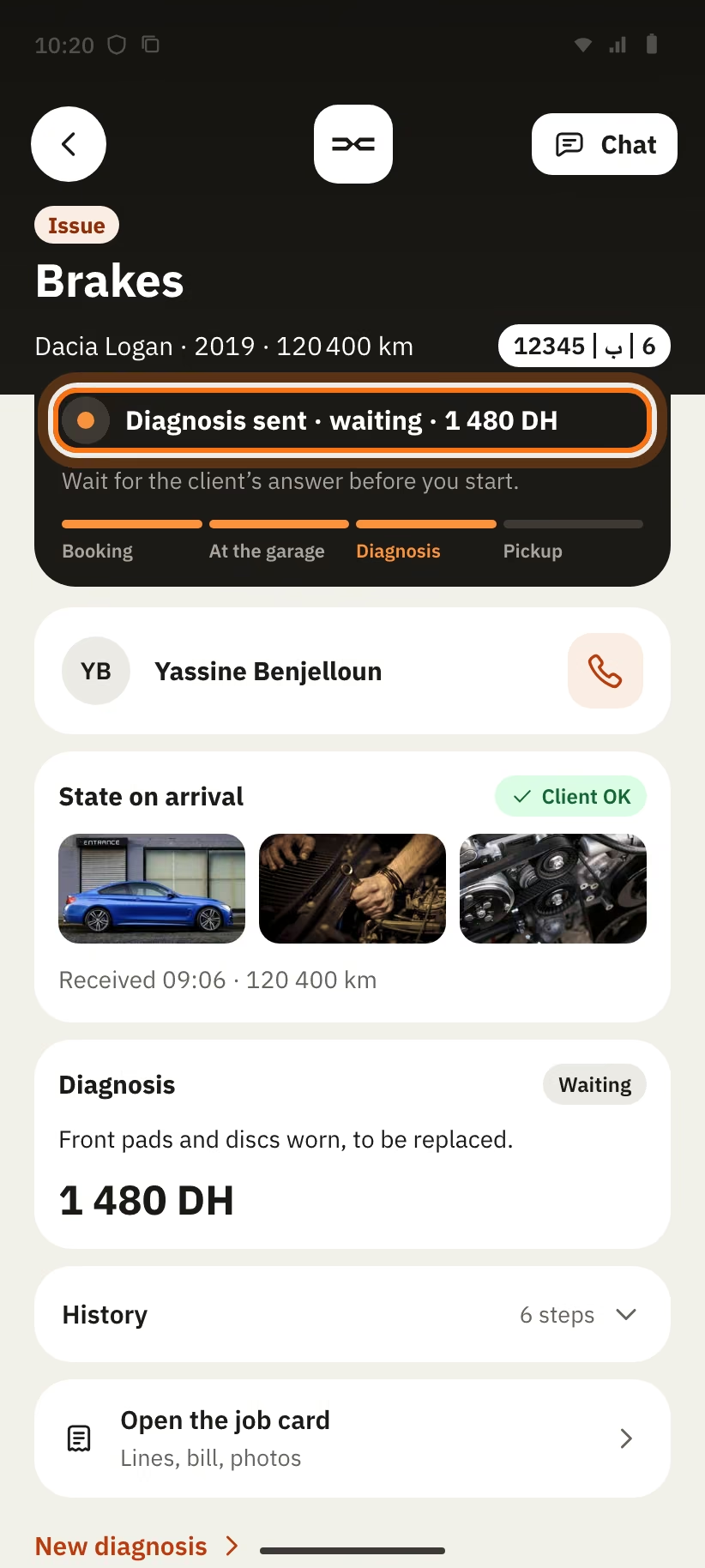
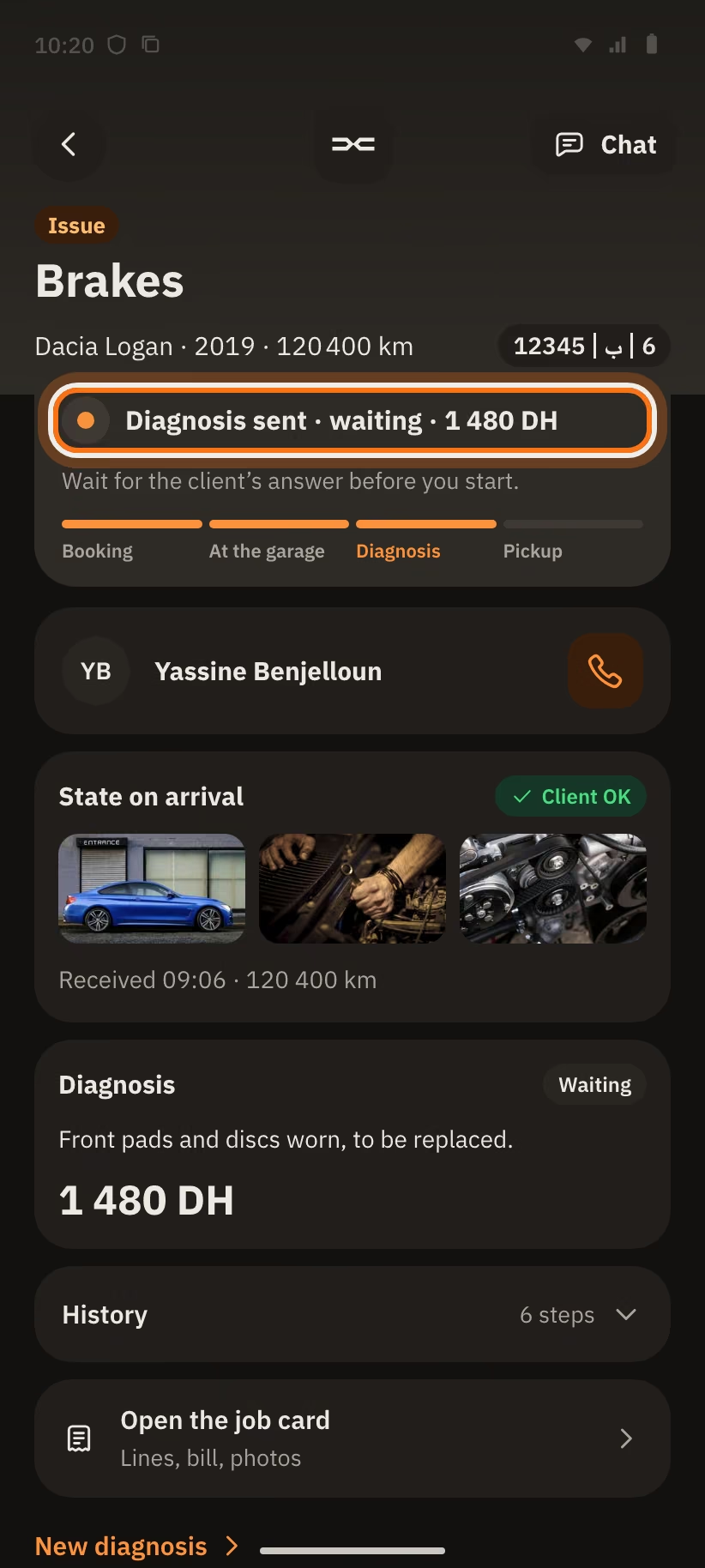
For a booked service, the price is already accepted ("Price known · 350 DH"). You can tap "Car ready" with no diagnosis.
Car ready
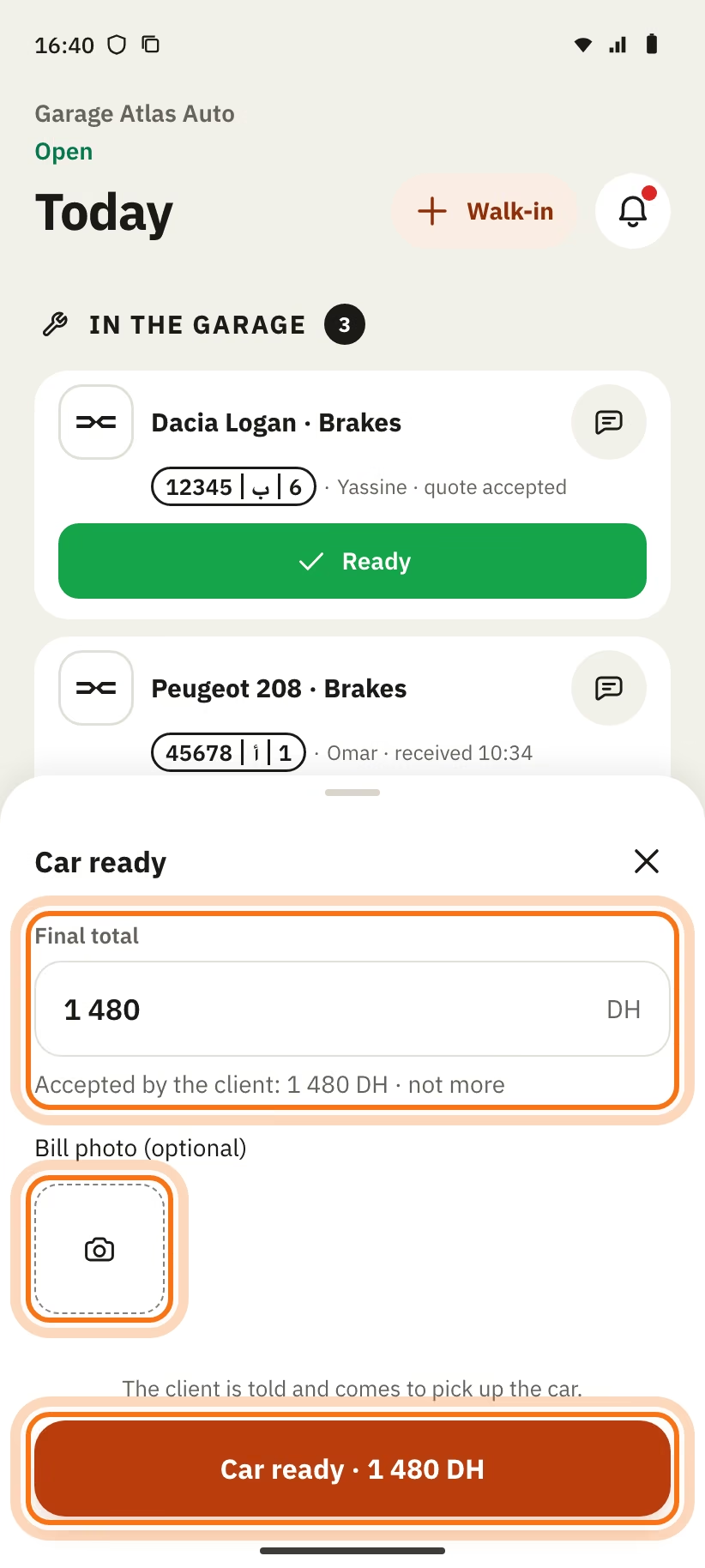
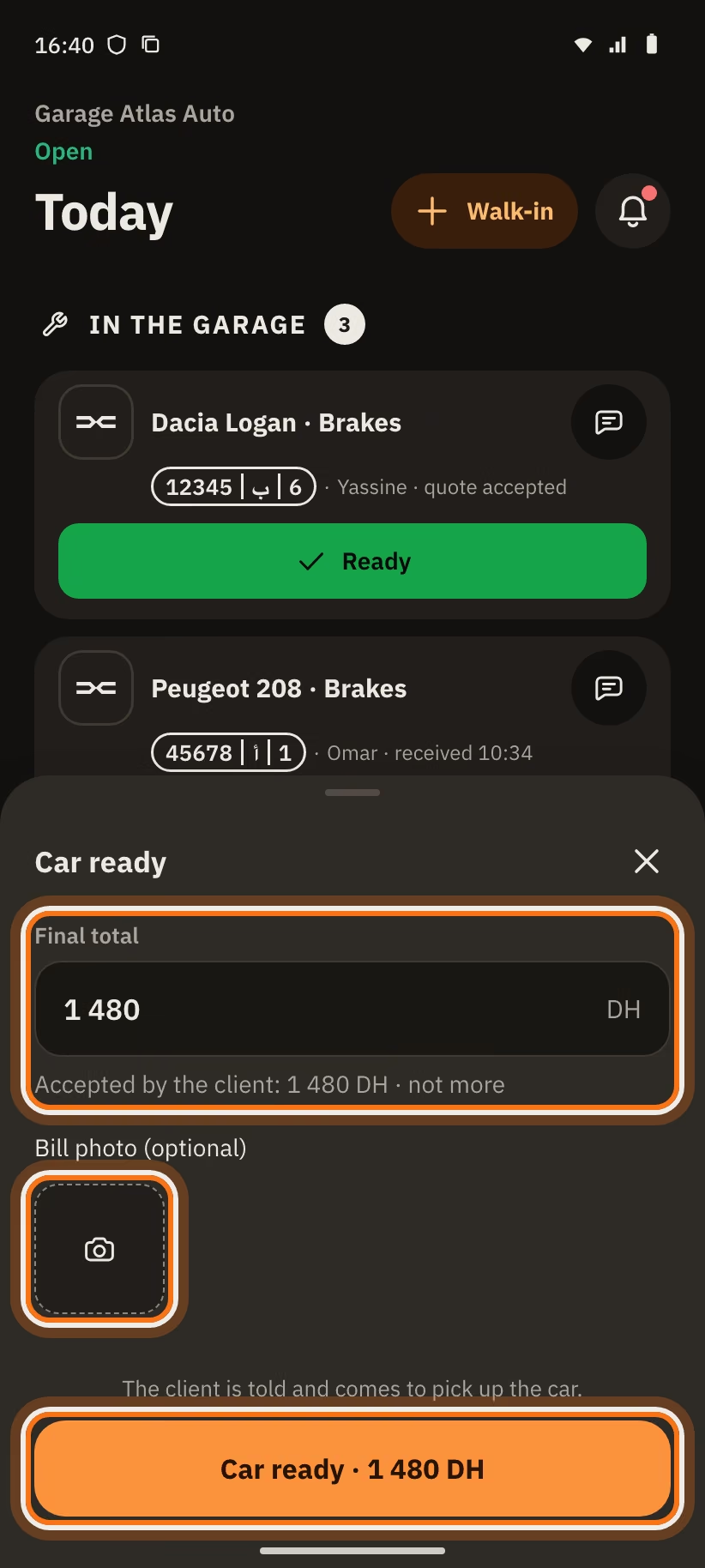
The work is done. Tap "Ready" (in "Today") or "Car ready" (on the job page).
- Check the "Final total". The app writes "Accepted by the client: 1 480 DH · not more".
- The total is higher? The app says "Above the accepted total (1 480 DH). Send a new diagnosis.". Tap "Send a new diagnosis".
- Add the "Bill photo (optional)".
- Tap "Car ready · 1 480 DH".
With no accepted total and with lines, the total is the sum: "Lines total: 1 480 DH". For a client without the app and with no lines, you write the total. The app then adds a "Labour" line with this price.
The message "Client told: car ready" shows, with "Undo" for a few seconds. The client comes to pick up the car and pays at the garage. There is no payment in the app.
The client can dispute a line of the bill. The line then shows "Disputed". You can talk about it with them in the chat.
Car handed over
- When the client leaves, tap "Handed over" (in "Today") or "Handed back" (on the job page).
- A message says "… handed over". Tap "Undo" if you made a mistake.
The client can also tap "I picked up my car" on their side. If nobody taps anything, the visit ends by itself 48 h after "Car ready".
The status becomes "Done". In "History", the row says "Handed over". The client is invited to leave a review.
Client without the app ("Walk-in")
A client comes without an appointment and without the app? Tap "Walk-in" at the top of "Today".
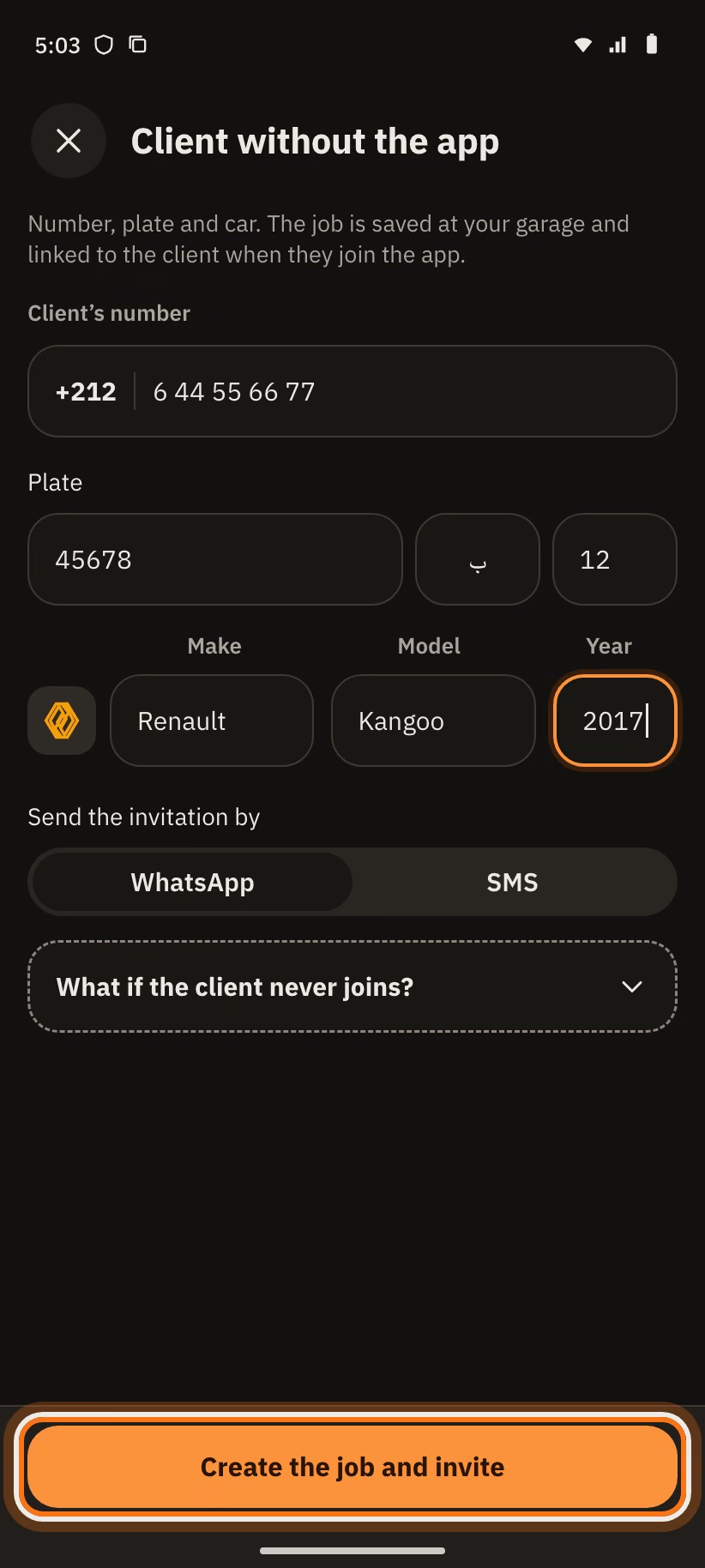
- Enter the "Client's number" (a mobile number).
- Enter the "Plate" (number, letter, region), the "Make", the "Model" and the "Year". All are required.
- Under "Send the invitation by", choose "WhatsApp" or "SMS".
- Tap "Create the job and invite".
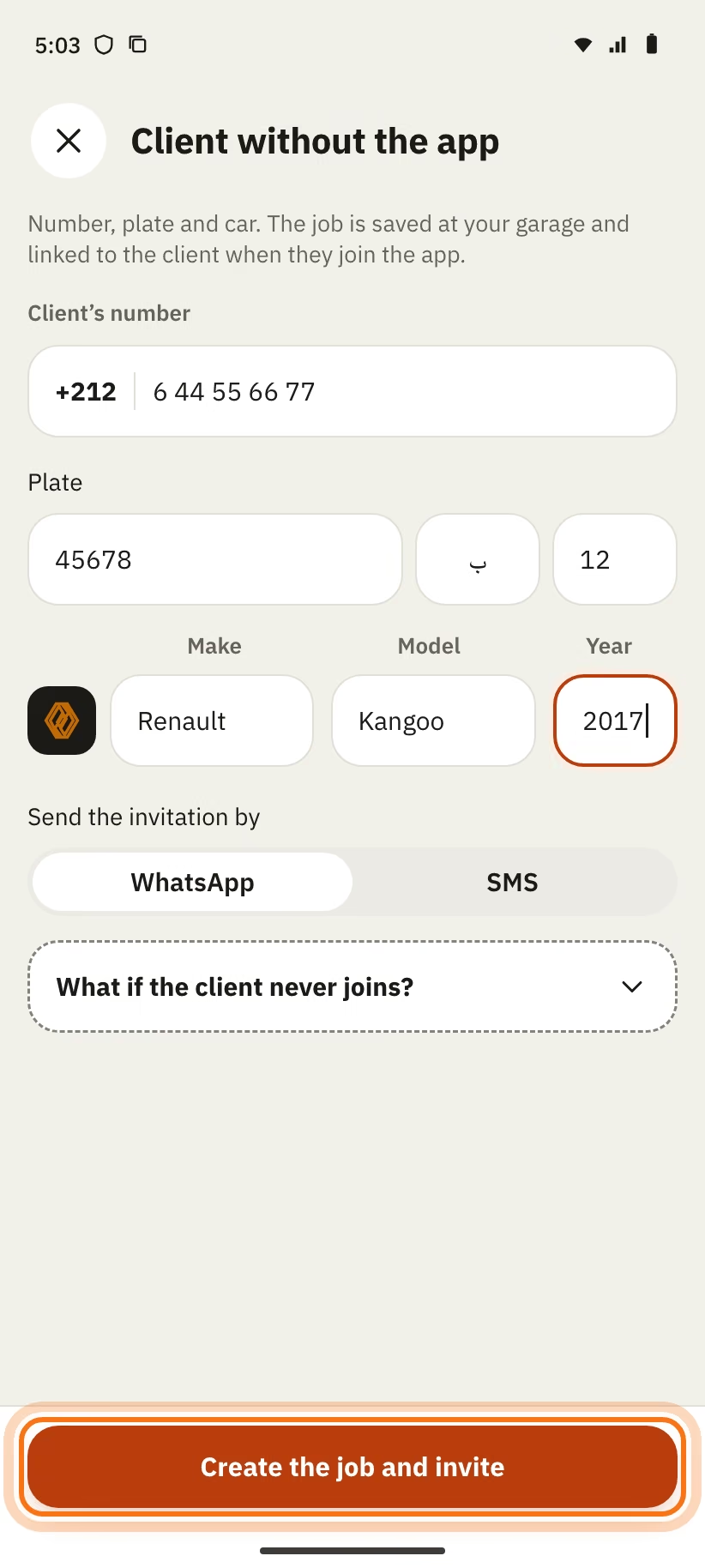
The message is sent from your phone. It invites the client to follow the job in the app.
- The car is at once "At the garage · diagnosis to do". Tap "Send diagnosis", or "Car ready" if the work is already done.
- The client card says "Not on the app yet".
- This number already has an account? The job is linked to their account right away.
- If not, the job stays with you, with the label "No app". It links to the client the day this number creates an account, even a year later.
Cancel a job
You cannot do a job? Cancel it.
- Open the job page.
- Tap "More actions".
- Tap "Cancel the job". The app asks "Cancel the job?".
- Pick the reason, because "The client will see this reason": "The client cancelled", "Part unavailable" or "Unexpected issue at the garage".
The status for the client becomes "Cancelled" and the chat closes. The client sees the reason.
Chat with the client
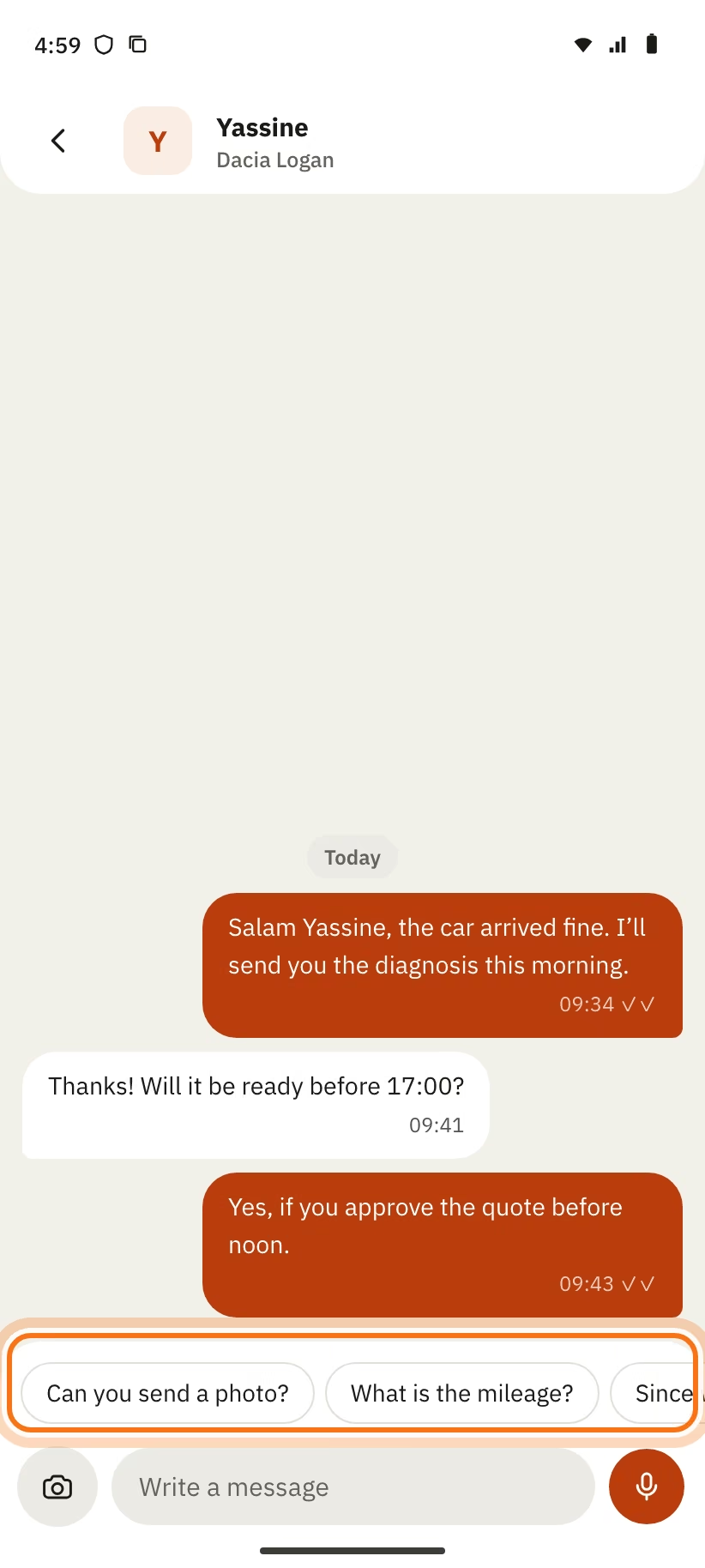
Every request has its own chat. In the request, tap the "Chat" button. A number ("Chat · 2") shows unread messages. On a job page, tap "Open chat". The chat works like the client's chat.
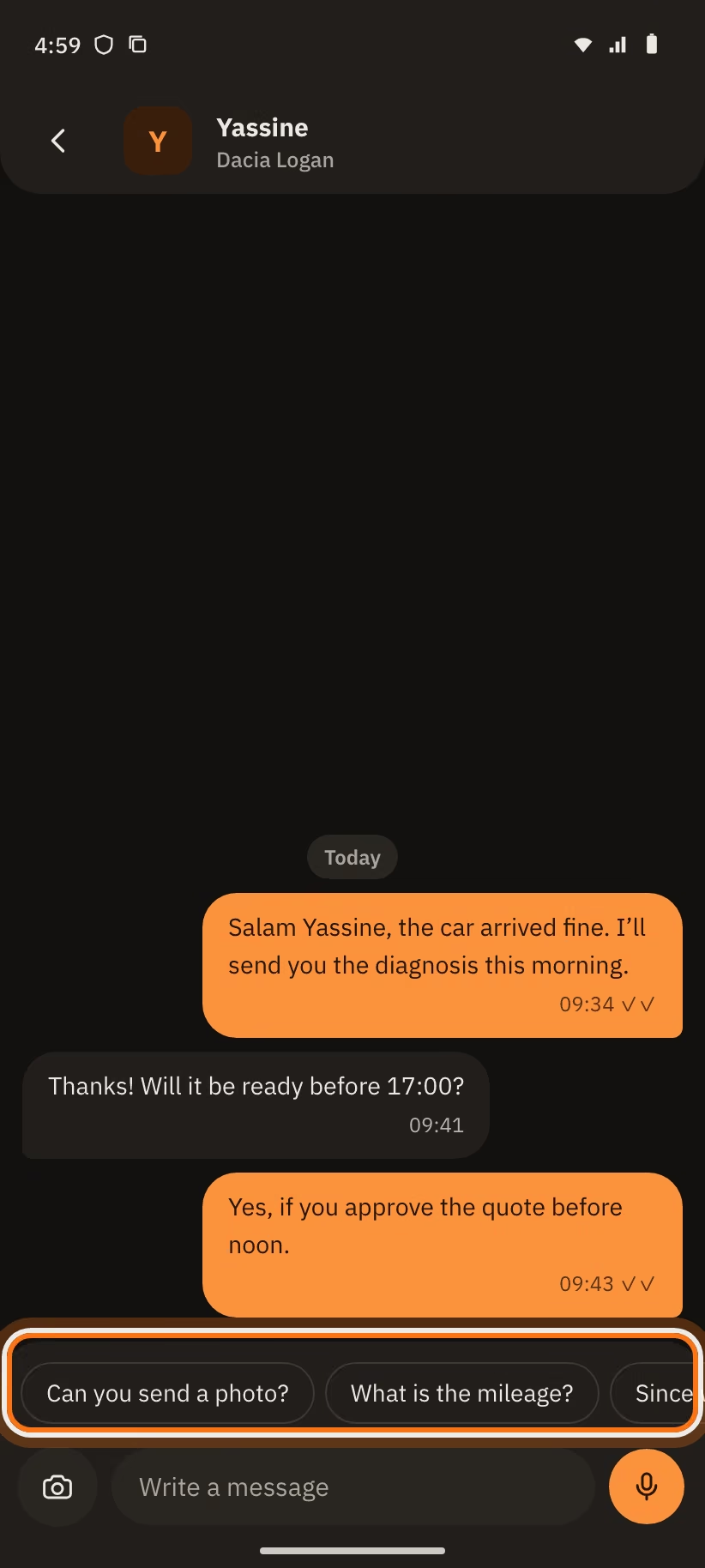
Three quick replies help you ask the useful questions:
- "Can you send a photo?"
- "What is the mileage?"
- "Since when?"
What you can send
- A text (2,000 characters at most).
- A voice note: hold the microphone. Slide up to lock, or slide away to cancel. 60 seconds at most.
- With "Attach": "Photos" (10 at most), "Camera", "PDF document" (10 MB at most) or "Location". For a location, the app asks "Send this location?". The client opens it with "Open in Maps".
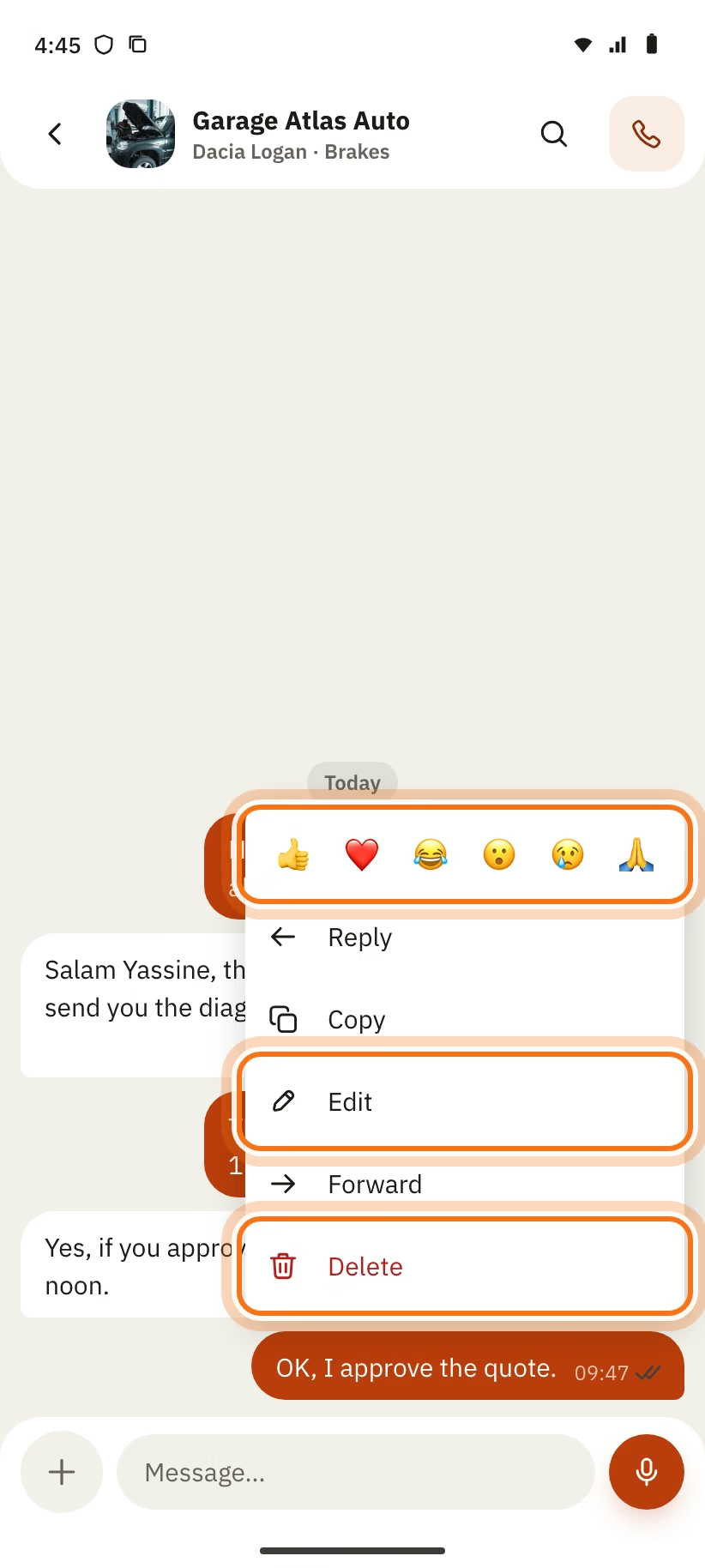
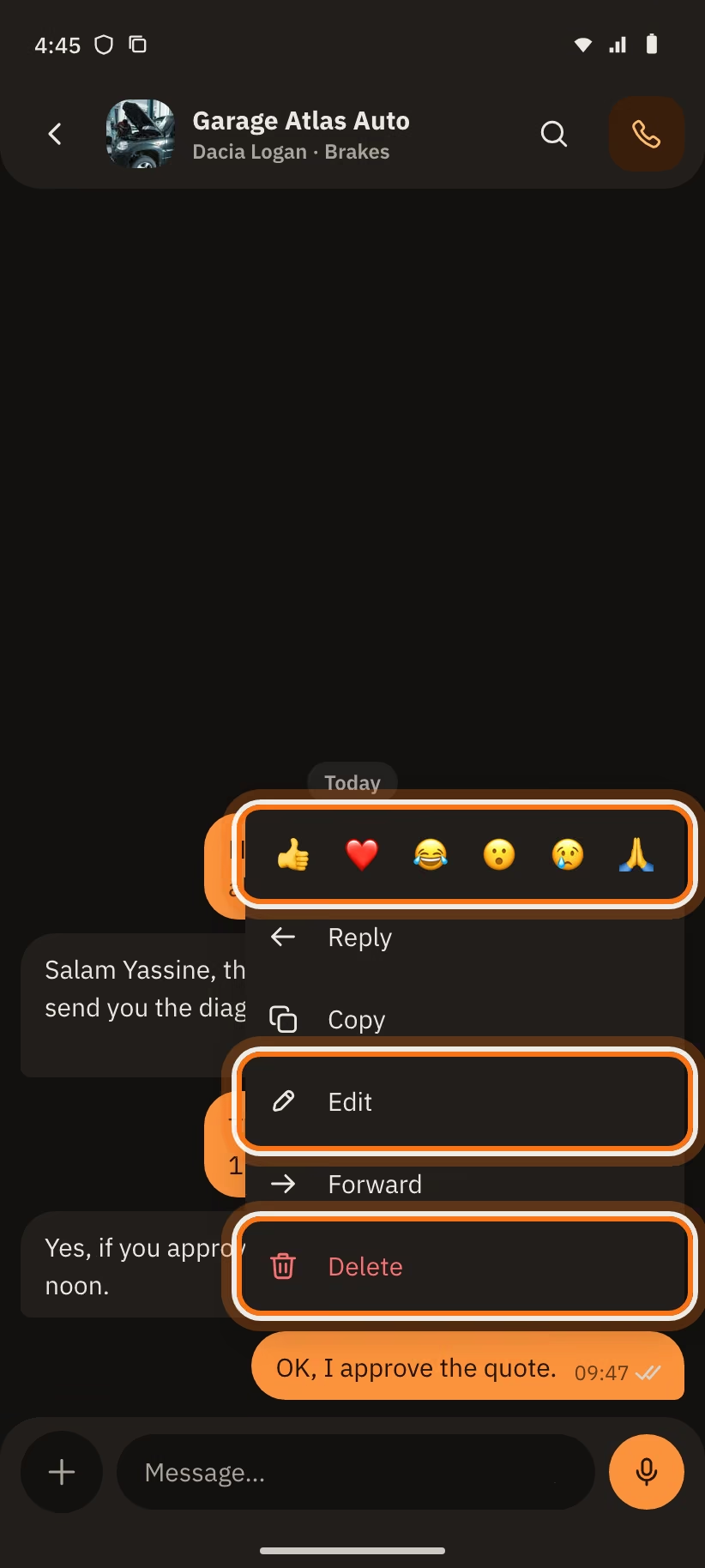
Act on a message. Press a message for a long time. You see six emojis (one reaction per person) and these choices: "Reply", "Copy", "Edit", "Forward", "Delete", "Report". Swipe a message to reply to it.
| Action | Rule |
|---|---|
| "Edit" | For your text or the caption of your photo, for 15 minutes. Not possible on a forwarded message. The message shows "edited". After 15 minutes: "Too late: you can only edit a message for 15 minutes." |
| "Delete" | For your messages, for 2 days. The app says "It will be deleted for everyone.". It stays as "Message deleted". |
| "Forward" | To 5 chats at most ("Forward to…"). The message shows "Forwarded". |
| "Report" | For a message from the other person. |
| "Search" | Searches the chat (2 to 64 characters). The app shows "1 / 5", or "No results". |
Read the ticks. Each message you send shows its state:
| What you see | Meaning |
|---|---|
| A small clock, "Sending…" | The message is going. |
| "Waiting · sends when you are back online" | No network. It goes as soon as the network is back. |
| One tick, "Sent" | The server got it. |
| Two grey ticks, "Delivered" | The client's phone got it. |
| Two coloured ticks, "Read" | The client read it. |
| "Failed · tap to retry" | Tap the message to send it again. |
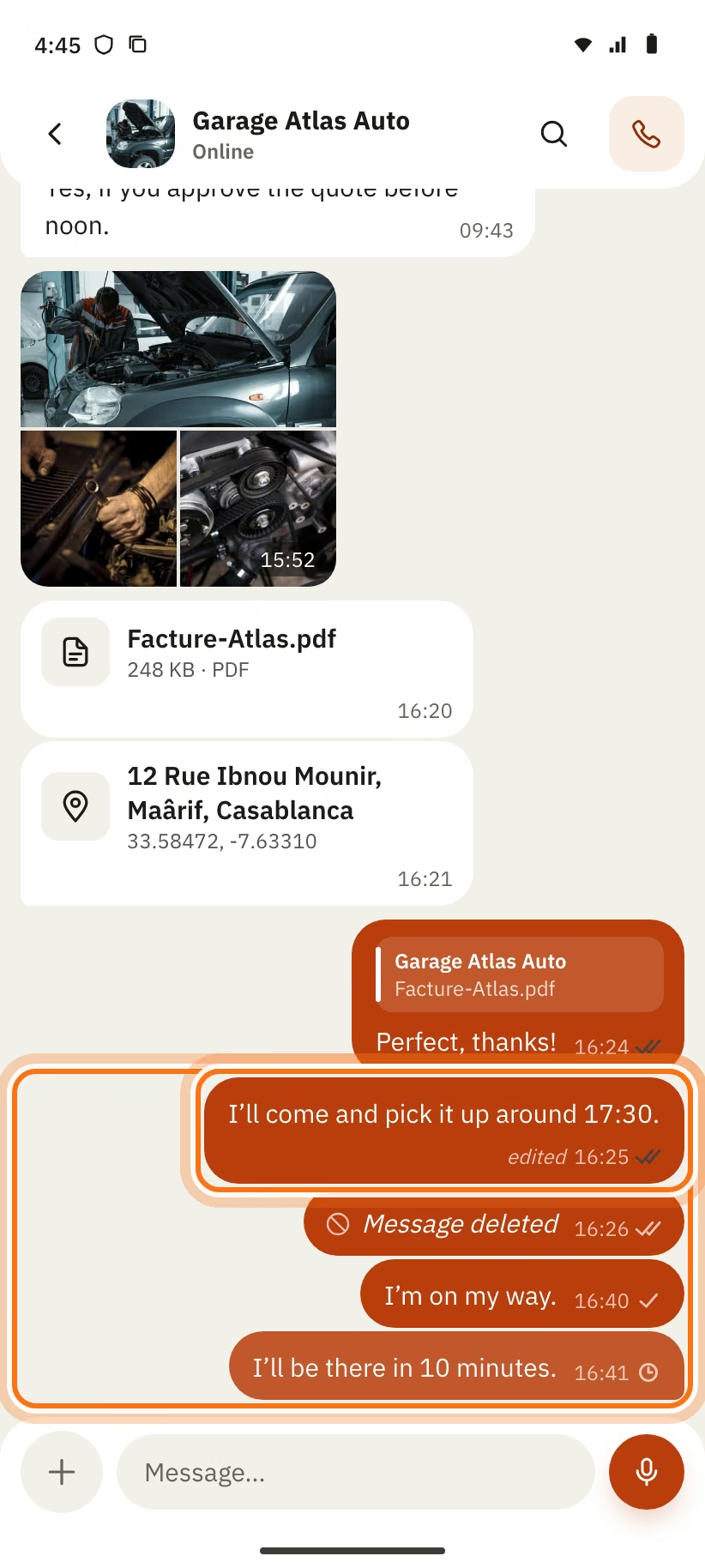
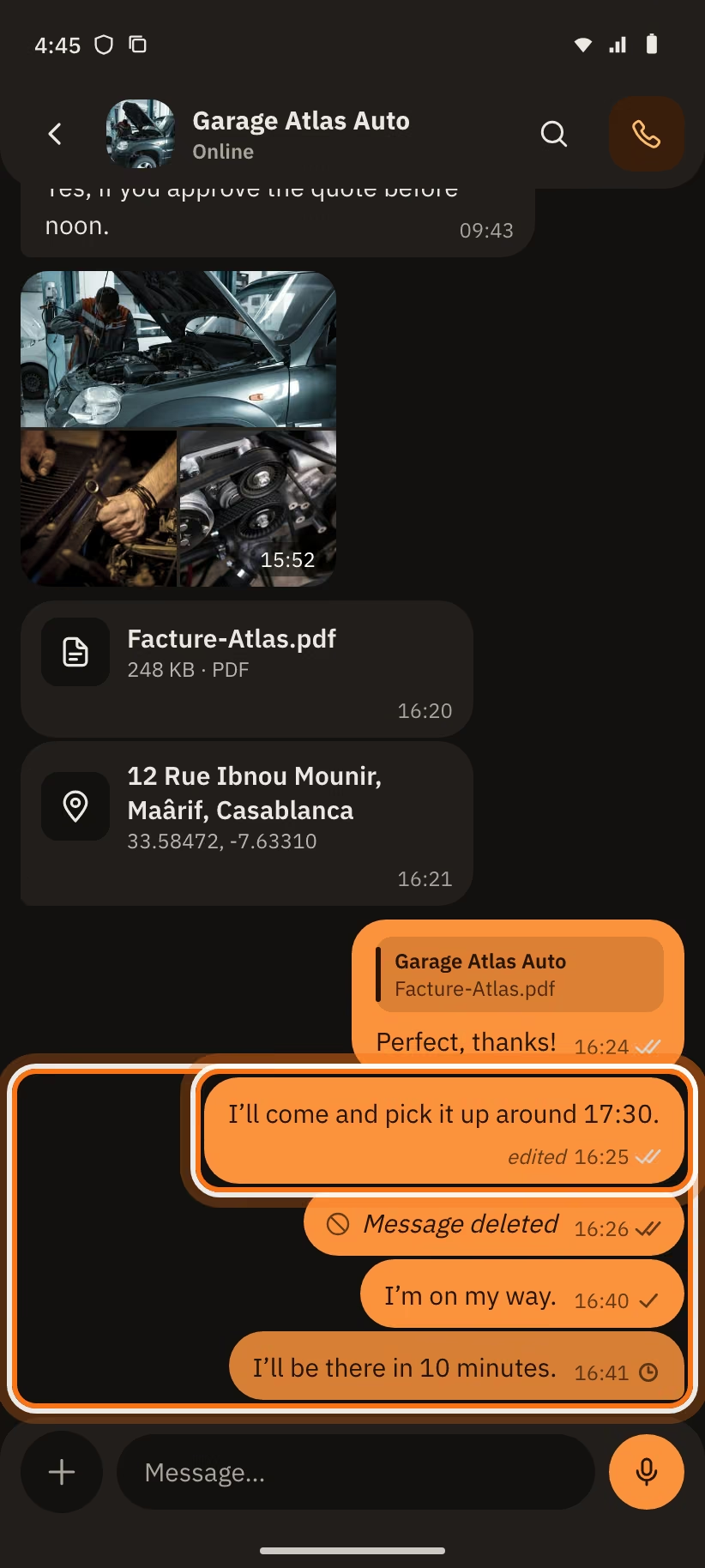
Under the client's name, you see "typing…", "Online", "Last seen at 14:32", "Last seen yesterday at 14:32", "Last seen 12 Oct" or "Last seen recently" (after more than 7 days).
The chat closes. At once if the request is declined or cancelled. Seven days after "Done". The bar says "This request is closed · you can't write any more". A message sent too late does not go.
Your team
A mechanic does not have the same rights as the owner.
| Action | Mechanic | Owner |
|---|---|---|
| See requests and jobs | Yes | Yes |
| Car received, diagnosis, ready, handed over | Yes | Yes |
| Accept, "Other time", "Decline" | No | Yes |
| "Propose a new appointment" | No | Yes |
| Edit the garage profile | No | Yes |
| See the "Stats" | No | Yes |
| Invite or remove someone | No | Yes |
| "Reminder if unanswered" | No | Yes |
Invite a mechanic.
- In "My garage", section "Team", tap "Invite a mechanic by number".
- Enter their number.
- Pick the "Role": "Mechanic" or "Owner". An owner can change everything, including removing others. Keep this role for a partner.
- Tap "Send the invitation". WhatsApp opens with a link.
WhatsApp does not open? The app shows the link. Tap "Copy link" or "Share the link" and send it yourself.
The person opens the link. They sign in with the invited number, then tap "Join the team". A person can be in one garage only: "Leave it before joining a new one". They use another number? They sign out in "Profile", then open the link again with the right number.
In the "Team" list:
- an invitation shows "Invited · pending";
- tap "Cancel the invitation": the link stops working;
- tap "Remove from the team": the person loses access to the requests and the jobs.
Your stats
Stats are for the owner. A mechanic sees "Stats are for the owner".
- In "My garage", tap "Stats · October". You can also tap "Stats" in "History".
- Pick the period: "7 d", "30 d" or "All".
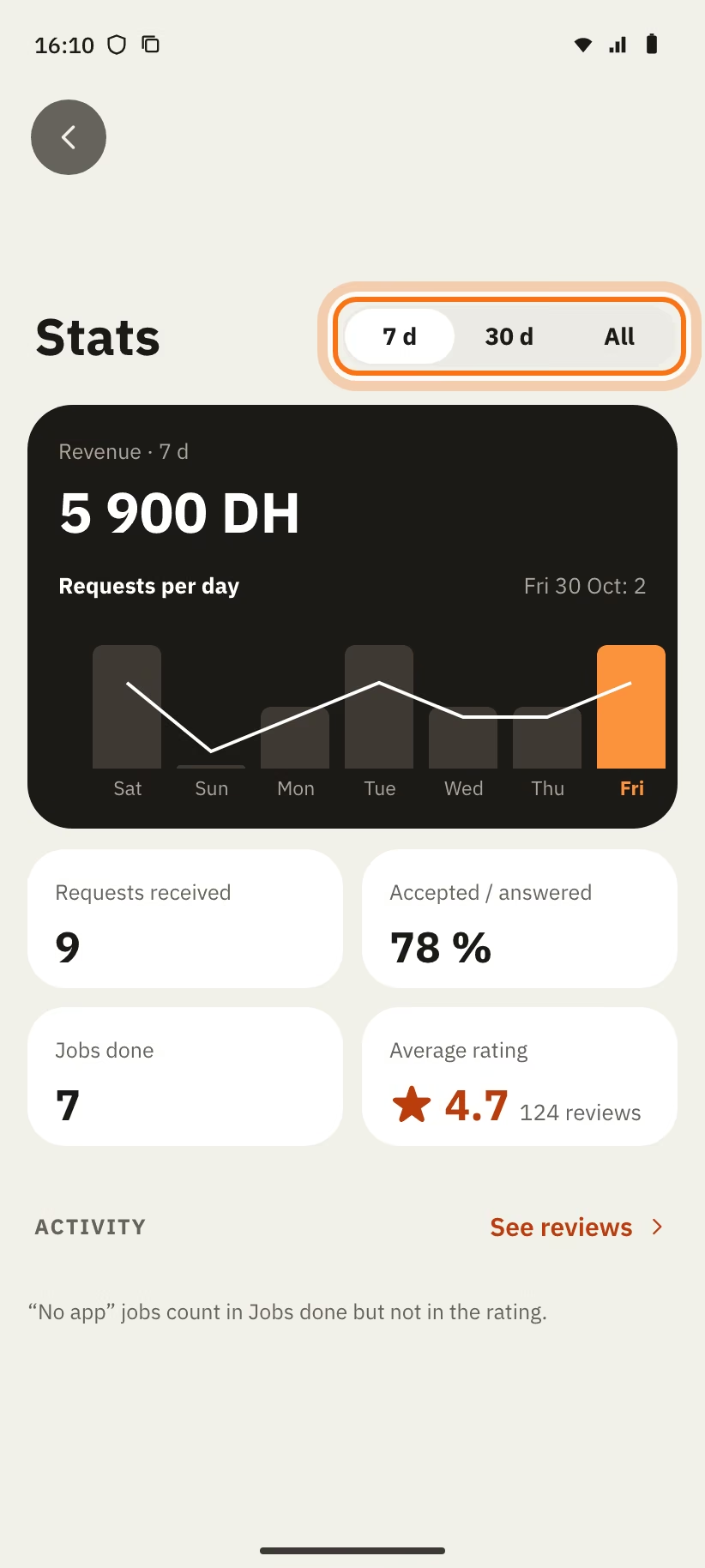
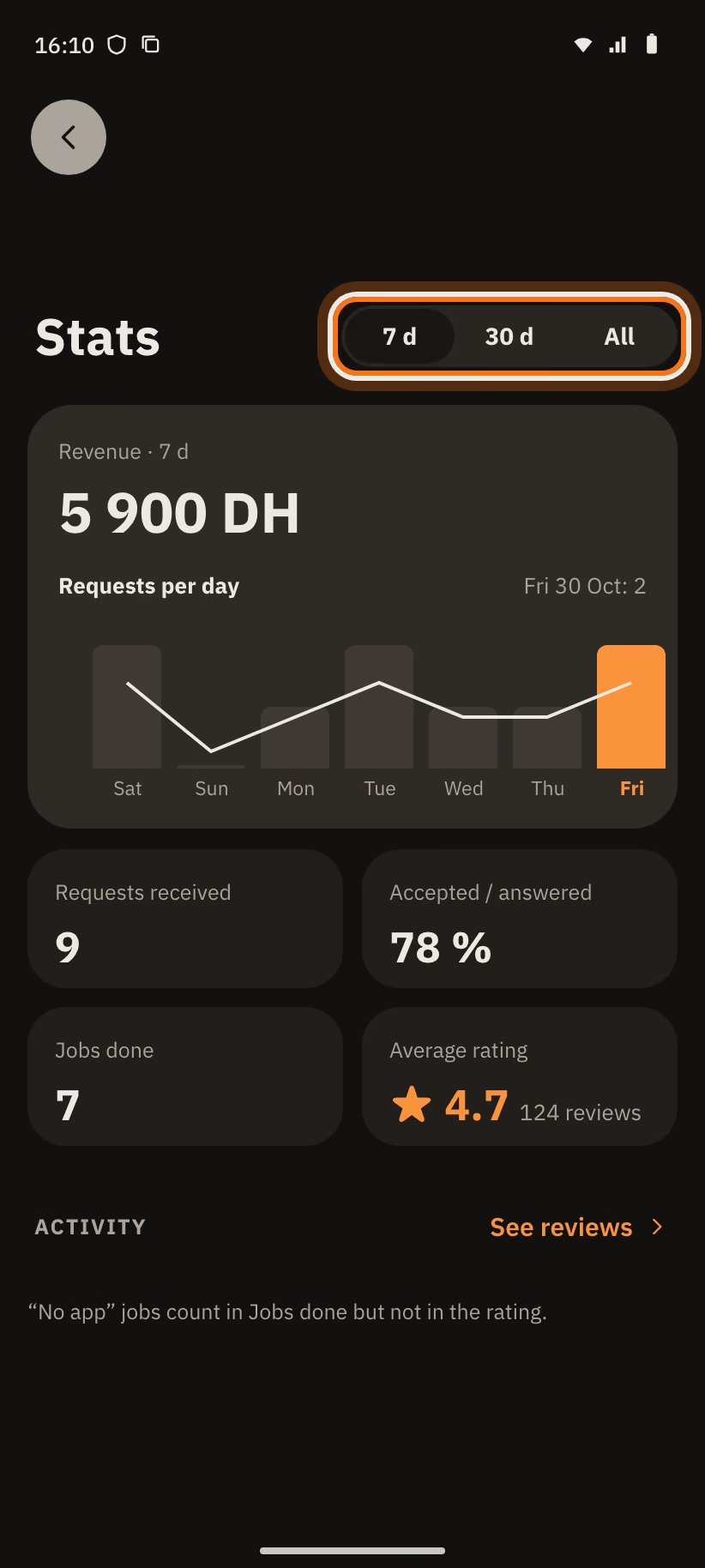
You see:
- "Revenue · 7 d";
- "Requests per day" (the curve);
- "Requests received";
- "Accepted / answered";
- "Jobs done";
- "Average rating".
"No app" jobs count in "Jobs done", but not in the rating.
Reviews and replies
Clients are asked to rate after every job done in the app. In "My garage", tap "Reviews".
Reply.
- Tap "Reply".
- Write your "Your public reply…".
- Tap "Publish the reply".
You get one reply per review, with no edits.
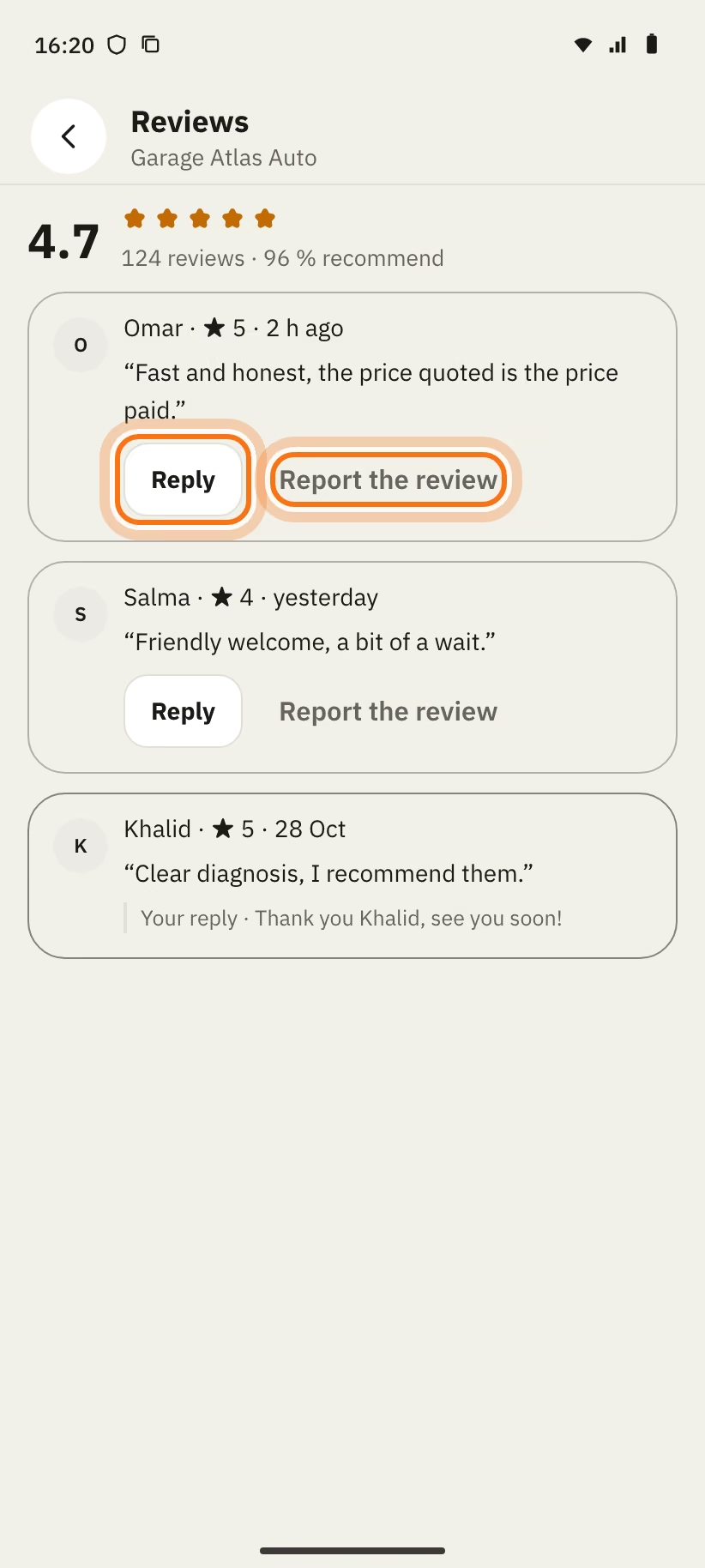
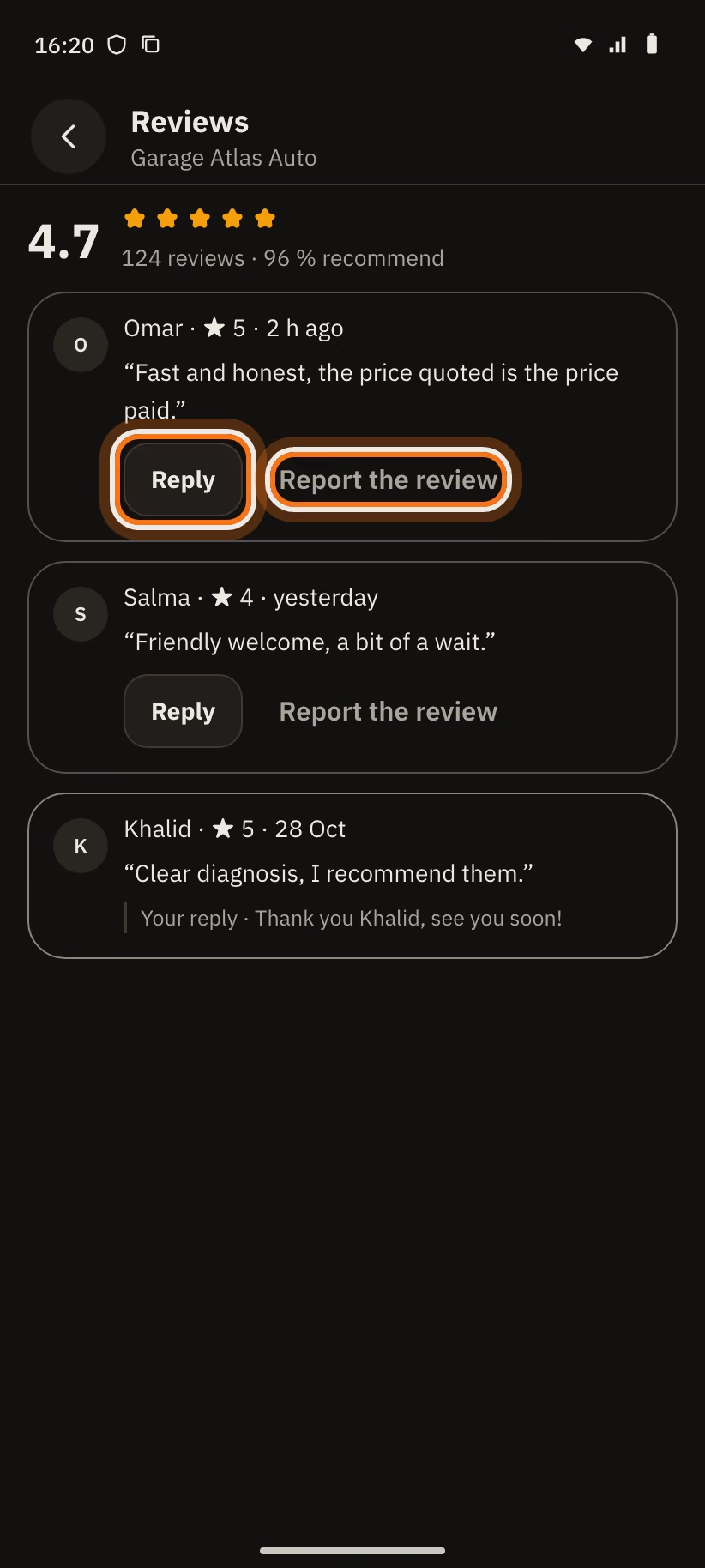
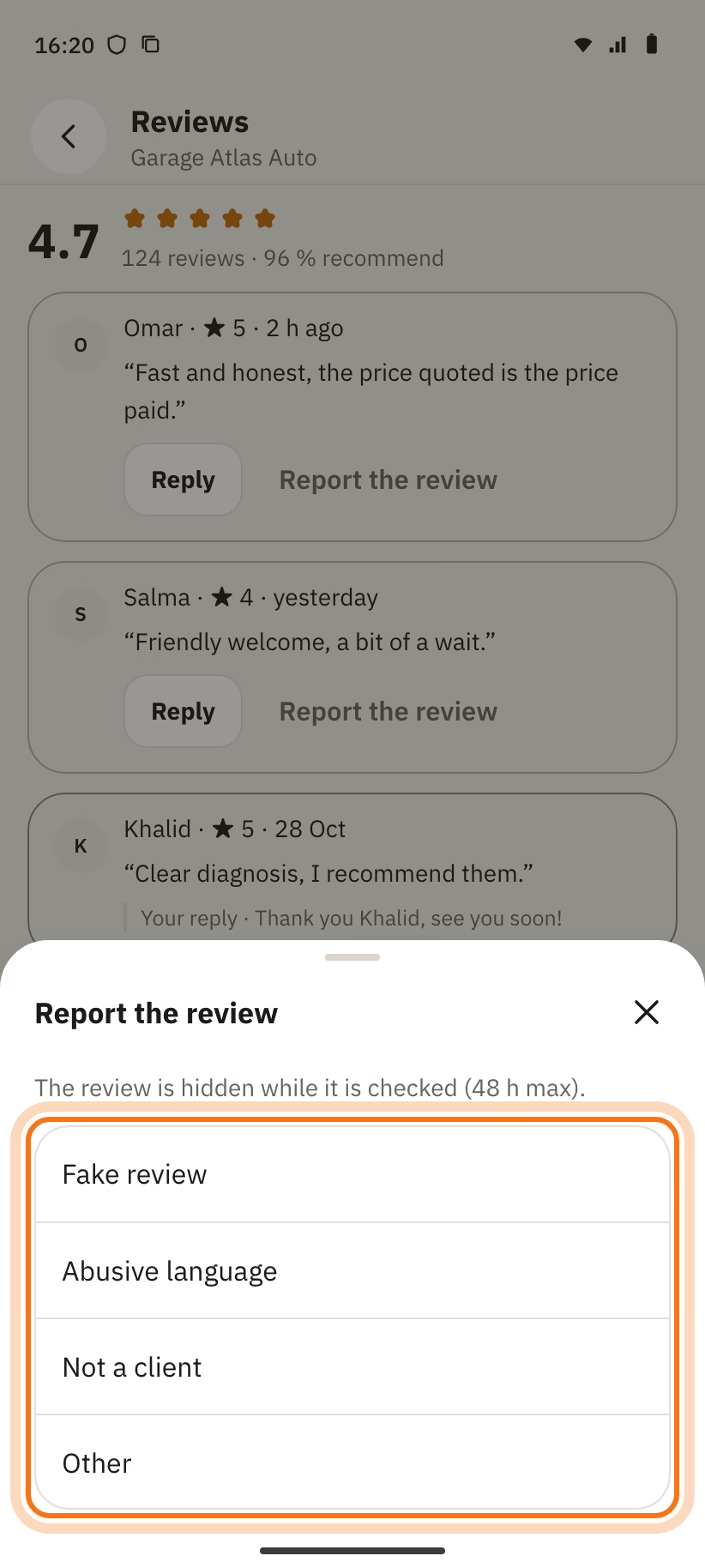
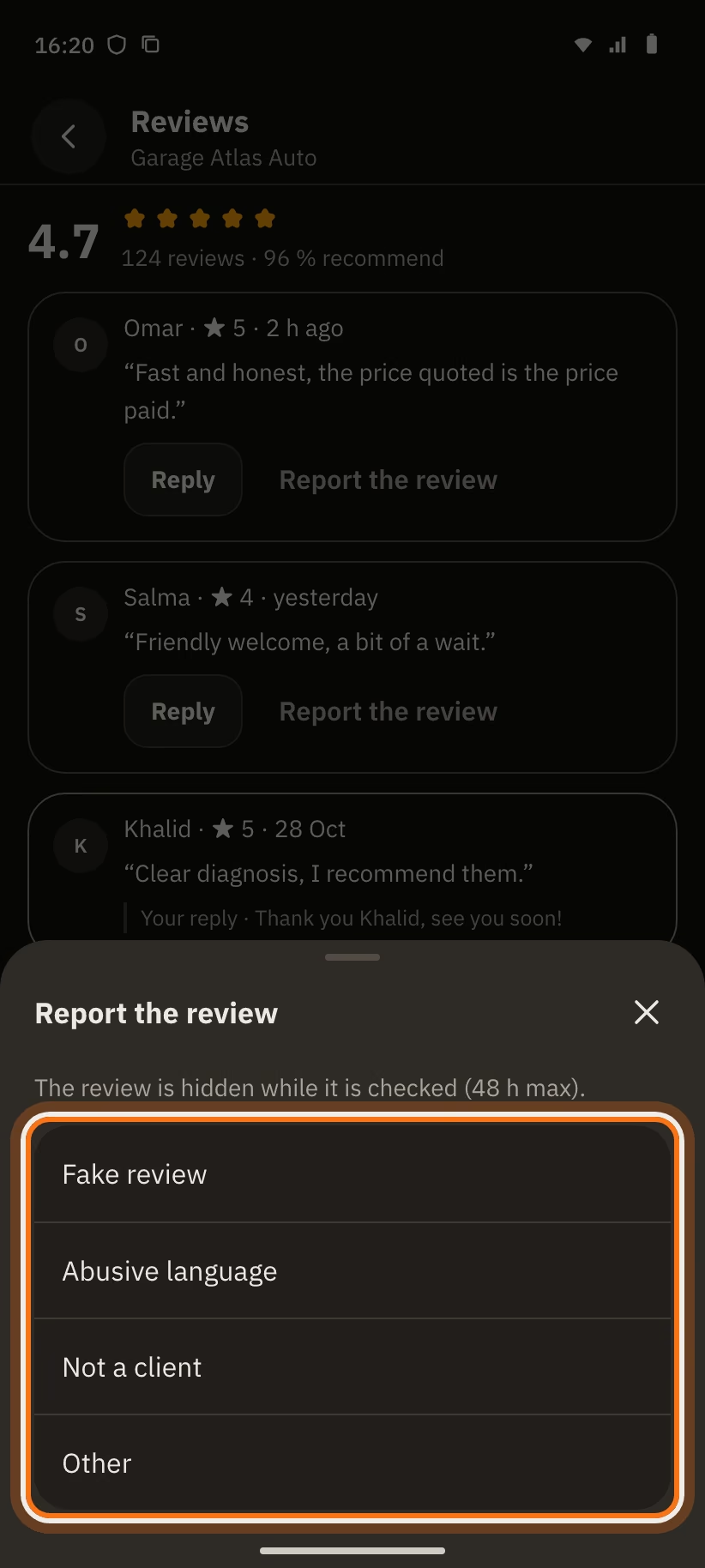
Report a review. Tap "Report the review" and pick a reason: "Abusive language", "Fake review", "Not a client" or "Other". The message "Review reported" shows. The review gets the badge "Reported · under review" and stays hidden while it is checked (48 h at most).
History
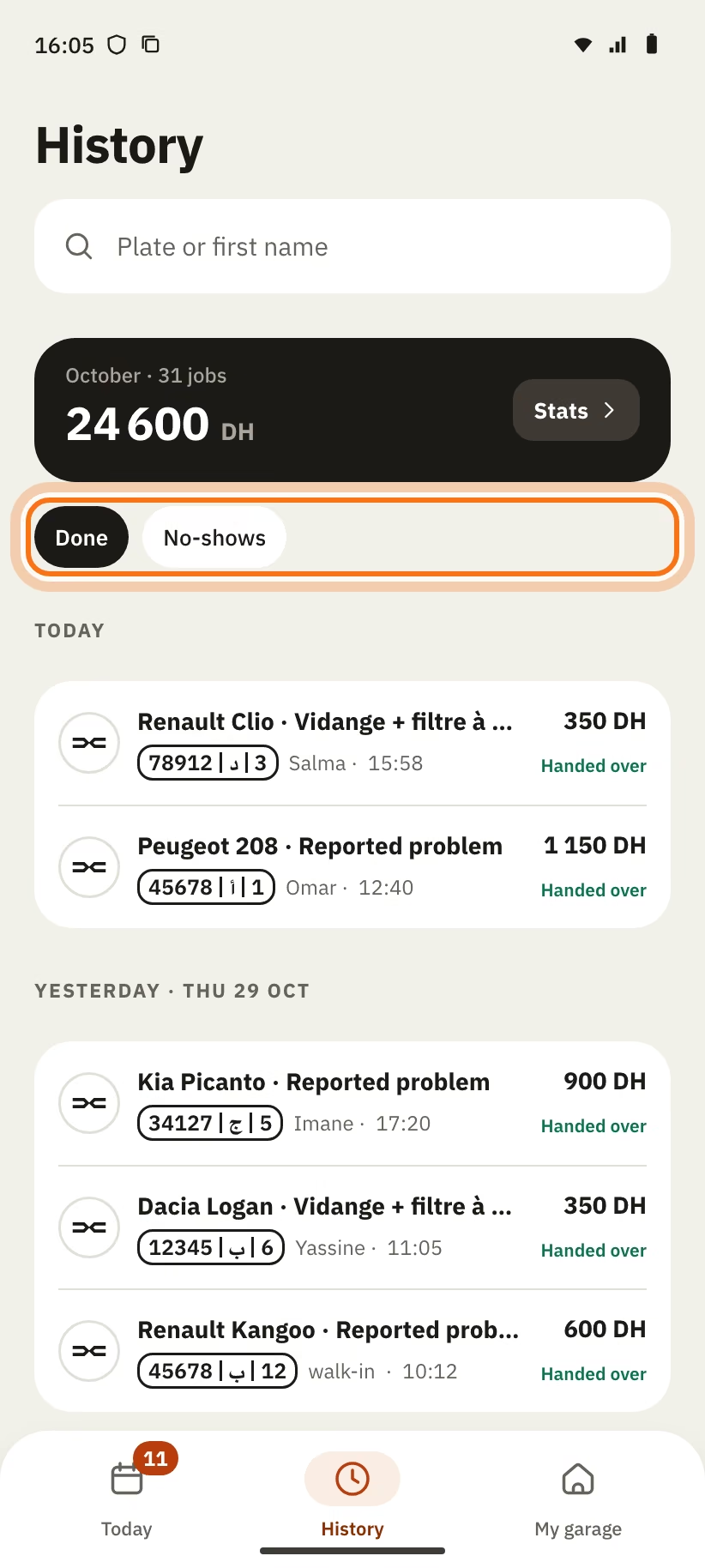
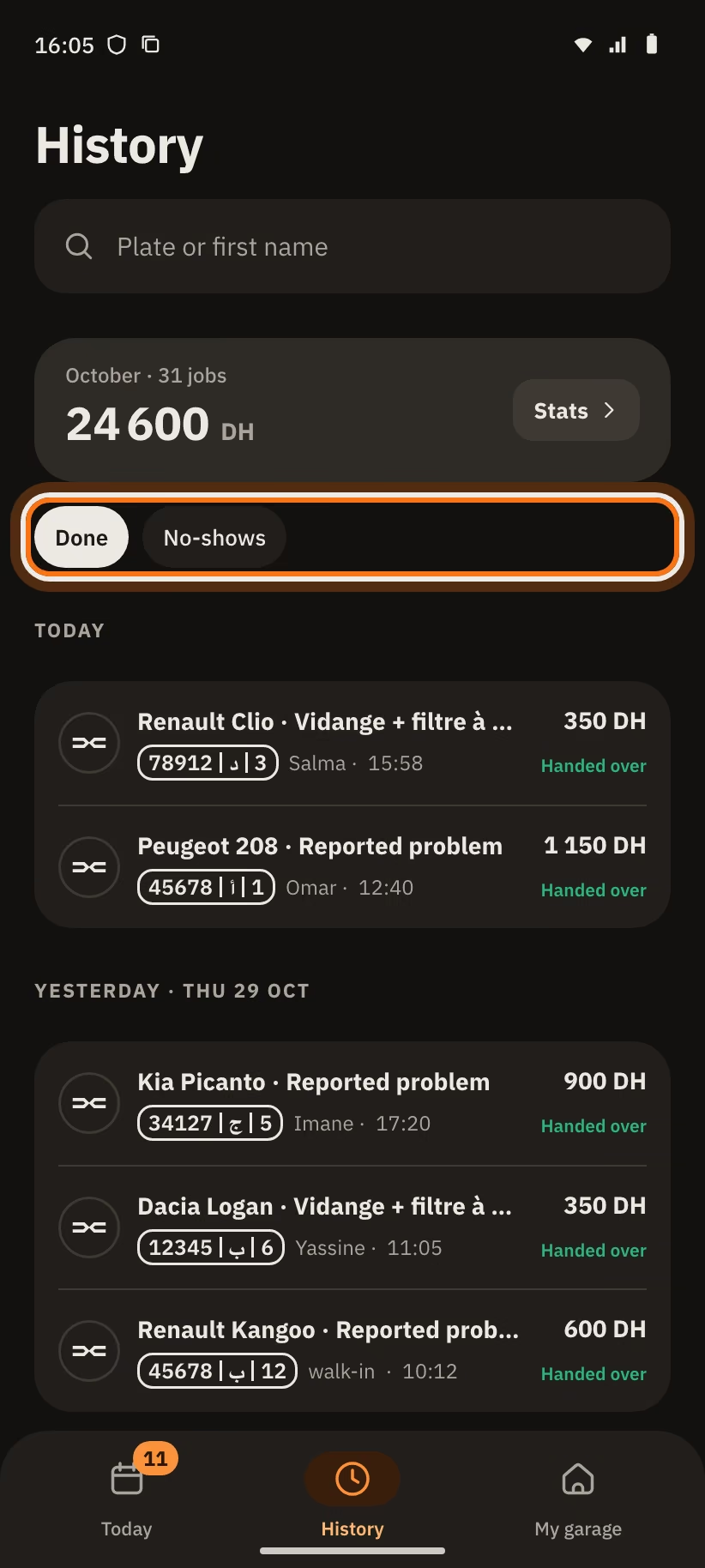
The "History" tab shows finished jobs and clients who did not come. Rows are grouped by day. Tap a row to open the job page.
- The month card shows the number of jobs and the amount, with the "Stats" link.
- Search with "Plate or first name".
- Filters: "Done" (row "Handed over") and "No-shows" (row "No-show").
Declined or cancelled requests are not in this list. If the list is empty, the app says "Nothing in the history yet".
Claims on a car
You saved a car "without the app". The real owner can claim it in their app. In "My garage", section "Activity", tap "Claims".
- Read the claim: the client says this car is theirs.
- Tap "Accept": the app asks "Hand the car over?". The car and its history move to the client's account.
- Or tap "Decline".
With no answer in 7 days, the claim is declined. With no claim, the screen says "No claims".
Availability and opening hours
At the top of "My garage", the switch "Garage open to requests" shows where you stand: "Open today", "Outside hours · taking requests" or "Temporarily closed".
- Switch it off to close for a few days.
- Switch it on to open again.
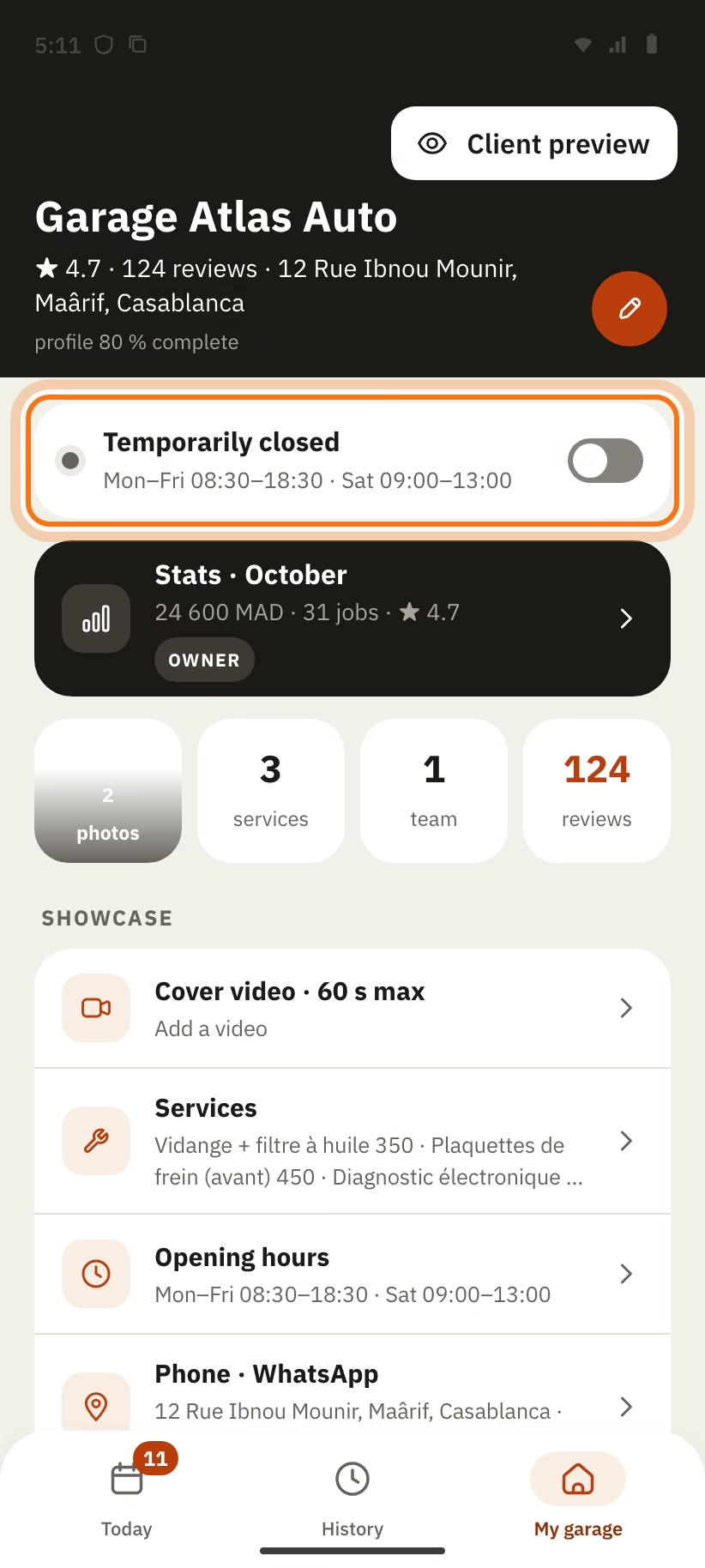
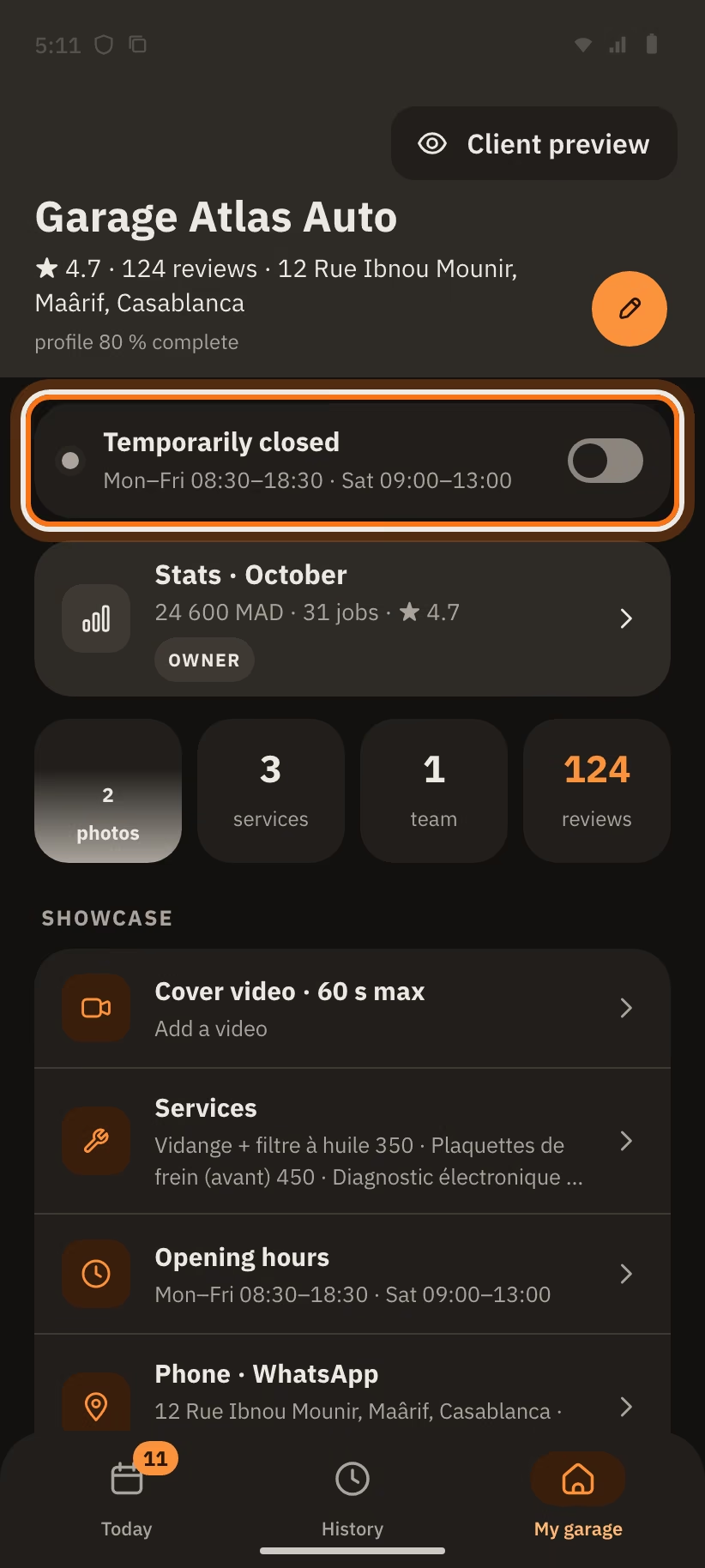
When temporarily closed: "Garage temporarily closed · hidden from Find, ongoing requests stay active". The header of "Today" also says "Temporarily closed".
To change your hours, open "Showcase", then "Opening hours". For each day, change the hours or the open / closed switch, then tap "Save". Clients only see slots inside these hours.
Notifications
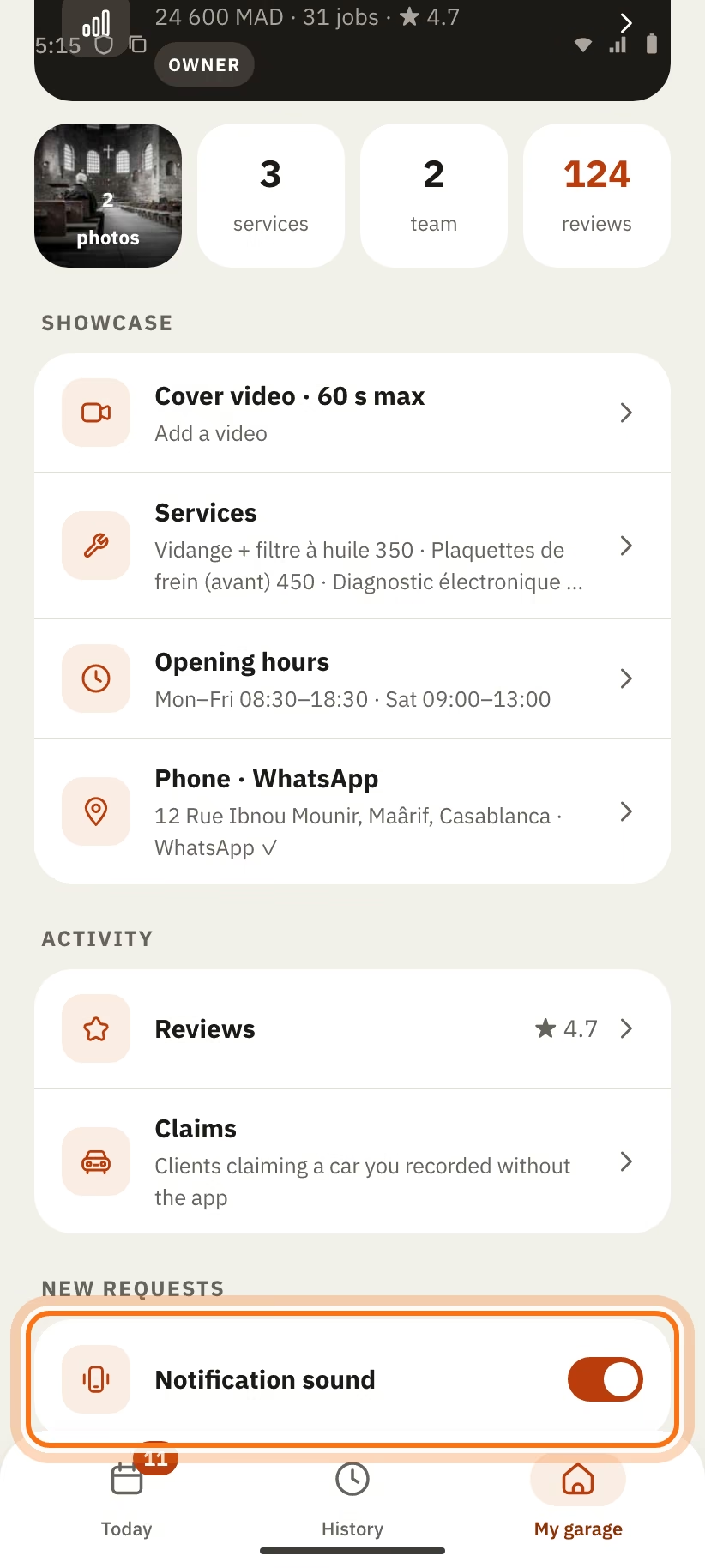
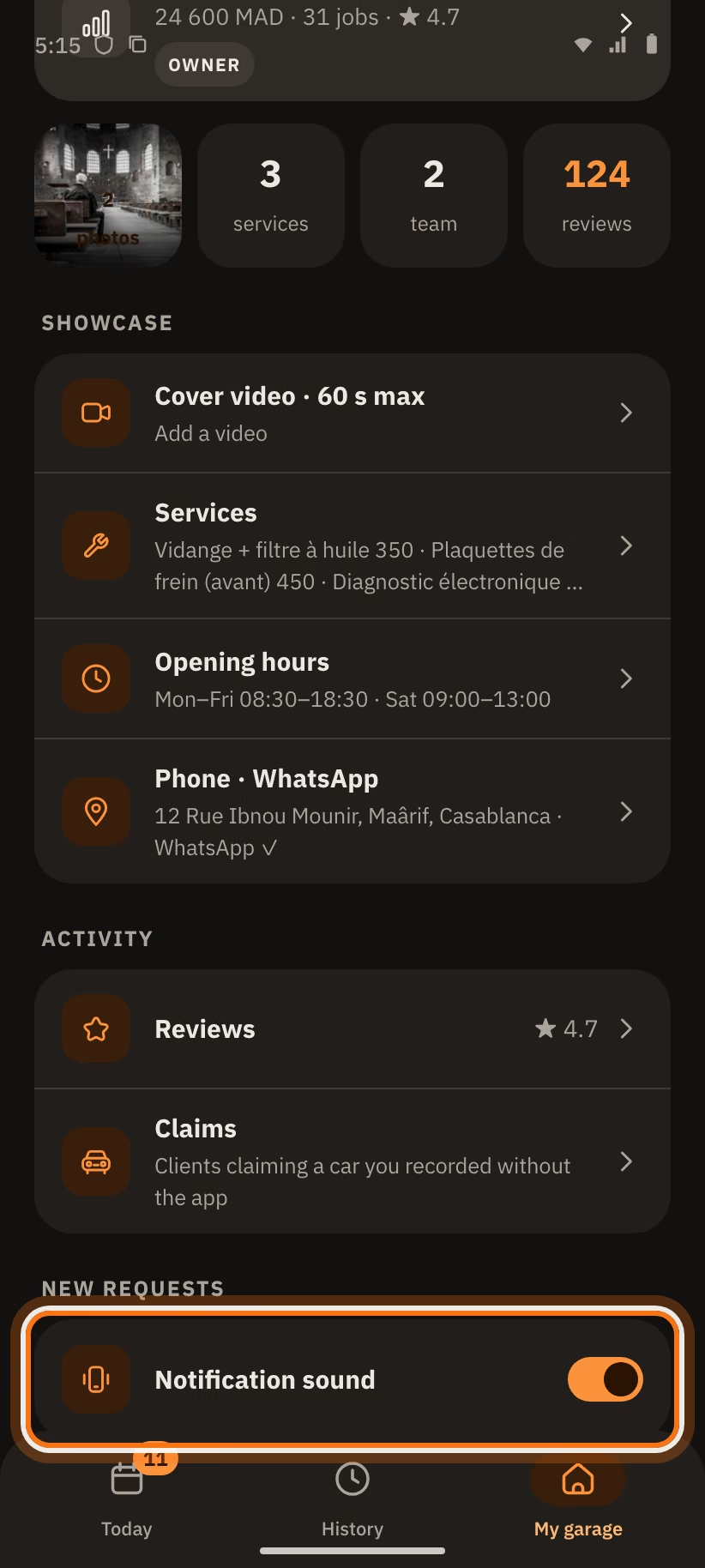
In "My garage", section "New requests":
- "Notification sound": turns the sound on or off.
- "Reminder if unanswered" (owner): pick "after 2 h", "after 4 h", "after 8 h" or "after 24 h". You get a reminder if a new request stays unanswered.
- "Quiet hours": pick a "From" time and a "To" time. During these hours, notifications wait. By default: "Off".
You get a notification for: a new request, a confirmed appointment, a client who arrived, an answer to a diagnosis, a message, a review and a claim. The bell at the top of "Today" keeps them. Tap "Read all" to mark everything as read.
Section "Account", at the bottom of "My garage": "Language", "Appearance", "Font", "Help and feedback", "Privacy · Terms", "Back to the client view" and "Sign out".
Delete your account
In "My garage", tap "Delete the account" at the bottom of the screen. Type SUPPRIMER to confirm. You have the same account on the client side: it is deleted too.
You are the last owner? Your garage is closed:
- it leaves the search results and gets no new requests;
- unanswered requests are declined and upcoming appointments are cancelled;
- clients are told.
You come back within 30 days? The garage stays closed until you reopen it in the settings.
All the details: Delete your Mechanico account.